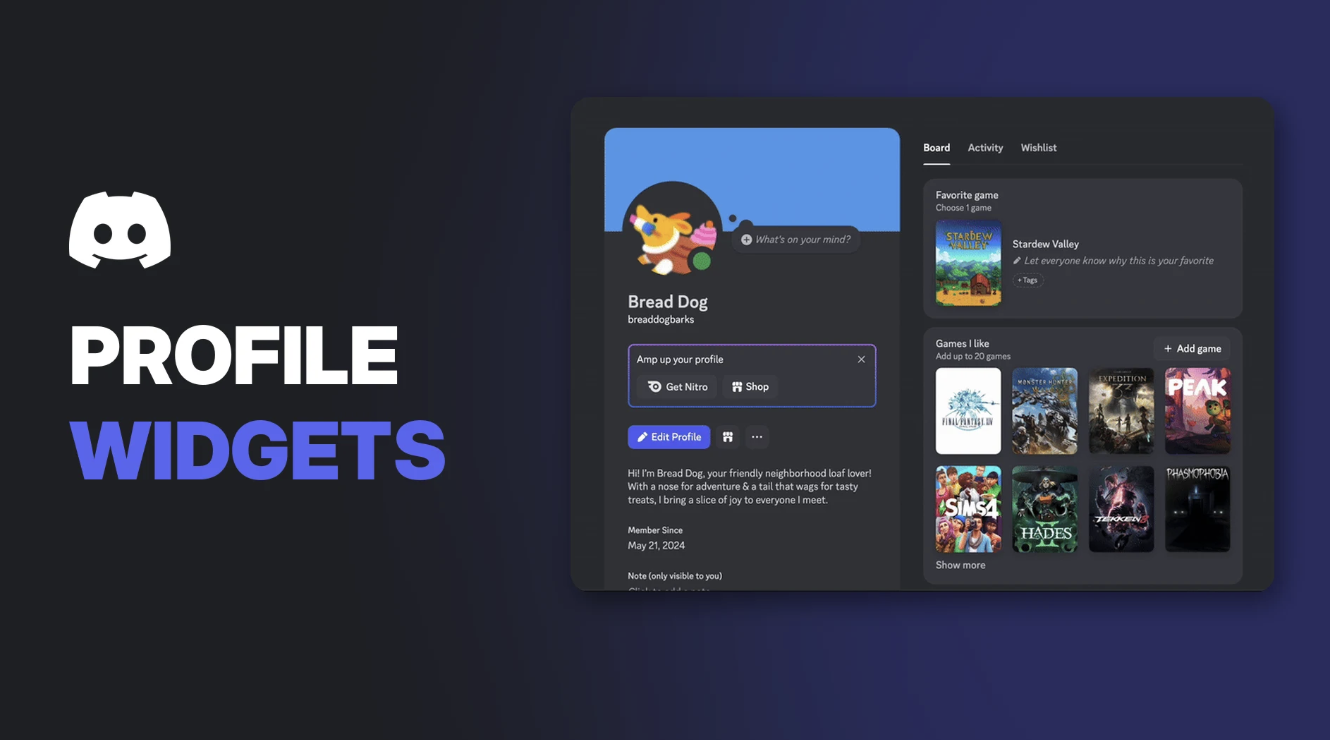

Discord Profile Widgets are customisable sections on your Profile Board, the part of your Discord profile where you show off your interests. Discord describes them as a way to "showcase your interests to other users."
Most widgets are about games. You can feature your favourite game, list what you're playing now, build a wishlist and, for some games, show live stats. This page explains every widget type, how to add and manage them, and who can see them.
Key Information
| Detail | Summary |
|---|---|
| Where they appear | Your Profile Board, on your Discord profile |
| Widget types | Favorite Game, Currently Playing, Want to Play, Games I've Played, Game Stats |
| Limit | One widget of each type |
| Platforms | Desktop and browser only |
| Cost | No Nitro requirement listed by Discord |
| Who can see them | Anyone who can view your profile |
The 5 Widget Types
| Widget | What it shows | Limit |
|---|---|---|
| Favorite Game | Your all-time favourite game, with an optional short note on why | 1 game |
| Currently Playing | Games you're playing now, with optional tags about how you play | Up to 5 games |
| Want to Play | Your gaming wishlist | Up to 20 games |
| Games I've Played | Your gaming history | Up to 20 games |
| Game Stats | Live stats and achievements from supported games | Supported games only |
A Profile Board with widgets added. Image: Discord.
You pick games from Discord's database. If a game is missing, Discord says it's "actively expanding" the list.
Game Stats Widgets
Game Stats widgets show real in-game stats on your profile. According to Discord, they currently work with games such as:
- Marvel Rivals
- Wuthering Waves
- Arknights: Endfield
When you add one, Discord asks you to link your game account. You may be sent to a web page to pick a character to display. After that, the widget updates automatically with your stats.
Choosing a Game Stats widget. Image: Discord.
A Marvel Rivals Game Stats widget. Image: Discord.
How to Add Discord Profile Widgets
Widgets can only be added on desktop or browser. There are two ways.
From your Profile Board
- Select your avatar in the bottom-left corner of Discord, then select it again to open your profile.
- Choose a widget and select Add game in the top-right corner. You can also pick from Suggested for you.
- Select Save.
An empty Profile Board, ready for widgets. Image: Discord.
From User Settings
- Open User Settings (the cog icon).
- Go to the Profiles tab and scroll to Profile Widgets.
- Select Add Widgets.
- Choose a widget and select Add game.
- Select Save.
Managing Your Widgets
| Task | How to do it |
|---|---|
| Reorder widgets | Hold and drag a widget to a new spot |
| Remove one game | Hover over the game and select the Remove Game icon |
| Remove a whole widget | Open the widget's menu icon and select Remove Widget, then confirm |
You can feature the same game in more than one widget. For example, a game can be both your Favorite Game and in Currently Playing.
Who Can See Your Widgets?
Your widgets are visible to anyone who can view your Discord profile, including friends and people in mutual servers.
A few limits to know:
- You can't hide individual widgets from specific people. Visibility follows your general profile privacy.
- Widgets don't show on mobile, for you or anyone viewing your profile.
- Widgets don't update from your live activity. Except for Game Stats, they show lists you choose yourself. Your real-time playing status appears in the Activity tab instead.
To control who can see your profile and activity, see our Discord privacy settings guide.
Troubleshooting
| Problem | Likely cause and fix |
|---|---|
| Can't find widgets on your phone | Widgets are desktop and browser only |
| Can't find a game | Not every game is in Discord's database yet |
| Can't add a second Favorite Game | You can only have one widget of each type |
| Game Stats widget not updating | Make sure your game account is linked |
| Friend can't see your widgets | They may be on mobile, which doesn't show widgets |
Frequently Asked Questions
What are Discord Profile Widgets?
Customisable sections on your Profile Board that show your favourite game, current games, wishlist, gaming history and, for some games, live stats.
Do I need Nitro for Discord Profile Widgets?
No. Discord's help article doesn't list widgets as a Nitro perk.
How many widgets can I add?
One of each type.
Do Discord Profile Widgets work on mobile?
No. They can only be added and viewed on desktop and browser.
Which games support Game Stats widgets?
Discord lists games such as Marvel Rivals, Wuthering Waves and Arknights: Endfield.
Summary
Discord Profile Widgets turn your profile into a mini gaming card: a favourite game, what you're playing, a wishlist and, for supported games, live stats. Discord lists no Nitro requirement, but they only work on desktop and browser.
Want to make your profile stand out even more? See our guides to Discord nameplates and how to get Discord badges.
Sources
- Profile Widgets FAQ, Discord Help Center
Comments
Sign in to join the conversation
Sign inNo comments yet
Be the first to share your thoughts!