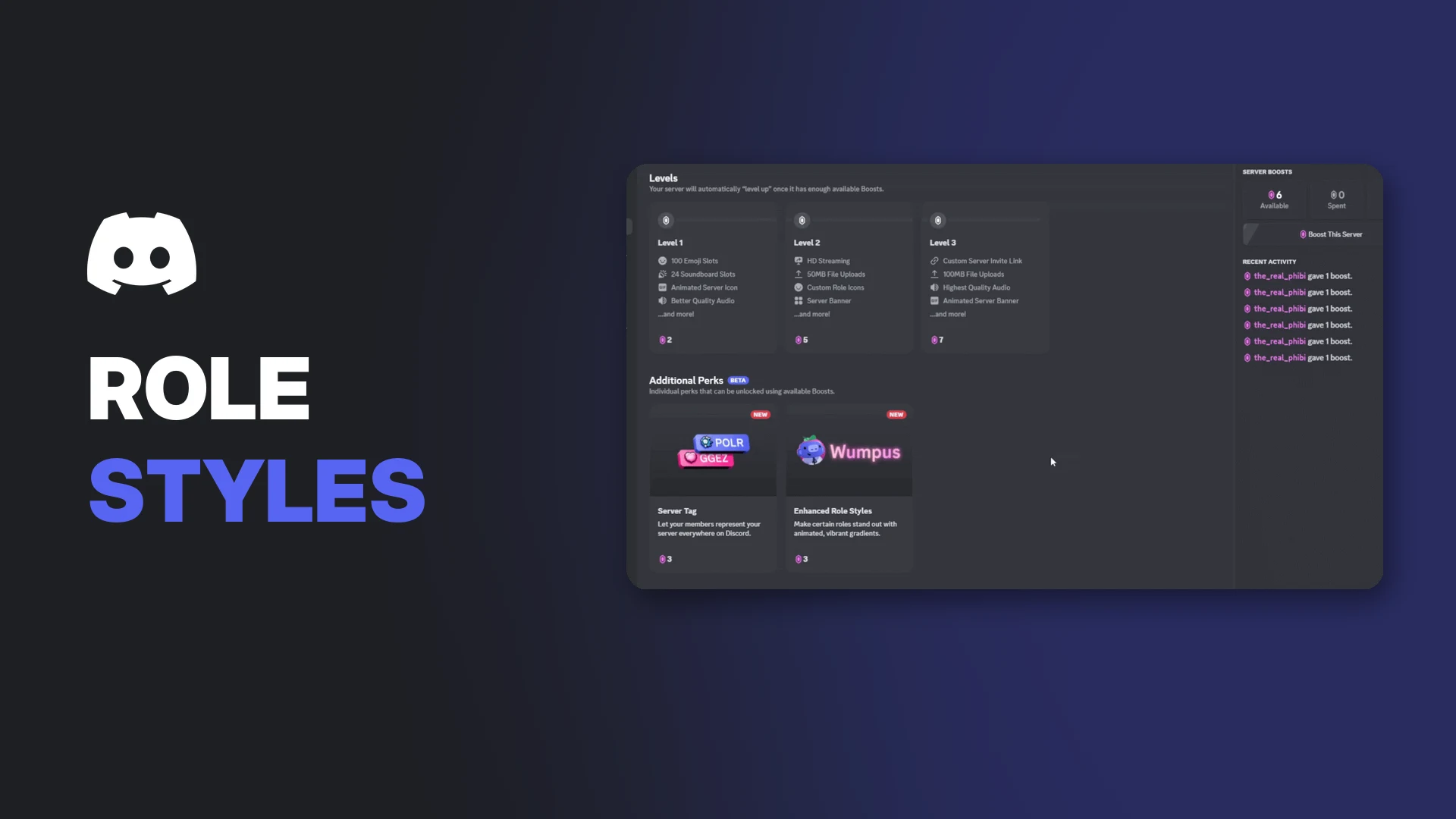

Discord Enhanced Role Styles let you give server roles a gradient or holographic colour instead of a single solid one. Discord says they help "make important roles stand out more in your community."
They're one of Discord's Additional Perks, unlocked with Server Boosts but separate from your Boost Level. This page explains how to unlock them, set them up, manage Boosts, and turn off the animation if it bothers you.
Key Information
| Detail | Summary |
|---|---|
| What it does | Gives roles a gradient or holographic colour |
| Styles | Solid, Gradient, Holographic |
| Cost to unlock | 3 Server Boosts |
| Boost Level needed | None, it's a separate Additional Perk |
| Who can set it up | Server owners and admins |
| Where to edit | Desktop and browser only |
| Who can see it | Everyone, including on mobile |
| Roles per server | Unlimited once unlocked |
What Are Discord Enhanced Role Styles?
Normally, a Discord role has one solid colour. With Enhanced Role Styles, admins can choose:
- Solid: the standard single colour
- Gradient: a blend of two colours you pick, or a preset
- Holographic: a shimmering, animated effect
A holographic role style. Image: Discord.
They work with all other role features, including role icons, and look good in both dark and light mode, according to Discord.
How to Unlock Enhanced Role Styles
Enhanced Role Styles cost 3 Server Boosts. These Boosts are separate from the ones that count toward your Boost Level.
- Select your server, then open the Server Boosts tab in the top-left. Only owners and admins can see it.
- Check how many Boosts are available in the top-right.
- Hover over Enhanced Role Styles and select Enable Perk.
Enhanced Role Styles under Additional Perks in the Server Boosts tab. Image: Discord.
Additional Perks can only be bought and managed on desktop.
How to Set Up a Gradient or Holographic Role
- Select your server name in the top-left and open Server Settings.
- Select Roles.
- Create a new role, or hover over an existing one and select the pencil icon.
- Under Role Style, choose Solid, Gradient or Holographic.
- For Gradient, pick two colours or choose from the presets.
- Select Save Changes.
Choosing a role style. Image: Discord.
Picking gradient colours. Image: Discord.
You can switch any role between gradient and holographic as often as you like without spending more Boosts.
New to roles? Our Discord roles and permissions guide explains how to plan your role hierarchy.
Boost Levels vs Additional Perks
Discord now has two ways to spend Boosts:
| Boost Levels | Additional Perks | |
|---|---|---|
| Examples | Emoji slots, upload size, audio quality | Enhanced Role Styles, Server Tags |
| How they unlock | Reach a Boost Level | Spend Boosts on one perk directly |
| Cost | Depends on the level | 3 Boosts each |
| Share Boosts? | No, Boosts are allocated to one or the other | No |
Important: Boosts used for a perk don't count toward your Boost Level. If you want Enhanced Role Styles and want to keep your current level, you need 3 extra Boosts. Both Enhanced Role Styles and Server Tags together cost 6 Boosts.
Owners and admins can move Boosts between levels and perks in the Server Boosts tab. To learn what each level gives you, see our Discord Boost guide.
What Happens If You Lose Boosts?
Perks need an ongoing allocation of Boosts. If your server drops below 3 Boosts for this perk:
- Enhanced Role Styles turn off.
- Gradient and holographic roles revert to solid, using the primary colour of their style.
Server owners and admins can choose which perks to keep if Boosts drop.
How to Turn Off the Animation
If the holographic shimmer is distracting, any member can turn it off for themselves:
- Open User Settings (the cog next to your username).
- Select Accessibility.
- Turn on Enable Reduced Motion.
Enable Reduced Motion in Accessibility settings. Image: Discord.
Troubleshooting
| Problem | Likely cause and fix |
|---|---|
| Can't unlock the perk | Your Boosts are allocated to your Boost Level. You need 3 unallocated Boosts and admin permissions |
| No Role Style option | You're on mobile. Edit roles on desktop or browser |
| Some members see a solid colour | They're on an outdated Discord version. Ask them to update |
| Roles suddenly went solid | The server lost the Boosts for the perk |
| Want to stop the animation | Turn on Reduced Motion in Accessibility |
| A member wants gradient roles | Only admins can enable it, but members can Boost to add more Boosts |
Frequently Asked Questions
What are Discord Enhanced Role Styles?
An Additional Perk that lets server admins give roles a gradient or animated holographic colour.
How much do Discord Enhanced Role Styles cost?
3 Server Boosts, separate from the Boosts that count toward your Boost Level.
Can I use gradient roles on every role?
Yes. Once unlocked, you can style as many roles as you want.
Do Enhanced Role Styles show on mobile?
Yes. Members see them on iOS and Android, but admins can only set them up on desktop or browser.
How do I stop holographic roles from moving?
Turn on Enable Reduced Motion in User Settings > Accessibility.
Summary
Discord Enhanced Role Styles add gradient and holographic colours to your roles for 3 Boosts, without touching your Boost Level. Unlock the perk in the Server Boosts tab on desktop, then pick a style for any role in Server Settings > Roles. Keep the Boosts allocated, or roles fall back to solid colours.
Pair it with a matching Server Tag for a stronger community identity. See our guide to making your Discord server look professional.
Comments
Sign in to join the conversation
Sign inNo comments yet
Be the first to share your thoughts!