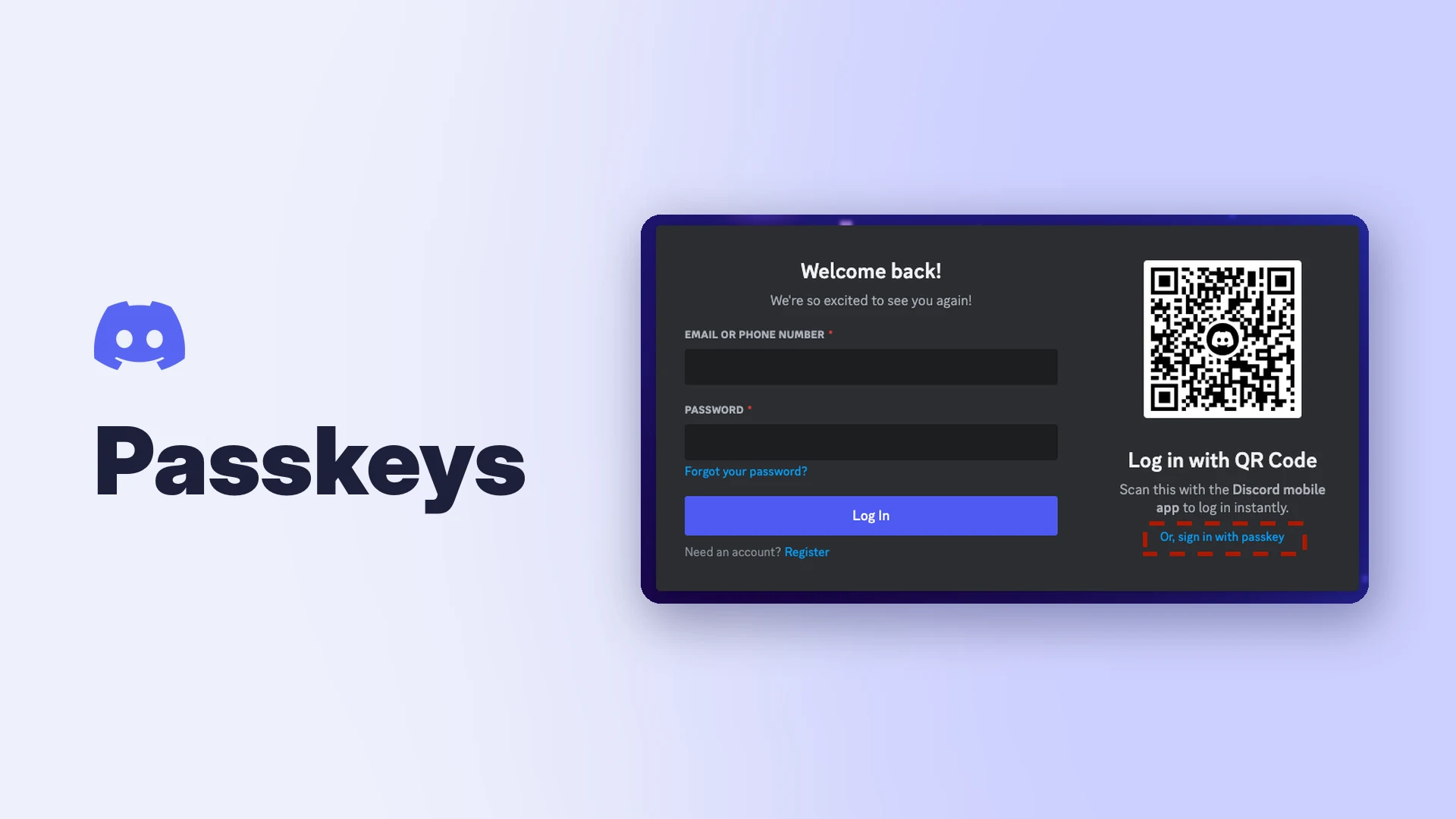

Discord passkeys are a way to sign in to Discord with your fingerprint, face or device screen lock instead of typing a password. They also work as multi-factor authentication (MFA), adding a second check when you log in.
Discord recommends them over every other MFA option. Its help centre calls passkeys "one of the best ways to protect your account" because they're simple to use and phishing resistant.
This guide explains what passkeys and security keys are, how to set them up on mobile and desktop, how to log in with one, and what to do if one stops working.
Key Facts
| Detail | What to know |
|---|---|
| What a passkey is | An encrypted digital key unlocked with your fingerprint, face or screen lock |
| Where it's stored | On your device or in a password manager, which can sync it to your other devices |
| Passwordless login | Yes, with a passkey |
| Security keys | Physical keys used as MFA; they generally can't do one-step login on Discord |
| Maximum keys | Up to 16 security keys and passkeys per account |
| Backup codes | Given after setup; Discord can't remove MFA for you if you lose them |
Passkeys vs Other Discord MFA Options
Discord supports three types of MFA. It recommends security keys and passkeys first.
| Method | How it works | Discord's view |
|---|---|---|
| Passkey or security key | Your device confirms it's you with a fingerprint, face or screen lock | Recommended; phishing resistant |
| Authenticator app | An app makes a new 6-digit code every 30 seconds | Solid, but anyone with your password and a fresh code can log in |
| SMS | Discord texts you a code | "Better than no MFA, but not by a lot," because of SIM swap attacks |
You can use any combination. SMS can only be turned on after an authenticator app is set up.
Requirements
- A device that supports passkeys, or a password manager that can store them.
- Your password, or an existing MFA code, to confirm it's you during setup.
How to Add Discord Passkeys on Mobile
- Tap your avatar in the bottom-right corner, then the cogwheel in the top-right.
- Tap Account, then Security Keys.
- Tap Add. You may need to confirm your password or complete an MFA check.
- Your device asks where to save the passkey. Choose your password manager, or tap Other Options for more choices.
- Give the key a name, then tap Finish.
- Download and store your backup codes.
Security Keys in Discord's mobile Account settings. Image: Discord.
How to Add a Passkey on Desktop or Browser
- Select the cogwheel next to your username to open User Settings. You'll land on My Account.
- Find the Password and Authentication section.
- Select Register a Security Key and confirm your password.
- Select Let's go. Your operating system will prompt you to create the passkey.
- Save the backup codes Discord shows you.
Register a Security Key under Password and Authentication. Image: Discord.
You can repeat this on other devices. Discord allows up to 16 passkeys and security keys on one account.
How to Log In With a Passkey
If your password manager has your Discord passkey, the login screen will usually prompt you to use it. If it doesn't, select Or, sign in with passkey.
Your device then asks you to confirm with your fingerprint, face or screen lock, and you're in.
The passkey option on Discord's login screen. Image: Discord.
Security keys work differently
A physical security key generally can't be used for one-step login on Discord. Instead, enter your email and password as usual, then select Authenticate with security key when Discord asks for your second step.
Backup Codes
After you set up any MFA, Discord gives you a list of backup codes. Each one works once and lets you log in if you lose your phone, laptop or key.
- Store them in a password manager, or print them and keep them somewhere safe.
- Discord's support team can't remove MFA from your account, so without these codes you could be locked out for good.
- To see them again, go to User Settings > My Account and select View Backup Codes.
Troubleshooting a Passkey That Won't Work
- Try logging in with your email and password, then use the passkey at the MFA step.
- If that fails, keep your backup codes ready.
- Delete the Discord passkey from your password manager.
- Log in using another MFA method or a backup code.
- Go to Account Settings and register a new passkey.
- Delete the old passkey from your Discord account.
Following these steps keeps your remaining backup codes working.
Limitations
Passkeys protect your login. They can't help if malware on your PC steals a session that's already logged in. Infostealers such as the newly reported VOLTA malware take Discord tokens directly, which can get around login checks.
Keep your PC clean, don't run files from strangers, and if you suspect an infection, reset your password and check Authorized Apps from a device you trust. Our guide to the fake giveaway epidemic covers the scams that spread these files.
Frequently Asked Questions
What are Discord passkeys?
Discord passkeys are encrypted keys that let you log in with your fingerprint, face or screen lock instead of a password. They also count as multi-factor authentication.
Are passkeys safer than an authenticator app?
Discord recommends passkeys first because they're phishing resistant. With an authenticator app, anyone who gets your password and a fresh code can log in.
Can I use a passkey on more than one device?
Yes. A password manager can sync it, and you can register up to 16 passkeys and security keys.
What if I lose the device with my passkey?
Log in with another MFA method or a backup code, then register a new passkey and delete the old one.
Can Discord support remove MFA from my account?
No. That's why saving your backup codes is essential.
Summary
Discord passkeys are the safest way to sign in to Discord, and Discord recommends them over authenticator apps and SMS. Add one under Account > Security Keys on mobile or Password and Authentication on desktop, save your backup codes, and register a second device so you're never locked out. For more account protection, see our Discord privacy settings guide.
Comments
Sign in to join the conversation
Sign inNo comments yet
Be the first to share your thoughts!