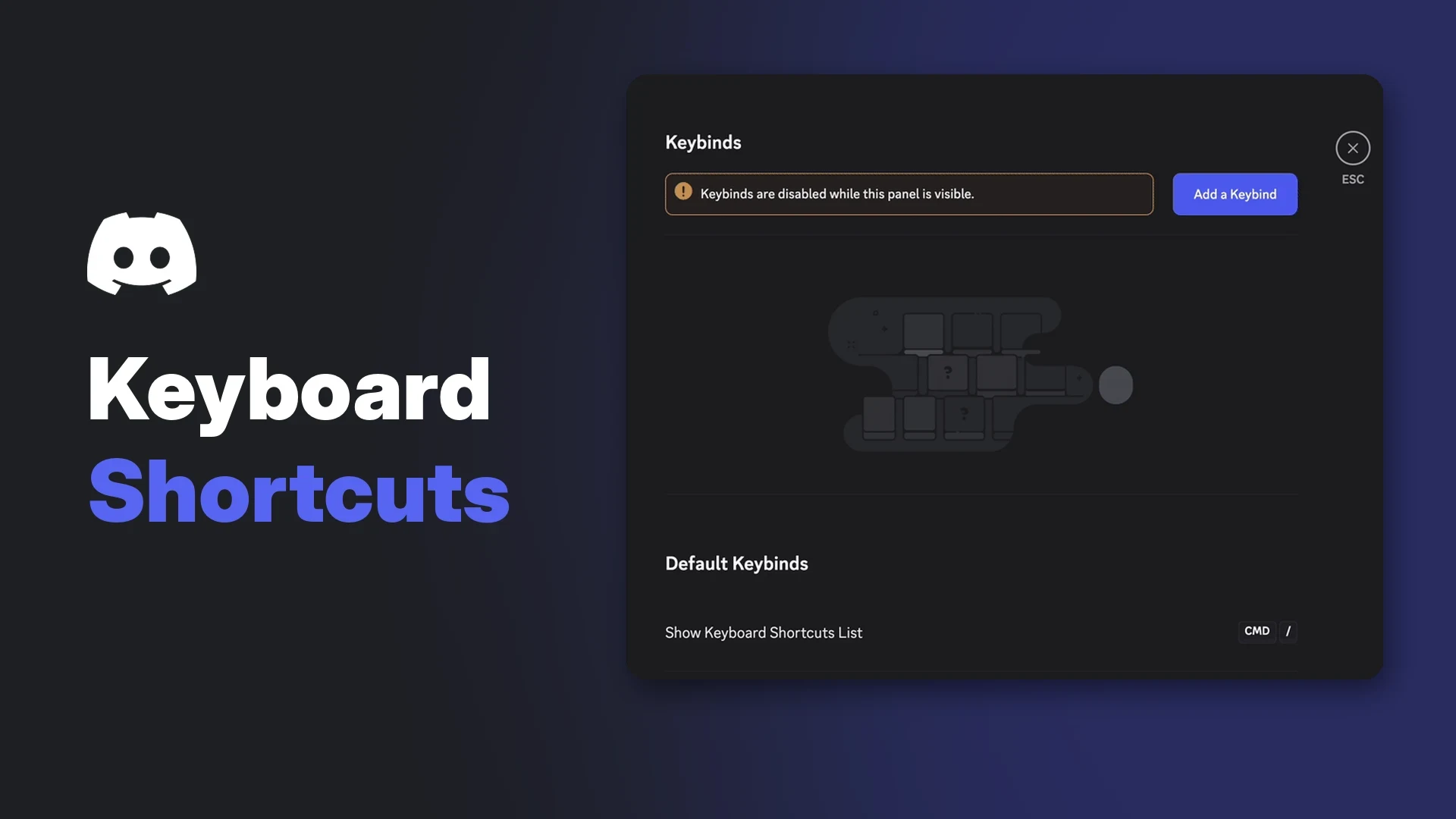

Discord keyboard shortcuts let you move between servers, jump to unread channels, answer calls and mute your mic without touching the mouse. They work in the desktop app and in the browser version, and Discord lists them in a built-in menu you can open at any time.
This wiki collects the shortcuts Discord documents in its help centre for Windows and Mac, grouped by task. It also covers custom keybinds, push-to-talk and mute binds, and the most common reasons a keybind stops working.
Some of Discord's own lists disagree with each other, because they were written years apart. Where that happens, this guide says so and points you to the in-app list as the final word.
At a glance - Open the shortcut list: Ctrl + / on Windows, ⌘ + / on Mac. - Where shortcuts work: desktop app and browser. Not on mobile. - Custom keybinds: User Settings > Keybinds > Add a Keybind. Desktop app only. - Voice: Ctrl/⌘ + Shift + M toggles mute, Ctrl/⌘ + Shift + D toggles deafen. - Games not hearing your push-to-talk key? If the game runs as administrator, run Discord as administrator too. - New in October 2026: Shift-click a GIF in the GIF Picker to insert its link instead of sending it.
⌨️ How to Open the Discord Keyboard Shortcuts List
The fastest reference is already inside Discord. Press Ctrl + / on Windows or ⌘ + / on Mac and the Keyboard Shortcuts menu opens over the app.
The same list now lives in User Settings > Keybinds, under a heading called Default Keybinds. Discord's Keyboard Navigation FAQ points there as the place to find everything that is available.
The Keybinds page, with Discord's default shortcuts listed below your custom ones. Image: Discord.
Because Discord updates its client often, the in-app list is the most reliable source if a combination below does not behave as described.
🧭 Navigation Shortcuts
These move you around servers, channels and the app itself.
| Action | Windows | Mac |
|---|---|---|
| Open the Keyboard Shortcuts menu | Ctrl + / | ⌘ + / |
| Open User Settings | Ctrl + , | ⌘ + , |
| Quick Switcher (find a channel, server or DM) | Ctrl + K | ⌘ + K |
| Move between servers | Ctrl + Alt + Up/Down | ⌘ + ⌥ + Up/Down |
| Move between channels | Alt + Up/Down | ⌥ + Up/Down |
| Move between unread channels | Alt + Shift + Up/Down | ⌥ + Shift + Up/Down |
| Move between unread channels with mentions | Ctrl + Shift + Alt + Up/Down | ⌘ + Shift + ⌥ + Up/Down |
| Return to the active voice channel | Ctrl + Alt + A | ⌘ + ⌥ + A |
| Navigate back | Alt + Left | Alt + Left |
| Create or join a server | Ctrl + Shift + N | ⌘ + Shift + N |
| Create a private group | Ctrl + Shift + T | ⌘ + Shift + T |
| Get help | Ctrl + Shift + H | ⌘ + Shift + H |
Discord's full Windows chart, published with its original hotkey article, groups these by task.
Discord's Windows hotkey chart. Some entries have changed since it was made. Image: Discord.
💬 Message and Chat Shortcuts
These cover reading, searching and writing in a channel.
| Action | Windows | Mac |
|---|---|---|
| Focus the message box | Tab | Tab |
| Mark channel as read (or cancel a message) | Esc | Esc |
| Mark server as read | Shift + Esc | Shift + Esc |
| Scroll chat up or down | Page Up / Page Down | Page Up / Page Down |
| Jump to the oldest unread message | Shift + Page Up | Shift + Page Up |
| Browse channel history | Ctrl + Up/Down | ⌘ + Up/Down |
| Search the current channel | Ctrl + F | ⌘ + F |
| Search all channels | Ctrl + Shift + F | ⌘ + Shift + F |
| Open the emoji picker | Ctrl + E | ⌘ + E |
| Open the GIF picker | Ctrl + G | ⌘ + G |
| Toggle the pins popout | Ctrl + P | ⌘ + P |
| Toggle the channel member list | Ctrl + U | ⌘ + U |
| Upload a file | Ctrl + Shift + U | ⌘ + Shift + U |
| Bold / italic / underline selected text | Ctrl + B / I / U | ⌘ + B / I / U |
Search has more filters than a single shortcut can show, and our separate guide on searching Discord messages goes through them. For formatting beyond bold, italic and underline, the Discords.ai text formatter builds the markdown for you.
GIF Picker: Shift-click to insert a link
Discord's patch notes for 6 October 2026 added a small trick to the GIF Picker. Shift-clicking a GIF now places its URL in your message box instead of sending it straight away.
The GIF still embeds once you send the message, so you can add text around it first. The same patch notes say you can also right-click an image in the GIF Picker to copy its link.
🎧 Voice and Call Shortcuts
These work while you are in a voice channel, a DM call or a group call.
| Action | Windows | Mac |
|---|---|---|
| Toggle mute | Ctrl + Shift + M | ⌘ + Shift + M |
| Toggle deafen | Ctrl + Shift + D | ⌘ + Shift + D |
| Answer an incoming call | Ctrl + Enter | ⌘ + Return |
| Decline an incoming call | Esc | Esc |
| Start a call in a DM or group | Ctrl + [ | Ctrl + ` |
The Mac chart shows the same layout with ⌘ (CMD) and ⌥ (OPT) in place of Ctrl and Alt.
Discord's macOS hotkey chart. Image: Discord.
♿ Keyboard Navigation Mode
Discord also supports full keyboard navigation in the desktop and browser apps. Press Tab to enter Keyboard Mode, and a blue focus ring shows which element is selected.
The blue focus ring marks the selected element. Image: Discord.
Tab moves through buttons and links. Arrow keys move through lists such as servers, channels, messages and menus, and Enter or Space activates the selected item.
Once a message has the focus ring, single keys act on it:
| Key | Action on the focused message |
|---|---|
| Q | Quote |
| + | Add a reaction |
| R | Reply |
| E | Edit |
| Backspace | Delete |
| P | Pin |
| Ctrl + C / Cmd + C | Copy the message text |
| Alt + Enter | Mark unread |
| Esc | Back to the message box |
Section jumping
F6 moves focus to the start of the next section, and Shift + F6 moves backwards. In a server, the sections are the server list, the channel list, messages and the member list.
The four sections F6 cycles through in a server. Image: Discord.
⚙️ Custom Keybinds in Settings > Keybinds
Custom keybinds let you assign your own keys to actions such as push-to-talk, mute or the game overlay. Discord says they only work in the desktop app, not in the browser or on mobile.
- Open User Settings with the cogwheel next to your avatar, or press Ctrl/⌘ + ,.
- Select the Keybinds tab.
- Click Add a Keybind.
- Choose an action from the Action dropdown.
- Click Record Keybind and press the key or combination you want.
- Use the toggle beside the keybind to switch it on or off.
The cogwheel opens User Settings. Image: Discord.
You can bind combinations such as Shift + Enter by pressing the keys together. Keybinds are paused while the Keybinds page is open, so close settings before you test one.
Actions documented in Discord's keybind guide include:
| Action | What it does |
|---|---|
| Push to Talk | Hold to send your mic while in Push to Talk mode |
| Push to Mute | Hold to silence your mic while in Voice Activity mode |
| Toggle Mute | Turn your mic on or off |
| Toggle Deafen | Turn incoming audio off (also mutes your mic) |
| Toggle VAD | Switch between Voice Activity and Push to Talk |
| Toggle Streamer Mode | Turn Streamer Mode on or off |
| Toggle Overlay | Show or hide the in-game overlay |
| Toggle Overlay Lock | Lock or unlock the overlay in game |
The dropdown in the current app may show more options than this older list. Streamer Mode is handy if you go live, and our Discord streaming guide covers connecting Twitch, YouTube and Kick.
🎙️ Push-to-Talk and Mute Keybinds
Push-to-talk is set in two places. Under User Settings > Voice & Video, set Input Mode to Push to Talk and pick a shortcut key. You can also add extra push-to-talk keys from the Keybinds tab.
Push to Talk selected in Voice & Video, with Ctrl as the shortcut. Image: Discord.
If you prefer an open mic, Push to Mute does the reverse: hold it to cut your mic while Voice Activity is on. Toggle Mute and Toggle Deafen are better for long breaks.
We cover push-to-talk setup, release delay and sound cues in more depth in our dedicated push-to-talk guide.
🛠️ Troubleshooting Discord Keyboard Shortcuts
Most keybind problems come down to a handful of causes.
Keybinds not working in games (administrator mode)
Discord's help centre says that if a game runs as administrator on Windows, Discord must also run as administrator for push-to-talk to work.
- Fully close every open Discord window.
- Right-click the Discord shortcut.
- Choose Run as administrator.
- Open your game and test the key.
Running Discord as administrator from the shortcut menu. Image: Discord.
Discord's help article covers push-to-talk specifically. If other global keybinds fail in the same game, the same step is worth trying. If you play a lot, our guide to Discord Game Mode covers other in-game settings.
Keybinds not working in the browser
Custom keybinds are a desktop-only feature, so push-to-talk keys and other global binds will not work from a browser tab. The built-in shortcuts do work in the browser, though your browser may claim some combinations for its own functions first.
Other things to check
- The Keybinds page is still open. Discord disables keybinds while that panel is visible.
- The keybind is switched off. Each custom keybind has its own toggle.
- You are on mobile. Neither shortcuts nor custom keybinds work in the mobile apps.
- Two actions share a key. Pick a combination that no other keybind or app uses.
- Push to Mute still plays sounds. Discord's 6 October 2026 patch notes list a desktop fix for Push to Mute playing mute and deafen sounds when those sounds were turned off. Update the app if you still hear them.
🔍 Where Discord's Lists Disagree
Discord's original hotkey articles date from 2016, and its newer Commands, Shortcuts and Navigation Guide is from April 2025. A few entries do not match.
| Action | Older 2016 charts | 2025 guide | What to do |
|---|---|---|---|
| Move between servers (Windows) | Ctrl + Alt + Up/Down | Ctrl + Alt + Right/Left | Check Ctrl + / in your app |
| Toggle mentions popout (Windows) | Ctrl + I | Ctrl + Alt + @ | Ctrl + I is listed as italic in 2025 |
| Return to previous text channel | Ctrl + B or Alt + Right | Not listed | Ctrl + B is listed as bold in 2025 |
| Toggle channel member list | Ctrl + U | Ctrl + U (also listed for underline) | Check Ctrl + / in your app |
Discord has not published an explanation of these differences. Treat the in-app list as current.
❓ Frequently Asked Questions
What is the shortcut to see all Discord keyboard shortcuts?
Press Ctrl + / on Windows or ⌘ + / on Mac. The list is also under User Settings > Keybinds.
Do Discord keyboard shortcuts work on mobile?
No. Discord says shortcuts work in the desktop app and browser only, and custom keybinds work in the desktop app only.
How do I change a Discord keybind?
Go to User Settings > Keybinds, click Add a Keybind, choose an action and record your key. You can switch individual keybinds on and off.
Why does push-to-talk not work in my game?
The most common documented cause is the game running as administrator while Discord does not. Run Discord as administrator and try again.
How do I insert a GIF link without sending it?
Shift-click the GIF in the GIF Picker. Discord added this in its 6 October 2026 patch notes, and the GIF still embeds when you send the message.
Can I quickly jump to any channel?
Yes. Ctrl + K on Windows or ⌘ + K on Mac opens the Quick Switcher, where you can type a channel, server or DM name.
Summary
Discord keyboard shortcuts cover navigation, messages, voice and calls, and Ctrl + / (⌘ + / on Mac) shows the full list at any time. Custom keybinds live in User Settings > Keybinds and only work in the desktop app.
When a bind fails in a game, run Discord as administrator if the game is. Where Discord's older and newer lists disagree, trust what the app shows you.
Sources
- Discord Commands, Shortcuts, and Navigation Guide, Discord Help Centre.
- [Windows] Discord Hotkeys, Discord Help Centre.
- [macOS] Discord Hotkeys, Discord Help Centre.
- Keyboard Navigation FAQ, Discord Help Centre.
- How do I add different Keybinds?, Discord Help Centre.
- Voice Input Modes 101 (Push-to-Talk & Voice Activated), Discord Help Centre.
- How do I enable push-to-talk if I am running my game in administrator mode?, Discord Help Centre.
- Discord Patch Notes: October 6, 2026, Discord Blog.
Comments
Sign in to join the conversation
Sign inNo comments yet
Be the first to share your thoughts!