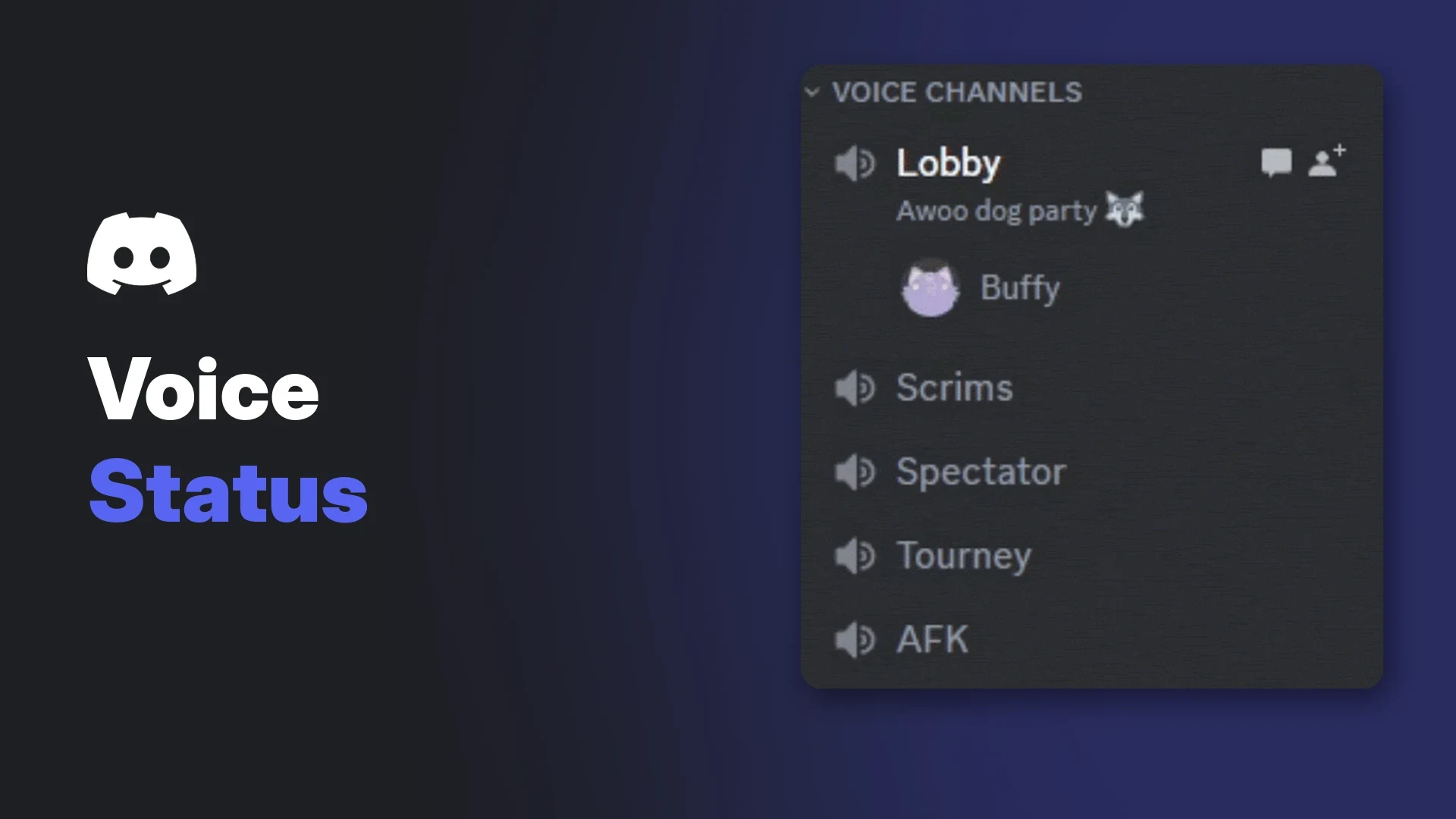

A Discord voice channel status is a short line of text that sits directly under a voice channel's name in the channel list. Members in the call use it to tell the rest of the server what is happening inside, such as "Ranked grind" or "Movie night", before anyone clicks to join.
This wiki covers what Discord documents about the feature: where the status appears, the permission that controls it, how to set and change it, the character limit, emoji support and the admin tools behind it. It draws on Discord's help centre and its developer documentation.
Some details, such as what happens to a status when everyone leaves, are not in Discord's official documentation. Those points are marked clearly instead of guessed.
At a glance - What it is: a short text line, with optional emoji, shown under a voice channel's name. - Who can set it: members with the Set Voice Channel Status permission who are connected to that voice channel. - How: join the channel, then click or tap Set a channel status under the channel name. - Length: Discord's developer docs allow up to 500 characters through the API. - Admins: control it per role in Server Settings, and status changes appear in the audit log. - Not documented: default role settings and whether a status clears when the channel empties.
🔊 What Is a Discord Voice Channel Status?
A voice channel status is a label for the current activity in a voice channel. It shows in the channel list under the channel name, above the list of connected members, so anyone browsing the server can see it.
Discord's help centre example shows a channel called Lobby with the status "Awoo dog party" and an emoji underneath. Anyone in the server who can see the channel can read the line without joining.
The status pop-up and the finished status under the Lobby channel. Image: Discord.
The status belongs to the channel, not to a person. It is separate from your personal custom status, which follows your profile across servers.
🔐 Who Can Set a Voice Channel Status?
Two things decide whether you can set a status:
- The permission. Your role needs the voice channel permission Discord shows as Set Voice Channel Status. The toggle's description says it lets members create and edit voice channel status.
- Being in the channel. Discord's help centre says anyone with the permission can set a status as long as they are in that voice channel.
The Set Voice Channel Status role permission. Image: Discord.
Discord's developer documentation adds more detail. A member who is already connected to the voice channel can set the status even without the Connect permission. Setting a status from outside the channel also needs Manage Channels, according to the developer docs for the API endpoint.
Default roles: Discord does not document whether @everyone or new roles have this permission switched on by default. Check your own role settings rather than assuming.
🛠️ How to Set a Voice Channel Status
Discord's help centre lists these steps:
- Open the server and join the voice channel you want to label.
- Look under the channel name in the channel list and select Set a channel status. On desktop, a small pencil icon sits next to it.
- A pop-up appears. Type your status in the Status box.
- Optionally, use the emoji button in the box to add an emoji.
- Select Set Status to save it, or Cancel to close without changes.
The status then appears under the channel name for everyone who can see the channel.
On desktop and mobile
The help centre article uses one set of steps and the word "tap", which suggests the same flow on mobile. Discord does not publish separate, platform-specific instructions or mobile screenshots for this feature, so the exact button placement in the iOS and Android apps is not documented.
✏️ Editing and Clearing a Status
To change a status, join the channel and open the same status prompt again, then type the new text and save. The permission description covers both creating and editing a status.
Discord's help centre does not describe a dedicated clear button. In the developer docs, the status field can be empty, and the audit log has separate entries for a status being set and a status being deleted. That confirms removal exists, but the exact in-app steps are not documented.
Auto-clear: many users expect the status to disappear when the last person leaves. Discord does not document this behaviour in its help centre or developer docs, so this guide cannot confirm it.
🔢 Character Limit and Emoji Support
| Detail | What Discord documents | Source |
|---|---|---|
| Maximum length | Up to 500 characters | Developer docs, Set Voice Channel Status endpoint |
| Emoji | Supported through the emoji button in the pop-up | Help centre |
| Custom server emoji | Not specifically documented | None |
| Limit inside the app | Not separately documented | None |
The 500-character figure comes from the API documentation. Discord does not state a separate limit for the in-app pop-up, and only the start of a long status may fit in the channel list. Short labels read best.
🎮 Using Discord Voice Channel Status for Events and LFG
A status turns a plain channel list into a live board of what each room is doing. Some practical patterns:
- Looking for group: "GTA VI heists, need 2" or "Ranked grind, Gold+ only" tells people whether to jump in.
- Events: "Community movie night, starts 9pm" helps late arrivals find the right room.
- Focus rooms: "Study session, mics muted" sets expectations before someone joins and starts talking.
- Scrims and tournaments: "Scrim vs Team Lemon" stops members wandering into a match by mistake.
If you run regular activities, pair a status with a scheduled event. Our Discord events guide covers planning and running them, and the status is a quick way to show which event is live right now.
For servers built around games, the gaming Discord server setup guide explains how to lay out voice channels so statuses like these are easy to scan.
🧭 Admin Controls and Permissions
Server owners and admins manage the feature through roles. Discord's help centre gives these steps:
- Tap the server name at the top left, then open Server Settings.
- Go to Roles and select the role you want to change.
- Open the Permissions tab and scroll to Voice Channel Permissions.
- Find the voice channel status setting. A checkmark means it is on; an X means it is off.
The Manage Channels permission, which the API also requires to set a status from outside the channel. Image: Discord.
Per-channel control
Discord's developer docs list Set Voice Channel Status as a permission that applies to voice channels. In channel permission settings, Discord uses three states: X for denied, a slash for "follow the default", and a checkmark for allowed.
The three channel permission states. Image: Discord.
The help centre does not show this permission in a channel's own settings screen, so per-channel steps are not officially documented for it. If you want only staff to label one lounge channel, test a channel override on one channel before rolling it out.
For a deeper look at how role order and overrides interact, see our Discord roles and permissions guide.
Audit log
Discord's developer docs list two audit log events: one when a user sets a voice channel status and one when a user deletes it. Moderators can use these to trace who posted an unwanted label.
📋 Discord Voice Channel Status Permissions Table
| Permission | What it does for status | Documented by |
|---|---|---|
| Set Voice Channel Status | Lets members create and edit a status in voice channels | Help centre, developer docs |
| Connect | Not needed to set a status if you are already in the channel | Developer docs |
| Manage Channels | Needed, via the API, to set a status without being in the channel | Developer docs |
| View Channel | Needed to see and join the channel at all | Developer docs |
🧩 Troubleshooting
I do not see "Set a channel status". Make sure you have joined the voice channel. The help centre ties the option to being in the channel.
I am in the channel but still cannot set it. Your roles may not include Set Voice Channel Status, or a channel override may deny it. Ask a moderator to check.
My status looks cut off. Long statuses may not fit in the channel list. Shorten it to the key words.
A bot cannot set a status. Bots need Set Voice Channel Status, plus Manage Channels if they are not connected to the channel, according to the developer docs.
Someone posted an offensive status. Edit or remove it if you have the permission, then check the audit log and adjust role permissions. Discord does not document whether AutoMod scans voice channel statuses.
❓ FAQ
What is a Discord voice channel status?
It is a short text line, with optional emoji, shown under a voice channel's name to describe what is happening in the call.
Do I need to be in the call to set a Discord voice channel status?
Yes, in the app. The help centre says members with the permission can set it while they are in the channel. Through the API, setting it from outside also needs Manage Channels.
How long can a voice channel status be?
Discord's developer docs allow up to 500 characters. No separate in-app limit is documented.
Can I use emoji?
Yes. The status pop-up includes an emoji button.
Does the status reset when everyone leaves?
Discord does not document this, so it cannot be confirmed here.
Can I stop members from setting a status?
Yes. Turn off Set Voice Channel Status for the relevant roles in Server Settings, then Roles, then Permissions.
Summary
Discord voice channel status gives each voice channel a short, visible label set by people in the call. It is controlled by the Set Voice Channel Status permission, supports emoji and allows up to 500 characters through the API.
Admins can limit it per role and trace changes in the audit log. Default role settings and auto-clear behaviour are not officially documented, so check your own server before relying on them.
Sources
- Voice Channels FAQs, Discord Help Centre
- Channel Permissions Settings 101, Discord Help Centre
- Permissions, Discord Developer Documentation
- Channel resource: Set Voice Channel Status, Discord Developer Documentation
- Audit Log resource, Discord Developer Documentation
- Document voice channel status and start time, discord-api-docs pull request #6400 on GitHub
Comments
Sign in to join the conversation
Sign inNo comments yet
Be the first to share your thoughts!