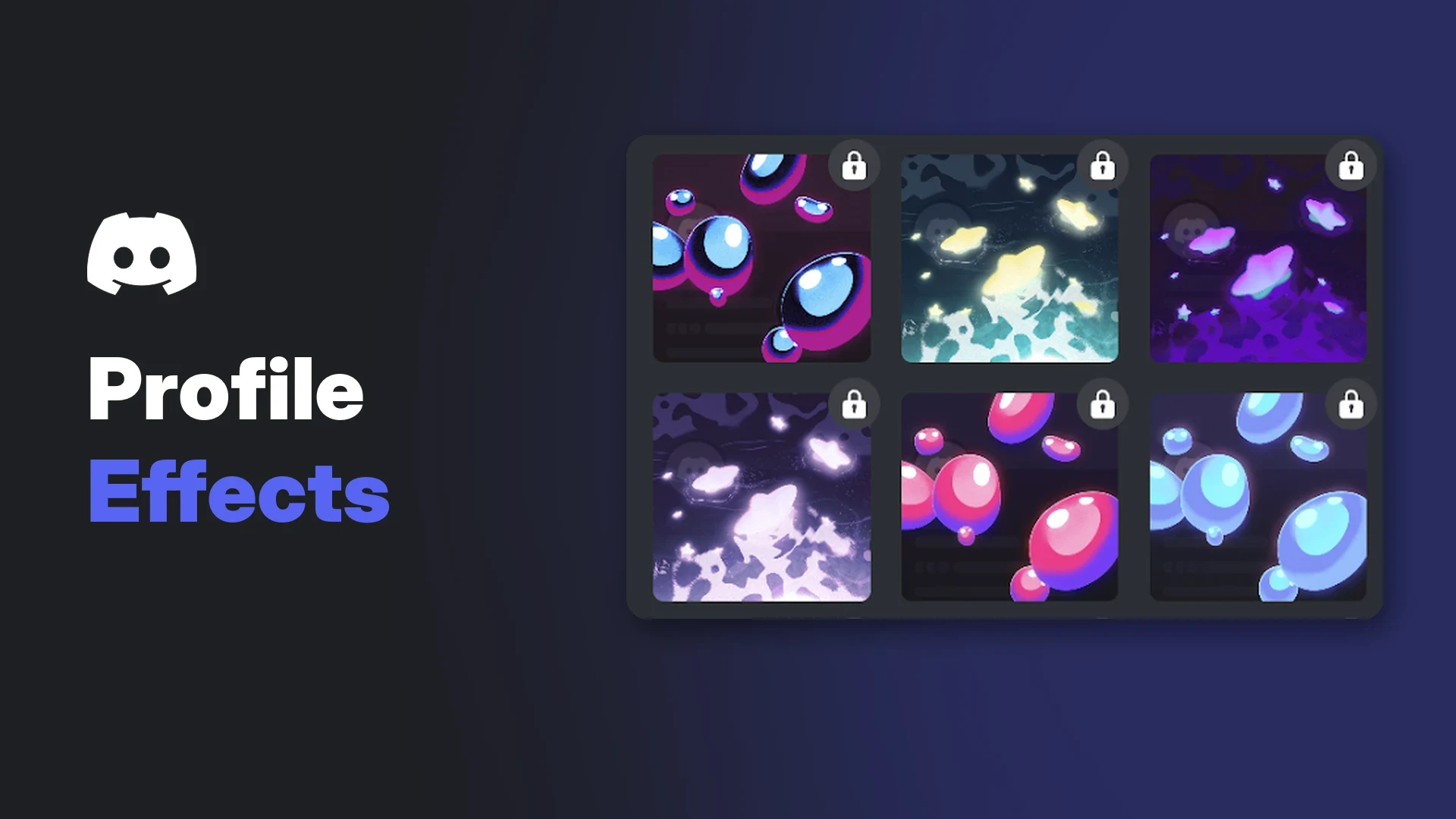

Discord profile effects are animated overlays that play across your profile card when someone opens your profile. Think falling petals, drifting bubbles or a burst of light that moves over your banner, avatar and bio.
They sit alongside avatar decorations, nameplates and profile frames in the Discord Shop. Each item changes a different part of how you look on Discord, which is why people often mix them up.
This wiki follows Discord's help centre. It covers how to get effects, how to apply, change and remove them on desktop and mobile, and what to check when one will not play. Where Discord has not documented something, this guide says so.
At a glance - What they are: animated effects that play on your profile when someone views it. - Where to get them: the Discord Shop (open to everyone), plus Orbs-exclusive effects in the Orbs Shop. - Nitro: member pricing on eligible Shop items, plus Nitro-only DISXCORE effects that work only while Nitro is active. - Ownership: effects you buy are yours to keep, even without Nitro. - Refunds: Discord does not refund profile effects. - Turning them off: Reduced Motion stops all profile effects from animating, including other people's.
✨ What Are Discord Profile Effects?
A profile effect is an animation layered over your whole profile card. Discord describes them as effects that play on your profile when someone views it.
Your profile picture, banner and bio stay exactly as they are. The effect simply plays on top, so you can switch between effects without touching anything else.
Hovering over an effect previews it on your own profile card before you buy. Image: Discord.
The selection menu shows a live preview on the right. Effects you do not own carry a padlock, and the preview card points you to the Shop to buy them.
🧩 Profile Effects vs Avatar Decorations vs Nameplates
All three are Shop cosmetics, but they decorate different things and show up in different places. Discord's Nameplates FAQ draws the same line: decorations and effects personalise your profile, while nameplates style your name.
| Profile effect | Avatar decoration | Nameplate | |
|---|---|---|---|
| What it changes | Animation over your whole profile card | Frame or prop around your profile picture | Design behind your display name |
| Where it shows | When someone views your profile | Around your avatar, including your profile and chat | Member lists, DMs, group chats and your user settings bar |
| Buy on mobile | Yes | Yes | No, desktop only |
| Per-server version | Yes, with Nitro per-server profiles | Yes, with Nitro per-server profiles | Not documented |
| Refundable | No | No | No (purchases are final) |
If you want the ring or prop around your picture, read our Discord Avatar Decorations wiki. For the name banners in member lists, see our Discord Nameplates blog.
Discord also added profile frames in 2026. These are decorative borders that wrap around the edge of your profile, sold in the same Shop.
🛒 How to Get Discord Profile Effects
Discord's help centre documents these routes. It does not publish a full price list or catalogue, and Shop stock changes often, so check the Shop itself for current items and prices.
| Route | What Discord documents |
|---|---|
| Discord Shop | Open to all users. Bought effects are permanent. |
| Nitro member pricing | Nitro members get special pricing on eligible Shop items. |
| DISXCORE (Nitro exclusive) | Free to collect for Nitro members, usable only while Nitro is active. Not available on Nitro trials. |
| Orbs Shop | Orbs-exclusive profile effects, bought with Orbs earned from Quests. |
| Gifts | Friends can buy Shop items for you using the gift icon in the Shop. |
Buying from the Shop on desktop or browser
- Open your Direct Messages list by selecting the Discord icon in the top-left corner.
- Select the Shop tab to the right of the server list.
- Browse, preview and buy the effect you want.
You can also reach the Shop from User Settings > Profiles, then Change Effect and the Shop icon.
Buying from the Shop on mobile
- Tap your avatar in the bottom-right corner.
- Tap the Shop icon in the top-right corner.
- Preview and buy profile effects from there.
Nitro, Orbs and Quests
Discord says only Nitro members get member pricing in the Shop. Its plan overview lists Shop perks under Nitro, not under Nitro Basic.
The Orbs Shop sells some profile effects that are only available for Orbs. Orbs come from completing Quests, and the Orbs Shop is on desktop and browser only. Discord's Quests FAQ does not list profile effects as a direct Quest reward, so do not expect one unless a specific Quest says so.
Some items come in Shop Bundles that pair a profile effect and an avatar decoration from the same collection at a discount. If you already own one of the pair, the bundle is marked partly owned and you must buy the other item on its own at full price.
You can pay for Shop items with a Discord gift card balance. Localised pricing applies to some effects, and checkout shows whether it is available.
Free and promotional effects
As of 20 November 2026, we could not find a current Discord help centre promotion that gives away a free profile effect. Recent free promos on the help centre cover an avatar decoration and a nameplate instead. Treat any "free profile effect" link outside the official app with caution.
🖱️ How to Apply or Change a Profile Effect
Desktop or browser
- Open User Settings with the cogwheel in the bottom-left corner.
- Select the Profiles tab.
- Press Change Effect to open the Add Profile Effect menu.
- Choose an effect you own and select Apply.
- Select Save Changes to confirm.
The Change Effect button sits under Avatar Decoration in the Profiles tab. Image: Discord.
Mobile
- Tap your avatar to open your profile.
- Tap Edit Profile, then Profile Effects.
- Pick the effect you want and tap Apply.
- Tap Save in the top-right corner.
On mobile, the effect previews at the top before you apply it. Image: Discord.
How to remove a profile effect
Discord's article does not list a separate removal step. Its own screenshots of the effect menu show a None option next to the Shop tile on both desktop and mobile.
To take an effect off, open the same menu, select None, apply it, then save. The effect stays in your collection, so you can put it back later.
🏠 Per-Server Profiles
With Nitro, per-server profiles let you show a different effect in each server. It is a handy way to match a server's theme without changing your main profile.
- Open your Per-server Profiles settings.
- Pick the server under Choose a Server.
- Press Change Effect and choose the effect for that server.
- Select Save Changes.
The per-server menu adds a Use Default option to fall back to your main profile effect. Image: Discord.
You must own an effect before you can add it to any profile. Your main profile stays as it is in servers where you have not set anything different.
If you want to control who can see your profile in the first place, our Discord privacy settings guide walks through the options.
👀 Who Sees Your Profile Effect?
Discord says profile effects play when someone views your profile. In practice, that means anyone who opens your profile card can see the effect.
Discord does not publish a full list of every surface where the animation plays. Its documentation only mentions profile views, while nameplates are documented for member lists and DMs.
Viewers who have Reduced Motion turned on will not see the animation. That is a setting on their side, so you cannot override it.
🛠️ Troubleshooting Discord Profile Effects
The effect is not playing
- Check that you saved. Applying an effect in the menu is not enough; you also need Save Changes (desktop) or Save (mobile).
- Check Reduced Motion. If it is on, no profile effects animate, including other people's.
- Check per-server settings. A server-specific profile can show a different effect, or none.
- Check Nitro status for DISXCORE. These effects stay in your collection after Nitro ends, but you cannot use them.
How to turn profile effects off for yourself
Discord's Profile Effects FAQ points to User Settings > Accessibility > Enable Reduced Motion. This stops every profile effect from animating in your app.
On desktop, Discord can also sync Reduced Motion with your computer. If your operating system has reduced motion turned on, Discord may follow it, so check both places if effects seem frozen.
On iOS and Android, the Reduced Motion setting lives in your app settings under appearance options. Turning it on also switches off automatic GIF playback and animated emoji.
Mobile issues
Mobile can buy and apply effects, so you do not need a computer. If a menu looks different from the steps here, update the app first, since Discord changes its settings layout from time to time.
💳 Refunds and Ownership
Discord's refund policy says it cannot refund or exchange profile cosmetics, and names avatar decorations and profile effects directly. Items bought with Orbs are also final.
If you bought an effect through the Apple App Store on iOS, Discord tells you to contact Apple about purchase problems.
Shop items are tied to your account. Discord warns that you can lose access to purchased items if your account is suspended or deleted. If you are also weighing up Nitro against boosting a server, our Discord boost guide explains what boosts actually unlock.
❓ Frequently Asked Questions
Are Discord profile effects free?
Most are paid Shop items. Nitro members can collect DISXCORE effects at no extra cost, and the Orbs Shop sells exclusive effects for Orbs instead of money.
Do I keep Discord profile effects if I cancel Nitro?
Yes for effects you bought. DISXCORE effects stay in your collection but will not work until you have an active Nitro subscription again.
Can I get a refund on a profile effect?
No. Discord lists profile effects as non-refundable.
Can I gift a profile effect?
Yes. Select the item in the Shop and use the gift icon next to the buy button. Unsent gifts wait in User Settings > Gift Inventory.
Can I stop seeing other people's effects?
Yes. Turn on Reduced Motion in User Settings > Accessibility. It stops all profile effects from animating, along with other animations.
Can I use a different effect in each server?
Yes, if you have Nitro and set up per-server profiles. You can also tidy up the About Me text on each profile with our Discord text formatter.
Summary
Discord profile effects are animated layers that play over your profile card when someone opens it. You buy them in the Shop, collect DISXCORE versions with Nitro, or claim Orbs-exclusive ones in the Orbs Shop.
Apply them through Profiles > Change Effect, remove them by choosing None, and use per-server profiles for a different look in each server. Purchases are permanent but non-refundable, and Reduced Motion stops every effect from animating.
Sources
- Profile Effects, Discord Help Centre
- Shop FAQ, Discord Help Centre
- Nameplates FAQ, Discord Help Centre
- Profile Frames FAQ, Discord Help Centre
- Per-Server Profiles, Discord Help Centre
- Custom Profiles, Discord Help Centre
- Discord Orbs FAQ, Discord Help Centre
- Discord Quests FAQ, Discord Help Centre
- Reduced Motion Setting, Discord Help Centre
- Refund Policy, Discord Help Centre
- What are Nitro & Nitro Basic?, Discord Help Centre
Comments
Sign in to join the conversation
Sign inNo comments yet
Be the first to share your thoughts!