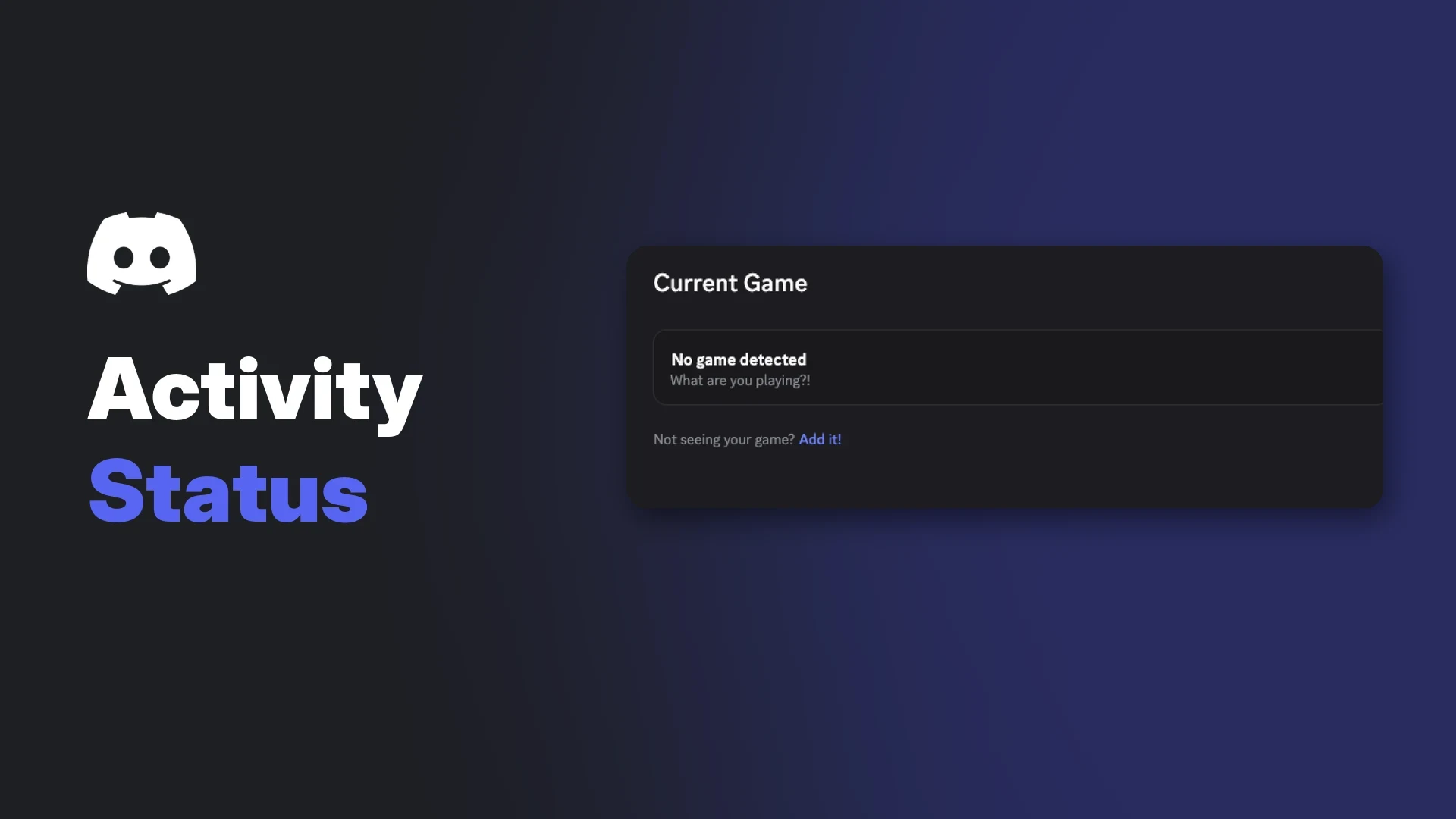

Your Discord activity status is the line under your name that tells people what you are doing right now, such as the game you are playing or the song on your Spotify. Discord fills it in automatically when it detects a supported game or a connected service.
It is handy for finding friends to play with, but not everyone wants their whole server to see it. The settings are spread across a few menus, and the names have changed between app versions, which is why people often struggle to turn it off or get a game to show.
This wiki explains what counts as activity, who can see it, how to switch it on or off globally and per server, how to add a game by hand, how console games appear, and what to check when detection fails.
At a glance - What it shows: detected PC games, Xbox and PlayStation games through connections, Spotify, Crunchyroll and Discord Activities. - Main switch: User Settings > Activity Privacy > Share my activity. - Per server: server name > Privacy Settings > activity toggle. - Per game: User Settings > Registered Games > Toggle detection (eye icon). - Console games: need an Xbox or PlayStation connection with its status toggle on. - Priority: what you do on your computer beats console presence on your status.
🎮 What Discord Activity Status Shows
Discord's help centre lists the kinds of activity it can display:
- Detectable games you play on a computer
- Games you play on Xbox or PlayStation
- Spotify and Crunchyroll, after you connect those accounts
- First-party and third-party Activities inside Discord
Games and apps that support Rich Presence can show extra detail, such as what you are doing in the game. In games that support Rich Presence, Discord also lets friends join or ask to join your game from your activity.
Your activity can appear in three places: as a status line in a server's Members list, on activity cards (in the desktop Friends List and on mobile profiles), and in the Recent Activity history on your profile, which covers the last 30 days.
Activity cards above the Members list on desktop. Image: Discord.
Activity status is separate from your online dot and from a custom status message. If you want to hide that you are online at all, our "Appear Offline on Discord" guide covers that side.
🔒 Who Can See Your Activity
By default, adults and users whose age is not confirmed share activity with Friends & All Servers. Users in the teen age group start on Friends & Small Servers, meaning friends plus servers of 200 members or fewer. Anyone can change this setting.
The three sharing options are:
| Option | Who sees your activity |
|---|---|
| Friends & All Servers | Friends and members of any server you join |
| Friends & Small Servers Only | Friends and members of servers with 200 or fewer members |
| Friends Only | Friends only |
Discord adds that in some countries and situations, sharing may start switched off. Your Profile Privacy setting is separate, but when you change one, Discord offers to update the other to match. Our Discord privacy settings guide covers the rest of those controls.
⚙️ How to Turn Discord Activity Status On or Off
Everywhere (global switch)
- Open User Settings with the cog next to your username.
- Go to Activity Privacy (older help pages call it Activity Sharing).
- Switch Share my activity on or off.
- Under the default sharing option, pick who sees activity in servers you join.
The global Share my activity toggle. Image: Discord.
In older versions this toggle was labelled "Share activity with others" or "Display current activity as a status message". Discord's articles use all of these names, so look for whichever your app shows.
In one server
- Right-click the server name, or open its dropdown menu.
- Choose Privacy Settings.
- Switch the activity toggle (shown as Share my activity) off for that server.
The per-server activity toggle. Image: Discord.
Two limits apply. Members of that server can still see your activity if they are your friends or share another server where it is allowed. Discord also says per-server settings do not currently affect the Members list activity cards experiment.
For one game
Open User Settings > Registered Games and select the eye icon (Toggle detection) next to the game. That game stops showing as activity, while everything else keeps working.
➕ Adding a Game Manually
If Discord does not pick up a game on its own, you can add it from the Registered Games page.
- Launch the game and leave it running.
- Open User Settings > Registered Games (under Games & Apps).
- Select Add it! next to "Not seeing your game?".
- Pick the game from the list Discord shows and add it.
Registered Games with the Add it link and per-game detection toggle. Image: Discord.
Discord's help centre says the game must be open when you add it. It does not document how the picker lists programs, so the exact wording on your screen may differ.
For verified games, Discord says the game may also be available to add as a connection under User Settings > Connections.
🛠️ Why a Game Isn't Detected
Discord's help centre gives only a few detection rules, so the list below separates documented points from general checks.
Documented by Discord:
- The global switch is off. Per-game and per-connection settings only work when Share my activity is on.
- The game is toggled off in Registered Games.
- The game has not been launched since it added Discord features. Discord says you need to run it at least once for invites and Rich Presence features to be recognised.
- Something else takes priority. A detected game outranks Spotify, and anything on your computer outranks console presence.
- The game is very small. Discord's badge page notes that some very small games may not be recognised.
Not documented, but worth trying:
- Run as administrator. Discord documents running Discord as administrator only for push-to-talk in games running as admin. It does not list it as a detection fix, but matching the game's mode is a common step.
- Restart Discord after installing a new game.
The Game Overlay is a separate feature. It works on Windows only and shows chat and join requests in game, but Discord does not describe it as a requirement for detection. If you want fewer pop-ups while playing, our Discord game mode article covers that.
🕹️ Console Games: Xbox and PlayStation
Discord cannot see a console directly. Console games appear only through a linked account, which our "Discord Connections" wiki explains in full.
- Xbox: link your account, then switch on Display Xbox as your status under Connections. Discord says it shows your game activity and play time.
- PlayStation: link your PSN account, then switch on Display PlayStation Network as your status. Discord says the game you are playing on PS4 or PS5 then shows on your profile.
A PlayStation game shown through the PSN connection. Image: Discord.
Console privacy matters too. For PlayStation, Discord says Online Status and Now Playing must be set to Anyone in PSN privacy settings. PSN child accounts cannot use this feature.
So will a big new console release such as GTA VI show? Discord's documentation describes console activity in general terms, as the game you are currently playing, and lists no exceptions by title. It has not published anything specific to GTA VI, so treat it like any other console game. Discord also says PSN presence will not show while you are listening to Spotify, streaming or running another game on your computer.
Each connection has its own status toggle. Image: Discord.
📱 Mobile and the Game Time Badge
On mobile, you can view activity cards on profiles and change your activity and connection settings. Discord's help centre lists game detection as games played on a computer and does not say that the mobile app detects games played on the phone.
When you use Discord only on mobile, a Mobile Presence icon shows next to your name. Discord says there is no toggle for it; setting your status to Invisible hides it.
The Game Time badge is tied to detection, but it is a separate feature. According to Discord, it counts time in games detected by the desktop app from 8 December 2025, ignores console play, and needs Use data to personalize my Discord experience switched on. Discord does not say that hiding your activity stops badge progress, so that part is undocumented.
🧰 Troubleshooting Table
| Problem | Likely cause | What to do |
|---|---|---|
| No game shows for anyone | Share my activity is off | Turn it on in Activity Privacy |
| Game shows for you but not a server | Server toggle is off | Server name > Privacy Settings |
| One game never shows | Detection toggled off or not added | Registered Games: add it or toggle the eye |
| Spotify missing while gaming | Detected game takes priority | Expected behaviour |
| PS5 game not showing | Status toggle or PSN privacy | Turn on the status toggle; set Now Playing to Anyone |
| Xbox game not showing | Status toggle off | Turn on Display Xbox as your status |
| Console game hidden on PC | Local activity takes priority | Close the PC game or Spotify |
| Friends cannot join your game | Join settings or no Rich Presence | Check Activity joining; game must support it |
If you run a community, our gaming server setup guide walks through building a server around the games your members play.
❓ FAQ
How do I hide my Discord activity status from everyone?
Turn off Share my activity in User Settings > Activity Privacy. That stops all activity sharing, including from connections.
Can I hide my activity from one server only?
Yes. Open the server's Privacy Settings and turn the activity toggle off. Friends in that server can still see it.
Can I clear my game history?
Yes. Open your full profile, go to the Activity tab, select the three dots next to a game and choose Clear Game History.
Why does my Discord activity status show the wrong game?
Discord shows the highest-priority activity. Local games outrank console presence, and detected games outrank Spotify. Toggle off apps you do not want detected in Registered Games.
Does Discord activity status work on Mac and Linux?
Discord's help centre describes detection on the desktop app without limiting it to Windows, while the Game Overlay is Windows only. It does not publish a per-platform list for detection.
Summary
Discord activity status shares the games, music and apps Discord detects, plus console games through Xbox and PlayStation connections. You control it in three layers: the global Share my activity switch, a per-server toggle and a per-game detection toggle.
Missing games can be added in Registered Games while they are running, and console games depend on both the connection toggle and the console's own privacy settings. Where Discord's help centre is silent, such as mobile game detection or running as administrator, treat advice as a workaround.
Sources
- Discord Help Center: Activity Sharing on Discord FAQ
- Discord Help Center: Members List Recent Activity FAQ
- Discord Help Center: Recently Played Games on Profiles
- Discord Help Center: Game Invites
- Discord Help Center: Discord and Xbox Connection FAQ
- Discord Help Center: Discord and PlayStation Network Connection FAQ
- Discord Help Center: Spotify FAQ
- Discord Help Center: Game Overlay 101
- Discord Help Center: Push-to-talk with games in administrator mode
- Discord Help Center: Mobile Presence
- Discord Help Center: Discord Profile Badges: What Each Badge Means
- Discord Help Center: Profile Privacy Setting on Discord
Comments
Sign in to join the conversation
Sign inNo comments yet
Be the first to share your thoughts!