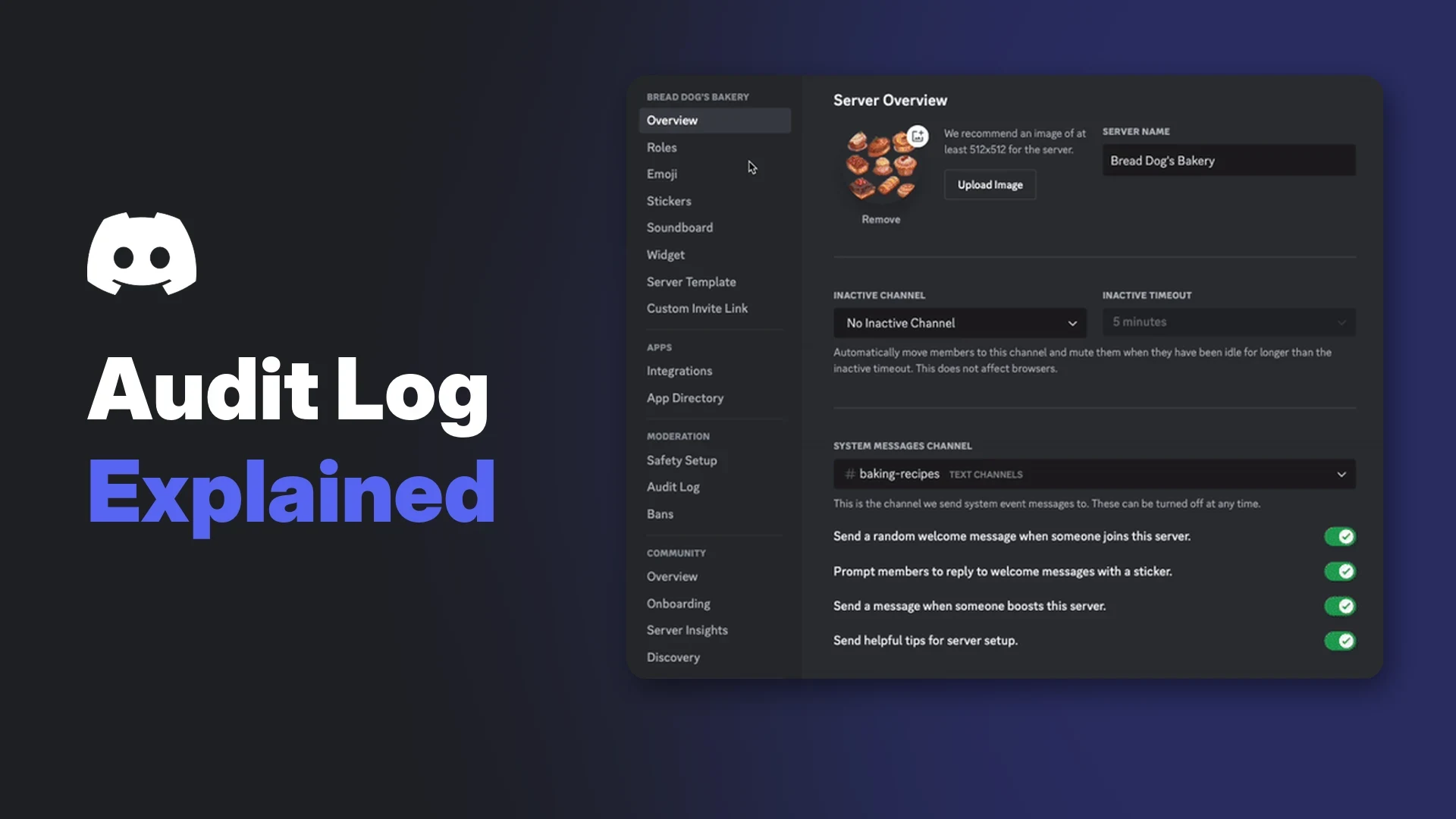

The Discord audit log is a server's record of administrative actions: bans, kicks, role changes, deleted channels, new invites, bots added and more. Each entry shows who made the change, what they changed and when, and it lives in Server Settings for anyone with the right permission.
This wiki explains what the log records, who can see it, how to open and filter it on desktop and mobile, and how long entries last. It also covers the gaps, how to use the log after a raid or a rogue moderator, and the API basics for bot developers, including two reordering events Discord added on 29 October 2026.
Everything here comes from Discord's help centre, its moderation pages and its developer documentation. Where Discord does not document something, this guide says so.
At a glance - What it is: a list of moderation and admin actions in your server, newest first. - Who can see it: members whose role has View Audit Log, plus admins and the owner. - Where: Server Settings, then Audit Log under Moderation. - How long: entries stay for 45 days. - Can it be edited? No. Discord says entries cannot be deleted or edited. - New in October 2026: separate events for reordering channels and roles, plus documented entry merging.
📜 What the Discord Audit Log Records
Discord's developer docs describe the log as a record of administrative actions in a server. The event list is long, but most of it falls into a few groups.
| Area | Examples of logged actions |
|---|---|
| Server | Server settings updated |
| Channels | Created, edited, deleted, permission overrides changed, channels reordered |
| Members | Kicked, pruned, banned, unbanned, updated, roles added or removed, moved or disconnected from voice, bot added |
| Roles | Created, edited, deleted, roles reordered |
| Invites and webhooks | Created, edited, deleted |
| Emoji, stickers, soundboard | Created, edited, deleted |
| Messages | Deleted, bulk deleted, pinned, unpinned |
| AutoMod | Rules changed, messages blocked, alerts sent, members timed out or quarantined |
| Other | Threads, events, stage instances, integrations, onboarding, voice channel status |
Each entry names the person or app that acted, the target, and the before and after values where they apply. If a moderator added a reason, that shows too.
🔐 Who Can See the Audit Log?
Access is controlled by the View Audit Log permission. Discord's permissions guide lists Audit Log under Server Settings as needing that permission, and Administrator grants every permission, so admins and the server owner can always open it.
Give View Audit Log to your moderators and keep it off general roles. The log reveals who handled which ban and why, which is staff business. Our Discord roles and permissions guide explains how to set this up in your role hierarchy.
Discord also states that once something is in the log, it cannot be deleted or edited. A moderator who removes a role cannot hide that they did it.
🖥️ How to Open and Filter the Audit Log
On desktop and browser
- Click the server name at the top left to open the server menu.
- Select Server Settings.
- In the sidebar, find the Moderation group and select Audit Log.
- Entries appear newest first. Click one to expand it and see the exact changes.
The server menu, where Server Settings lives. Report Raid appears here too for members with ban or kick permissions. Image: Discord.
At the top of the Audit Log page are two drop-down filters. One narrows the list to a single user, which can be a member or a bot. The other narrows it to a single action, such as Member Ban Add or Channel Delete. You can use both together.
Discord's AutoMod walkthrough passes through Server Settings, where Audit Log sits in the Moderation group. Image: Discord.
On mobile
- Open the server and tap its name at the top.
- Tap Settings.
- Scroll down to the moderation and management options and tap Audit Log.
- Tap an entry to see its details.
Discord's help centre does not publish mobile steps for the audit log, so menu labels may differ slightly between app versions. Filtering options on mobile are not documented either. For a deep investigation, desktop is the easier choice.
⏳ How Long Are Entries Kept?
Discord's help centre and developer docs both put the limit at 45 days. After that, entries drop off and cannot be recovered from the server.
If you might need evidence later, screenshot or copy the relevant entries now. A server owner's Discord data package also includes a file of actions from the audit log, according to the help centre, though it is a request-and-wait process rather than an instant export.
🕳️ What the Audit Log Does Not Show
The log is useful, but it has blind spots. Knowing them saves time during an investigation.
- Messages people delete themselves. Discord's docs describe message deletion only as a single or bulk delete event and do not say self-deletions are recorded. A long-standing request on Discord's own feedback forum asks for them to be added. Do not expect to find them.
- Message content. A message delete entry does not include the text of the deleted message.
- Message edits and ordinary joins. Neither appears in Discord's list of audit log events.
- Who told a bot to act. If a moderation bot bans someone, the entry names the bot. The human who ran the command only appears if the bot writes it into the reason.
- Each individual action in a burst. Some actions are merged into one entry when the same person repeats them quickly. More on this below.
- Anything older than 45 days.
Logging bots can fill some of these gaps, but they only see what happens after you add them.
🚨 Using the Discord Audit Log After a Raid
A raid is a flood of accounts joining to disrupt a server. Discord's raid guide recommends pausing invites, using Slowmode, tightening AutoMod and raising your verification level first. Once things are calm, the log helps you clean up.
Security Actions can pause invites and DMs while you investigate. Image: Discord.
- Filter by Invite Create. Look for invite links you do not recognise and note who made them.
- Filter by Bot Add and Webhook Create. Raiders with access sometimes add bots or webhooks to post spam later. Remove any you did not approve.
- Check channel, role and permission changes. Look for new channels, edited overrides or roles given mention permissions.
- Review AutoMod entries. Blocked messages and AutoMod timeouts show which rules fired and on whom.
- Cross-check the Members page. Its Join Method column shows which invite code each member used.
The Members page shows how each person joined, which pairs well with invite entries in the log. Image: Discord.
If the same keywords keep appearing, add them to a rule. Our Discord AutoMod setup guide walks through the options.
🛡️ Investigating a Rogue Moderator
When a trusted staff member goes off the rails, speed matters more than the full picture.
- Remove their power first. Take away their moderator roles, or have someone higher in the hierarchy do it.
- Filter the log by that user. You will see every logged action they took in the last 45 days.
- Check the high-impact actions. Look at bans, kicks, prunes, role updates, channel deletes, permission overrides, webhooks and bots added.
- Save the evidence. Screenshot entries before they age out.
- Undo the damage. Unban members, recreate channels and reset permissions using the before and after values in each entry.
If they acted through a moderation bot, the log will credit the bot. Check that bot's own logs or dashboard to tie actions back to the person.
✍️ Reasons: Make Your Log Readable
Many actions let you add a reason. Discord's time out window, for example, asks for one and notes it will appear in Server Settings under Audit Log.
The reason you type when timing someone out is saved to the audit log. Image: Discord.
Short, specific reasons such as "spam links in #general" make the log far easier to read later, and they help new moderators learn your standards. If you are unsure whether to time out or mute, see our Discord mute vs timeout guide.
🤖 Audit Log API Basics for Bot Developers
Bots read the log through the developer API. These are the documented basics.
| Item | Detail |
|---|---|
| Endpoint | GET /guilds/{guild.id}/audit-logs |
| Permission | VIEW_AUDIT_LOG |
| Filters | user_id, action_type, before, after |
| Page size | limit from 1 to 100, default 50 |
| Ordering | Newest first by default; after returns oldest first |
| Reasons | X-Audit-Log-Reason header, 1 to 512 characters, URL-encoded |
| Live events | GUILD_AUDIT_LOG_ENTRY_CREATE, under the GUILD_MODERATION intent, sent only to bots with VIEW_AUDIT_LOG |
Each entry has an id, an action_type, the acting user_id, a target_id, optional changes with old and new values, optional options for extra context, and an optional reason. Send the reason header on every moderation call your bot makes, ideally naming the human who ran the command. That closes the "who told the bot" gap.
New reordering events (29 October 2026)
Discord's developer change log for 29 October 2026 added two events:
CHANNEL_POSITION_UPDATE(16): channels were reordered.ROLE_POSITION_UPDATE(33): roles were reordered.
Before this, dragging channels or roles around had no dedicated event of its own. If your bot maps action types to labels, add these two.
Entry merging
The same update documented how some entries merge. When the same user repeats certain actions in quick succession, Discord updates the first entry instead of creating new ones. The merged events are:
MESSAGE_DELETEandMESSAGE_BULK_DELETEMEMBER_MOVEandMEMBER_DISCONNECTCHANNEL_POSITION_UPDATEandROLE_POSITION_UPDATE
Only the first request's reason is kept, and later merged updates do not fire a new Gateway event. The options.count field holds the number of affected items for these events. Discord does not state the exact time window for merging, so poll the endpoint if you need accurate counts rather than relying on the live event alone.
❓ FAQ
Who can see the Discord audit log?
Anyone whose role has View Audit Log, plus administrators and the server owner.
How long does the Discord audit log keep entries?
45 days, according to both Discord's help centre and developer docs.
Can moderators delete audit log entries?
No. Discord says entries cannot be deleted or edited once recorded.
Does the audit log show deleted messages?
It can show that a message was deleted and who did it, but not the message text. Discord does not document logging of messages people delete themselves.
Why does one entry say several messages were deleted?
Message deletes by the same person in quick succession are merged into one entry with a count.
Can I see the audit log on my phone?
Yes, through the server's Settings menu, though Discord's help centre does not document the mobile steps or filters.
Summary
The Discord audit log is an uneditable record of who changed what in your server, kept for 45 days and visible to anyone with View Audit Log. Use the user and action filters to trace raids and rogue staff quickly, and add reasons so the log makes sense later.
It will not show self-deleted messages, message text or edits, and bot actions only name the bot unless a reason says otherwise. Developers can read it through the API, which now includes channel and role reordering events and documented entry merging.
Sources
- Audit Log resource, Discord Developer Documentation
- Change Log: Channel and Role Position Update Audit Logs, 29 October 2026, Discord Developer Documentation
- Gateway Events: Guild Audit Log Entry Create, Discord Developer Documentation
- Gateway intents, Discord Developer Documentation
- Discord Account Caps, Server Caps, and More, Discord Help Centre
- Permissions on Discord, Discord
- How to Protect Your Server from Raids 101, Discord Help Centre
- Activity Alerts + Security Actions, Discord Help Centre
- Members Page, Discord Help Centre
- Time Out FAQ, Discord Help Centre
- Your Discord Data Package, Discord Help Centre
- Show when users delete own messages in audit log, Discord feedback forum
Comments
Sign in to join the conversation
Sign inNo comments yet
Be the first to share your thoughts!