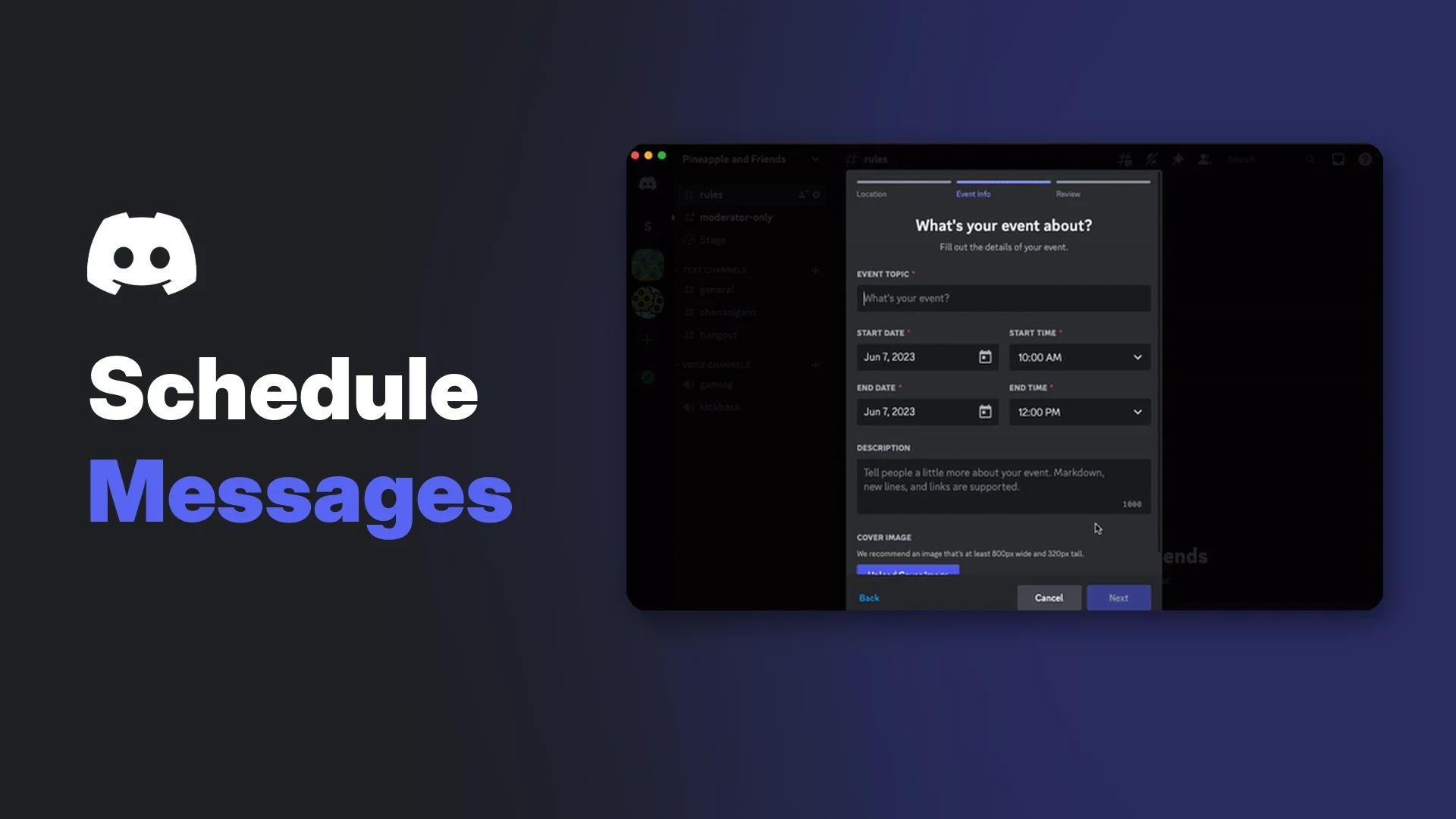

If you want to schedule a message on Discord, the answer changed in November 2026. Discord's November 9 patch notes highlight a new option to hit the + button and schedule a message to send later, and the help centre lists scheduled messages for DMs and channels as an active beta feature.
The catch is access. Discord's Beta Programs FAQ says beta features go to a small, randomly chosen group, and support cannot add you. So many people still do not see the option.
This wiki covers the native feature and what is known about it, plus five methods that work for everyone: Bookmarks reminders, Scheduled Events, scheduling bots, webhooks with an external scheduler, and Discord timestamps.
At a glance - Native scheduled messages: announced in the November 9, 2026 patch notes and listed as a beta in the help centre. Not everyone has it. - Reminders to yourself: Bookmarks can remind you about a message at a set time (a Nitro feature, per the help centre). - Announcing a time: Scheduled Events notify members who click Interested when the event starts. - Automated posts: a bot or a webhook plus an external scheduler can post into server channels at set times. - Time zones:
<t:UNIX:STYLE>timestamps show each reader the time in their own zone.
🆕 Can You Schedule a Message on Discord Natively?
Yes, if you have the feature. As of November 2026, Discord's Beta Programs FAQ lists Scheduled messages among its active beta features and describes them as a way to set a future time to send messages in DMs and channels.
Discord's patch notes dated November 9, 2026 then featured it as a highlight. The note pitches it for messaging a friend at a sensible hour, coordinating across time zones, nudging a group chat and lining up server announcements. The same post says changes may still be rolling out across platforms.
How to use it, if you have it
- Open the DM, group chat or channel you want to message.
- Press the + button next to the message box, as described in the patch notes.
- Choose the option to schedule the message, then pick a time.
Discord has not published a help article for the feature yet. That means several details are not documented at the time of writing:
- Whether it needs Nitro or will reach every account
- Which platforms have it today
- How many messages you can queue, and how far ahead
- Where to edit or cancel a scheduled message
In January 2025, TechIssuesToday reported leaked screenshots that appeared to show a "Scheduled" tab in the inbox. That was an early, unofficial look, so treat it as unconfirmed until Discord documents the final design.
Why you might not see it
The Beta Programs FAQ says beta access is random, cannot be requested, and can be removed at any time. If the + menu has no schedule option, you are not in the test group yet. The methods below work regardless.
📊 Comparison: Every Way to Schedule on Discord
| Method | Works in DMs? | Needs admin? | Recurring? | Cost |
|---|---|---|---|---|
| Native scheduled messages | Yes, per Discord's beta FAQ | No | Not documented | Not documented |
| Bookmarks "Remind me" | Reminds only you | No | No | Nitro, per help centre |
| Scheduled Events | No, servers only | Create Events permission | Not covered in the help article | Free |
| Scheduling bot | Only if the bot supports user installs | Manage Server to add it to a server | Depends on the bot | Varies by bot |
| Webhook plus external scheduler | No, server channels only | Access to webhook settings | Yes, if your scheduler repeats | Free on Discord; scheduler may cost |
| Discord timestamps | Yes | No | Not applicable | Free |
🔖 Method 1: Bookmarks Reminders (For Yourself)
If the goal is to remember to send something later, a reminder may be all you need. Discord's help centre describes Bookmarks and Reminders as a Nitro feature, and the Beta Programs FAQ also lists Bookmarks as a beta, so availability can vary.
The Remind Me menu in the Inbox Bookmarks tab. Image: Discord.
- Right-click a message (long-press on mobile) and choose Create Reminder, or open Inbox > Bookmarks and press the clock icon.
- Pick a preset time or choose Custom to set a date and time.
- When the reminder is due, Discord notifies you, and you can send your message.
A reminder does not send anything to other people. It is a nudge for you only.
📅 Method 2: Scheduled Events (Announcing a Time)
For game nights, stage talks or community calls, a Scheduled Event often beats a timed message. Members who press Interested get a notification when the event goes live, according to Discord's help centre.
Create Event in the server menu. Image: Discord.
- Make sure you have the Create Events permission (Server Settings > Roles > Permissions).
- Click the arrow next to your server name and choose Create Event.
- Pick a location: a voice channel, a Stage channel, or Somewhere Else for a text channel, link or physical place.
- Fill in the topic, start date and time, end time and description.
- Review the preview and press Create Event.
Discord's help centre says a server can hold up to 100 scheduled events at once. Our Discord events guide covers planning and promotion in more depth.
🤖 Method 3: Scheduling Bots
Many third-party bots offer timed or repeating messages through slash commands. Discord does not run these bots, and commands differ between them, so check the bot's own documentation for exact command names and limits.
General steps
- Find a bot with a scheduling feature through the App Directory or the developer's official site.
- Add it to your server. Discord's help centre says this needs the server owner or the Manage Server permission.
- Review the permissions it asks for before you approve.
- Type
/in a channel to see the bot's commands, then follow its docs to set the message, channel and time. - Send a test message a few minutes ahead to confirm the time zone is right.
Some apps can also be installed to your own account, which Discord says makes them usable in DMs and group chats. Whether a bot can schedule DMs depends entirely on that bot.
Safety notes for third-party bots
- Grant only what the job needs. A message scheduler needs to send messages in chosen channels. It rarely needs Administrator.
- Ignore bots that DM you with offers or links. Discord's help centre warns that these are scams and can compromise a server.
- Never use a "self-bot". Tools that automate your personal account to send DMs later break Discord's rules. Discord says this can lead to account termination.
- Check who runs it. Prefer bots with a public website, documentation and support server.
🔗 Method 4: Webhooks Plus an External Scheduler
Webhooks let another service post into a server text channel. Discord's help centre notes that a webhook cannot do anything alone, so you pair it with a tool or script that sends the message at a set time.
Creating a webhook from the Integrations tab. Image: Discord.
- Open Server Settings > Integrations and click Create Webhook.
- Name it, pick an avatar and choose the channel it posts to.
- Click Copy Webhook URL.
- Paste the URL into your scheduler, automation service or script, and set when it should post.
Treat the webhook URL like a password. Anyone who has it can post into that channel, so delete and recreate the webhook if it leaks. If you build your own script, our Discord Developer Portal guide explains the developer side of Discord.
Webhooks post into server channels. They do not send DMs.
🕒 Method 5: Discord Timestamps for Every Time Zone
Timestamps do not delay a message. They make a time readable for everyone, which matters when you announce something in advance.
Discord's developer documentation describes the format <t:TIMESTAMP:STYLE>, where the timestamp is a Unix time in seconds. Each reader sees it in their own time zone and locale.
| Style | Shows |
|---|---|
t |
Short time |
d |
Short date |
D |
Long date |
f (default) |
Long date with short time |
F |
Full date with weekday and short time |
R |
Relative time, such as "in 2 hours" |
- Convert your date and time to a Unix timestamp in seconds with any converter.
- Type it in a message, for example
<t:1795000000:F>. - Add
<t:1795000000:R>beside it for a live countdown.
This pairs well with every method above. For tips on writing the announcement itself, see our Discord announcements guide.
❓ FAQ
Can I schedule a message on Discord without a bot?
Yes, if you are in the scheduled messages beta. Otherwise, use a Bookmarks reminder to prompt yourself, or a webhook with an external scheduler for server channels.
Does scheduling messages on Discord need Nitro?
Discord has not said. Neither the patch notes nor the Beta Programs FAQ mention a Nitro requirement.
Can I schedule a DM on Discord?
The native feature covers DMs, according to Discord's beta FAQ. Webhooks cannot send DMs, and automating your own account to do it is against Discord's rules.
How do I get the scheduled messages beta?
You cannot opt in. Discord says testers are chosen at random and support cannot add anyone.
Can I schedule recurring messages on Discord?
Discord has not documented repeats for native scheduling. A scheduling bot or an external scheduler with a webhook is the usual route for repeating posts.
Summary
Discord now has a native way to schedule a message, but it is still a beta with random access and few published details. Check the + button by the message box to see if you have it.
Until it reaches everyone, use Bookmarks reminders for yourself, Scheduled Events for community plans, a trusted bot or a webhook for automated channel posts, and <t:...> timestamps so every reader sees the right time.
Sources
- Discord's Beta Programs FAQ, Discord Help Center.
- Discord Patch Notes: November 9, 2026, Discord blog.
- Message Bookmarks and Reminders, Discord Help Center.
- Scheduled Events, Discord Help Center.
- Using Apps on Discord, Discord Help Center.
- Scam/Phishing Bots, Discord Help Center.
- Automated User Accounts (Self-Bots), Discord Help Center.
- Intro to Webhooks, Discord Help Center.
- Message Formatting reference, Discord Developer Documentation.
- Discord getting schedule messages feature, TechIssuesToday, January 2025.
Comments
Sign in to join the conversation
Sign inNo comments yet
Be the first to share your thoughts!