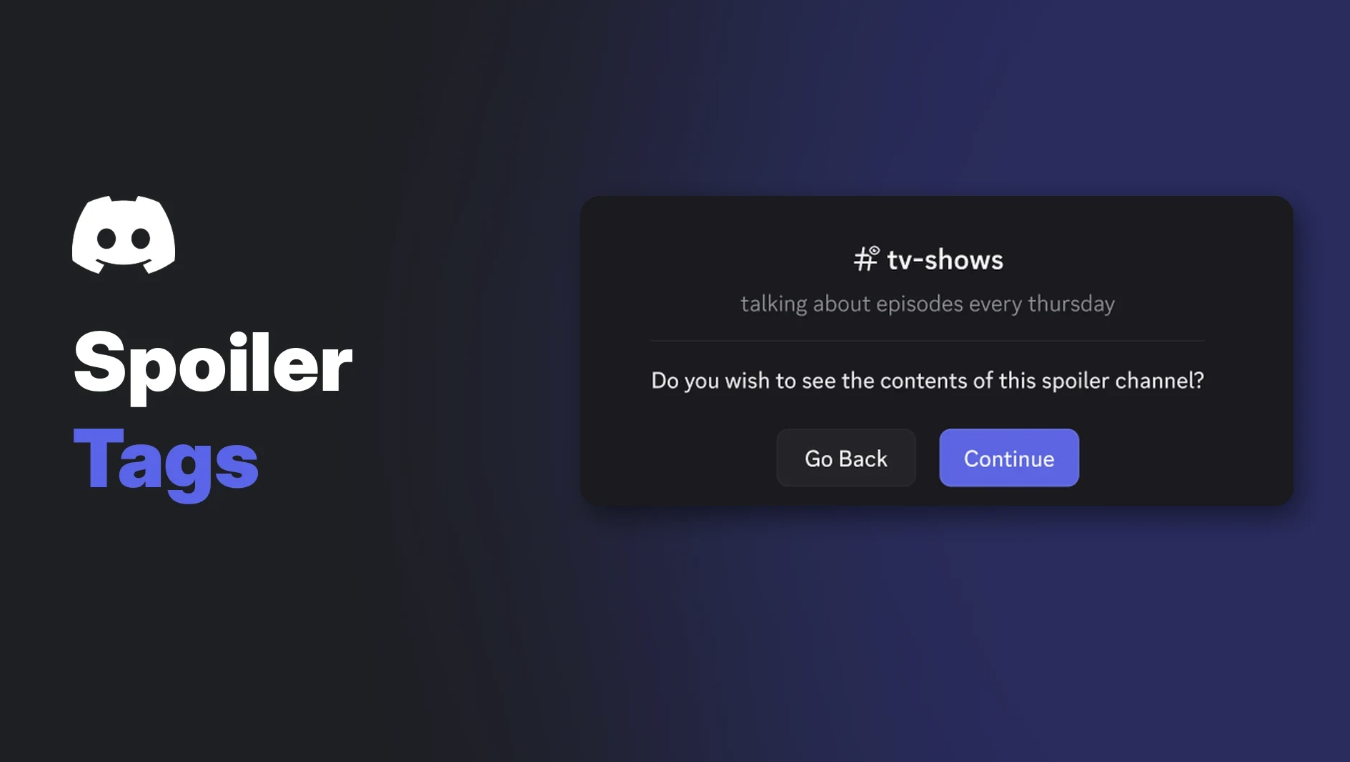

Discord spoiler tags let you hide part of a message, or a whole message, until the reader chooses to reveal it. They work on text, attachments such as images and videos, and links, and they are the standard way to talk about endings, leaks and surprises without ruining them for everyone else.
This wiki covers every method Discord documents in its help centre: the ||text|| syntax, the /spoiler command, the eye icon for text and attachments, and how to spoiler a link. It also explains the display setting that controls when spoilers open, the newer spoiler channels feature, and the known limits.
Where Discord has not documented something, this guide says so rather than guessing.
At a glance - Text: wrap it in two bars on each side, like
||this||, or type/spoilerbefore your message. - Desktop shortcut: highlight text in the message box and click the eye icon. - Attachments: click the eye icon (Spoiler Attachment) on the file before you send it. - Links: wrap the URL in bars, like||https://example.com||. - Limits: spoilers inside code blocks are not hidden, and server invite embeds cannot be hidden. - Reader setting: Show Spoiler Content can be set to On click, On servers I moderate, or Always (desktop and browser only).
🔍 How Discord Spoiler Tags Work
A spoiler tag covers the marked content with a dark box. Nobody sees what is underneath until they click or tap the box, so readers decide for themselves whether to look.
You can mark a single word, a sentence, or an entire message. Discord's help centre describes the marked text as sitting between two bars at the front and back of the selection, which is the same || syntax you can type yourself.
Once you reveal a spoiler, it stays revealed while you are in that channel. According to Discord, you can hide revealed spoilers again by leaving the channel and coming back.
✍️ How to Mark Text as a Spoiler
Discord documents three ways to spoiler text. All of them give the same result once the message is sent.
| Method | Where it works | How |
|---|---|---|
| Markdown bars | Desktop, browser and mobile | Type two bars before and after your text |
| Slash command | Not specified by Discord | Type /spoiler before your message |
| Eye icon | Desktop and browser | Highlight text, then click the eye icon |
| Mark as Spoiler | iOS app | Select text, open the context menu, tap Mark as Spoiler |
Using the bars on desktop
- Click the message box in any channel or DM.
- Type two vertical bars, the text you want to hide, then two more bars:
||the butler did it||. - Press Enter to send. The text inside the bars appears as a hidden box.
You can spoiler only part of a sentence. For example, The final boss is ||the narrator|| leaves the first half readable and hides the reveal.
Using the eye icon
- Type your message as normal.
- Highlight the words you want to hide. A small formatting toolbar appears.
- Click the eye icon on that toolbar. Discord wraps the selection in bars for you.
If you want to preview how the bars will look before sending, our Discord text formatter tool lets you try spoilers alongside bold, italics and other Markdown.
Spoilers on mobile
Discord's help centre says the same ||text|| syntax works on mobile. On iOS, you can also select text in the message box, tap it to open the context menu, and choose Mark as Spoiler, which adds the bars for you.
The help centre article does not describe a separate menu option for Android, so typing the bars is the documented method there.
🖼️ Spoiler Images, Videos and Files
Attachments get their own spoiler control. Discord's help centre describes it like this:
- Add the image, video or file to your message.
- On the attachment preview, find the small toolbar above the file.
- Click the eye icon, labelled Spoiler Attachment.
- Send the message. The file arrives hidden until someone clicks it.
The Spoiler Attachment eye icon on a file waiting to be sent. Image: Discord.
You have to mark the file before you send it. Discord's File Attachments FAQ simply points back to the spoiler tags article for this step and does not mention a way to spoiler a file after it has been posted.
The help centre does not document the exact steps for marking attachments as spoilers in the mobile apps, so check your app's attachment options if you are on a phone.
🔗 Spoiler Links and Embeds
To hide a link, wrap the full URL in two bars on each side, exactly as you would with text. This works on desktop and mobile, according to Discord.
A link wrapped in spoiler bars before sending. Image: Discord.
There is one documented exception. Discord server invite embeds cannot be hidden with spoiler tags, so an invite link will still show its preview card even if you wrap it in bars.
If you only want to stop a preview from showing for normal links, that is a separate setting covered in Discord's auto-embed article and is outside the scope of spoiler tags.
⚙️ Spoiler Display Settings
Each person can choose when spoilers open for them. The Spoiler Tags help article places this under User Settings > Text & Images, in a section titled Show Spoiler Content. If your menus have been reorganised in a newer app version, look for that heading.
The Show Spoiler Content options in Discord's desktop settings. Image: Discord.
| Option | What it does |
|---|---|
| On click | Spoilers stay hidden until you click them. This is the default shown in Discord's screenshot. |
| On servers I moderate | Spoilers open automatically in servers where you have a role with Manage Messages. |
| Always | Every spoiler is shown straight away. |
Two details are worth knowing:
- Discord says this setting can only be changed on the desktop and browser app.
- "Moderate" here means having the Manage Messages permission. If you are unsure which of your roles grant it, our Discord roles and permissions guide explains how permissions stack.
📺 Spoiler Channels
Spoiler tags hide single messages. Spoiler channels, documented in a help centre FAQ published in May 2026, hide an entire channel until each member opts in.
When someone opens a spoiler channel for the first time, Discord shows a notice with the channel name and topic and asks whether they want to see the contents. After they continue, the notice does not appear again.
The notice members see before entering a spoiler channel. Image: Discord.
How to set one up
According to Discord, spoiler channels are set up on desktop or in a web browser. Text, voice, forum and announcement channels can all use the setting.
- Click the Edit Channel icon next to the channel name.
- On the Overview tab, find Content Visibility.
- Choose Spoiler Channel.
- Click Save Changes.
The Content Visibility options in a channel's Overview tab. Image: Discord.
Discord recommends writing a clear channel topic, because the topic appears on the notice and helps members decide whether to enter.
Spoiler channels are not the same as age-restricted channels. They do not trigger age verification, and Discord's guidelines still require an age-restricted label for any channel with sexually explicit content. Content in spoiler channels must also follow the Community Guidelines.
🛡️ Spoiler Etiquette for Servers
Discord does not publish spoiler rules for servers, so the points below are general suggestions for moderators, not official policy.
- Write it down. Add a spoiler rule to your rules channel, for example how long after a release people must keep using tags.
- Use spoiler channels for big releases. A dedicated channel for a new season or game launch keeps the main chat safe.
- Avoid spoilers in places tags cannot reach, such as channel names, thread titles and server invite embeds.
- Keep code blocks clean. Remind members that bars inside code blocks do not hide anything.
If you are building a community from scratch, our guide on how to set up a gaming Discord server covers rules channels and channel layout in more detail.
🧰 Troubleshooting Discord Spoiler Tags
| Problem | Likely cause and fix |
|---|---|
| The bars show up as plain text | Check you used two bars on each side with no gaps. |
| The spoiler is visible inside a grey box | The text is in a code block. Discord says code blocks cancel spoiler formatting, so move the text outside the backticks. |
| An invite link still shows its preview | Discord documents that server invite embeds cannot be hidden. |
| You see every spoiler without clicking | Your Show Spoiler Content setting is on Always, or On servers I moderate in a server where you have Manage Messages. |
| You cannot find the spoiler setting on your phone | Discord says this setting is only available on desktop and browser. |
| A revealed spoiler will not hide again | Leave the channel and return. |
❓ Frequently Asked Questions
What is the syntax for Discord spoiler tags?
Put two vertical bars on each side of the text: ||hidden text||. You can also type /spoiler before your message.
Can I use Discord spoiler tags on mobile?
Yes. Discord says the ||text|| syntax works on mobile, and iOS users can select text and tap Mark as Spoiler.
Can I spoiler an image after sending it?
Discord's help centre only describes marking attachments with the eye icon before sending. It does not document a way to add a spoiler to a file that is already posted.
Do spoiler tags work inside code blocks?
No. Discord states that spoiler text inside a code block will not be hidden.
How do I turn spoilers off completely?
On desktop or browser, set Show Spoiler Content to Always. Discord says the option is not available in the mobile apps.
What is the difference between a spoiler tag and a spoiler channel?
A spoiler tag hides part of one message. A spoiler channel hides the whole channel behind a one-time notice that each member must accept.
Summary
Discord spoiler tags hide text, attachments and links behind a box that readers click to reveal. Type ||text||, use /spoiler, or use the eye icon on desktop, and mark files before you send them.
Readers control the experience through Show Spoiler Content on desktop and browser. Server owners can go further with spoiler channels, which hide a whole channel until members opt in. Remember the two documented gaps: code blocks and server invite embeds.
Sources
- Spoiler Tags!, Discord Help Center.
- Spoiler Channels FAQ, Discord Help Center.
- Markdown Text 101 (Chat Formatting: Bold, Italic, Underline), Discord Help Center.
- File Attachments FAQ, Discord Help Center.
- Age-Restricted Channels and Content, Discord Help Center.
- How do I disable auto-embed?, Discord Help Center.
Comments
Sign in to join the conversation
Sign inNo comments yet
Be the first to share your thoughts!