
The Discord AFK channel is a voice channel that a server can use as a parking spot for idle members. When someone sits in voice without doing anything for longer than the server's timeout, Discord moves them into that channel and mutes them.
It is a small setting, but it keeps busy voice rooms tidy. People who walk away from their desk stop taking up space in your main channels, and nobody has to hear a forgotten open mic.
This wiki covers what the setting does, where to find it, the timeout options Discord supports, who can change it, how the related Idle status works, and what to check when it does not behave as expected.
At a glance - What it is: a server-level setting that points to one voice channel for idle members. - What happens: idle members in voice are moved to that channel and muted. - Timeout options: 1 minute, 5 minutes, 15 minutes, 30 minutes or 1 hour. - Who can change it: anyone with the Manage Server permission (or Administrator). - Known limit: Discord's own setting text says it does not affect people using Discord in a browser.
🔍 What the Discord AFK Channel Does
AFK stands for "away from keyboard". Discord's help centre uses the term when it explains the Idle status, comparing going idle to being moved into an AFK voice channel.
In Server Settings, the description under the setting says Discord will move members to the chosen channel and mute them once they have been idle for longer than the timeout. The same text notes that the feature does not affect browsers.
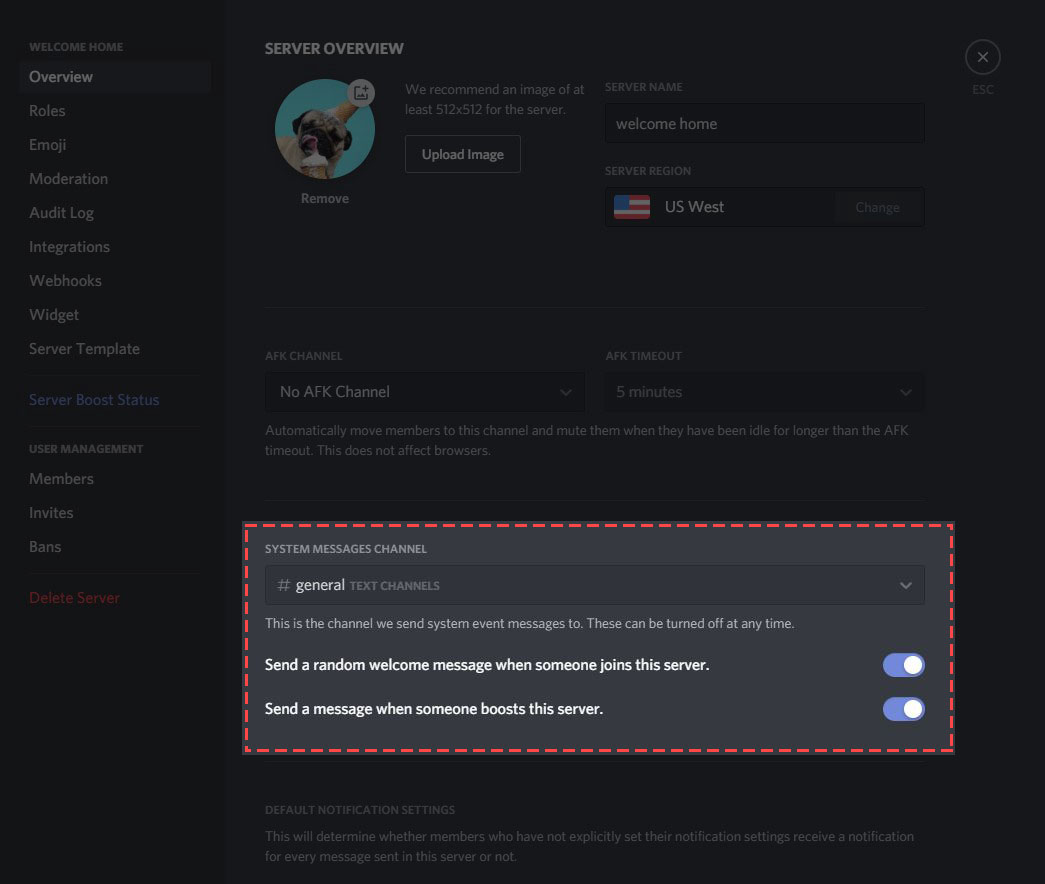
The AFK Channel and AFK Timeout settings in an older Server Overview layout. Image: Discord.
A few points follow from how the setting is built:
- It is one channel per server. The server stores a single AFK channel and a single timeout value.
- It is a voice channel. The feature exists to handle idle people in voice, so you pick one of your voice channels.
- It is off until you choose a channel. In Discord's screenshot the default reads "No AFK Channel".
🏷️ Setting Names: AFK Channel or Inactive Channel
Discord's help-centre screenshot labels the two fields AFK Channel and AFK Timeout, on the Overview page of Server Settings. That image comes from an older version of the app.
Newer versions of Discord may show the same settings as Inactive Channel and Inactive Timeout, and the page that holds them can move between app updates. Discord's help centre does not currently document the newer labels or their exact page, so look for either name when you open Server Settings.
The developer documentation still calls the fields afk_channel_id and afk_timeout, which confirms they are the same feature under either label.
⚙️ How to Set Up a Discord AFK Channel
You need the Manage Server permission, or to be the server owner, before you can change these settings. If you are building a new server from scratch, our guide on how to set up a gaming Discord server covers the wider channel layout first.
Step 1: Create a voice channel
- In your server, click the + next to a channel category, or right-click the channel list.
- Choose Voice and give the channel a clear name, such as "AFK".
- Select Create Channel.
A voice channel named AFK sitting at the bottom of the voice list. Image: Discord.
Step 2: Open Server Settings
- Click the server name in the top-left corner.
- Select Server Settings from the menu.
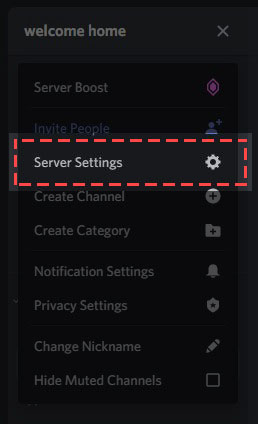
Server Settings opens from the menu under the server name. Image: Discord.
Step 3: Choose the channel and timeout
- Find the AFK Channel (or Inactive Channel) dropdown and select the voice channel you just made.
- Find the AFK Timeout (or Inactive Timeout) dropdown and pick how long members can stay idle.
- Save your changes if the app shows a save bar.
To switch the feature off later, set the channel dropdown back to the "no channel" option.
⏱️ AFK Timeout Options
Discord's developer documentation lists the only values the timeout can take. They are stored in seconds and appear in the app as minutes or an hour.
| Option in the app | Value in seconds | Good fit for |
|---|---|---|
| 1 minute | 60 | Very busy servers with limited voice space |
| 5 minutes | 300 | A sensible middle ground; shown as the setting in Discord's screenshot |
| 15 minutes | 900 | Casual hangout servers |
| 30 minutes | 1800 | Study, co-working or "lurk" voice rooms |
| 1 hour | 3600 | Servers where people often listen without interacting |
There is no custom value. If none of these fit, choose the closest longer option so active listeners are not moved by mistake.
🔐 Who Can Change the Setting
Editing server-wide settings needs the Manage Server permission. Discord's developer docs say the same for bots: changing a server's settings, including afk_channel_id and afk_timeout, requires MANAGE_GUILD, which is Manage Server in the app.
Two other permissions are worth knowing about:
- Move Members lets someone drag people between voice channels by hand, so moderators can pull a member out of the AFK channel or send them there.
- Speak controls whether someone can talk in a voice channel.
For a full walkthrough of how these fit together, see our Discord roles and permissions guide.
👤 What Members Experience
When the timeout passes, an idle member who is in voice is moved to the AFK channel and muted, as described in the setting text. They stay connected to voice, just in a different channel.
To rejoin a conversation, they can open the voice channel they want and join it again. Discord does not document a notice or sound for the move, so members may not notice it until they look at the channel list.
Discord's help centre does not explain how the app decides someone is idle in voice. The setting text only says members are moved once they have been idle longer than the timeout.
💻 Desktop, Mobile and Browser Behaviour
The only platform detail Discord states for this feature is that it does not affect browsers. Someone using Discord at discord.com in a web browser should not be moved by the AFK timeout.
Discord does not document whether the mobile apps behave the same way as the desktop app here. Treat mobile behaviour as unconfirmed, and test it in your own server if it matters to your community.
🟡 How the Idle Status Relates
The Idle status and the Discord AFK channel are separate features with a similar idea behind them.
Discord's help centre says you switch to Idle automatically when you have been away for a certain amount of time, and it compares this to being moved into an AFK voice channel. The yellow moon icon shows other people you are idle.
The status menu, where Idle can also be set by hand. Image: Discord.
You can also choose Idle yourself from the status menu. Discord notes that a manually set Idle status stays on indefinitely, unlike the automatic one. Discord does not publish the exact delay before automatic Idle kicks in.
🧩 Best Practices
- Name it clearly. "AFK", "Idle" or "Away" tells members at a glance why they were moved.
- Place it at the bottom. Put the channel at the end of your voice list so it does not look like an active room.
- Turn off Speak in it. Deny the Speak permission for @everyone in the AFK channel so people who join it by hand cannot hold conversations there.
- Match the timeout to your server. Short timeouts suit busy gaming servers; longer ones suit study rooms and music listening.
- Do not confuse it with Timeout. The AFK timeout is an automatic move. A moderation timeout is a punishment, explained in our Discord mute vs timeout guide.
🛠️ Troubleshooting
Idle members are not being moved
- Check that a channel is actually selected. "No AFK Channel" means the feature is off.
- Confirm the member was in a voice channel. The feature moves people out of voice, not out of text.
- Ask whether they are using Discord in a browser. Discord's setting text says browsers are not affected.
- Wait for the full timeout. A 30-minute or 1-hour setting can feel like nothing is happening.
Members are moved too quickly
- Raise the timeout. Moving from 1 or 5 minutes up to 15 or 30 minutes is the simplest fix.
- Remember that people who only listen may look idle. For listening-heavy rooms, a longer timeout is usually kinder.
The setting is missing or greyed out
- You likely lack Manage Server. Ask the owner or an admin to check your role.
- Look for the newer Inactive Channel label, which may sit on a different settings page in current versions.
❓ Frequently Asked Questions
What is a Discord AFK channel?
It is a voice channel chosen in Server Settings where Discord moves and mutes members who have been idle in voice for longer than the server's timeout.
How long before Discord moves someone to the AFK channel?
It depends on the server. The timeout can be set to 1 minute, 5 minutes, 15 minutes, 30 minutes or 1 hour.
Can I set a custom AFK timeout?
No. Discord's developer documentation lists only those five values.
Can a server have more than one Discord AFK channel?
No. Each server stores a single AFK channel setting.
Does the AFK channel work in the browser?
Discord's setting text says it does not affect browsers, so browser users should not be moved.
Can a text channel be used as the AFK channel?
The feature is built for voice, and Discord's help centre describes it as an AFK voice channel. Choose a voice channel.
Is the AFK timeout the same as a moderation timeout?
No. The AFK timeout only moves idle voice users. A moderation timeout restricts what a member can do for a set time.
Summary
The Discord AFK channel is a single voice channel where idle members are moved and muted after a timeout of 1, 5, 15 or 30 minutes, or 1 hour. You set it in Server Settings with the Manage Server permission, under the AFK Channel and AFK Timeout fields, which newer versions may label Inactive Channel and Inactive Timeout.
Discord states that browser users are not affected, but it does not document mobile behaviour or how idleness is detected in voice. Give the channel a clear name, deny Speak there, and choose a timeout that suits how your members use voice.
Sources
- Discord Help Center: What do those colored dots next to my avatar mean?
- Discord Help Center: Changing Online Status
- Discord Help Center: New Member Messages
- Discord Help Center: Voice Channels FAQs
- Discord Help Center: Discord Roles and Permissions
- Discord Developer Documentation: Guild Resource
- Discord Developer Documentation: Permissions
Comments
Sign in to join the conversation
Sign inNo comments yet
Be the first to share your thoughts!