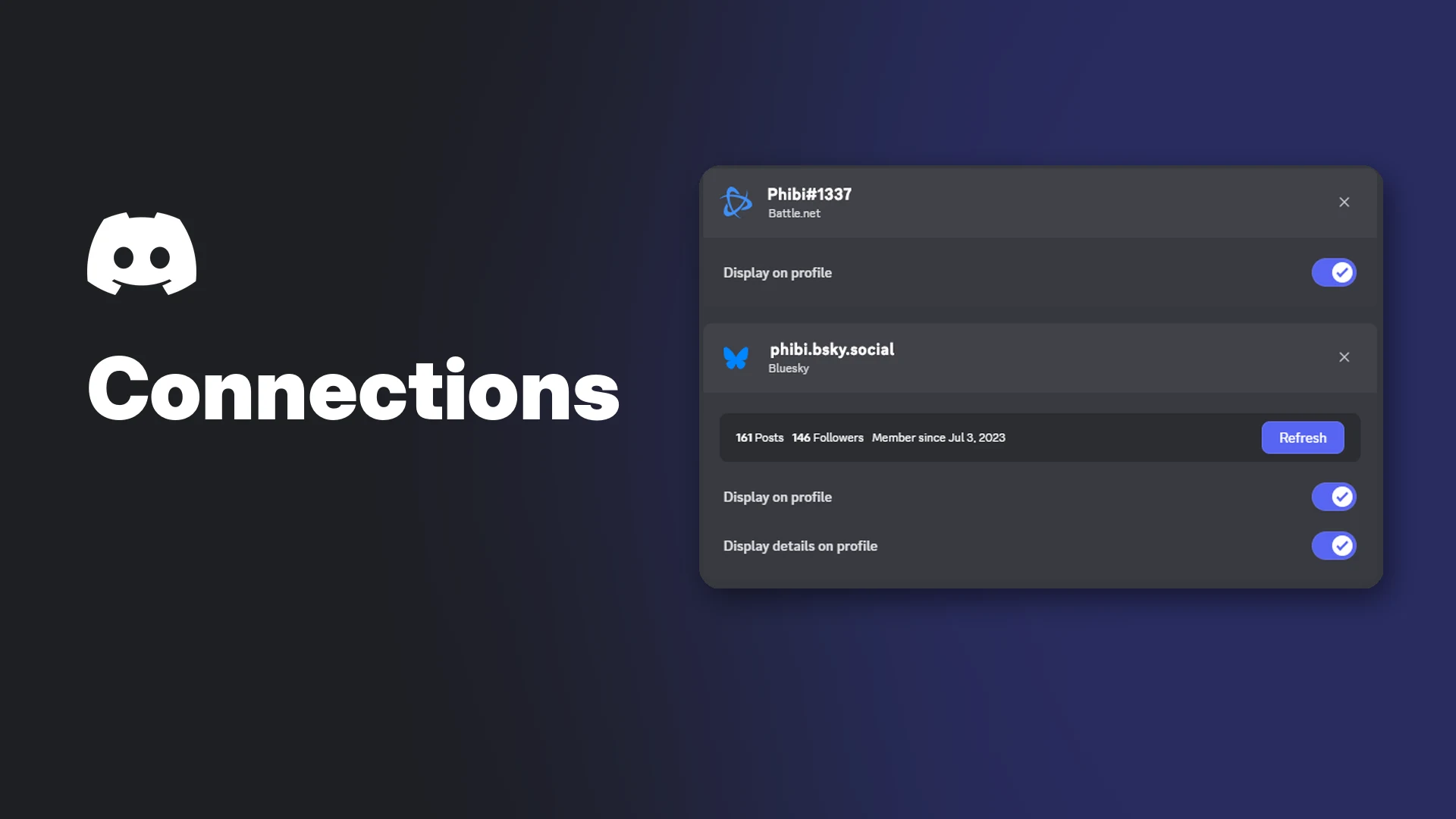

Discord Connections let you link accounts from other services, such as Steam, Spotify, Xbox and PlayStation Network, to your Discord account. Linked accounts can appear on your profile, and some can show what you're playing, listening to or watching as your status.
You manage everything from one Connections tab in User Settings. Each connection has its own toggles, so you decide what other people see.
This wiki lists the services Discord currently shows, explains how to add and remove a connection on desktop and mobile, and covers the display settings, Spotify listen along, console features, privacy and troubleshooting.
At a glance - Where: User Settings > Connections - How many: as many third-party accounts as you like - Profile control: Display on profile, plus extra toggles for some services - Nitro needed? No - Removing one: only you can do it; Discord Support can't remove it for you
What Are Discord Connections?
Discord calls this feature Account Connections. It links an external account to your Discord account and, if you choose, shows it on your user profile.
Some connections also share live activity. Discord's Activity Sharing FAQ notes that Spotify and Crunchyroll activity only appears once you connect those accounts, and Xbox or PlayStation games show up through their connections too.
Connected accounts as they appear on a Discord profile. Image: Discord.
🔗 Supported Services
Discord's help centre shows these services in the Add Connection window. Discord's 9 November 2026 patch notes added Letterboxd to the list.
| Type | Services |
|---|---|
| Gaming | Battle.net, Bungie.net, Epic Games, League of Legends, PlayStation Network, Riot Games, Roblox, Steam, Xbox |
| Music and video | Amazon Music, Crunchyroll, Letterboxd, Spotify, Twitch, YouTube |
| Social | Bluesky, Facebook, Reddit, TikTok, X |
| Other | Domain, eBay, GitHub, PayPal |
The Add Connection window on desktop. Image: Discord.
Instagram is no longer available as a new connection. Discord says it removed the Instagram connection due to lack of API support.
How to Add a Connection
Desktop and browser
- Select the cogwheel next to your username to open User Settings.
- Select the Connections tab. To see every option, select the View More arrow.
- Select the icon of the service you want to add, then log in to that service when prompted.
- Look for the message Connected your [External Account] account to Discord.
Mobile
- Tap your avatar in the bottom-right corner to open your profile.
- Tap the cogwheel in the top-right corner.
- Tap Connections, then Add in the top-right corner.
- Tap the service you want and log in. A confirmation message appears when it works.
Some services add extra steps. Xbox asks you to press Continue and Authorize and Continue, and Roblox asks you to confirm account details before finishing.
How to Remove a Connection
- Open User Settings and select Connections (on mobile: User Settings > Connections).
- Select the X icon on the connection you want to remove.
- Select Disconnect to confirm.
Discord says removing a connection revokes its access to that account and permanently deletes the information it collected. Crunchyroll is an exception to the one-step process: you need to remove the link in both Discord and Crunchyroll settings.
👤 Show or Hide Discord Connections on Your Profile
Every connection has a Display on profile toggle. Turn it off to hide that account from your profile completely.
Some services, such as Steam, Reddit and Bluesky, also offer connection details like account age or follower counts. Use Display details on profile to hide those details while still showing that the account is verified. A Refresh button updates the details on demand.
Discord says visibility is on by default for most connections, except ones often tied to real names, such as Facebook and Spotify.
🎮 Show Activity as Your Status
Several connections have a second toggle that shares live activity. The labels follow the pattern Display [service] as your status:
| Toggle | What it shows |
|---|---|
| Display Spotify as your status | The song you're listening to |
| Display Xbox as your status | Your current Xbox game and how long you've played |
| Display PlayStation Network as your status | Your current PS4 or PS5 game |
| Display Crunchyroll as your status | The anime title, season and episode you're watching |
These toggles only work while your global activity sharing is on. Discord's Activity Sharing FAQ explains that each connection's toggle depends on the main Share my activity setting.
🎵 Spotify and Listen Along
After connecting Spotify, open User Settings > Connections to switch Display on profile and Display Spotify as your status.
The two Spotify toggles in Connections. Image: Discord.
Friends can see your track on your mini profile and full profile. From there they can use Play on Spotify or Listen Along.
Spotify activity on a Discord profile. Image: Discord.
To invite friends, select the + in your message box while Spotify is playing. You can send the invite in a DM, group DM or channel. Discord says friends need Spotify Premium to listen along, or they'll get an error.
Xbox and PlayStation Features
Linking a console account does more than add a badge to your profile:
- Xbox: show your Gamertag and game activity, and use Discord voice chat on your console. Each Discord account supports one linked Xbox account at a time.
- PlayStation Network: show your Online ID and the game you're playing on PS4 or PS5. Discord voice chat transfer works on PS5 only.
Discord says the PlayStation activity status isn't available for child accounts on PlayStation Network. For linking a Twitch or YouTube channel to a server, see our guide to connecting Twitch, YouTube and Kick to Discord.
🔒 Privacy and Safety
- Discord can only read information that's public on the other service. For example, Steam game data needs a public Steam profile.
- Discord says it doesn't sell connection data and won't share it outside Discord without your permission.
- The connection screen lists what Discord collects before you approve it.
- A connection can only be added to a different Discord account after a set period, which makes it harder to use one account to verify many fakes.
- Connections don't carry over between accounts in Account Switcher.
Servers can also use connections for Linked Roles, which check details like account age before granting a role. Hiding a connection doesn't stop it from counting toward those roles. Our Discord privacy settings guide covers the rest of your privacy controls.
🔧 Troubleshooting
| Problem | What Discord suggests |
|---|---|
| Spotify keeps pausing | Spotify pauses if your mic transmits for 30 seconds in voice. Use Push to Talk or adjust voice sensitivity |
| Spotify not shown as status | A detected game takes priority over Spotify |
| Listen Along won't start | Pick a device or play a song in your Spotify app first |
| Listen Along is out of sync | Check that your system time is correct |
| PlayStation status missing | Set PlayStation privacy so Anyone can see your online status and what you're playing, then refresh |
| Steam game data missing | Make your Steam profile public |
| Twitch or YouTube server not listed | Remove and reconnect the account |
| Connection won't link | Make sure you can log in and pass the service's security checks, then contact Discord Support |
Discord notes that auto pause can also trigger during screen share and Go Live, because Spotify is meant for personal use.
Frequently Asked Questions
Are Discord Connections free?
Yes. Discord says Nitro doesn't affect your ability to add connections or connection details.
How many Discord Connections can I add?
As many third-party accounts as you want.
Can I use Discord Connections on mobile?
Yes. You can view and add connections on mobile from User Settings > Connections.
Does hiding a connection remove it?
No. Hiding only changes what others see. Use X and Disconnect to remove it.
Can Discord Support remove a connection for me?
No. You need to log in to your Discord account and remove it yourself.
Summary
Discord Connections link accounts like Steam, Spotify, Xbox, PlayStation Network and, since November 2026, Letterboxd to your Discord profile. Add or remove them in User Settings > Connections, then use the display toggles to control what others see. Spotify listen along needs Premium for listeners, and console links add voice and activity features.
Sources
- Discord Help Center: Account Connections on Discord FAQ
- Discord Help Center: Connections & Linked Roles: Community Members
- Discord Help Center: Discord Spotify Connection
- Discord Help Center: Spotify Auto Pause
- Discord Help Center: Spotify FAQ
- Discord Help Center: Discord and Xbox Connection FAQ
- Discord Help Center: Discord and PlayStation Network Connection FAQ
- Discord Help Center: Discord and Crunchyroll Connection FAQ
- Discord Help Center: Activity Sharing on Discord FAQ
- Discord Help Center: Twitch Integration FAQ
- Discord Blog: Discord Patch Notes, November 9, 2026, 9 November 2026
Comments
Sign in to join the conversation
Sign inNo comments yet
Be the first to share your thoughts!