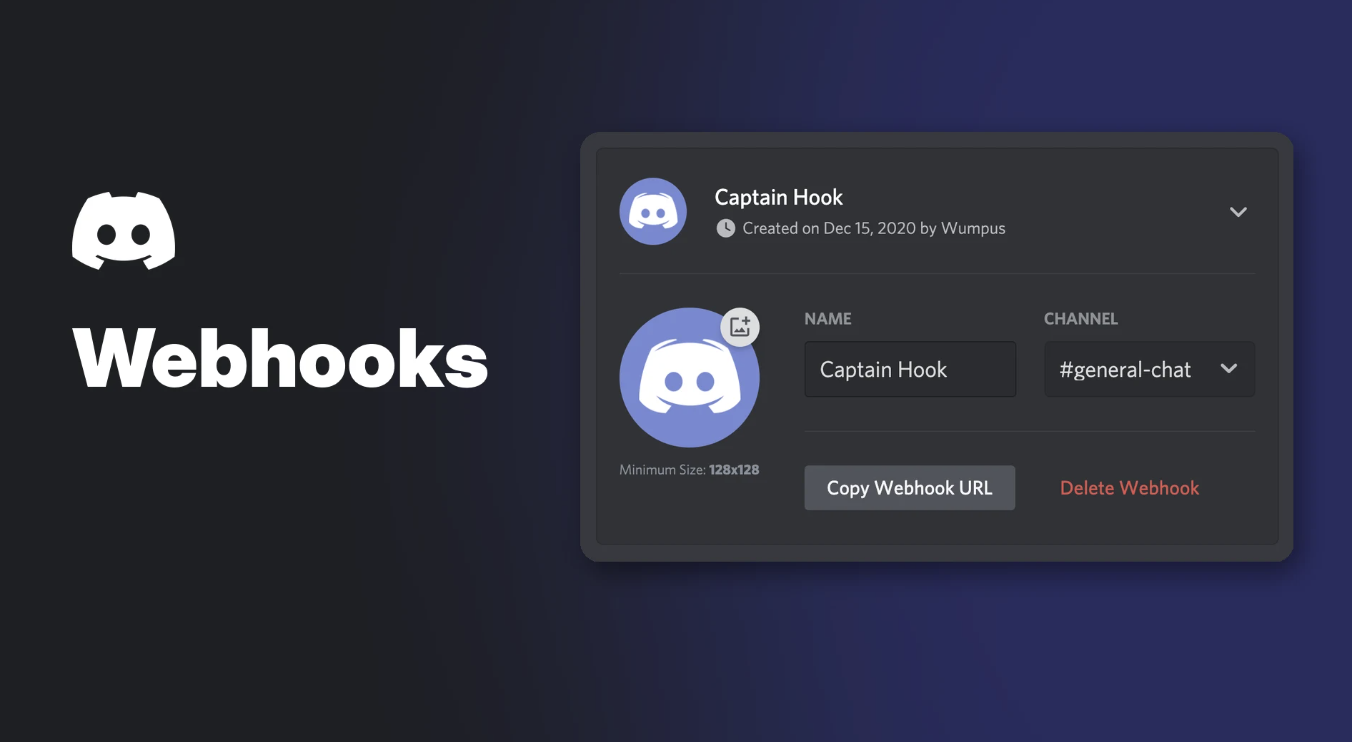

Discord webhooks are a built-in way to send automated messages and data updates into a text channel on your server. You create a webhook in your server settings, and Discord gives you a Webhook URL that other apps and websites can use to post messages.
Discord's developer docs describe webhooks as "a low-effort way to post messages to channels in Discord" that "do not require a bot user or authentication to use." That makes them popular for GitHub updates, monitoring alerts and simple news feeds.
This wiki covers what webhooks are, the permission you need, how to create and manage one, a test message example, Discord's documented limits, security, and fixes for common errors.
At a glance - Where: Server Settings > Integrations > Webhooks - Permission: Manage Webhooks - What you get: a Webhook URL that posts into one channel - Message limit: 2,000 characters of text and up to 10 embeds - Security: anyone with the URL can post, so keep it secret
What Are Discord Webhooks?
A webhook is a channel-specific endpoint. When a service sends a message to your Webhook URL, Discord posts it into the channel you picked, using the webhook's name and avatar.
Discord's help centre notes that webhooks need another website or service to send the messages. Some services are built to work with webhooks, and programmers can also send their own requests.
Discord's developer docs list three webhook types:
| Type | What it does |
|---|---|
| Incoming | Posts messages to a channel using a generated token. This is the kind you create in Server Settings |
| Channel Follower | Internal webhooks used by Channel Following to post announcements from another server |
| Application | Webhooks used with Interactions (apps and bots) |
🧩 Common Uses for Discord Webhooks
- Code and CI updates: Discord's help centre walks through sending GitHub commits and pull requests to a channel. It also lists CircleCI and DataDog as services that can use webhooks.
- News and announcements: Channel Following uses webhooks to deliver posts from another server's Announcement Channel into yours.
- Monitoring and alerts: tools that can send an HTTP request can post status updates.
- Forms and custom scripts: if a tool or script can send a JSON request, it can post through a webhook.
The help centre also notes that some platforms, such as Twitch, YouTube and Facebook, "can't really use webhooks" in this way. Discord has separate integrations for Twitch and YouTube.
If you post regular updates, our Discord announcements guide covers how to keep them clean and readable.
🔑 Permissions You Need
To create, edit or delete webhooks, you need the Manage Webhooks permission. Discord's Channel Permissions guide describes it as letting members "create, edit, or delete webhooks in this channel."
Server owners and admins can grant it through roles or per channel. Give it only to people you trust, since they can create URLs that post into your channels. Our roles and permissions guide explains how to set this up safely.
How to Create a Discord Webhook
Discord's help centre documents these steps in server settings on desktop:
- Open your Server Settings.
- Go to the Integrations tab.
- Click Create Webhook (or New Webhook if the server already has webhooks).
- Click the avatar to upload an image. The settings screen shows a minimum size of 128x128.
- Enter a Name so you can tell different webhooks apart.
- Pick the text channel it should post to from the Channel dropdown.
- Click Copy Webhook URL and paste it into the service you want to connect.
The Integrations tab in Server Settings, where you create Discord webhooks. Image: Discord.
The help centre does not document separate steps for creating webhooks on mobile, so this guide covers the desktop flow only.
A webhook's name, avatar, channel and URL options. Image: Discord.
GitHub example
For GitHub, Discord's help centre says to paste the URL into the repo's Settings > Webhooks > Add webhook form as the Payload URL. You must add /github to the end of the URL and choose application/json as the content type.
How to Edit or Delete a Webhook
The Integrations page lists every webhook on your server, who added it, when, and which channel it posts to. From there you can:
- Change the name, avatar or channel
- Copy the Webhook URL again
- Delete the webhook when you no longer need it
Managing existing Discord webhooks from the Integrations page. Image: Discord.
Followed announcement channels appear under Integrations > Channels Followed. Discord says you can unfollow by deleting the matching entry there.
🧪 Sending a Test Message
The developer docs describe the Execute Webhook request: a POST to your Webhook URL with a JSON body. At least one of content, embeds, file, poll or components is required.
Example only. Replace the placeholder with your own URL and run it from a terminal:
bash
curl -H "Content-Type: application/json" \
  -d '{"content": "Hello from my webhook!", "username": "Test Hook"}' \
  "YOUR_WEBHOOK_URL"
contentis the message text, up to 2,000 characters.usernameoverrides the webhook's default name for that message.avatar_urlcan override the avatar in the same way.embedstakes up to 10 embed objects for rich cards with titles, descriptions and fields.
Posting into threads and forums
Add ?thread_id= with a thread's ID to the URL to post inside an existing thread. Discord says this also unarchives it.
For forum or media channels, you must give either thread_id or a thread_name in the body. Using thread_name creates a new post with that title.
📏 Limits
These come from Discord's developer docs and help centre:
| Limit | Value |
|---|---|
Message text (content) |
2,000 characters |
| Embeds per message | 10 |
| Embed title | 256 characters |
| Embed description | 4,096 characters |
| Fields per embed | 25 |
| Total text across all embeds in a message | 6,000 characters |
| Webhook name | 1 to 80 characters, cannot contain "clyde" or "discord" |
| Webhooks per channel | 15 |
| Webhooks per server | 1,000 |
| Integrations per server | 50 (help centre) |
Discord does not publish a fixed number of messages per minute for webhooks. Rate limits are applied per route, and each response includes headers such as X-RateLimit-Remaining and X-RateLimit-Reset-After. Your tool should read these and slow down when needed.
🔒 Security: Treat the URL Like a Password
The Webhook URL contains a token. Discord's docs say the token-based webhook endpoints, including sending, editing and deleting, need no other authentication. In practice, anyone with the URL can post into your channel.
- Never paste the URL in public channels, screenshots or public code repositories.
- Remember that senders can set any
usernameandavatar_urlper message, so a leaked URL could be used to post messages that look official. - Use
allowed_mentionswhen posting user-generated text. Discord's docs recommend it to prevent unexpected mentions.
If a URL leaks: go to Server Settings > Integrations > Webhooks, delete that webhook, create a new one and update your services with the new URL. The help centre does not mention a separate "reset URL" option, so deleting and recreating is the documented route.
Webhooks vs Bots
| Webhook | Bot | |
|---|---|---|
| Needs a bot user or login | No | Yes |
| Posts to | One set channel (or its threads) | Anywhere it has permission |
| Reads messages or replies to commands | No | Yes |
| Best for | One-way updates and alerts | Moderation, commands, interactive features |
If you need something that reacts to members, a bot is the better fit.
🛠️ Troubleshooting
| Error | What it means | What to do |
|---|---|---|
| 404 / Unknown Webhook (10015) | The webhook doesn't exist, often because it was deleted | Create a new webhook and update the URL. Discord says not to keep retrying a 404 webhook |
| Invalid Webhook Token (50027) | The token part of the URL is wrong | Copy the URL again from Integrations |
| 429 Too Many Requests | You are being rate limited | Wait for the retry_after seconds in the response, then retry |
| 400 Bad Request | Badly formatted request or invalid body | Check your JSON, the Content-Type header and the length limits |
| Empty message (50006) | No content was sent | Include content, embeds, a file or a poll |
| Forum error (220001) | Posting to a forum without a thread | Add thread_id or thread_name |
Discord also warns that too many 401, 403 or 429 errors (10,000 in 10 minutes) can lead to a temporary IP restriction, so handle errors instead of retrying in a loop.
Frequently Asked Questions
Are Discord webhooks free?
Webhooks are a built-in part of Server Settings. Discord's help centre and developer docs do not list any Nitro or Boost requirement for them.
Can I create Discord webhooks on mobile?
Discord's help centre only documents the Server Settings steps on desktop. If you can't find the option on your phone, use the desktop or browser app.
Can a webhook read messages?
No. Webhooks only post messages into a channel. To read messages or respond to commands, you need a bot.
Why do my GitHub messages look wrong?
Discord says you must add /github to the end of the Webhook URL in GitHub and use application/json as the content type.
What happens if someone gets my webhook URL?
They can post into that channel without logging in. Delete the webhook and create a new one straight away.
Summary
Discord webhooks give you a simple, bot-free way to post updates from other services into a channel. Create one in Server Settings > Integrations, copy the URL into your service, and stay inside Discord's limits of 2,000 characters and 10 embeds per message.
Keep the URL private, read rate limit headers, and delete any webhook that leaks. If you want to go further with apps and bots, see our Discord Developer Portal guide.
Sources
- Discord Help Center: Intro to Webhooks
- Discord Help Center: Server Integrations Page
- Discord Help Center: Channel Permissions Settings 101
- Discord Help Center: Channel Following FAQ
- Discord Developer Docs: Webhook Resource
- Discord Developer Docs: Rate Limits
- Discord Developer Docs: Opcodes and Status Codes
- Discord Developer Docs: Message Resource (Embed Limits)
Comments
Sign in to join the conversation
Sign inNo comments yet
Be the first to share your thoughts!