
The simplest way to install Discord on Linux is to download the official package from Discord's download page and open it with your distro's package manager. Discord currently offers four Linux formats: .deb, .rpm, .pkg.tar.zst and .tar.gz.
Since Discord's 12 November 2026 update, those packages act as a small bootstrapper. They install Discord into your home directory, and the app then updates itself without sudo.
This page covers the commands for each distro, Flatpak, Snap, Steam Deck, Wayland screen share, push-to-talk, uninstalling and common fixes.
At a glance - Official downloads: .deb, .rpm, .pkg.tar.zst and .tar.gz from discord.com/download - Discord's download page says 64-bit Linux is required - New packages install into your home directory and self-update without sudo - Flatpak and Snap builds exist, but Discord doesn't list them on its download page - Wayland screen share and push-to-talk use system permission prompts
Which Linux Download Should You Use?
| Package | Use it on | Who provides it |
|---|---|---|
| .deb | Ubuntu, Debian and other Debian-based distros | Discord |
| .rpm | Fedora, openSUSE | Discord |
| .pkg.tar.zst | Arch and Arch-based distros | Discord |
| .tar.gz | Any distro, manual install | Discord |
| Flatpak | Flathub users, SteamOS, Bazzite | Flathub (community wrapper) |
| Snap | Snap Store users | Snapcrafters (community) |
Discord's help centre lists the minimum Linux systems as Ubuntu 20.04+, Debian 11+, openSUSE 16.2+ and Fedora Linux 32+.
🐧 How to Install Discord on Linux With the Official Packages
Go to discord.com/download, choose Download for Linux, then pick your format. Open a terminal in the folder where the file was saved, usually ~/Downloads.
The Download for Linux button on Discord's download page. Image: Discord.
Ubuntu and Debian (.deb)
- Run
cd ~/Downloads - Run
sudo apt install ./discord-file.deb(orsudo dpkg -i discord-file.deb), using your real file name. - Open Discord and log in or register.
Other distros
| Distro | Command |
|---|---|
| Fedora | sudo dnf install ./discord-file.rpm |
| openSUSE | sudo zypper install ./discord-file.rpm |
| Arch-based | sudo pacman -U ./discord-file.pkg.tar.zst |
| Any (tarball) | tar -xzf discord-file.tar.gz, then start the Discord launcher in the extracted folder |
Discord's help centre only documents the Debian commands. The others are the standard commands for each package type.
🔄 How the New Linux Updater Works
Discord's blog says Linux updates used to mean downloading and installing a fresh package each time.
Now the package only places Discord in your home directory. A new Rust-based updater handles updates after that, with no sudo required. Discord says delta updates are about 23% faster on average.
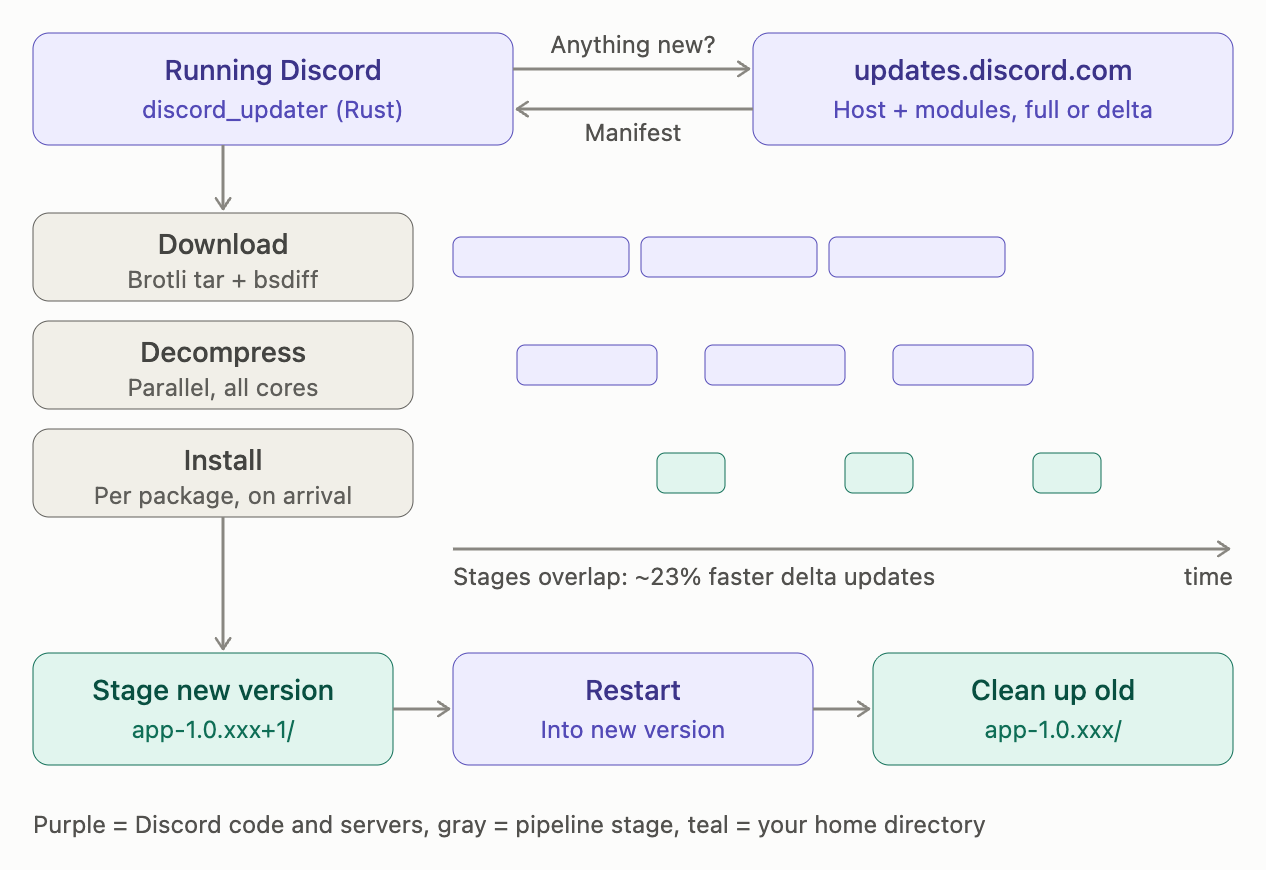
How Discord's new Linux updater stages and installs updates. Image: Discord.
Discord adds that community packages needed changes to support the new updater.
Flatpak and Snap (Community Packages)
Discord's download page doesn't list Flatpak or Snap, so treat both as community packages.
Flatpak (Flathub). The app ID is com.discordapp.Discord, and the wrapper is maintained in Flathub's GitHub repository. Flathub notes that Game Activity and Rich Presence don't work out of the box because of the sandbox.
- Install:
flatpak install flathub com.discordapp.Discord - Run:
flatpak run com.discordapp.Discord
Snap. The Snap Store listing is published by the Snapcrafters community and says it isn't necessarily endorsed by Discord.
- Install:
sudo snap install discord
🎮 Install Discord on Steam Deck
Discord's blog says SteamOS gets most apps through Flatpak, and that Go Live works on Steam Deck in Game Mode and Desktop Mode.
- Open the Power menu and switch to Desktop Mode.
- Open Discover, the desktop app store, and search for Discord.
- Select Install. Discover installs the Flathub package.
- Optional: right-click Discord in the app menu and choose Add to Steam.
These steps follow GamingOnLinux's Steam Deck guide, as Discord's help centre has no Steam Deck article.
Use Discord in a Browser Instead
You can also open Discord at discord.com in a supported browser, such as Chrome 108+ or Firefox 142+. In the browser you can't set keybinds, and Push to Talk only works while the window is in focus.
🖥️ Wayland Screen Share and Push-to-Talk
Screen share. On Wayland, Discord asks for permission through a system dialog (xdg-desktop-portal), where you pick a screen or window. Discord says this works on GNOME, KDE, gamescope and other compositors.
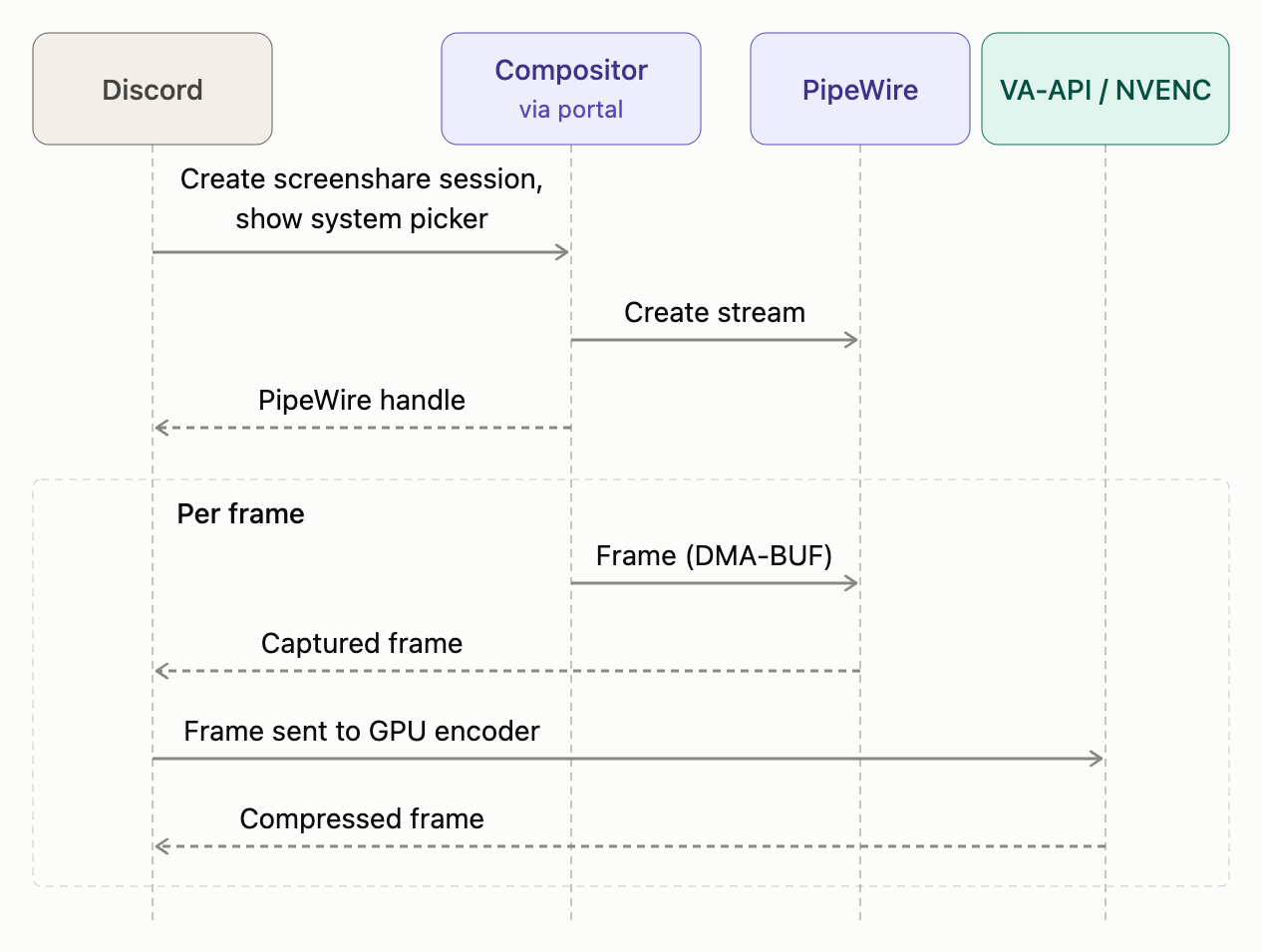
How Wayland screen share works in Discord on Linux. Image: Discord.
Discord's Go Live help article says audio sharing is unavailable on Linux, and its blog says per-app audio is still being built. For more on streaming, see our Discord streaming guide.
Push-to-talk. Go to User Settings > Voice & Video, set Input Mode to Push to Talk and record a shortcut. On Wayland, approve your desktop's shortcut prompt. Discord says it only asks again when keybinds change.
How to Uninstall Discord on Linux
| Install type | Command |
|---|---|
| .deb | sudo apt remove discord |
| .rpm (Fedora) | sudo dnf remove discord |
| Arch package | sudo pacman -R discord |
| Flatpak | flatpak uninstall com.discordapp.Discord |
| Snap | sudo snap remove discord |
Discord hasn't published the exact home directory folder its new updater uses.
Troubleshooting
| Problem | What to try |
|---|---|
| Discord keeps asking you to download an update | You're on an older package. Install the current one from discord.com/download once, and it will update itself after that |
| Can't join voice calls | Discord needs Linux version 0.0.69 or newer for voice. Check the version at the bottom of User Settings |
| Black screen when screen sharing | Approve the system share prompt, update Discord, then try turning off Hardware Acceleration in Voice & Video > Video > Advanced |
| Mic not picked up | Run Mic Test > Let's Check in Voice & Video, check Input Device, or use Reset Voice and Video Settings in the Debugging tab |
The Mic Test in Discord's Voice & Video settings. Image: Discord.
Frequently Asked Questions
What is the official way to install Discord on Linux?
Download the .deb, .rpm, .pkg.tar.zst or .tar.gz file from discord.com/download and install it with your package manager.
Do I need sudo to update Discord on Linux?
No, not with the new packages. Discord says they install into your home directory and update without sudo. You still need sudo for the first install.
Is the Discord Flatpak official?
Discord doesn't list it on its download page, so treat it as a community package.
Summary
To install Discord on Linux, get the official package for your distro from discord.com/download and install it once. It then updates itself without sudo. Flatpak and Snap are community alternatives.
On Wayland, approve the screen share and shortcut prompts when they appear. If you're setting up a PC for gaming, read our guide to Discord Game Mode, and check our Discord privacy settings guide after you log in.
Sources
- Discord Blog: Discord <3 Linux: A Year of Upgrades, 12 November 2026
- Discord: Download page
- Discord Help Center: Desktop Installation Guide
- Discord Help Center: What are the OS/system requirements for Discord?
- Discord Help Center: Minimum Client Version Requirements for Voice Chat
- Discord Help Center: Go Live and Screen Share
- Discord Help Center: Voice Input Modes 101
- Discord Help Center: Discord Voice and Video Troubleshooting Guide
- Discord Help Center: Mic Testing
- Flathub: Discord and Flathub wrapper repository
- Snap Store: Discord (Snapcrafters)
- GamingOnLinux: How to install extra software on SteamOS and Steam Deck
Comments
Sign in to join the conversation
Sign inNo comments yet
Be the first to share your thoughts!