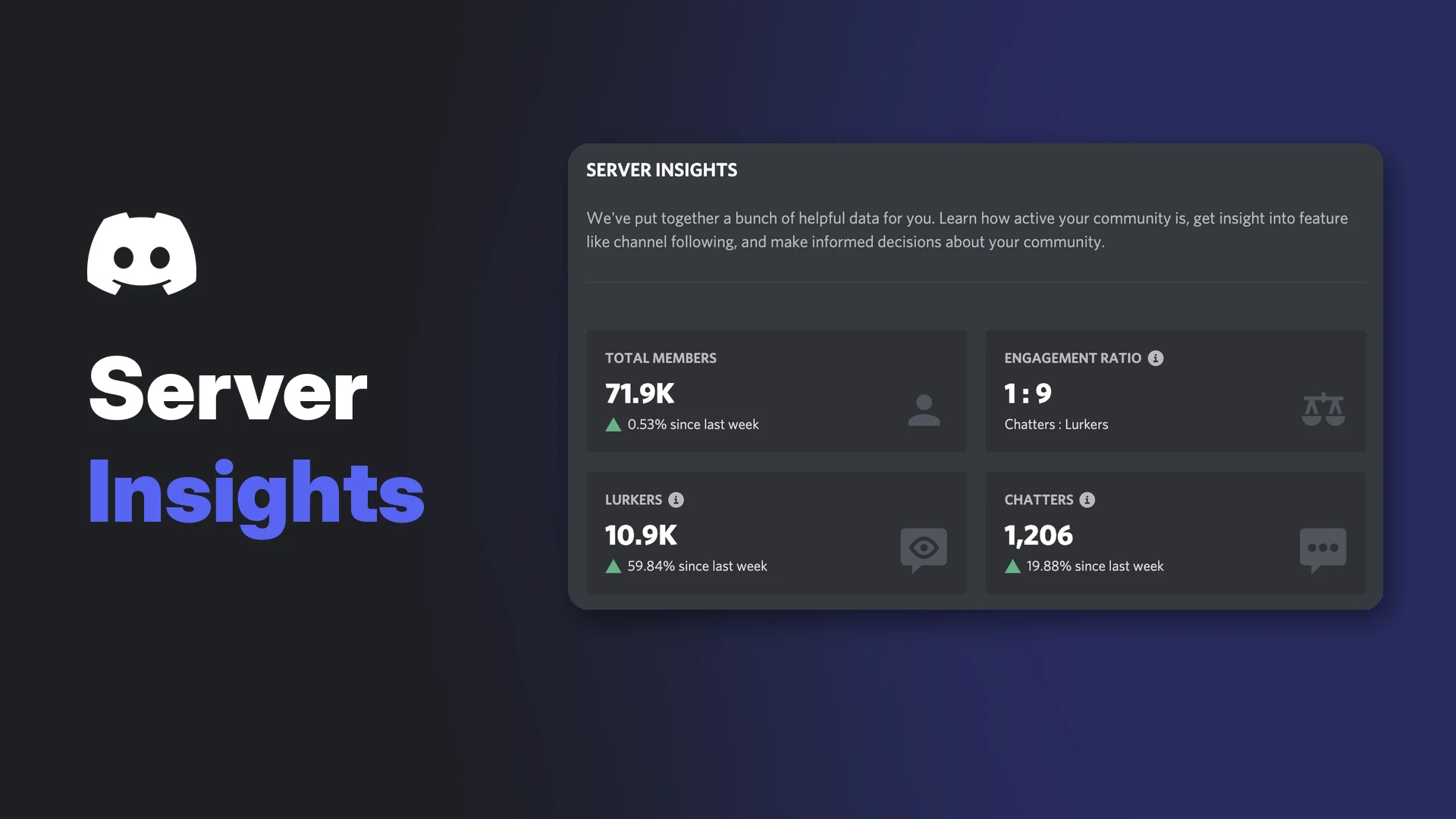

Discord Server Insights is the analytics dashboard Discord gives to Community servers. It answers questions that used to be guesswork: where new members come from, how many of them actually talk and how many stay.
Discord still labels the feature as alpha, so expect the odd bug. This wiki explains who can access Server Insights, how to open it, what each section shows, how Discord protects member privacy and how to turn the charts into practical changes for your server.
At a glance - Who gets it: Community servers with more than 500 members - Permission: View Server Insights - Where: server name dropdown, Server Settings, or discord.com/developers/servers - Sections: Growth and Activation, Engagement, Audience, Announcement Channels, Welcome Screen - Data delay: one day behind, up to 120 days of history for most servers - Export: charts can be exported to CSV
🔑 Who Can Access Discord Server Insights
Discord's help centre ties Server Insights to two conditions.
| Requirement | What Discord says |
|---|---|
| Server type | Community Server. Discord lists Server Insights among the tools Community servers get |
| Server size | Discord's FAQ describes it for Community servers with more than 500 members |
| Permission | View Server Insights. Granting it to someone unlocks the feature for them |
A normal Friend Server can opt in to Community at any time in Server Settings. Enabling Community requires a verified email verification level, the explicit media filter set to scan all members, a rules channel and a Community updates channel for moderators.
Give the permission only to roles that need it, such as your admin or growth team. Our Discord roles and permissions guide explains how to add a permission to a role.
🖥️ How to Open Server Insights on Desktop
Once you have the View Server Insights permission, Discord lists three ways in.
- Server dropdown: select the server name at the top of the channel list and choose Server Insights.
- Server Settings: open Server Settings and select Server Insights in the sidebar.
- Developer Portal: go to discord.com/developers/servers to see every server where you have permission to view insights.
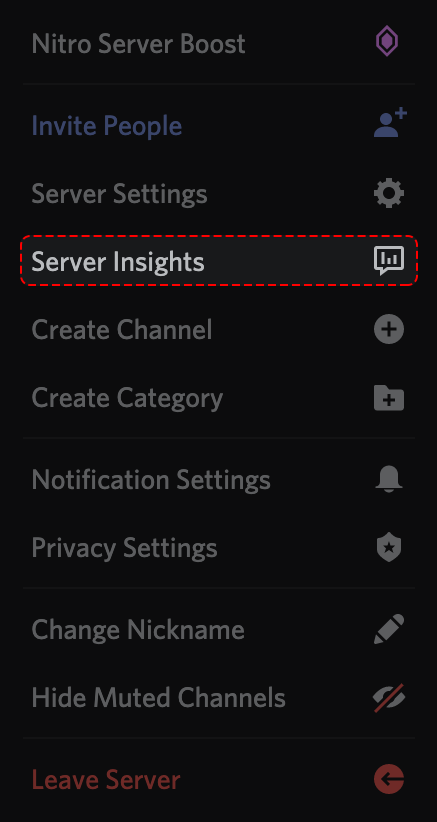
Server Insights in the server name dropdown. Image: Discord.
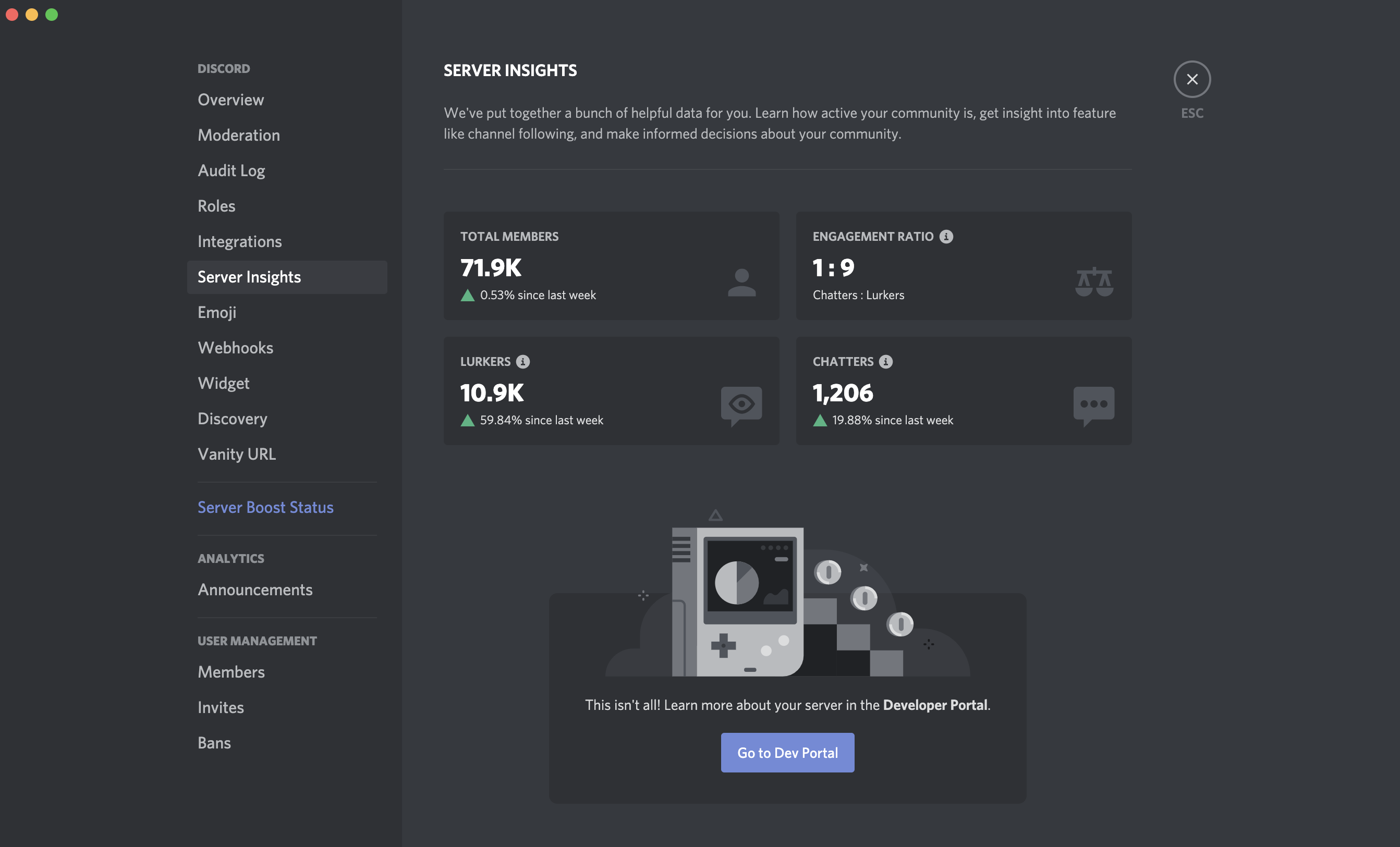
The Server Insights page in Server Settings, from Discord's help centre. Image: Discord.
The help centre screenshot is an older capture, so your layout may look different. If you're new to the portal, our Discord Developer Portal guide walks through the interface.
📱 Server Insights on Mobile
Discord's patch notes for 9 November 2026 say an engineer added three long-missing mobile parity features: AutoMod, Server Template and Server Insights.
The notes don't explain where the option sits in the app or which charts are included. Discord's help centre hasn't published mobile steps yet. Until it does, the desktop app, browser and Developer Portal are the documented ways to open the full dashboard.
📊 What Each Section Shows
Discord's FAQ names five sections.
| Section | Questions it answers |
|---|---|
| Growth and Activation | Where are new members coming from? Are they able to successfully talk? How many of them retain? |
| Engagement | What are members doing? How many people are talking? Which channels get used the most? |
| Audience | Where are members from? How long have they been in the server? |
| Announcement Channels | Analytics for your Announcement Channels, if enabled |
| Welcome Screen | Analytics for your Welcome Screen, if enabled |
Join sources appear as referrers in Growth and Activation. Channel activity sits under Engagement, and retention is part of Growth and Activation.
Discord now says Community servers that still have Welcome Screen enabled can't edit it, and recommends Community Onboarding instead.
How to Read the Key Metrics
Discord's settings screenshot shows four headline cards:
- Total Members, with the change since last week
- Engagement Ratio, shown as Chatters : Lurkers
- Lurkers, with the change since last week
- Chatters, with the change since last week
A ratio like 1 : 9 means one member chatting for every nine who are only reading. Discord doesn't publish a target ratio, so compare your own numbers over time rather than chasing a benchmark.
The dashboard also has controls that change how numbers look:
- Interval: daily, weekly or monthly. Discord says hourly is coming soon.
- Date Range: pick a custom range to see long trends or a single day.
- Sorting: number columns in tables sort ascending or descending.
- Export CSV: download chart data to work with in a spreadsheet.
🛡️ Privacy and Aggregated Data
Discord says Server Insights data is aggregated and anonymized, with extra steps so individual members can't be singled out.
| Chart | Privacy rule |
|---|---|
| Referrers | Any referrer with fewer than 50 joiners in the date range is grouped into "Other" |
| Country breakouts | Any country with fewer than 50 members is grouped into "Other" |
| Device breakouts | Desktop, mobile or mixed is hidden if it has fewer than 50 members |
Members who don't want their activity counted can opt out by turning off Use data to improve Discord. On desktop it's in User Settings > Data & Privacy. On mobile it's in Settings > Data & Privacy.
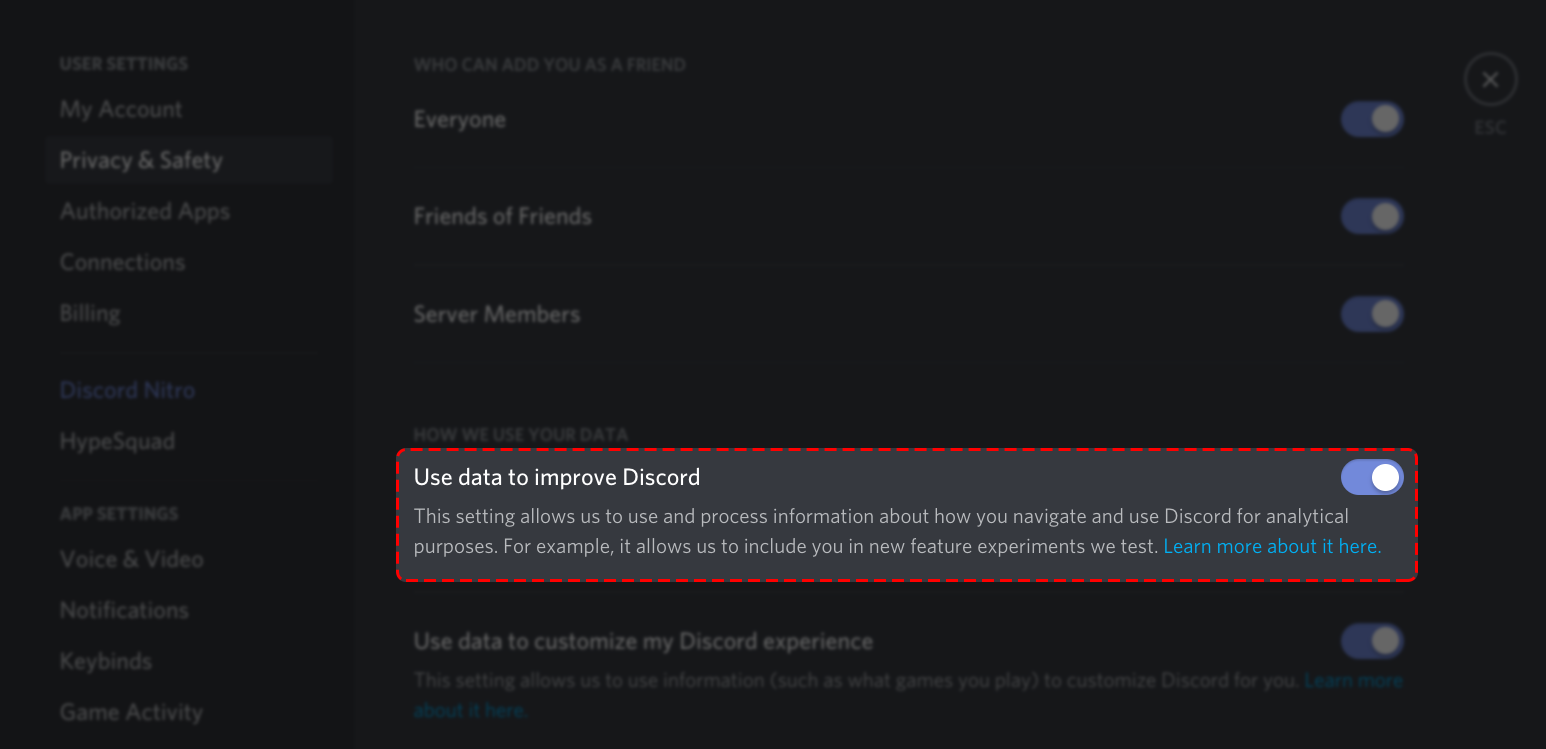
The toggle that opts you out of Server Insights. Image: Discord.
People who post in Announcement Channels need this setting on for their announcement stats to appear. Our Discord privacy settings guide covers the rest of the Data & Privacy page.
⏱️ Data Limits and Delays
- One day behind: insights are up to date as of the previous day.
- 120 days of history for servers that aren't Partnered or Verified.
- Partnered and Verified servers see data back to the day they gained that status.
- 500 member start point: some charts only begin on the day your server reached 500 members.
- UTC dates: every date and range uses UTC time.
- Completed periods only: weekly and monthly views skip partial weeks or months, so a start date mid-week can hide some data.
📈 Using Server Insights to Grow a Server
Discord encourages admins to experiment and measure the impact. A few ways to do that with the documented charts:
- Check your referrers. See which sources bring in the most joiners, then spend your promotion time there.
- Watch activation. If new members join but don't talk, review your onboarding and first channels.
- Find quiet channels. Engagement shows which channels get used most. Merging or archiving dead ones can make the server easier to follow.
- Compare before and after. Set a date range around a change, such as a new event series, and see whether chatters or retention moved.
- Track announcement reach. If you use Announcement Channels, their section shows how your updates perform.
Troubleshooting
| Problem | What to check |
|---|---|
| No Server Insights option | Make sure the server has Community enabled and your role has View Server Insights |
| Charts start later than expected | Some data only begins when the server reached 500 members, and history stops at 120 days |
| Weekly totals look short | Only completed weeks or months appear. Line your start date up with the start of a week |
| Countries or referrers missing | Groups under 50 are folded into "Other" or hidden |
| Numbers look a day old | That's expected. Insights run one day behind |
Frequently Asked Questions
Is Discord Server Insights free?
Yes. Discord doesn't list any cost. It comes with Community servers that meet the size requirement.
Can small servers use Discord Server Insights?
Discord's FAQ describes it for Community servers with more than 500 members.
Can I see which members are lurking?
No. The data is aggregated and anonymized, and small groups are hidden or merged.
Can I export Server Insights data?
Yes. Charts can be exported to CSV.
Is Server Insights on mobile?
Discord's 9 November 2026 patch notes say it was added to mobile, but the help centre has no mobile steps yet.
Summary
Discord Server Insights is a free analytics dashboard for Community servers with more than 500 members, unlocked by the View Server Insights permission. It covers Growth and Activation, Engagement, Audience, Announcement Channels and Welcome Screen, with daily, weekly or monthly intervals and CSV export. Data runs one day behind, usually goes back 120 days and hides groups under 50 to protect privacy.
Comments
Sign in to join the conversation
Sign inNo comments yet
Be the first to share your thoughts!