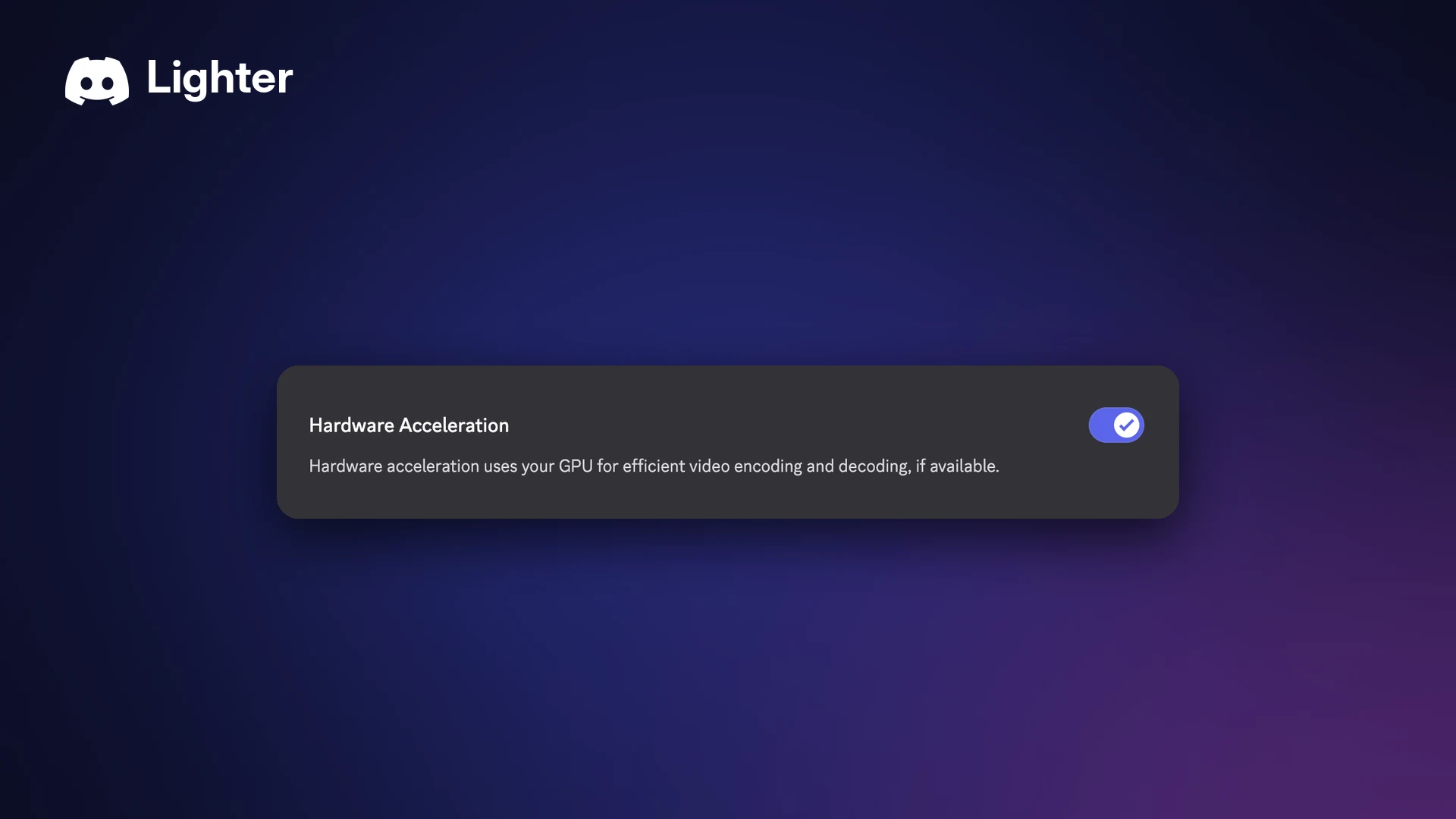

Discord high RAM usage is a common complaint on Windows and Mac. The desktop app is built on Electron, which runs on Chromium, so it uses several processes and can hold a lot of memory while you game, stream or sit in busy servers.
On 4 November 2026, Discord co-founder and CTO Stanislav Vishnevskiy confirmed on X that Discord is rebuilding its desktop and mobile apps in Rust to replace Electron, with an early Windows build shown using about 290 MB. He gave no release date, so the steps below are what you can do today.
This guide explains why Discord uses so much memory, which built-in settings reduce RAM and CPU use, and how to check the results on your own computer.
Discord High RAM Usage at a Glance
| Detail | What to know |
|---|---|
| Why it uses memory | The desktop app is Chromium-based and runs several processes |
| Normal processes | Main, Renderer, Crash Reporter and GPU |
| Extra processes | The Game Overlay adds a host, a GPU process and one renderer per game |
| Quickest wins | Turn off GIF autoplay and animated emoji, turn on Reduced Motion |
| Hardware Acceleration | User Settings > Advanced. Discord lists turning it off as a lag fix |
| Game Overlay | Windows only. Discord suggests disabling it for games that lag |
| Game Mode | An early Discord experiment that targets CPU and GPU, not RAM |
| Rust rebuild | Confirmed 4 November 2026, no release date |
| Avoid | Third-party "RAM cleaners", client mods and registry edits |
🧠 What Causes Discord High RAM Usage?
Discord's help centre says the app is "based on chromium which has a multi-process model." That is why you see several Discord entries in Task Manager. Discord says this is normal.
The standard processes are:
- Main process: restarts other processes if they stop.
- Renderer: draws the app you see.
- Crash Reporter
- GPU process: this still appears even with Hardware Acceleration turned off.
Using the Game Overlay adds an overlay host process, an overlay GPU process and one overlay renderer per game.
Memory also grows as the app loads more. PCWorld reported that Discord usually sits around 1 GB but can climb as more servers and features load. In December 2025, it also reported that Discord was testing an automatic restart on Windows when the app passed 4 GB, had run for at least an hour, and you had been idle for 30 minutes and were not in a call.
⚙️ How to Reduce Discord's RAM and CPU Use on Desktop
Every setting below comes from Discord's own help centre. Change one at a time so you can see what helps.
1. Turn off GIF autoplay and animated emoji
Discord lists both as lag fixes.
- Open User Settings (the cogwheel next to your name).
- Under App Settings, select Accessibility.
- Turn off Automatically play GIFs when Discord is focused.
- Turn off Play animated emoji.
- Under Stickers, choose Animate on interaction or Never animate.
2. Turn on Reduced Motion
In the same Accessibility tab, turn on Enable Reduced Motion. Discord says it limits "the amount and intensity of animations." It also stops GIF avatars from playing in chat and makes animated emoji static.
If Reduced Motion is set to Sync with computer, Discord follows your system's animation setting instead.
3. Try turning off Hardware Acceleration
- Open User Settings.
- Select Advanced.
- Turn off Hardware Acceleration.
Discord recommends this as a lag fix. There is a separate video setting too: Voice & Video, then the Video tab, then Hardware Acceleration under Advanced. Discord says this one "uses your GPU for efficient video encoding and decoding," and suggests disabling it if your stream or camera lags.
The video Hardware Acceleration setting in Voice & Video. Image: Discord.
Because both settings move work to or from your graphics card, test each one both ways and keep whichever runs better on your PC.
4. Turn off the Game Overlay
The overlay adds extra processes for every game. Discord says, "If you experience lag, game crashes, or other issues while the Game Overlay is enabled, we recommend disabling the Game Overlay for that specific game."
- Open User Settings.
- Select Game Overlay.
- Turn off Enable in-game overlay.
The Game Overlay settings page. Image: Discord.
The overlay only works on Windows, so Mac and Linux users can skip this step.
5. Lower your stream quality
Streaming while you play is heavy work. Select the three dots on your stream, then Stream Quality, and pick a lower frame rate and resolution. Our Discord streaming guide covers more stream settings.
6. Watch for Game Mode
Discord is testing Game Mode, a desktop toggle described as "Reduce Discord's CPU and GPU usage while a game is running." Discord called it an early experiment, so not everyone has it. It does not mention memory. Read our Discord Game Mode explainer for what it does and doesn't fix.
🔌 Close Discord Fully When You Don't Need It
On Windows, Discord's close button can send the app to the system tray instead of quitting. It keeps running, and keeps using memory, in the background.
- Open User Settings, then Windows Settings.
- Under Close Button, turn off Minimize to Tray if you want the X button to quit Discord.
- Under System Startup Behavior, turn off Open Discord to stop it launching when your PC starts.
Startup and close button options in Windows Settings. This is an older screenshot of the same menu. Image: Discord.
You can also disable Discord in the Startup tab of Task Manager. If it is already in the tray, close it from the Discord icon in the system tray, as Discord's reinstall guide describes.
📱 How to Lighten Discord on Mobile
Discord's mobile crash guide suggests turning off auto-play for emoji, GIFs and stickers.
- Tap your avatar in the bottom-right corner.
- Go to App Settings, then Accessibility.
- Turn off Automatically play GIFs when possible and Play animated emoji.
- Set Stickers to Never animate.
- Turn on Enable Reduced Motion if you want fewer animations everywhere.
Animation settings in the Discord mobile app. Image: Discord.
Data Saving Mode (User Settings > App Settings > Data Consumption) lowers image and video quality on cellular networks. It saves mobile data, not memory.
📊 How to Check Discord's Memory Use
Discord doesn't publish its own steps for this. These are general OS steps.
Windows
- Press Ctrl + Shift + Esc to open Task Manager.
- On the Processes tab, expand the Discord group.
- Check the Memory and CPU columns before and after each change.
Mac
- Open Activity Monitor from Applications, then Utilities.
- Search for Discord and check the Memory and CPU tabs.
🛠️ Troubleshooting
- Still slow after changing settings: update Discord, your operating system and your graphics drivers. Discord lists this first in its lag fixes. You can also reinstall the app.
- Updates won't install: Discord suggests force quitting it from Task Manager or Activity Monitor first.
- Freezes on the loading screen: Discord's troubleshooting guide suggests clearing its cache (
%appdata%/discord/Cacheon Windows,~/Library/Application Support/discord/Cacheon Mac) and turning off Hardware Acceleration. - Using the browser version: Discord recommends updating your browser or trying another one, and closing extra tabs and windows.
- Stray processes: Discord notes that leftover processes can hide in the system tray or Task Manager, so check both after quitting.
- Several Discord apps open: running Stable, PTB and Canary at the same time is on Discord's list of unsupported setups, so close the ones you don't need.
Skip third-party "RAM cleaner" tools, client mods and registry hacks. None of them appear in Discord's guidance, and Discord won't take bug reports from modified clients such as BetterDiscord.
Frequently Asked Questions
Why does Discord have so many processes?
Discord is built on Chromium, which splits work across several processes. Discord says this is normal.
What is the fastest fix for Discord high RAM usage?
Turn off GIF autoplay and animated emoji, turn on Reduced Motion, and close Discord fully when you aren't using it.
Does turning off Hardware Acceleration reduce Discord high RAM usage?
Discord lists it as a lag fix, not a memory fix. Results vary by PC, so test it both ways.
Does Discord Game Mode lower RAM?
Discord describes Game Mode as reducing CPU and GPU use while a game runs. It doesn't mention memory, and it is still an experiment.
When will the Rust version of Discord come out?
Discord hasn't given a date. Its CTO said the team hopes to get it into testing with users soon.
Should I use a RAM cleaner app?
No. Stick to Discord's own settings and your operating system's built-in tools.
Summary
Discord high RAM usage comes from its Chromium-based, multi-process design, plus extras like the Game Overlay, animations and streaming. Until the Rust rebuild arrives, turn off GIF autoplay and animated emoji, enable Reduced Motion, test Hardware Acceleration, disable the overlay for games that lag, and quit Discord from the tray when you don't need it.
Setting up a server for your gaming group? See our guide to setting up a gaming Discord server.
Sources
- Inven Global: Discord CTO confirms the desktop and mobile apps are being rebuilt in Rust, 4 November 2026
- Discord Help Center: Why does Discord have multiple processes?, updated 31 October 2026
- Discord Help Center: What are the OS/system requirements for Discord?, updated 3 November 2026
- Discord Help Center: Accessibility Settings Tab, updated 5 November 2026
- Discord Help Center: Reduced Motion Setting, updated 28 October 2026
- Discord Help Center: Discord Voice, Video, & Streaming Guide, updated 6 November 2026
- Discord Help Center: Game Overlay 101, updated 5 November 2026
- Discord Help Center: [Known Issue] Game Overlay, updated 29 October 2026
- Discord Help Center: How do I disable auto start on launch?, updated 6 November 2026
- Discord Help Center: Troubleshooting Mobile Crashing and Installation Issues, updated 5 November 2026
- Discord Help Center: Video Upload Quality Settings on Mobile FAQ, updated 2 November 2026
- Discord Help Center: Discord Troubleshooting Guide, updated 6 November 2026
- Discord Help Center: [Windows] Corrupt Installation, updated 6 November 2026
- Discord Help Center: Unsupported Bug Reports, updated 5 November 2026
- PC Gamer: Discord's new resource-light Game Mode doesn't mention anything about reducing memory usage, 29 September 2026
- PCWorld: Discord admits Windows 11 app hogs RAM, tries solving it with auto-restarts, 9 December 2025
Comments
Sign in to join the conversation
Sign inNo comments yet
Be the first to share your thoughts!