
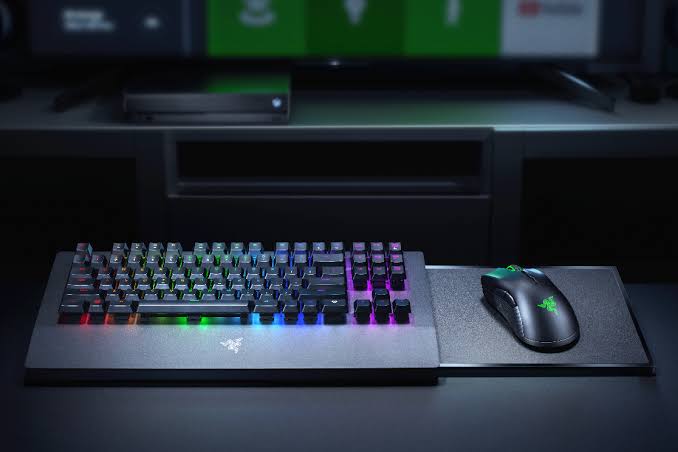
Razer keyboards and mice can be expensive pieces of gaming hardware, but much of their customization depends on one piece of software: Razer Synapse 4.
The application acts as a central control panel for supported Razer peripherals, allowing users to configure lighting, button assignments, performance settings, profiles, and macros.
However, a September 11 software rollout reportedly caused serious problems for some users, turning what should have been a routine update into a major troubleshooting headache.
This wiki explains what Synapse 4 does, how offline functionality works, and what users can try when macros or configurations appear to have disappeared after an update.
What Is Razer Synapse 4?
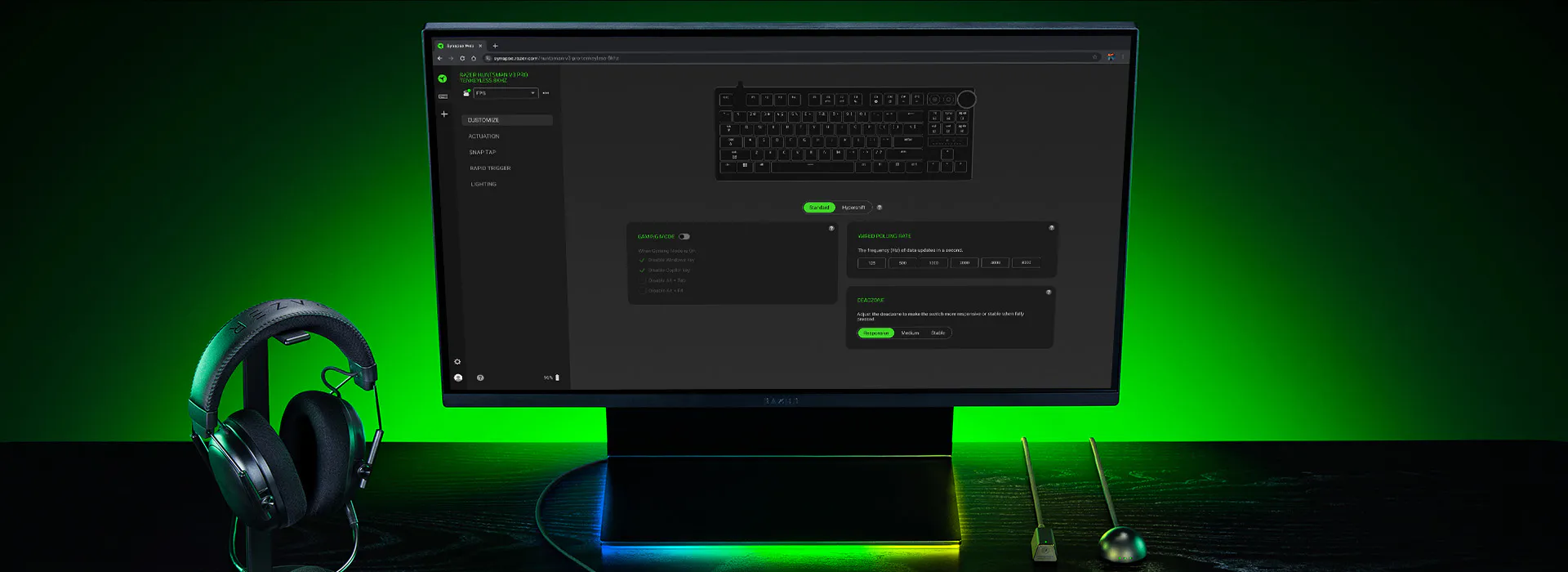
Razer Synapse 4 is Razer's peripheral management software for Windows.
Instead of configuring every device independently, users can manage supported keyboards, mice, headsets, and other peripherals through the Synapse interface.
Depending on the hardware, Synapse can provide access to features such as:
• RGB lighting customization
• Key and button remapping
• Macro creation
• Performance settings
• Device profiles
• Game specific configurations
• Advanced peripheral controls
This makes Synapse particularly important for users who rely on customized gaming setups.
A keyboard can still physically function without every software feature being available, but losing Synapse access can mean losing the configuration that makes the device useful to its owner.
The September 11 Software Rollout
The September 11 rollout became controversial after users reported problems following a Synapse 4 update.
Reported issues included device recognition failures, configuration problems, and keyboards behaving incorrectly after the software was updated.
The situation was especially frustrating because Synapse sits between the user's hardware and many of its advanced functions.
When that software layer stops communicating correctly with a peripheral, the hardware may appear broken even when the physical device itself has not failed.
The response reportedly escalated to an emergency rollback, highlighting the seriousness of the rollout.
The incident also raised broader questions about software reliability for gaming peripherals.
A software update that affects lighting is inconvenient.
An update that interferes with an essential keyboard or mouse can make an entire PC setup difficult to use.
Why Synapse Updates Can Cause Problems
Modern gaming peripherals are much more software dependent than traditional keyboards and mice.
A basic keyboard can usually function as soon as it is connected.
A premium gaming keyboard, however, may rely on companion software for macros, lighting, profiles, key assignments, and other advanced functionality.
That creates several layers of interaction between the user and the device.
The operating system has to recognize the hardware.
Synapse has to recognize the hardware.
The correct device profile has to load.
Stored configurations have to remain accessible.
If any part of that chain fails after an update, users may suddenly lose access to features they previously configured.
The September 11 incident demonstrated why stability is particularly important for peripheral management software.
Synapse 4 Offline Mode
Offline functionality is important because users should not always need an active internet connection simply to access configurations associated with their local hardware.
Synapse 4 can operate with locally available device configurations and settings in situations where cloud connectivity is unavailable, although the exact functionality can depend on the device and configuration.
Offline use is particularly useful for gamers who want to maintain access to their hardware settings without depending entirely on an online connection.
However, offline availability does not mean every Synapse feature works without internet access.
Cloud synchronization, account related functionality, online services, and certain software operations may still require connectivity.
For users troubleshooting an update, the distinction between locally stored settings and cloud based configurations can become extremely important.
Understanding Synapse Profiles and Macros
Profiles allow users to store different configurations for different games or applications.
For example, a player might create one profile for a competitive shooter and another for everyday desktop use.
Macros are even more configuration dependent.
A macro can assign a sequence of actions to a single key or button, depending on what the supported Razer hardware and software allow.
For many users, losing these configurations is more frustrating than losing RGB lighting.
A carefully built macro setup can take significant time to recreate.
This is why recovery should be attempted before immediately rebuilding everything from scratch.
Macro Recovery Steps
If macros appear to have disappeared after a Synapse update, users should avoid making unnecessary configuration changes until they determine whether the original data still exists.
1. Check Synapse Profiles
Open Synapse 4 and check whether the affected profile still appears.
A macro may not have been deleted at all. It could simply be associated with another profile or application configuration.
2. Check the Correct Razer Device
Make sure Synapse is displaying the correct keyboard or peripheral.
If the software has failed to recognize the device correctly, previously configured macros may not appear where expected.
3. Check Local Configurations
If the account or cloud synchronization is unavailable, check whether the relevant configuration remains stored locally.
Do not immediately overwrite an existing configuration with a new blank profile.
4. Sign Back Into Synapse
If configurations were synchronized through a Razer account, signing back into the correct account may restore access to previously synchronized settings.
This step is particularly important if the problem occurred after reinstalling or resetting the application.
5. Reconnect the Peripheral
Disconnect and reconnect the affected Razer device.
If possible, users can also try another USB port to determine whether the issue is related to device communication rather than the configuration itself.
6. Rebuild Only as a Last Resort
If the original macro configuration cannot be recovered, recreating the macros may be necessary.
Before doing so, document the original assignments and settings where possible.
The key principle is simple:
Do not overwrite potentially recoverable configurations while troubleshooting.
Offline Mode vs. Cloud Dependent Features
Synapse becomes easier to understand when its functionality is separated into two categories.
Local device configuration can potentially remain available without an internet connection.
Cloud based services depend on connectivity and account access.
This distinction matters during software problems because a user may assume that a missing configuration has been permanently deleted when it is actually unavailable because the relevant profile has not loaded or synchronized correctly.
Offline functionality can therefore provide an important fallback, but it is not a complete replacement for every online Synapse feature.
Troubleshooting After a Failed Update
Users affected by a problematic Synapse update should first determine whether the issue is software related or hardware related.
If the keyboard works as a basic input device but advanced features are missing, the physical hardware may still be functioning normally.
If the device is not detected at all, reconnecting it and checking USB connectivity can help narrow down the problem.
Users should also avoid repeatedly reinstalling software without first checking whether important profiles or macros are stored locally.
When dealing with configuration software, preserving existing data should come before aggressive troubleshooting.
Technology and Software Ecosystem
Synapse 4 represents a broader trend in gaming hardware.
Peripheral manufacturers increasingly use software to turn standard input devices into customizable platforms.
RGB lighting, macros, profiles, remapping, performance controls, and application specific settings all make gaming hardware more flexible.
But this flexibility introduces another dependency.
The better the software ecosystem becomes, the more important its reliability becomes.
The September 11 incident illustrates that relationship clearly.
A keyboard may be physically healthy while its software configuration is temporarily inaccessible.
That distinction can save users from unnecessarily replacing hardware that was never actually defective.
Quick Facts
| Detail | Information |
|---|---|
| Software | Razer Synapse 4 |
| Developer | Razer |
| Category | Gaming Peripheral Software |
| Primary Platform | Windows PC |
| Main Purpose | Peripheral configuration and management |
| Key Features | Macros, profiles, lighting and device settings |
| Offline Functionality | Local configuration can remain available depending on device and feature |
| September 11 Incident | Reported update related to device and configuration problems |
| Recovery Focus | Profiles, local settings, account synchronization and device detection |
Why Razer Synapse 4 Matters
Synapse 4 is more than an RGB control application.
For many Razer users, it is the software layer responsible for making expensive peripherals behave exactly the way they want.
That makes reliability critical.
The September 11 rollout showed how quickly a software problem can become a hardware experience problem. When profiles fail to load or devices stop communicating correctly, users can lose access to carefully customized setups.
Offline capabilities and configuration recovery are therefore important parts of the Synapse experience.
The bigger lesson is that gaming hardware increasingly depends on software stability.
🎮 The Bottom Line
Razer Synapse 4 serves as the central software platform for configuring supported Razer gaming peripherals, including profiles, macros, lighting, and performance settings.
The September 11 rollout reportedly created significant problems for some users and highlighted the risks of placing so much functionality behind companion software.
Offline functionality can provide access to locally available configurations, while macro recovery should begin with checking profiles, device recognition, local configurations, and account synchronization before attempting a complete rebuild.
For Razer users, the best protection is simple: keep important configurations backed up or documented whenever possible, and avoid overwriting existing profiles while troubleshooting.
Comments
Sign in to join the conversation
Sign inNo comments yet
Be the first to share your thoughts!