
You can now link World of Warcraft to Discord so that guild chat and a Discord channel stay in sync. Messages sent in WoW's guild chat appear in the linked Discord channel, and messages sent in Discord appear in game.
The feature arrived with WoW's Curse of Ula'tek content update for the Midnight expansion, and Discord explained it in an August 2026 blog post. This page covers what you need, how to link your accounts, how guild leaders connect a channel, and how to fix common problems.
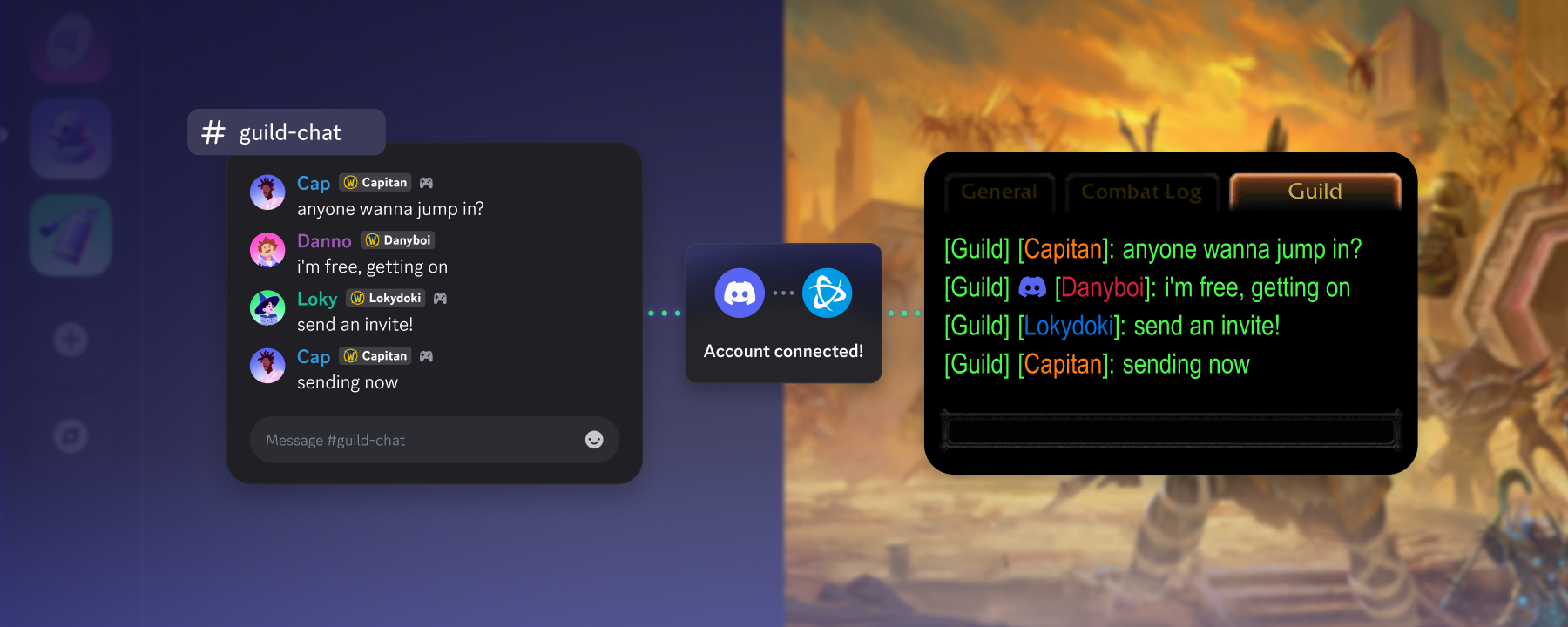
Discord's illustration of WoW guild chat linked to Discord. Image: Discord.
Key Information
| Detail | Summary |
|---|---|
| What it does | Two-way sync between WoW guild chat and one Discord channel |
| Added in | WoW's Curse of Ula'tek content update (Midnight) |
| Accounts needed | Discord and Battle.net, linked together |
| Who links the channel | The guild leader or an officer with the right permissions |
| Discord permissions needed | Manage Channels, View Channel and Send Messages |
| Message labels | Messages from Discord show a Discord icon in WoW |
| Cost | Free |
Requirements
- A Discord account and a Battle.net account.
- A guild with a leader or officer willing to set up the link.
- A Discord server for the guild, with a text channel to link.
- Discord permissions for the person linking the channel: Manage Channels, View Channel and Send Messages. Discord says to check these first if the linking options don't appear.
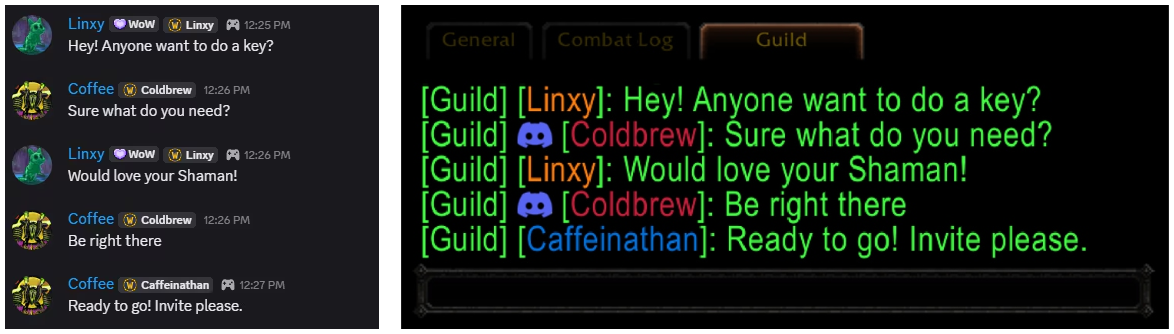
Guild chat in WoW (left) and the linked Discord channel (right). Image: Discord.
How to Link World of Warcraft to Discord
Each player links their own accounts. You can do it from Discord or from inside WoW.
Option 1: Link from Discord
- Open Discord and go to User Settings.
- Select Connected Apps (you may need to select View More).
- Select the Battle.net logo.
- Review the permissions, follow the prompts and confirm.
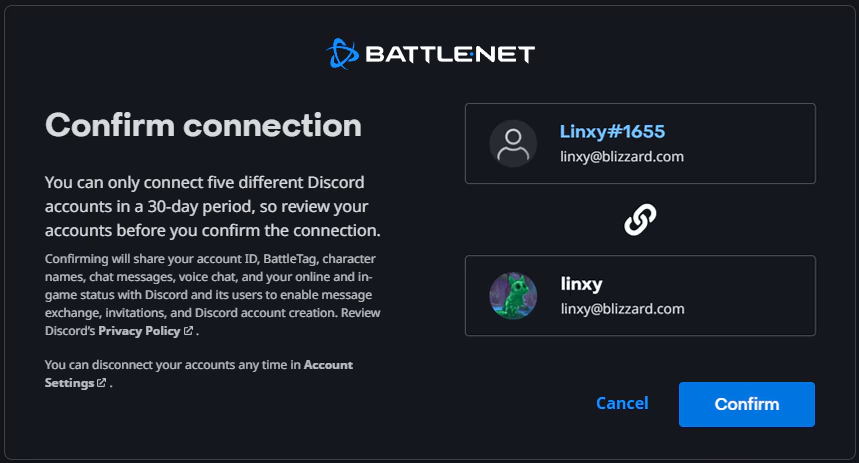
Confirming the connection. Battle.net notes you can only connect five different Discord accounts in a 30-day period. Image: Discord.
Option 2: Link from inside WoW
According to Blizzard:
- Press Escape to open the Game Menu, then select Options.
- In the Social tab, select Enable Discord Functionality.
- Follow the on-screen prompts to connect and confirm your Discord account. You need to be logged in to Discord.
- Choose your Display Name setting (see below).
How Guild Leaders Link a Channel
The guild leader, or an officer with the right permissions, does this once for the whole guild:
- In WoW, press J to open Guild & Communities.
- Open the Roster tab.
- Select Guild Settings in the lower right.
- Under the Guild Control dropdown, choose Discord Settings.
- Select your Discord server, then pick a linkable channel from the dropdown.
- Select the link button and approve the connection.
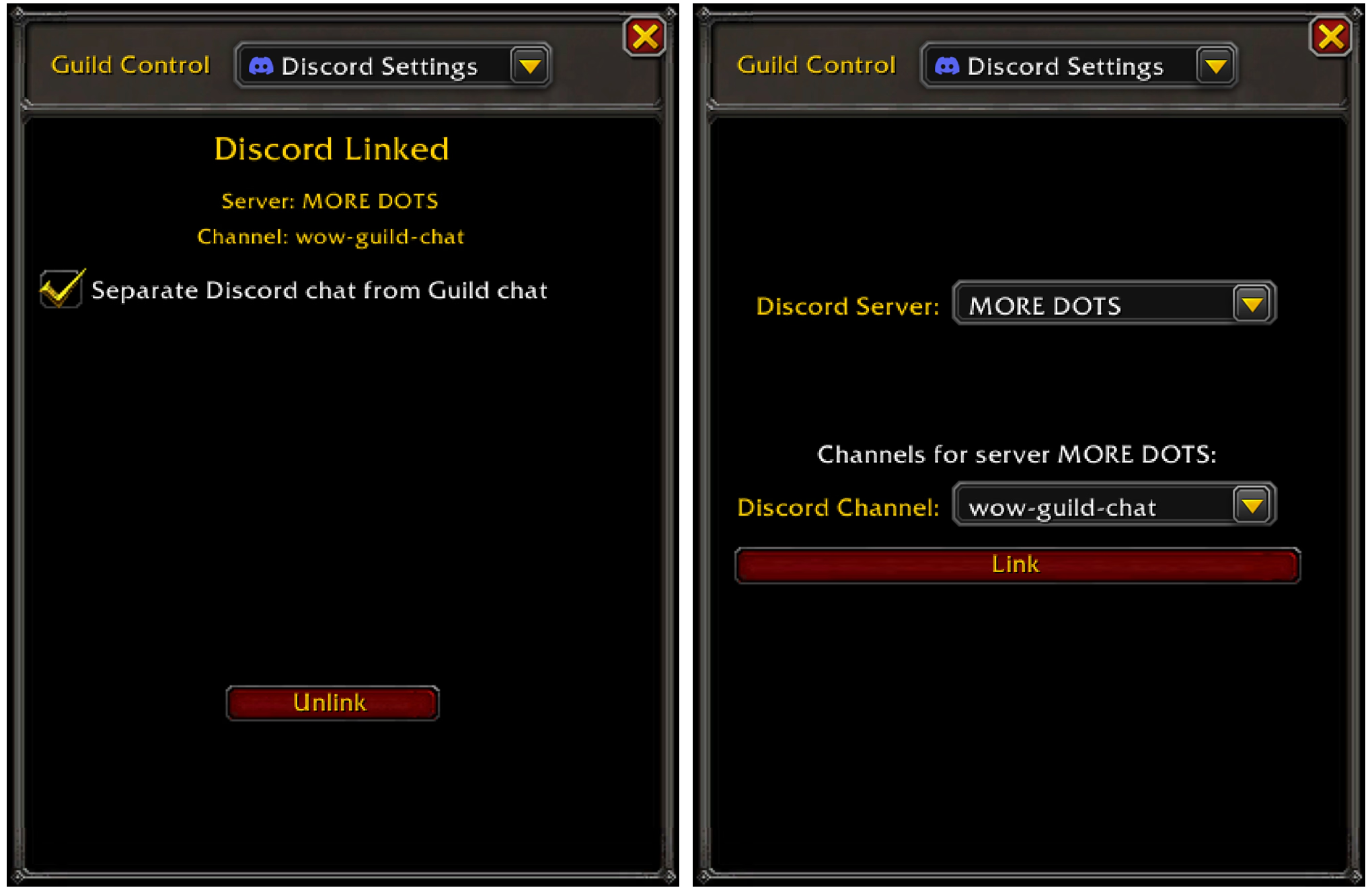
The Discord Settings option in WoW's Guild Control menu. Image: Discord.
Blizzard says guilds can also create a separate Discord chat channel inside WoW, instead of mixing Discord messages into regular guild chat.
Settings and Options
| Setting | What it does |
|---|---|
| Chat routing | Guilds choose whether Discord messages go into normal /guild chat or a dedicated /discord channel |
| Display Name | Choose how your name shows on Discord messages: Default, Last Online Character Name or Discord Global Name |
| Message labels | Messages that started in Discord show a Discord icon in game |
| Chat tabs | Players can adjust chat tabs to separate Discord and game messages |
Troubleshooting
| Problem | What to do |
|---|---|
| The Discord option doesn't appear in Guild Settings | Make sure you're the guild leader or an officer with permission to change guild settings |
| No channels show in the dropdown | Check you have Manage Channels, View Channel and Send Messages in that Discord channel |
| Battle.net isn't in Connected Apps | Select View More to expand the list |
| Messages aren't syncing | Check your accounts are still linked in Connected Apps, and that the channel is still linked in Discord Settings |
| You can't confirm the link in game | Make sure you're logged in to Discord on the same device |
| Battle.net won't accept another Discord account | Battle.net allows only five different Discord accounts in a 30-day period |
For general Discord role setup, see our wiki on Discord server roles and permissions.
Frequently Asked Questions
How do I link World of Warcraft to Discord?
Link your Battle.net account under Discord's User Settings > Connected Apps, or enable Discord Functionality in WoW's Social options. Your guild leader then links a channel in Guild Settings > Discord Settings.
Can I talk to my guild from Discord without logging in to WoW?
Yes. Once your guild has linked a channel, messages you send there appear in WoW guild chat.
Who can link a Discord channel to a WoW guild?
The guild leader, or an officer with the right permissions, who also has Manage Channels, View Channel and Send Messages in the Discord server.
Is linking WoW to Discord free?
Yes. It only needs a Discord account and a Battle.net account.
Can I hide Discord messages in WoW?
Guilds can route Discord messages into a separate /discord channel, and players can adjust chat tabs.
Summary
To link World of Warcraft to Discord, connect your Battle.net account in Discord's Connected Apps or in WoW's Social options. Your guild leader then picks a Discord channel under Guild Settings > Discord Settings. After that, guild chat and the Discord channel stay in sync both ways.
For tips on keeping a guild server organised, see our list of 100 Discord channel ideas.
Comments
Sign in to join the conversation
Sign inNo comments yet
Be the first to share your thoughts!