
Managing a small Discord server is fairly simple. But once your community grows into hundreds or even thousands of members, things can quickly become overwhelming. Conversations move too fast, important announcements get buried, moderators struggle to keep up, and new members often don't know where to start.
The good news is that a well-organized Discord server can remain active, welcoming, and easy to navigate regardless of its size.
Whether you're building a gaming community, creator hub, start-up network, or fan server, here's how you can organize a large Discord server effectively.
Start With a Clear Channel Structure
One of the biggest mistakes server owners make is creating too many channels.
Instead, organize channels into logical categories that are easy to understand.
A typical structure might include:
📢 Announcements
💬 General Chat
🎮 Gaming or Topic Discussions
🎨 Media & Creations
❓ Support & Help
🎉 Events
🔊 Voice Channels
Keeping related channels together makes navigation much easier for both new and existing members.
Use Roles Wisely
Roles are essential for managing permissions and keeping your server organized.
Instead of creating dozens of unnecessary roles, keep them meaningful.
Common roles include:
👑 Admin
🛡️ Moderator
⭐ VIP Member
🎮 Gamer
🎨 Creator
🌱 New Member
Roles can also unlock exclusive channels or identify members with specific interests.
Create a Welcome System
First impressions matter.
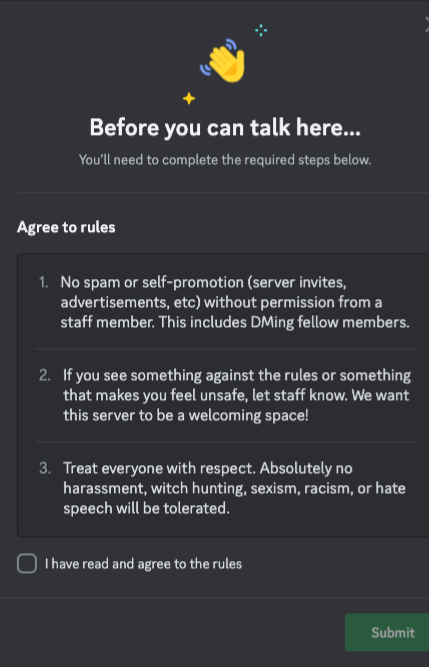
A dedicated welcome channel helps new members understand your community immediately.
Include:
Server rules
How to get roles
Important channels
Frequently asked questions
Useful resources
Many servers also use automated welcome messages to greet newcomers and guide them through the onboarding process.
Keep Rules Simple and Visible
Large communities need clear expectations.
Create a dedicated rules channel that explains:
Respectful behaviour
Spam policies
NSFW guidelines
Self-promotion rules
Consequences for violations
Simple, easy-to-read rules help moderators enforce them consistently.
Organize Permissions Carefully
Not every member needs access to every channel.
Use Discord permissions to control who can:
Post announcements
Create threads
Share media
Use voice channels
Access private sections
This reduces spam while keeping sensitive areas secure.
Use Threads to Reduce Clutter
Busy servers often have hundreds of conversations happening simultaneously.
Instead of creating dozens of channels, encourage members to use Threads for discussions that branch off from the main topic.
Threads help keep general channels clean while allowing detailed conversations to continue naturally.
Automate Routine Tasks
Managing thousands of members manually isn't realistic.
Popular Discord bots can automate tasks like:
Welcoming new members
Assigning roles
Moderation
Spam detection
Reaction roles
Event reminders
Automation allows moderators to focus on building the community instead of handling repetitive tasks.
Create Dedicated Spaces for Events
Community events increase engagement, but they also need organization.
Instead of hosting everything in general chat, create channels specifically for:
Game nights
Movie watch parties
AMAs
Community challenges
Voice events
Members always know where to find upcoming activities without cluttering other conversations.
Build a Strong Moderation Team
As your server grows, moderation becomes a team effort.
Choose moderators who are:
Active
Friendly
Fair
Knowledgeable about server rules
Responsive
Assign clear responsibilities so moderators know who handles reports, events, support, and member questions.
Archive or Remove Inactive Channels
Large servers naturally evolve over time.
Review your channels every few months and remove or archive ones that no longer serve a purpose.
Fewer active channels make your server feel cleaner and easier to navigate.
Why Good Organization Matters
A well-organized Discord server creates a better experience for everyone.
Benefits include:
✅ Easier navigation
✅ Faster moderation
✅ Better member engagement
✅ Reduced spam
✅ Improved onboarding
✅ Stronger community growth
Members are far more likely to stay active when they can quickly find conversations, events, and resources.
Frequently Asked Questions
1. How many channels should a large Discord server have?
There's no perfect number, but it's generally better to have fewer well-organized channels than dozens of inactive ones. Focus on categories that serve a clear purpose.
2. Why are Discord roles important?
Roles help manage permissions, identify members, organize communities, and unlock access to specific channels.
3. Should I use Discord bots for moderation?
Yes. Bots can automate repetitive tasks like welcoming members, assigning roles, filtering spam, and sending reminders, making large servers much easier to manage.
4. How often should I reorganize my server?
Review your server every few months. Remove inactive channels, update permissions, and adjust the structure as your community grows.
5. What's the biggest mistake when organizing a Discord server?
Creating too many channels and roles. An overly complicated structure can confuse members and reduce engagement.
Final Thoughts
Organizing a large Discord server isn't about adding more channels or complicated permissions, it's about creating a structure that's simple, intuitive, and scalable.
By using clear channel categories, meaningful roles, automation, dedicated event spaces, and an effective moderation team, you can keep your community welcoming and easy to manage as it grows.
The best Discord servers aren't necessarily the biggest—they're the ones where members always know where to go, how to participate, and feel encouraged to return.
Sources
- Discord Safety & Moderation Documentation
- Discord Support – Server Permissions
- Discord Support – Roles & Permissions
Comments
Sign in to join the conversation
Sign inNo comments yet
Be the first to share your thoughts!