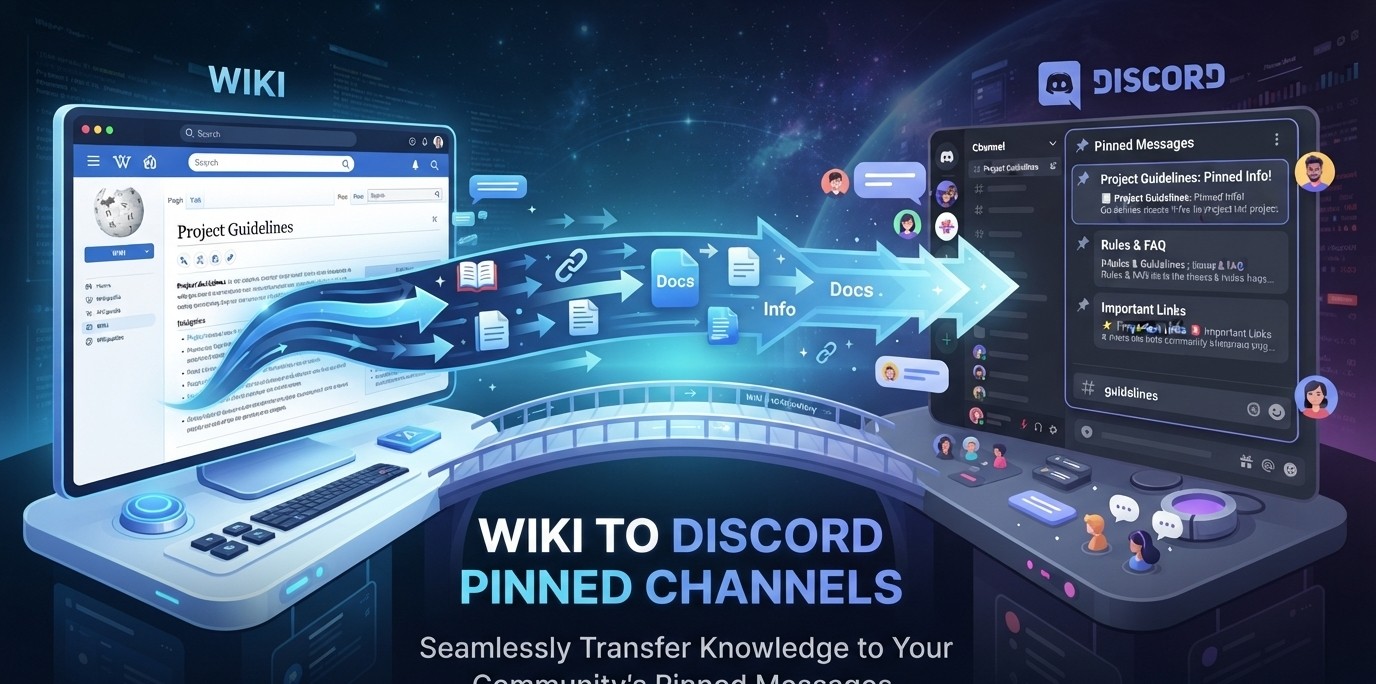

The Complete Wiki to Discord Pinned Channels
Discord has made one of its most useful channel-navigation features available across all servers, removing a restriction that previously limited it to Community Servers.
The update means users can now pin their favorite channels to the top of a server's channel list, whether that server is a Community Server, a private friend server, or another type of Discord server. Discord announced the change in June 2026 as part of a broader set of organization improvements.
The important detail is that these pins are personal.
A server owner cannot pin a channel once and force it to appear at the top for everyone. Instead, each user can organize their own view of the server by pinning the channels they use most.
That distinction makes the feature especially useful for large communities where different members regularly use different channels.
What Are Discord Pinned Channels?
Pinned Channels let a Discord user move their most important channels to the top of the server's channel list for easier access.
For example, imagine a server with:
-
#announcements -
#general -
#gaming -
#memes -
#support -
#events -
#off-topic -
#clips -
#media -
#feedback - Several private categories
- Dozens of additional channels
A member may only care about three of them.
Instead of repeatedly scrolling through the entire server, that member can pin the channels they use most frequently and keep them accessible near the top.
Discord specifically describes the feature as a way to pin channels to the top of servers and notes that only the individual user sees their pinned channels.
Quick Facts
| Feature | Details |
|---|---|
| Feature | Pinned Channels |
| Purpose | Faster server navigation |
| Available in | All server types |
| Previously restricted to | Community Servers |
| Visibility | Personal to each user |
| Server-wide pinning | No |
| Main benefit | Places favorite channels at the top |
| Useful for large servers | Yes |
| Useful for private servers | Yes |
| Community Server required | No |
Discord's June 2026 update specifically removed the previous Community Server restriction.
The Biggest Change: Pinned Channels in Every Server
Previously, Discord's channel-pinning feature was associated with Community Servers.
That meant someone could have a useful channel-pinning workflow in one server but not necessarily in a smaller private or non-Community server.
Discord's June 2026 update changed that.
The company described the change as bringing the feature to any server, including personal friend servers and large servers that do not have Community enabled.
This makes pinned channels a general navigation tool rather than a Community-only feature.
Are Pinned Channels Controlled by Server Owners?
This is the most important clarification.
No.
Pinned channels are personal navigation preferences.
A server owner cannot pin #announcements and automatically make it appear at the top of every member's channel list.
Instead, each member can decide which channels they want to prioritize.
Discord explicitly says that only you get to see what you pinned.
This means two members can look at exactly the same server and have completely different pinned-channel layouts.
Why This Matters for Server Owners
Although the pins themselves are personal, the feature still matters to server owners.
Large Discord communities can contain dozens or even hundreds of channels.
Different members often have completely different priorities.
For example:
Moderators may frequently use:
-
#mod-chat -
#reports -
#logs
Creators may use:
-
#creator-chat -
#clips -
#self-promotion
Regular members may use:
-
#general -
#gaming -
#memes
Event participants may use:
-
#events -
#tournaments -
#announcements
A single server-wide channel order cannot perfectly serve all of these groups.
Personal pins solve that problem without requiring administrators to redesign the entire server.
How Pinned Channels Improve Discord Navigation
The primary benefit is reduced scrolling.
Discord itself has acknowledged that users can get lost scrolling through large channel lists. The June 2026 announcement specifically positioned channel pinning as a solution for users trying to quickly reach the channels they care about.
The workflow becomes:
Join server → Pin important channels → Access them from the top
Instead of:
Join server → Search through categories → Scroll → Find channel → Repeat
For active Discord users, this can remove a surprisingly large amount of friction.
Pinned Channels vs Server Channel Organization
These are two completely different systems.
Server channel organization
Controlled by server administrators.
It determines the overall structure of the server.
For example:
WELCOME
-
#rules -
#announcements
COMMUNITY
-
#general -
#off-topic
GAMING
-
#gaming -
#clips
Pinned channels
Controlled individually by each user.
A member might personally pin:
-
#general -
#clips -
#events
without changing the server's actual organization.
This means personal pins do not replace good server design.
They complement it.
Why Server Owners Should Still Organize Channels Properly
Discord recommends thoughtful channel organization even with personal navigation features available.
Its community guidance recommends putting important channels near the top, using clear categories, keeping names concise, and avoiding overly complicated channel structures.
Pinned channels should therefore be viewed as a personal shortcut, not an excuse for poor server organization.
A well-designed server should still make sense to someone who has never used it before.
How Server Owners Can Use the Feature Strategically
Server owners cannot control a member's personal pins, but they can design the server so that pinning becomes useful.
Create clear channel names
Avoid confusing names that require users to open a channel just to understand its purpose.
Good:
#general-chat
#game-news
#support
Less useful:
#chat-01
#stuff
#misc2
Discord recommends concise, understandable channel names as part of effective server organization.
Keep Important Channels Easy to Identify
A server's most important channels should still be visible near the top of the normal channel structure.
Typical examples include:
Rules
Announcements
General
Support
Events
Members can then decide which of those they personally want to pin.
Avoid Creating Too Many Categories
A server with an enormous number of categories can become difficult to navigate.
Discord's own community guidance recommends keeping categories and channel structures manageable and using categories to create natural breaks in a server's channel list.
Personal pinning helps users navigate a large server, but it does not eliminate the need for sensible information architecture.
How Personal Pinned Channels Work
The feature is best understood as a personal overlay on top of the server's existing structure.
Imagine a server's normal channel list is:
Server
↓
Category A
Category B
Category C
Category D
Category E
Your personal view can prioritize:
Pinned
📌 #general
📌 #events
📌 #clips
followed by the rest of the server.
The server itself has not changed.
Only your navigation experience has.
Pinned Channels Are Not Pinned Messages
Discord has another feature called Pinned Messages, and the two should not be confused.
Pinned Channel
Moves a favorite channel toward the top of your server navigation.
Pinned Message
Saves a specific message inside a channel so members can find important information later.
Pinned messages are available in text channels and DMs, and users with the appropriate permissions can pin or unpin messages in server channels.
For example:
Pinned Channel: #rules
Pinned Message: A specific rules announcement inside #rules
They solve completely different navigation problems.
Pinned Channels vs Favorites
Discord also has a separate Favorites feature.
Favorites can place frequently used channels and DMs into a dedicated Favorites area. Discord's current documentation describes Favorites as a separate space for important conversations, with management currently available on desktop/browser for the Nitro experiment.
Pinned Channels are specifically about prioritizing channels inside a server.
This distinction matters because the features serve different navigation models.
Pinned Channels
Server-focused navigation
Favorites
Cross-conversation organization
Pinned Messages
Message-level information storage
Why Pinned Channels Are Useful for Large Servers
Large Discord servers are where the feature becomes most valuable.
A community might have:
50 channels
100 channels
200+ channels
A member may only regularly visit five.
Without personal prioritization, they have to repeatedly navigate the entire structure.
With pinned channels, their most important destinations stay accessible.
This is especially useful for:
- Gaming communities
- Creator communities
- Esports servers
- Developer communities
- Study servers
- Support communities
- Large fan communities
- Event servers
Example: Gaming Server
Imagine a gaming server with 80 channels.
A player regularly uses:
#game-news
#lfg
#builds
#clips
They can prioritize those channels for their own navigation.
Another player might instead care about:
#competitive
#tournaments
#team-finder
The server does not need separate channel structures for both users.
Personal pinning handles the difference.
Example: Creator Server
A creator community might contain:
-
#announcements -
#creator-help -
#feedback -
#self-promo -
#collabs -
#sponsors -
#off-topic
A video creator might pin:
#creator-help
#collabs
#feedback
while another member might pin:
#self-promo
#sponsors
This creates personalized navigation without changing the server's structure.
Example: Moderator
Moderators can benefit from pinning their most frequently accessed operational channels.
For example:
#mod-chat
#reports
#incident-log
#staff-announcements
The important distinction is that pinning does not grant additional permissions.
A member cannot pin a private moderator channel and gain access to it.
Permissions still control visibility.
Pinned Channels Do Not Override Permissions
This is an important limitation.
Pinning a channel does not:
- Give access to a private channel
- Override role permissions
- Make a hidden channel visible
- Change channel permissions
- Move the actual channel for everyone
It simply creates a personal shortcut to a channel the user can already access.
Can Everyone See My Pinned Channels?
No.
Discord explicitly states that the pinned-channel selection is only visible to the person who created it.
This makes the feature fundamentally different from administrator-controlled channel organization.
A server owner can organize the official channel list, but each user can separately customize which channels they prioritize.
Can a Server Owner Pin a Channel for Everyone?
Not through this feature.
This is where the title "Discord Pinned Channels" can be slightly misleading.
Server owners can organize the server's channel structure, but the personal pinned-channel system is not a server-wide announcement or navigation control.
If an administrator wants everyone to see a particular channel near the top, they should instead place that channel appropriately within the server's normal category structure.
Discord recommends putting important information and frequently used channels toward the top of the server structure.
Does Pinning Change the Server's Actual Channel Order?
No.
The server's underlying channel organization remains controlled by its normal permissions and administrative structure.
Your personal pins change how you navigate the server, not how the server is organized for everyone.
This is an important advantage because members can personalize their experience without creating conflicts with the server owner's intended structure.
Why Discord Removed the Community Server Restriction
Discord's June 2026 announcement specifically described pinned channels as a feature that had previously been restricted by server type.
The company said users could previously pin favorite channels in Community Servers but not in friend servers or other servers without Community enabled.
The June 2026 update removed that limitation.
The change reflects a broader trend toward giving users more personal control over Discord navigation.
Instead of forcing one channel hierarchy on everyone, Discord lets individual users create shortcuts around the hierarchy.
Pinned Channels and Discord Server Growth
Pinned Channels do not directly increase server discovery or membership.
However, they can improve the experience of existing members.
Better navigation can potentially help members:
Find important conversations faster
Return to active channels more easily
Spend less time scrolling
Participate more frequently
Navigate large communities with less friction
This makes the feature more relevant to retention and usability than direct server growth.
Best Practices for Server Owners
Even though the pins are personal, server owners can make the feature more useful.
1. Use clear channel names
Members should understand a channel's purpose immediately.
2. Put important channels near the top
Don't bury rules, announcements or critical resources.
3. Use logical categories
Group related channels together.
4. Avoid unnecessary channels
A huge channel count can overwhelm new members.
5. Communicate channel purposes
Use channel topics and pinned messages where appropriate. Discord recommends channel topics and pinned messages as ways to explain how channels should be used.
6. Let members personalize their own navigation
Pinned Channels now make this possible across all server types.
Best Practices for Members
Members can get the most from the feature by pinning only the channels they actually use.
Good candidates include:
Daily-use channels
Important announcements
Event channels
Project channels
LFG channels
Creator channels
Support channels
Avoid pinning every channel.
If everything is pinned, nothing is really prioritized.
How Many Channels Should You Pin?
Discord's announcement jokingly says users can "pin half the server" or even just one channel.
There is no reason to treat pinning as a strict productivity system.
However, a small set of genuinely important channels usually makes the feature more useful than turning the entire server into a pinned list.
A practical strategy is to start with:
3 to 5 essential channels
and add more only when needed.
Pinned Channels on Private Friend Servers
This is one of the most meaningful parts of the update.
Previously, the Community Server restriction meant smaller friend servers did not necessarily receive the same channel-pinning workflow.
Discord's June 2026 announcement specifically called out personal Friend Servers as an example of where the feature is now available.
This makes pinned channels useful even for a small server containing only a handful of friends.
For example:
#gaming
#weekend-plans
#clips
could be prioritized without changing the server's actual channel order.
Pinned Channels and Mobile Navigation
Discord's mobile app already includes server channel navigation and channel-favoriting functionality. Discord's mobile documentation explains that users can open a server and access its channels from the server interface.
For users who primarily navigate Discord on mobile, personal channel prioritization is particularly useful because long channel lists can require significantly more scrolling on a smaller display.
The exact interface can vary by Discord version and platform, so the feature's placement may change as Discord continues updating its mobile navigation.
Pinned Channels vs Muting Channels
Another important distinction is pinning versus muting.
Pinning
Makes important channels easier to access.
Muting
Reduces notification activity from channels you do not want to monitor.
These can work together.
For example:
Pin: #announcements
Pin: #general
Mute: #off-topic
This lets a user prioritize important destinations while reducing noise from less important ones.
Pinned Channels and Collapsed Categories
Discord's category system lets members collapse categories to reduce the amount of information displayed at once.
However, large servers can still contain many categories and channels.
Pinned channels provide another layer of personalization.
A member might have:
Pinned channels
📌 #general
📌 #events
📌 #support
while the rest of the server remains organized normally underneath.
This can be particularly useful when frequently accessed channels are distributed across different categories.
Is This a Server Management Feature?
Not exactly.
It is better described as a personal navigation feature.
Server management determines:
What channels exist
Who can access them
Where they are positioned
How categories are structured
Personal pinning determines:
Which channels you want to reach quickly
That separation is what makes the feature powerful without creating administrative conflicts.
What Pinned Channels Do Not Do
Pinned Channels do not:
- Change the server's channel structure
- Move a channel for everyone
- Give members new permissions
- Make private channels public
- Replace channel categories
- Replace pinned messages
- Automatically notify users
- Make a server a Community Server
- Improve Server Discovery directly
They are fundamentally a navigation shortcut.
Why This Is a Quality-of-Life Upgrade
Discord has historically been excellent at supporting large communities, but large communities can also become difficult to navigate.
The bigger a server becomes, the more likely it is that individual members will care about only a small fraction of its channels.
Pinned Channels address that problem without forcing administrators to simplify the entire server.
That makes the update a classic quality-of-life improvement rather than a major social feature.
The Bigger Discord Navigation Strategy
Pinned Channels are part of a broader set of Discord features designed around information organization.
Users now have several ways to manage what they see:
Pinned Channels: Prioritize channels within servers.
Favorites: Organize frequently used channels and DMs into a dedicated space.
Collapsed Categories: Reduce visible channel clutter.
Muted Channels: Reduce unwanted notification noise.
Pinned Messages: Preserve important information within individual conversations.
Together, these tools allow users to build a much more personalized Discord workflow.
Timeline
Before 2026
Pinned channel functionality was limited by server type, with the feature available in Community Servers.
June 2026
Discord announced that Pinned Channels were now available in all servers, including servers without Community enabled.
Current System
Users can personalize their navigation by pinning favorite channels to the top of servers.
The pinned selection remains personal to each user rather than becoming a server-wide configuration.
FAQ
Can I pin channels in any Discord server?
Yes. Discord announced in June 2026 that channel pinning is now available in any server, not just Community Servers.
Can server owners pin channels for everyone?
No. The current Pinned Channels feature is personal. Discord says only the user who pins the channels sees their selection.
Does pinning a channel move it for everyone?
No. It changes your personal navigation experience rather than the server's underlying channel structure.
Can I pin a private channel?
Only if you already have permission to access that channel. Pinning does not bypass Discord permissions.
Are Pinned Channels the same as Pinned Messages?
No. Pinned Channels help with server navigation, while Pinned Messages preserve important individual messages inside conversations.
Are Pinned Channels the same as Favorites?
No. Favorites provide a separate area for frequently used channels and DMs, while Pinned Channels prioritize channels within individual servers.
Why can't another member see my pinned channels?
Because the pins are personal to your account. Discord explicitly says only you see what you pinned.
Do I need to enable Community Server to pin channels?
No. That was the previous restriction. Discord removed it in June 2026.
Are pinned channels useful for small servers?
Yes. Discord specifically highlighted Friend Servers as one of the types of servers that can now use the feature.
Do pinned channels give me additional permissions?
No. They only affect navigation.
Current Status
Discord Pinned Channels are now available across all server types, removing the previous Community Server restriction.
The feature is especially useful for large Discord communities, where individual members may regularly use only a handful of channels among dozens or even hundreds.
The most important thing to understand is that Pinned Channels are personal, not server-wide. Server owners still control the actual channel structure, categories and permissions, while individual members can customize which channels they want at the top of their own navigation.
For server owners, the best strategy is therefore not to think of pinned channels as another administrative setting. Instead, build a clear server structure, keep important channels easy to identify, and let members use personal pins to create their own shortcuts.
For members, the feature finally solves a simple but long-standing Discord problem:
You no longer need to scroll through an entire server just to reach the few channels you actually use.
Comments
Sign in to join the conversation
Sign inNo comments yet
Be the first to share your thoughts!