
Running a Discord server means dealing with spam, unwanted links, offensive language, and disruptive users. Discord AutoMod can handle many of these problems automatically, reducing the workload for moderators.
AutoMod is Discord’s built-in moderation system. It can detect specific keywords, spam, and excessive mentions and then block messages, send moderator alerts, or take other actions.
What Is Discord AutoMod?

Discord AutoMod lets server administrators create automated rules that detect unwanted content before it reaches other members.
You can use it to:
- Block specific words and phrases
- Detect spam
- Prevent excessive mentions
- Send alerts to moderators
- Automatically time out users for certain violations
- Exempt trusted roles or channels
This makes AutoMod especially useful for public and growing communities.
How to Set Up AutoMod
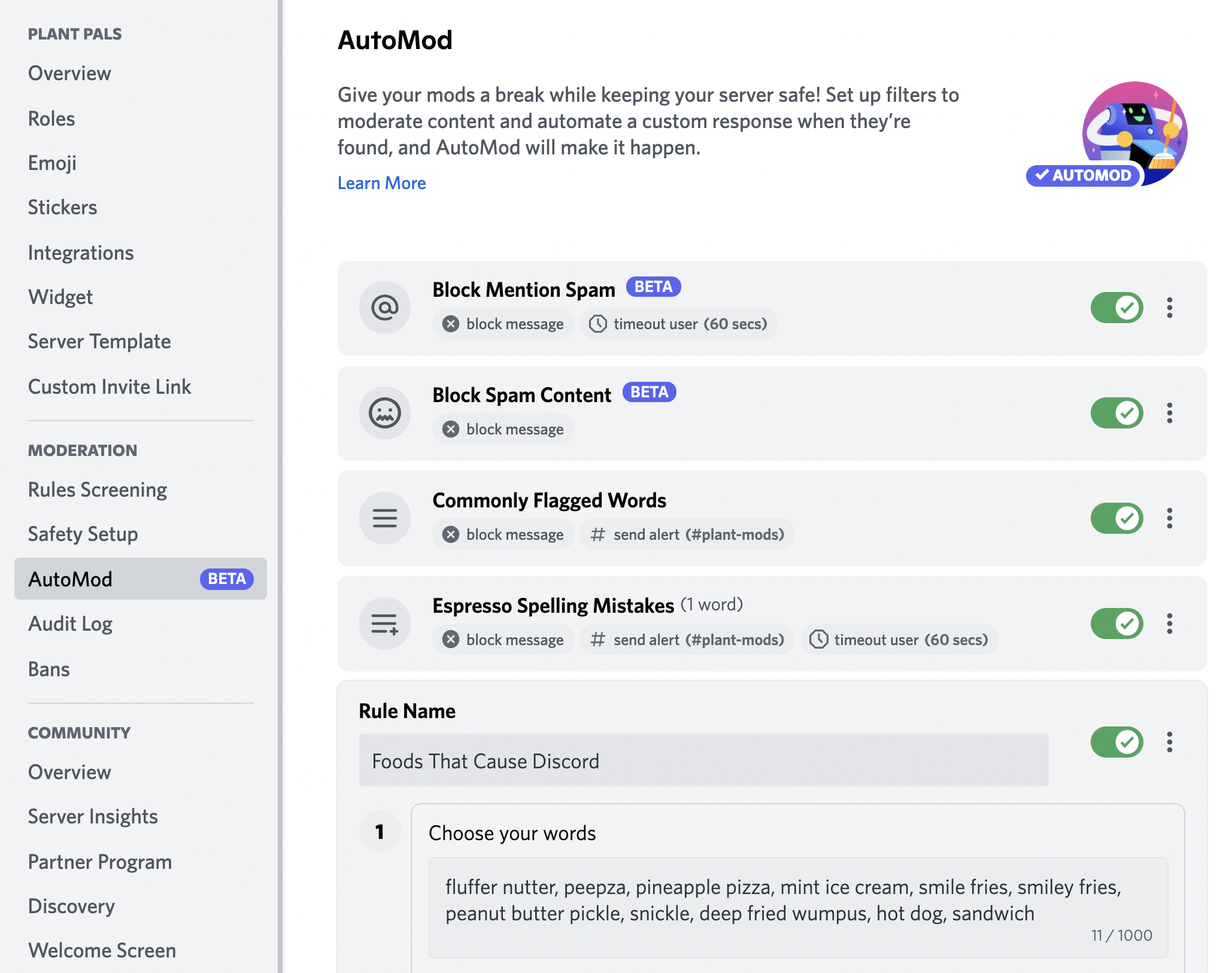
Setting up Discord AutoMod is straightforward.
Go to:
Server Settings → AutoMod
From there, you can create keyword and spam rules. Discord says users need the appropriate server-management permissions to configure AutoMod.
1. Create Keyword Rules
Add words or phrases that you don't want appearing in your server.
You can use Discord's commonly flagged word lists or create custom keyword rules for your community.
For example, you could filter:
- Slurs
- Severe profanity
- Scam phrases
- Suspicious links
- Repeated spam terms
Be careful when adding broad keywords because they can sometimes block legitimate conversations.
2. Enable Spam Protection
AutoMod includes spam-related filters that can detect unwanted promotional messages and invite spam.
You can also enable mention-spam protection. This helps stop users from tagging large numbers of members or roles in a single message.
3. Choose Your Actions
When AutoMod detects something, you can decide what happens.
Available actions can include:
Block Message: Prevent the content from being posted.
Send Alert: Notify moderators in a private channel.
Timeout: Temporarily restrict a user when supported by the rule.
Using alerts alongside blocking gives moderators visibility into potential problems without requiring them to monitor every channel manually.
Exempt Trusted Users and Channels
Not every channel needs the same level of moderation.
Discord lets you exempt specific roles and channels from AutoMod rules. This can be useful for moderator channels, announcements, or other areas where certain filtered terms may be necessary.
However, keep exemptions limited. Too many exceptions can weaken your server's protection.
Best AutoMod Practices
Don't create dozens of aggressive filters immediately.
Start with the most common problems affecting your community.
Monitor the alerts and adjust your rules when AutoMod incorrectly flags legitimate messages.
For larger or public servers, combine AutoMod with other safety measures such as verification and careful permission management.
Discord also recommends AutoMod as part of a broader approach to preventing spam and raids.
Final Thoughts
Discord AutoMod is one of the easiest ways to reduce spam and unwanted content without relying entirely on human moderators.
Set up keyword filters, enable spam protection, configure alerts, and regularly review your rules. A balanced setup can keep your server safer while allowing normal conversations to continue.
FAQs
Is Discord AutoMod free?
AutoMod is a built-in Discord moderation feature available to servers, so you don't need a separate moderation bot to use its core functions.
Can AutoMod block spam?
Yes. AutoMod includes spam-related filters designed to detect unwanted spam content and excessive mentions.
Can AutoMod automatically timeout users?
Yes. Timeout actions are available for supported AutoMod rules when the required permissions are available.
Where can I configure AutoMod?
Go to Server Settings → AutoMod to create and manage your server's rules.