
The Complete Wiki to Troubleshooting Discord Linux Memory Leaks
What Is the Discord Linux X11 Memory Leak?
The problem is less about Discord simply consuming more RAM and more about the application accumulating X11 client connections over time.
On Linux systems running Discord through X11/XWayland, certain Discord features can create X11 connections. If those connections are not properly released, the number associated with the Discord process can continue growing.
A community reproduction reported that repeatedly starting and stopping screen sharing could make Discord's X11 client count increase instead of returning to its previous level. Reddit
Eventually, Linux can run into its available X11 client-connection limit.
That's when seemingly unrelated applications may stop opening or the desktop can begin behaving strangely.
X11 Connections vs. Normal Memory Usage
This distinction is important.
A traditional memory leak means an application continuously allocates memory without releasing it.
An X11 connection leak is different.
The application is accumulating resources associated with communication with the X server.
So you might see:
- Discord's RAM usage that doesn't immediately explain the problem
- Increasing X11 client connections
- Applications failing to open
- Windows failing to appear
- Desktop applications becoming unstable
- The problem getting worse the longer Discord stays open
This is why simply looking at RAM usage in System Monitor may not reveal the actual cause.
Why NVIDIA Users Need Extra Attention
NVIDIA users are particularly relevant to this Wiki because Discord's Linux graphics and capture stack can interact with the NVIDIA driver, X11/XWayland and Electron.
However, don't automatically assume every NVIDIA-related Discord crash is this X11 leak.
There are separate NVIDIA graphics-driver issues involving GPU virtual-address exhaustion, nvidia-drm errors and desktop crashes. Those are different problems even though Discord may appear among the affected applications. GitHub
The first troubleshooting question should therefore be:
Are you actually seeing X11 connection growth?
How to Check X11 Connections
The easiest approach is to inspect the processes connected to your X server.
On many Linux distributions, xlsclients can show X clients connected to the current display:
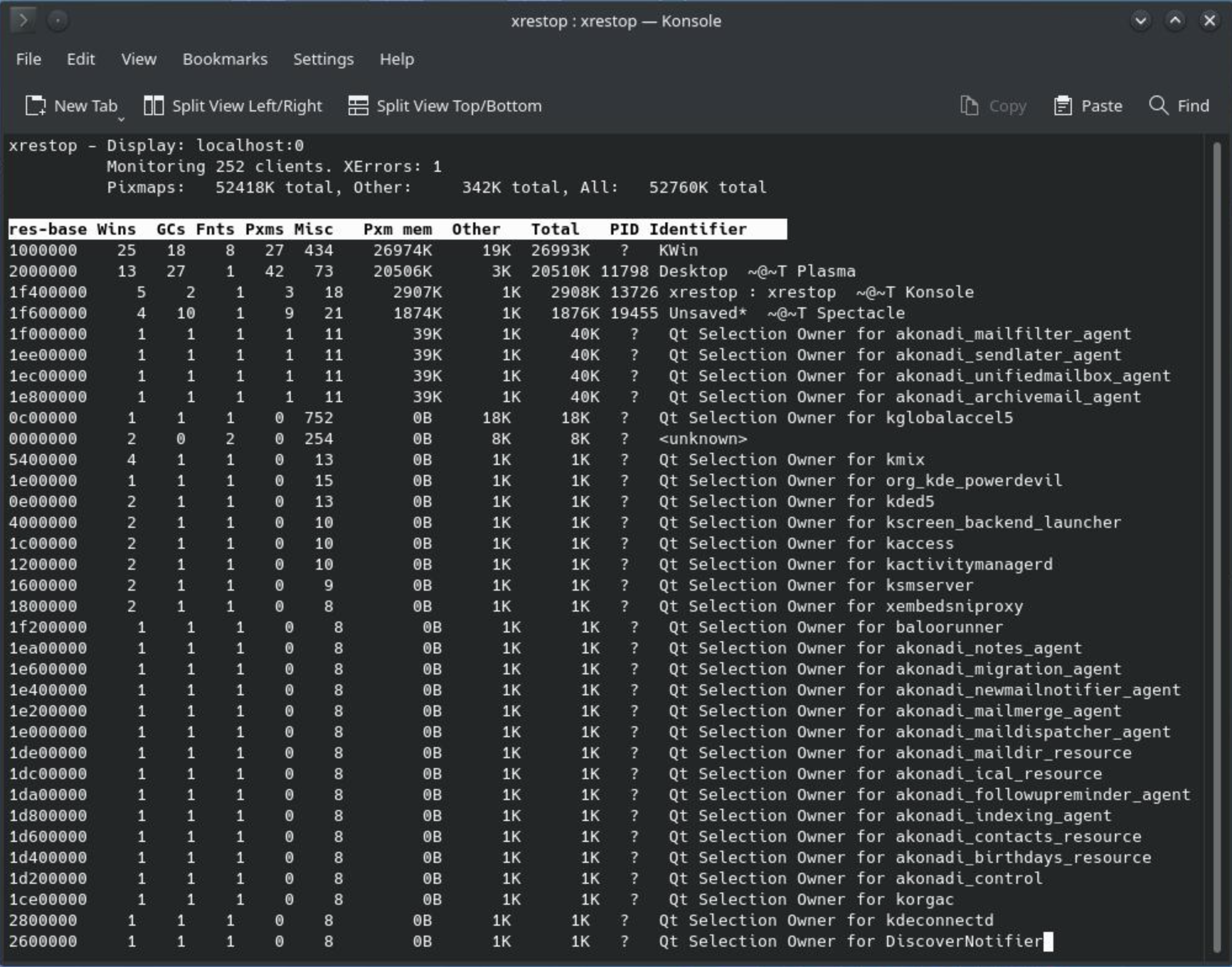
xlsclientsFor more detailed investigation, tools such as xrestop can provide information about X resources used by applications.
You can install it through your distribution's package manager.
Debian / Ubuntu
sudo apt install xrestopThen run:
xrestopLook for Discord and watch whether its resource usage continues increasing while you repeatedly use features such as screen sharing.
Check Whether You're Running X11 or Wayland
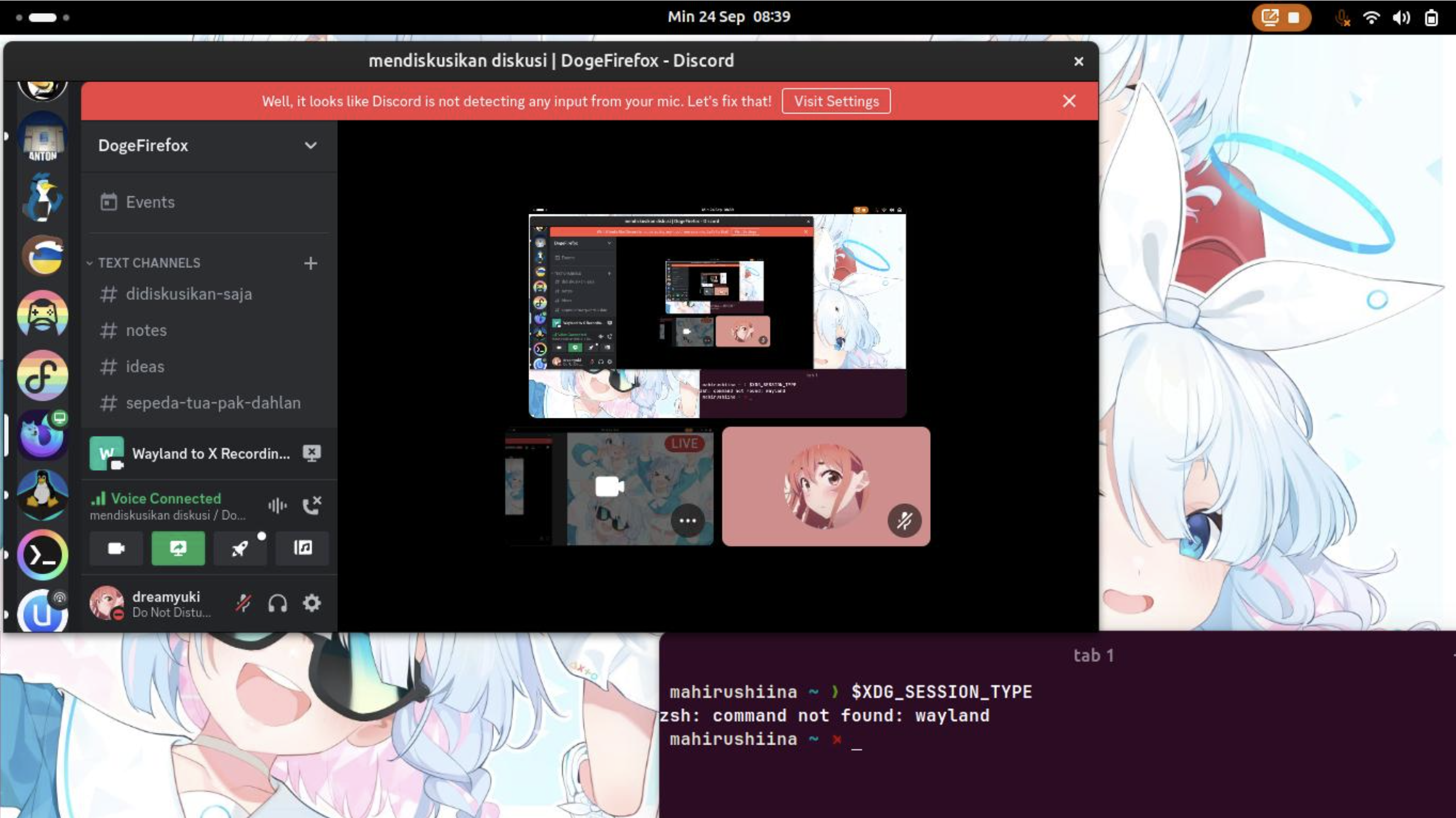
Before troubleshooting, identify your session type:
echo $XDG_SESSION_TYPEYou will normally see:
x11or:
waylandIf you're running Wayland, Discord may still involve XWayland depending on how the application is packaged and configured.
This matters because a problem involving X11 resources can still appear on a Wayland desktop if an application is using XWayland.
Check Discord's Process
You can locate the running Discord process with:
pgrep -a DiscordDepending on the installation method and version, the process naming can differ.
You can also use:
ps aux | grep -i discordThis is useful when you want to confirm that you're monitoring the correct process before investigating resource usage.
A Simple Reproduction Test
If you suspect the X11 leak, don't immediately assume that every increase is a bug.
Instead, perform a controlled test.
Step 1: Start Discord
Launch Discord normally and leave it running.
Step 2: Record the baseline
Check the X11 resources or client count.
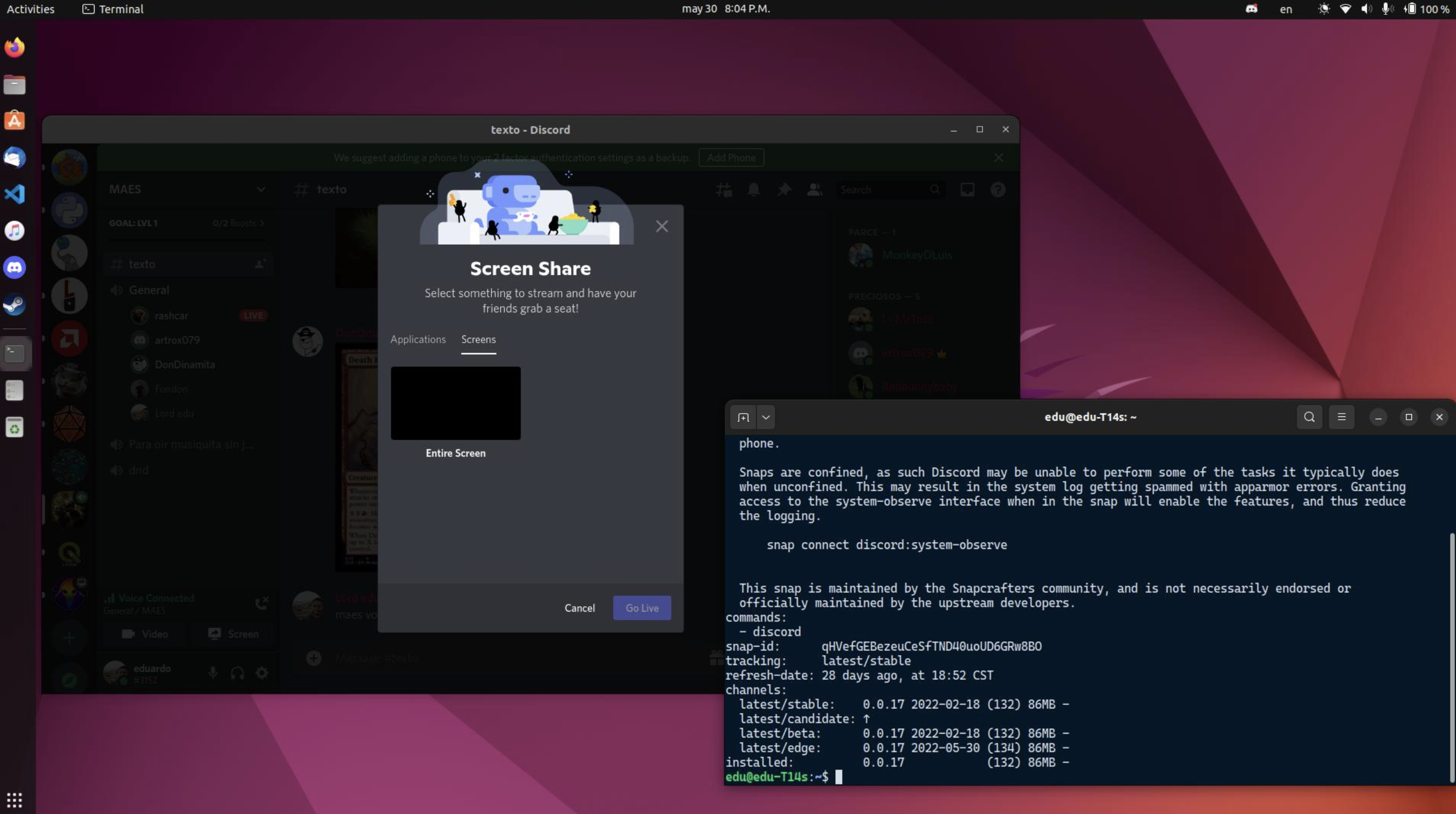
Step 3: Start screen sharing
Share an application or screen.
Step 4: Stop sharing
Return to the normal voice channel.
Step 5: Repeat
Start and stop sharing several times.
Step 6: Check again
Compare the X11 resource/client count with your original baseline.
If the number repeatedly climbs and doesn't return after the feature is stopped, you've got a useful reproduction pattern.
A 2026 community report specifically described this behavior around repeated screen-sharing workflows. Reddit
What Happens When the Limit Is Reached?
X11 has finite resources.
When an application consumes too many available client connections, the problem can extend beyond Discord.
Users may notice things like:
- New applications refusing to launch
- Windows failing to appear
- GUI applications behaving strangely
- Desktop interactions becoming unreliable
- Discord becoming increasingly unstable
This can make the problem particularly confusing.
You may think:
"My browser is broken."
when Discord is actually consuming an unusually large number of X11 resources in the background.
The Quick Temporary Fix
If Discord is confirmed to be responsible, restarting the client can release the resources associated with its previous X11 connections.
A simple approach is:
pkill DiscordThen start Discord again normally.
If the process doesn't close cleanly, some users use:
pkill -9 DiscordUse -9 only when a normal termination doesn't work.
A 2026 report described restarting Discord as a temporary workaround after the client accumulated large numbers of X11 connections. Reddit
Don't Confuse This With an NVIDIA VRAM Leak
This is one of the most important troubleshooting points.
If you see messages such as:
Failed to get memory pages for NvKmsKapiMemoryor:
dmaAllocMapping... can't alloc VA spaceyou're potentially dealing with an NVIDIA driver/GPU virtual-address problem, not Discord's X11 connection leak.
For example, an NVIDIA issue reported in 2026 describes long-running systems accumulating GPU virtual-address mappings and eventually experiencing compositor crashes. Discord can appear among the applications affected when the graphical session collapses. GitHub
Those problems require a different investigation.
Keep Discord Updated
The first permanent troubleshooting step should always be checking whether you're running the latest Discord client available for your Linux distribution.
Discord has been making Linux-specific improvements, including changes to its Linux updater and package support. A May 2026 update added a Rust-based Linux updater and support for additional package formats. Reddit
If Discord has shipped a client-side fix for the specific leak you're experiencing, running an older build can leave you exposed to the original problem.
Update the NVIDIA Driver Too
If you're using NVIDIA hardware, keep the graphics driver updated through your distribution's recommended channel.
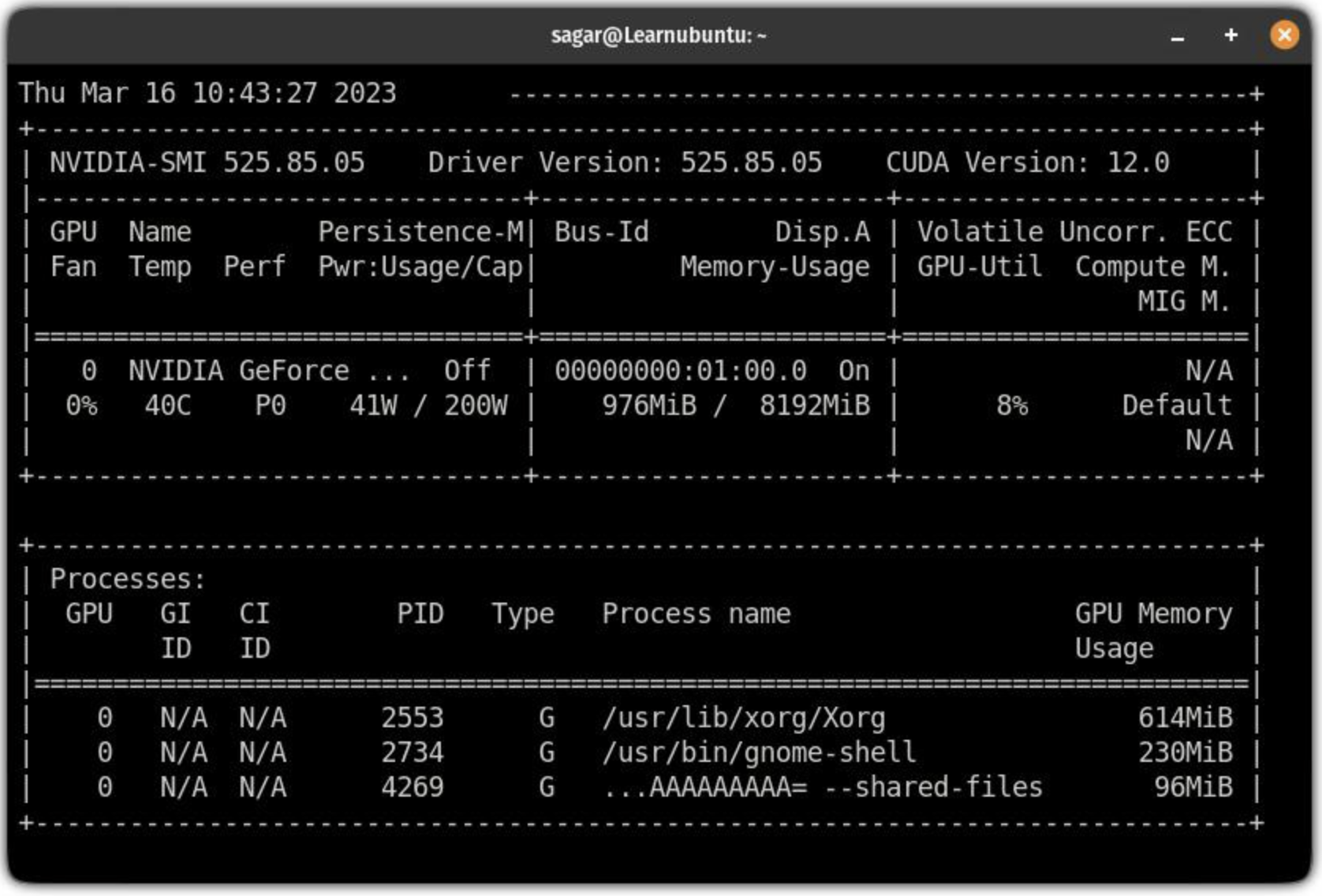
Check your installed driver with:
nvidia-smiYou can also inspect:
modinfo nvidia | grep ^versionDon't blindly install a random NVIDIA driver from an unrelated source.
Use the package recommended for your Linux distribution and GPU.
Check Discord's Installation Method
Linux users may run Discord through:
- Official
.deb - RPM package
- Arch package
- Flatpak
- Other community packaging methods
The packaging method can affect permissions, X11/Wayland integration and update behavior.
For example, the Discord Flatpak has documented X11-related behavior and permissions, including cases where removing the X11 socket permission prevents Discord from launching. GitHub
So when reporting a bug, always include the installation method.
X11 vs. Wayland Troubleshooting
If you're using a modern Linux desktop, you may have the option to use Wayland instead of X11.
Check:
echo $XDG_SESSION_TYPEIf it says x11
Your desktop session is directly using X11.
If it says wayland
Discord may still use XWayland for some functionality depending on the client and configuration.
Don't switch display servers solely because you saw the word "X11."
First confirm that the leak you're investigating is actually connected to X11 resources.
What Information Should You Collect?
If restarting Discord temporarily fixes the issue but it eventually returns, collect evidence before reporting it.
Useful information includes:
Discord version
Check Discord's version from the client or package manager.
Linux distribution
For example:
cat /etc/os-releaseKernel
uname -rSession type
echo $XDG_SESSION_TYPENVIDIA driver
nvidia-smiX11 resource information
Use tools such as:
xrestopReproduction steps
Write down exactly what causes the count to increase.
For example:
Join voice channel
↓
Start screen share
↓
Stop screen share
↓
Repeat 10 times
↓
X11 resources increase
That information is far more useful to developers than simply saying:
"Discord is using too much memory."
Troubleshooting Checklist
Use this checklist when Discord starts behaving strangely on Linux.
Basic checks
- Update Discord
- Update NVIDIA drivers
- Restart Discord
- Check your Linux kernel
- Check whether you're using X11 or Wayland
- Check Discord's installation method
X11 investigation
- Check
XDG_SESSION_TYPE - Inspect X11 clients
- Use
xrestop - Record a baseline
- Repeat screen-sharing operations
- Compare resource counts
NVIDIA investigation
- Run
nvidia-smi - Check driver version
- Inspect
dmesg - Look for NVIDIA Xid errors
- Look for
nvidia-drmerrors - Separate GPU-driver failures from Discord X11 leaks
When Should You Report the Bug?
Report the problem when you can reproduce it consistently.
A useful bug report should include:
Discord version:
Linux distribution:
Desktop environment:
X11/Wayland:
GPU:
NVIDIA driver:
Installation method:
Steps to reproduce:
Observed X11 resource growth:
What happens after the limit is approached:
This makes it much easier for developers to determine whether they're dealing with an application bug, packaging issue, graphics-stack problem or driver regression.
Discord's own troubleshooting guidance recommends distinguishing between problems that can be solved through normal troubleshooting and genuine bugs that should be reported. Discord Support
Common Mistakes to Avoid
Don't assume every Linux freeze is a Discord memory leak
Linux graphics problems can involve the kernel, compositor, NVIDIA driver, XWayland, Electron or another application.
Don't confuse RAM with X11 resources
High RAM usage doesn't prove an X11 connection leak.
Don't immediately blame NVIDIA
NVIDIA can be part of the environment without being the cause.
Don't use kill -9 as the permanent solution
It can clear the problem temporarily, but it doesn't fix the underlying leak.
Don't downgrade blindly
A previous Discord version may introduce different bugs or security issues.
What Happens Next?
The most important improvement for affected users is a proper client-side fix that releases X11 resources when Discord finishes using them.
Until you're certain that your installed client contains the relevant fix, monitoring the resource count gives you a much clearer picture of what's happening.
For NVIDIA users, keeping both Discord and the NVIDIA graphics stack current is especially important because the two can interact through Discord's Electron-based rendering and capture environment.
🎮 The Bottom Line
The Discord Linux X11 problem can look like a mysterious system-wide failure, but the right diagnostics make it much easier to understand.
The key is to stop thinking only about:
"How much RAM is Discord using?"
and start asking:
"How many X11 resources is Discord holding onto?"
Check the session type, monitor X11 resources, reproduce the problem, update Discord and NVIDIA drivers, and distinguish the X11 leak from unrelated NVIDIA GPU-memory or compositor failures.
And if Discord eventually causes the desktop to stop opening new windows, restart the client first to release its resources while you investigate the underlying cause.
Comments
Sign in to join the conversation
Sign inNo comments yet
Be the first to share your thoughts!