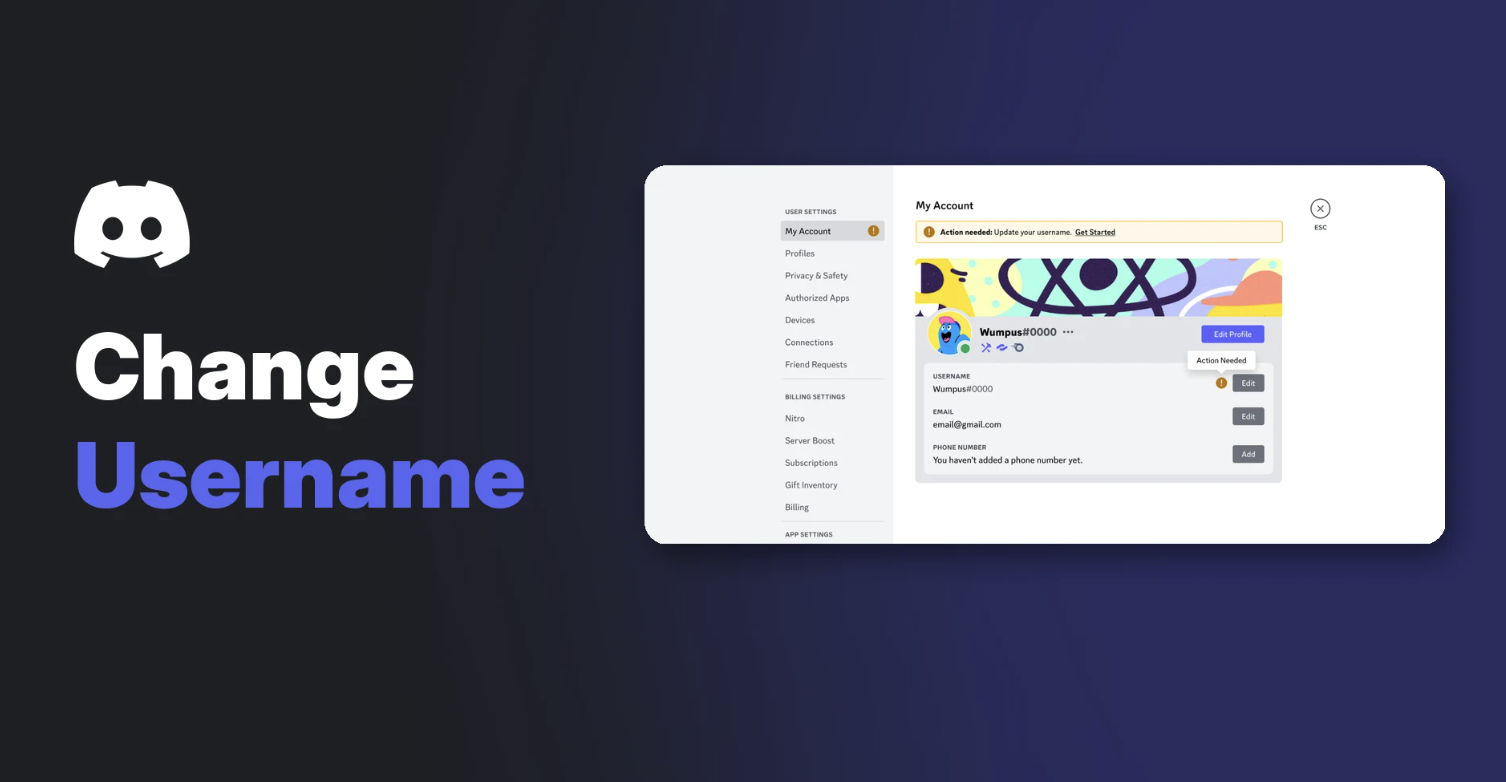

Discord gives you three names, and most people searching how to change Discord username settings only know about one. Your username is your unique ID, your display name is what people actually see, and server nicknames override both in specific servers.
Mixing them up is why people "change their name" and nothing seems to happen. This guide explains how to change your Discord username, how to change your display name, and which one you actually want.
At a glance - Username: unique, lowercase, 2 to 32 characters, changeable twice a week - Display name: 1 to 32 characters, emoji allowed, change it any time - Server nickname: a different name in one server, overrides your display name there - Display Name Styles: fonts, colours and effects for Nitro members
🆔 Username vs Display Name vs Nickname
| Name | What it's for | Rules | How often you can change it |
|---|---|---|---|
| Username | Your unique ID for friend requests | Lowercase a-z, 0-9, _ and . only, 2 to 32 characters | Up to 2 times a week |
| Display name | How you appear across Discord | Almost anything, including emoji and spaces, 1 to 32 characters | Any time |
| Server nickname | Your name in one specific server | Set per server | Any time (if the server allows it) |
Discord says server and friend nicknames "take priority over display names where they are set."
Usernames and display names on Discord. Image: Discord.
✏️ How to Change Discord Username
On desktop
- Open User Settings (the cog icon).
- On My Account, select Edit next to Username.
- Type your new username.
- Enter your password to confirm.
On mobile
- Tap your profile in the bottom right.
- Tap Account, then Username.
- Enter your new username and save.
Username rules:
- 2 to 32 characters
- Lowercase letters, numbers, underscores ( _ ) and periods ( . ) only
- No two periods in a row
- Must be unique, so add numbers, underscores or periods if your first choice is taken
- Your account must be verified by email or phone
Remember the limit: 2 username changes per week.
😎 How to Change Your Display Name
Your display name is the big name everyone sees in chats and DMs. You can change it as often as you like.
- Open User Settings > Profiles (or Edit Profile on mobile).
- Edit Display Name.
- Save your changes.
Display names can include capital letters, spaces, special characters and emoji. They don't need to be unique, so pick whatever fits your vibe, as long as it follows Discord's Community Guidelines.
🏷️ How to Set a Server Nickname
Want a different name in one server, like your in-game name in a gaming community?
- Go to User Settings > Profiles > Per-server Profiles.
- Choose the server.
- Set your nickname and save.
Server admins can also set nicknames for members, and some servers turn off nickname changes. If you can't change it, ask a moderator.
🎨 Style Your Display Name With Nitro
Display Name Styles let Nitro members change the font, colour and effect of their display name.
- Fonts: gg sans, Tempo, Sakura, Jellybean, Modern, Medieval, 8Bit, Vampyre, Monkey Bars, Mainframe, Headbang and Journal
- Effects: Solid, Gradient, Neon, Toon, Pop, Gummy and Prism
- Colours: presets or a custom colour picker, plus a Surprise Me button
The Display Name Style effects. Image: Discord.
To set it up, open your profile card, select Edit Profile, then press + under Display Name Style. In servers, only your font shows. Your role colour replaces the colour and effect.
Free users can preview styles but can't save them. Our Discord Nitro vs free comparison covers what else Nitro adds.
🔒 Name Safety Tips
- Never pick a name that impersonates Discord, staff, a creator or a brand. Discord doesn't allow it.
- Check usernames, not display names, when someone claims to be a friend or a moderator. Display names aren't unique, so scammers copy them.
- Don't share your username publicly if you only want friends to add you.
Our Discord privacy settings guide shows how to control who can send you friend requests.
Frequently Asked Questions
How do I change my Discord username?
Go to User Settings > My Account, select Edit next to Username, enter a new one and confirm with your password.
How many times can I change my Discord username?
Up to 2 times per week. Your display name can be changed any time.
Why can't I use capital letters in my username?
New Discord usernames are lowercase only. Use your display name for capitals, spaces and emoji.
What's the difference between a username and a display name?
Your username is unique and used to add you as a friend. Your display name is how you appear in chats and doesn't need to be unique.
How do I change my name in just one server?
Set a server nickname under User Settings > Profiles > Per-server Profiles.
🎮 The Bottom Line
Learning how to change your Discord username is simple once you know which name you're changing. Use your username as your unique ID, your display name for personality, and server nicknames for each community.
What's the story behind your Discord name?
Sources
- Discord Help Center: How do I change my Username?, updated 24 October 2026
- Discord Help Center: New Usernames & Display Names, updated 23 October 2026
- Discord Help Center: Discord Display Name Styles FAQ, updated 24 October 2026
Comments
Sign in to join the conversation
Sign inNo comments yet
Be the first to share your thoughts!