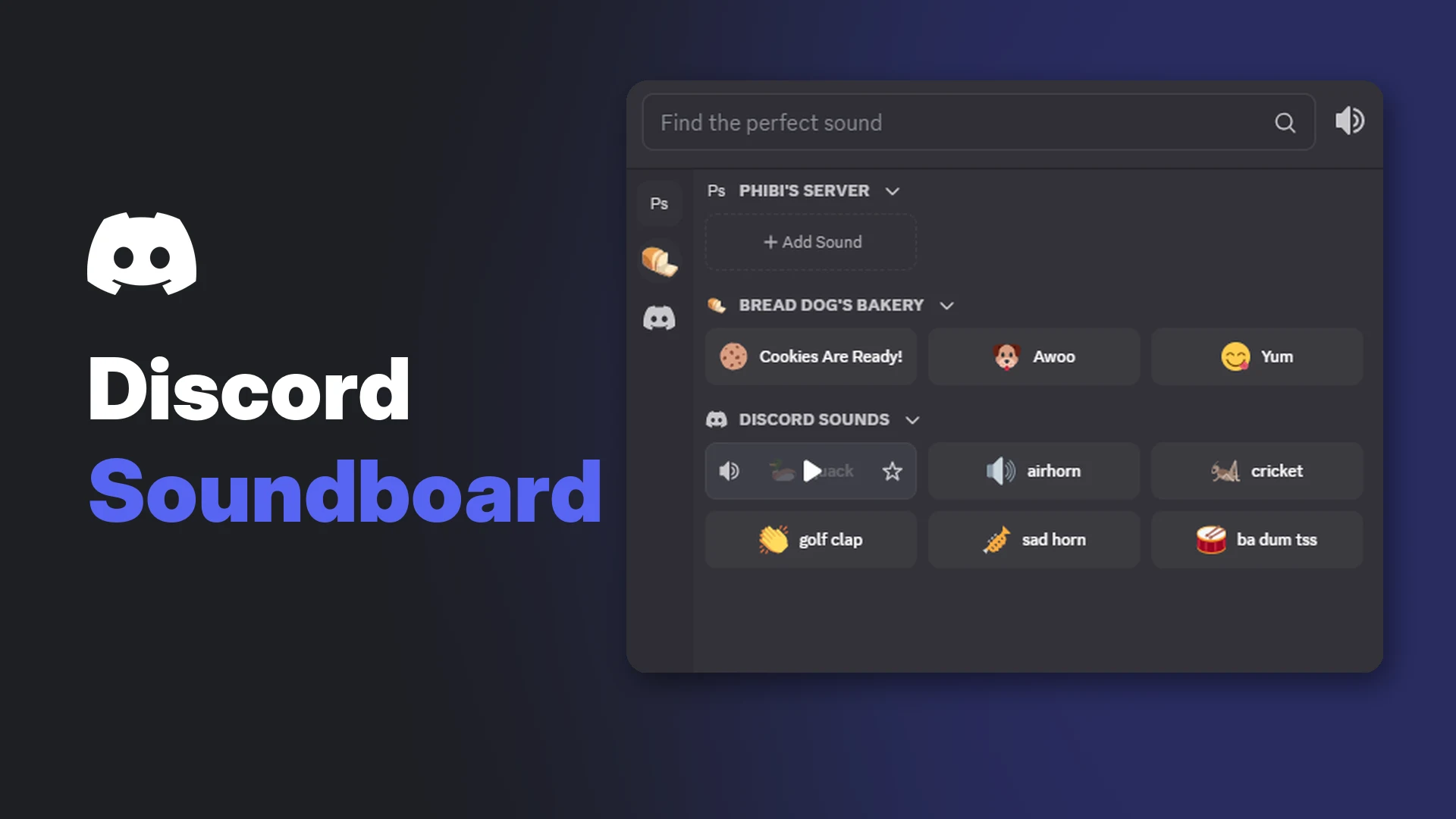

Discord Soundboard is a voice channel feature that lets you play short audio clips for everyone in the call. Discord describes it as a way to "react in a Discord voice channel with brief audio clips," much like reactions in text chat.
Every server starts with a set of sounds, and members can add their own. This page explains how to play sounds, upload new ones, control who can use them and change or mute the volume.
Key Information
| Detail | Summary |
|---|---|
| Where it works | Server voice channels, including during Go Live streams |
| Who hears it | Everyone in the voice channel, except people who are deafened |
| Free sound slots | 8 per server |
| Extra slots | 24, 36 or 48 with Server Boost levels 1, 2 and 3 |
| Uploading | Desktop or browser only |
| File limits | MP3 or OGG, up to 512KB and 5.2 seconds |
| Nitro perks | Use sounds from other servers, plus entrance sounds |
How to Use Discord Soundboard
On desktop
- Join a voice channel in a server.
- Select the Soundboard icon (the confetti icon) in the voice controls.
- Hover over a sound and press Play. Everyone in the channel hears it.
The Soundboard button in the voice controls. Image: Discord.
In the panel, you can also:
- Select the star to favourite a sound
- Select the speaker icon to preview a sound only you can hear
- Search with Find the perfect sound
The Soundboard panel, with server sounds and Discord's default sounds. Image: Discord.
Game overlay shortcut (Windows only): press Ctrl + ` to open Soundboard from Discord's in-game overlay.
On mobile
- Join a voice channel in a server.
- Tap the screen to show the toolbar, then drag it up.
- Tap Soundboard and choose a sound.
Default Discord Sounds
Every server comes with Discord's own sounds. They include:
- quack
- airhorn
- cricket
- golf clap
- sad horn
- ba dum tss
Servers start with 8 slots for custom sounds on top of these.
Sound Slots and Server Boosts
More boosts unlock more slots for custom sounds:
| Server level | Sound slots |
|---|---|
| No boosts | 8 |
| Level 1 | 24 |
| Level 2 | 36 |
| Level 3 | 48 |
Our Discord Server Boost guide explains what each level unlocks and how many boosts it needs.
How to Add Sounds to Soundboard
Uploading only works on desktop or browser.
- Join a voice channel and open the Soundboard panel.
- Select Add Sound.
- Choose your file, give it a Sound Name, pick a Related Emoji if you like, and set the Sound Volume.
- Select Upload.
The Upload a Sound window. Image: Discord.
Upload requirements
| Requirement | Limit |
|---|---|
| File type | MP3 or OGG |
| File size | 512KB maximum |
| Length | 5.2 seconds maximum |
| Name | 2 to 32 characters |
| Permission needed | Create Expressions |
Discord reminds uploaders that sounds must follow its Terms of Service and Community Guidelines, including not infringing "the intellectual property rights of others."
Managing Soundboard as a Server Admin
Control who can play sounds
Use the Use Soundboard permission:
- Server-wide: Server Settings > Roles > choose a role > toggle Use Soundboard.
- Per voice channel: Edit Channel > Permissions > choose a role or member > toggle Use Soundboard.
This is handy for keeping a quiet study channel or a stage-style event free of airhorns.
Edit or remove sounds
- Go to Server Settings > Soundboard.
- Edit a sound, or select the x next to it to remove it.
The Soundboard tab in Server Settings. Image: Discord.
Soundboard permissions at a glance
| Permission | What it allows |
|---|---|
| Use Soundboard | Play sounds in voice channels |
| Create Expressions | Add custom sounds, emoji and stickers |
| Manage Expressions | Edit or remove custom sounds, emoji and stickers |
For more on setting up roles, see our Discord roles and permissions guide.
Nitro Soundboard Features
Use sounds from any server
Without Nitro, you can only play sounds from the server you're in. With Nitro, you can use Soundboard sounds from any of your servers.
Entrance sounds
Nitro members can set a sound that plays automatically when they join a voice channel:
- Open User Settings > Voice & Video > Soundboard.
- Under Sound Effects, select the pencil icon to set a sound for all servers.
- To set a different sound per server, choose the server from the dropdown first.
- Close the menu. Your choice saves automatically.
Your entrance sound plays if you join muted, but not if you join deafened.
Not sure if Nitro is worth it? Our Discord Nitro vs free comparison breaks down every perk.
How to Turn Down or Mute Soundboard Sounds
- Open User Settings > Voice & Video > Soundboard.
- Move the Soundboard Volume slider.
- Set it to 0% to stop hearing sounds completely.
The Soundboard Volume slider. Image: Discord.
This setting syncs across all your devices.
Troubleshooting
| Problem | Likely cause | Fix |
|---|---|---|
| No Soundboard icon in voice | Soundboard is off for you in that channel | Ask a moderator to allow the Use Soundboard permission |
| Can't upload a sound | Missing Create Expressions, or you're on mobile | Get the permission and upload from desktop or browser |
| Upload fails | File too big, too long or wrong format | Use MP3 or OGG under 512KB and 5.2 seconds |
| No free slots | The server has used all its slots | Remove a sound or boost the server |
| Can't use another server's sounds | Cross-server sounds need Nitro | Play sounds from the current server, or get Nitro |
| Entrance sound didn't play | You joined deafened | Join undeafened |
Frequently Asked Questions
What is Discord Soundboard?
A voice channel feature that lets you play short sound clips that everyone in the call can hear.
Do I need Nitro to use Soundboard?
No. Anyone can use sounds in the current server. Nitro adds sounds from other servers and entrance sounds.
How long can a Soundboard sound be?
Up to 5.2 seconds, with a maximum file size of 512KB.
How do I turn off Soundboard on Discord?
Set Soundboard Volume to 0% under User Settings > Voice & Video > Soundboard.
Can I add Soundboard sounds on mobile?
No. You can play sounds on mobile, but uploads only work on desktop or browser.
How many sounds can a server have?
8 slots by default, rising to 24, 36 and 48 at Server Boost levels 1, 2 and 3.
Summary
Discord Soundboard lets you react in voice channels with short audio clips. Open it from the Soundboard icon in a voice call, press Play, and everyone hears it. Servers get 8 custom sound slots, up to 48 with boosts. Uploads must be MP3 or OGG files under 512KB and 5.2 seconds, and need the Create Expressions permission. Admins control access with Use Soundboard, and anyone can turn sounds down under User Settings > Voice & Video > Soundboard.
Comments
Sign in to join the conversation
Sign inNo comments yet
Be the first to share your thoughts!