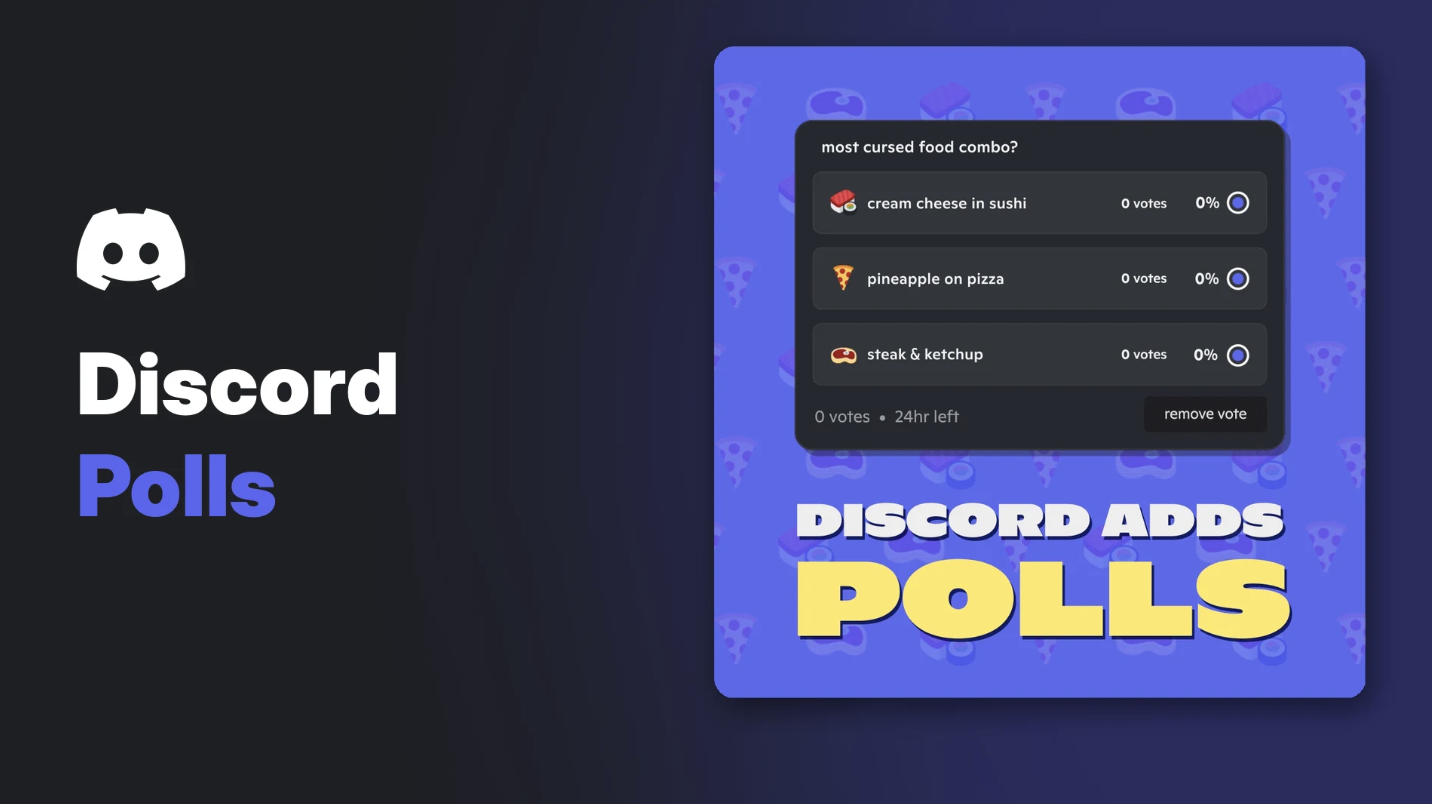

"Which game tonight?" "Pizza or burgers?" "Is cream cheese in sushi a crime?" Some questions need a vote, and once you know how to make a poll on Discord, you won't need a bot.
This guide shows how to make a poll on Discord on desktop and mobile, how voting works, what the limits are, and how server admins decide who can post polls.
At a glance - Where: text channels, DMs, group DMs, announcement channels and voice channel chat - Answers: up to 10, each with an optional emoji - Length: 1 hour, 4 hours, 8 hours, 24 hours, 3 days or 1 week - Multiple choice: optional - Anonymous voting: not available - Permission: Create Polls
📊 How to Make a Poll on Discord (Desktop)
- Go to the channel, DM or group chat where you want the poll.
- Select the + button in the message box.
- Choose Poll.
- Fill in: - Your question - Up to 10 answers, each with an optional emoji or custom emoji - How long the poll stays open - Whether people can pick more than one answer
- Select Post.
Creating a poll on desktop. Image: Discord.
Poll questions and answers go through your server's AutoMod filters, so blocked words won't sneak in.
📱 How to Make a Poll on Mobile
- Open the channel or DM.
- Tap + in the message box.
- Tap Poll.
- Add your question, answers, duration and multiple-choice setting.
- Tap Post.
Discord recommends app version 221 or higher for the best poll experience on mobile.
🗳️ How to Vote in a Discord Poll
- Tap the answer you want (or several, if the poll allows it).
- Select Vote.
- A check mark confirms your vote.
A check mark shows your vote went through. Image: Discord.
Changed your mind? Select Remove Vote and vote again while the poll is open.
⏱️ Poll Limits and Rules
| Feature | Limit |
|---|---|
| Answers per poll | Up to 10 |
| Longest duration | 1 week |
| Duration options | 1h, 4h, 8h, 24h, 3 days, 1 week |
| End early | Yes, the creator can end it any time |
| Anonymous voting | No |
| Create with a /poll command | No |
| Delete a poll | Delete the whole message (can't be undone) |
| Save results | Pin the poll to Pinned Messages |
🛠️ How Admins Control Who Can Post Polls
Server owners and admins can turn polls on or off with the Create Polls permission.
For a whole role:
- Open Server Settings > Roles.
- Choose a role, or Default Permissions for everyone.
- Toggle Create Polls and save.
For one channel:
- Open the channel's settings (the cog icon) and select Permissions.
- Choose a role.
- Toggle Create Polls and save.
A good setup is to allow polls in a dedicated #polls or #game-night channel and turn them off in busy chat channels. Our Discord roles and permissions guide covers how role permissions stack.
💡 Poll Ideas That Get People Talking
- Game night: which game, what time, which map
- Community choices: the next server event, a new channel name, the server's emoji of the week
- Fun debates: pineapple on pizza, best snack, best console
- Feedback: how members feel about a new rule or feature
Polls are one of the easiest engagement tools you have. For more ideas, see our guide to engagement strategies for small communities.
Frequently Asked Questions
How do I make a poll on Discord?
Select the + button in the message box, choose Poll, add your question and up to 10 answers, pick a duration and select Post.
Can Discord polls be anonymous?
No. Discord doesn't offer anonymous voting at the moment.
How long can a Discord poll last?
Up to 1 week. The creator can also end it early.
Can I use /poll to make a poll?
No. Polls are created from the + menu, not a slash command.
Why can't I create a poll in a server?
You probably don't have the Create Polls permission in that channel. Ask a server admin.
🎮 The Bottom Line
Now you know how to make a poll on Discord: a few taps from the + menu, up to 10 answers and up to a week to vote. It's the quickest way to settle arguments, plan events and get quiet members involved.
What's the first poll you're posting in your server?
Sources
- Discord Help Center: Polls FAQ, updated 22 October 2026
Comments
Sign in to join the conversation
Sign inNo comments yet
Be the first to share your thoughts!