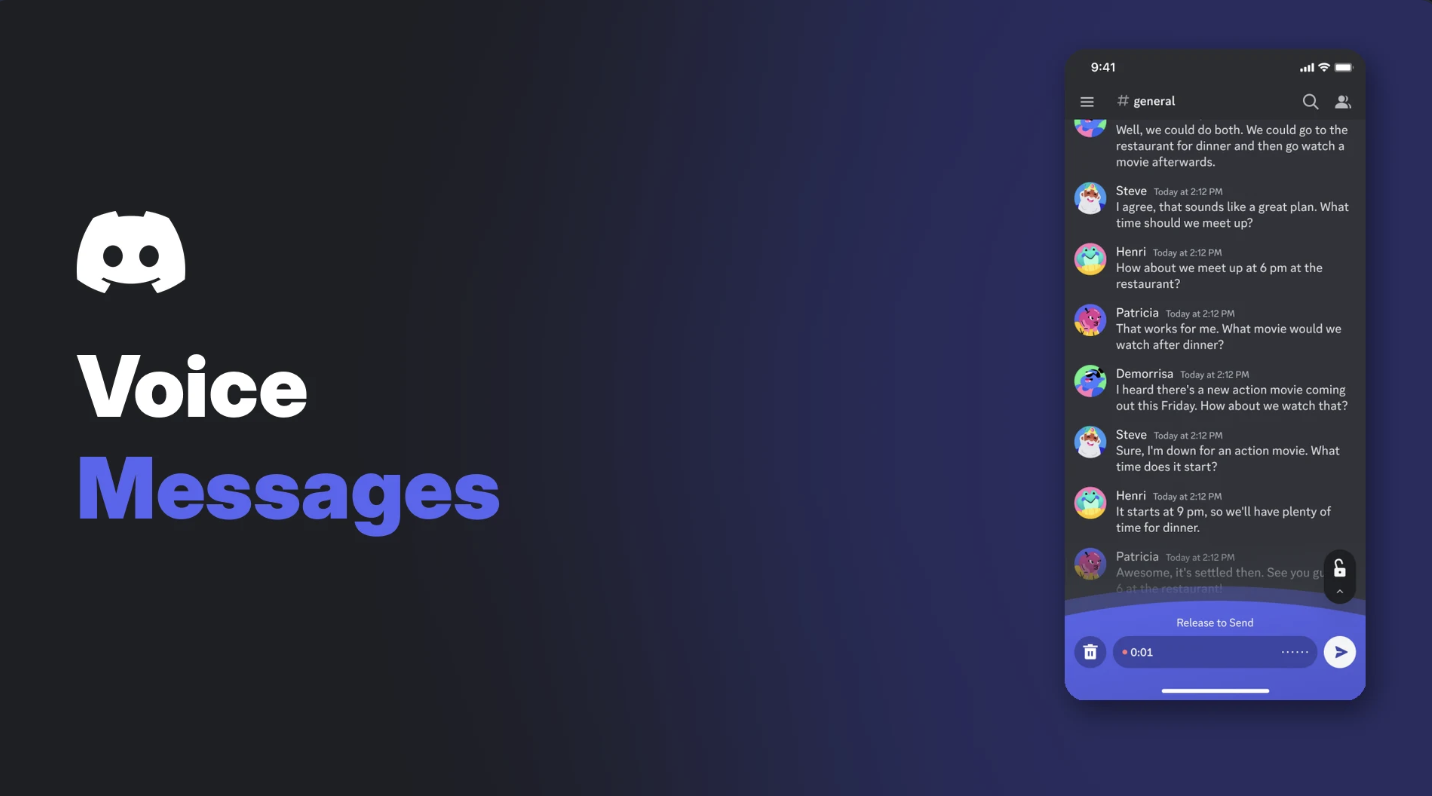

Some things are easier to say than type: a long story, directions, or a joke that needs the right timing. Discord voice messages let you record audio and drop it straight into a chat, no call needed.
This guide covers how to send voice messages, cancel a bad recording, listen on any device and control them in your server.
At a glance - Send from: the Discord mobile app only - Listen on: any device, including desktop and browser - Where: DMs, group DMs and servers that allow them - Maximum length: 20 minutes - Server control: the Send Voice Messages permission
🎙️ How to Send Discord Voice Messages
Open the DM, group chat or server channel on your phone. Then:
Option 1: hold to talk
- Press and hold the mic button to the right of the message box.
- Speak.
- Let go to send.
Option 2: lock and talk hands-free
- Press and hold the mic button.
- Swipe up to lock recording.
- Tap send when you're done.
The lock option is handy for longer messages, since you don't have to keep your thumb on the screen.
❌ How to Cancel a Voice Message
Recorded something you regret? Two ways to bin it:
- While holding the mic: drag your finger to the trash icon on the left and let go.
- In locked mode: tap the trash icon on the left.
Slide to the trash icon to cancel. Image: Discord.
🎧 How to Listen to Voice Messages
Select Play on any voice message. It works on desktop, browser and mobile.
Voice messages play right in the chat. Image: Discord.
- On desktop, they play through your default Discord audio output.
- On mobile, they play through your connected headphones or speaker, or your phone's speaker if nothing's connected.
🖥️ Can You Send Voice Messages on PC?
No. Discord says you "can only send voice messages from the mobile app." You can listen on desktop and browser, but recording needs your phone.
You also can't upload your own audio file and make it look like a voice message. Regular audio files still upload as normal attachments.
🛠️ How to Turn Off Voice Messages in Your Server
Server admins control voice messages per role:
- Open Server Settings > Roles.
- Pick a role.
- Toggle Send Voice Messages on or off and save.
The Send Voice Messages permission. Image: Discord.
A common setup is to allow voice messages for trusted roles and turn them off for brand-new members, to cut down on spam. Our Discord roles and permissions guide explains how to layer role permissions.
🚩 How to Report a Voice Message
- Desktop: right-click the voice message and select Report Message.
- Mobile: tap and hold the message, then tap Report Message.
For more on keeping your server clean, see our Discord moderation guide.
💡 Voice Message Tips
- Keep it short. Most people won't sit through 20 minutes.
- Find a quiet spot. Background noise travels.
- Use the lock for anything longer than a few seconds.
- Be kind in servers. A wall of voice messages is as annoying as a wall of text.
Frequently Asked Questions
How do I send a voice message on Discord?
In the mobile app, press and hold the mic button next to the message box, speak, then let go to send.
How long can a Discord voice message be?
Up to 20 minutes.
Can I send voice messages on Discord PC?
No. You can only send them from the mobile app, but you can listen on any device.
Why can't I send voice messages in a server?
The server may have turned off the Send Voice Messages permission for your role.
Can I upload an audio file as a voice message?
No. Uploaded audio files appear as normal attachments.
🎮 The Bottom Line
Discord voice messages are perfect for quick updates on the go and jokes that need the right delivery. Record from your phone, listen anywhere, and let admins decide where they belong.
Are you a voice message person, or do you always type?
Sources
- Discord Help Center: Voice Messages, updated 23 October 2026
Comments
Sign in to join the conversation
Sign inNo comments yet
Be the first to share your thoughts!