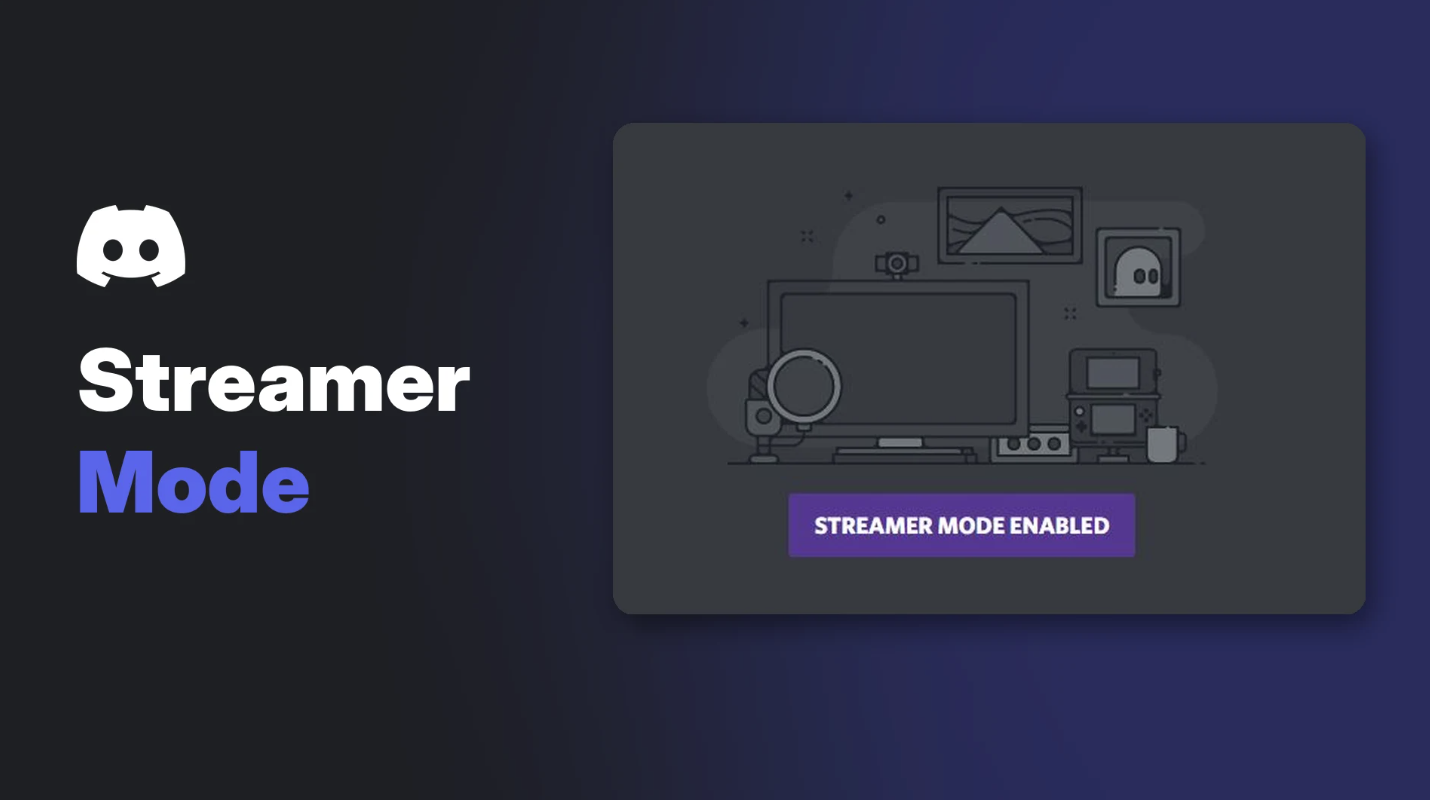

You're live, chat is popping, and you alt-tab to Discord. Without Discord Streamer Mode, your email, a server invite or a friend's full username can flash on screen, and on stream, a split second is all it takes.
Streamer Mode hides that kind of personal information automatically. Discord describes it as a way to "hide sensitive or personal information when you're in the middle of streaming to your fans."
Here's what it hides, how to turn it on, and how to make it switch on by itself when you go live.
At a glance - Where: User Settings > Streamer Mode - Hides: personal info like emails and stream connections, plus server invite links - Can also mute: Discord sounds and desktop notifications - Automatic: turns on when Discord detects OBS or XSplit - Keybind: toggle it with a shortcut
🎥 How to Turn On Discord Streamer Mode
- Open User Settings (the cog icon next to your name).
- Select the Streamer Mode tab.
- Turn on Enable Streamer Mode.
The main Streamer Mode toggle. Image: Discord.
A bar appears at the top of Discord so you always know it's on.
The Streamer Mode banner. Image: Discord.
- Select Disable on the banner to turn Streamer Mode off.
- Select the x to hide the banner but keep Streamer Mode on.
Tip: add a keybind for Streamer Mode under Keybinds, so you can switch it on in an instant.
🤖 Turn It On Automatically With OBS or XSplit
Turn on Automatically Enable/Disable. Discord detects OBS or XSplit and switches Streamer Mode on while you're live, then off when you stop.
Let Discord handle it for you. Image: Discord.
This is the setting most streamers should turn on first, so you never forget.
🙈 What Streamer Mode Hides
| Setting | What it does |
|---|---|
| Hide Personal Information | Hides things like emails, stream connections and old Discord tags. Full usernames show only the first letter |
| Hide Instant Invite Links | Blocks invite codes listed in Server Settings > Invites |
| Disable Sounds | Stops channel join and notification sounds |
| Disable Notifications | Blocks Discord's desktop notifications |
One catch: Discord says if a display name is set, "that name will be shown completely even with Streamer Mode turned on." Only the username is hidden. Pick a display name you're happy for viewers to see.
🛡️ Streaming Safety Checklist
Streamer Mode is a great safety net, but not a full shield. Before you go live:
- Use a display name you're fine sharing.
- Close DMs you don't want viewers to read.
- Use a separate window capture for your game rather than your whole screen.
- Turn on Disable Notifications so private messages don't pop up.
- Check your server invites before showing settings.
Our Discord privacy settings guide covers the rest of your account. If you stream on Twitch, YouTube or Kick, our Discord streaming guide shows how to connect your channel to your server.
Frequently Asked Questions
What does Discord Streamer Mode do?
It hides personal information, like emails and stream connections, and invite links. It can also mute Discord sounds and notifications while you stream.
How do I turn on Streamer Mode?
Go to User Settings > Streamer Mode and turn on Enable Streamer Mode.
Can Streamer Mode turn on automatically?
Yes. Turn on Automatically Enable/Disable, and Discord switches it on when it detects OBS or XSplit.
Does Streamer Mode hide my display name?
No. Your display name shows in full. Only your username is hidden.
How do I remove the Streamer Mode banner?
Select the x on the banner to hide it while keeping Streamer Mode on, or Disable to turn it off.
🎮 The Bottom Line
Discord Streamer Mode takes ten seconds to set up and can save you from a very bad stream moment. Turn on the automatic OBS detection, hide your invite links and notifications, and choose a display name you don't mind the world seeing.
Do you stream with Discord open? What's your setup?
Sources
- Discord Help Center: Streamer Mode 101, updated 24 October 2026
Comments
Sign in to join the conversation
Sign inNo comments yet
Be the first to share your thoughts!