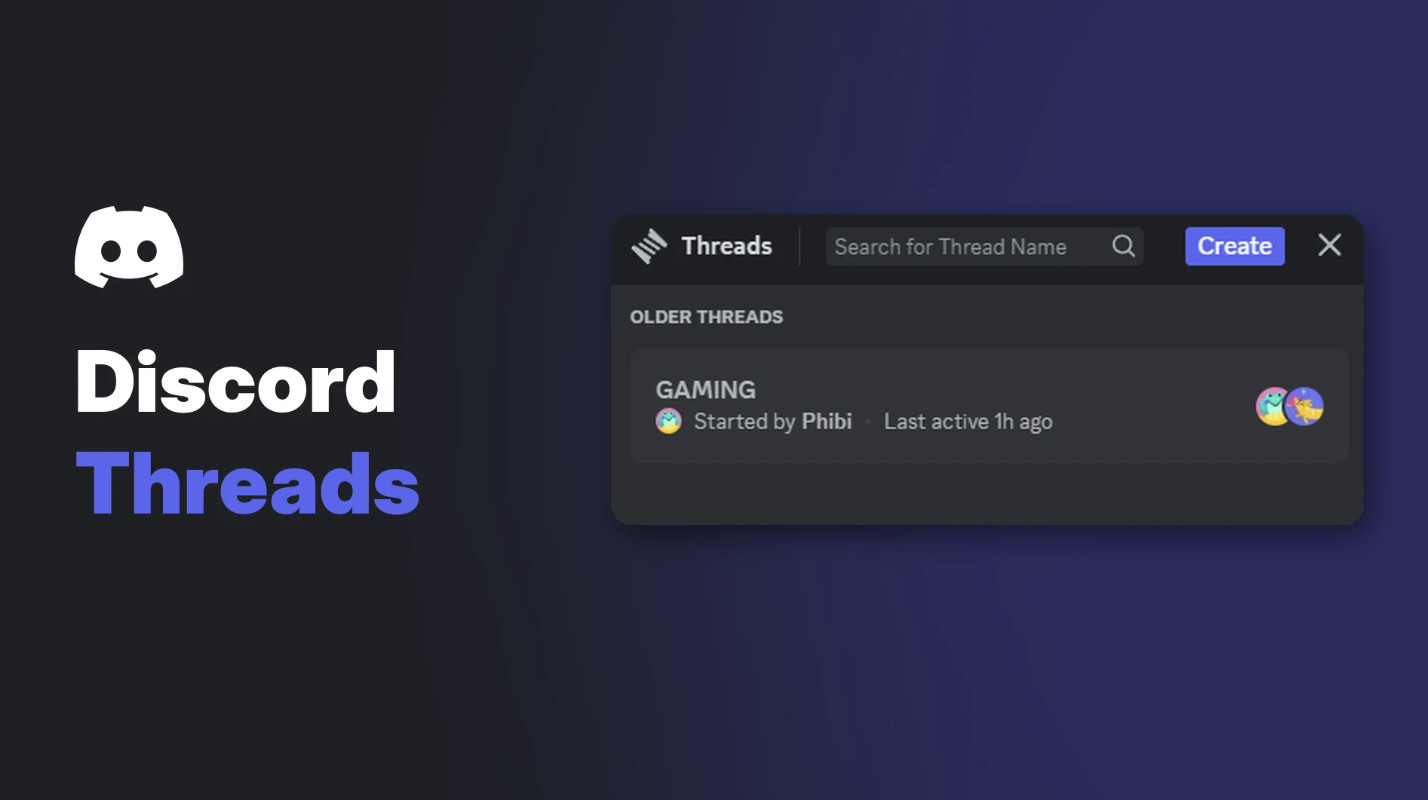

You're in #general, two people start a deep conversation about a game patch, and suddenly nobody else can get a word in. That's exactly what Discord threads are for.
A thread branches off a message and gives the conversation its own space, without creating a whole new channel. Discord says threads let you "belong to any conversation important to you and follow at your own pace."
Here's how to create, join, manage and tidy up threads.
At a glance - What: temporary side conversations that branch off a message - Types: public threads and private threads - Auto-close: after 3 days of inactivity by default (1 hour, 24 hours or 7 days also available) - Members: up to 1,000 per thread - Platforms: desktop, browser, iOS and Android
🧵 How to Create Discord Threads
- Hover over any message and select the three dots (...).
- Select Create Thread.
- Add an optional title and type your first message.
- Send it. Your thread is live, and others can jump in.
You need the Create Public Threads permission.
🔒 How to Create a Private Thread
Private threads are only visible to the people you invite.
- Open the Threads menu at the top of the channel, or the attachment menu in the chat bar.
- Turn on Private Thread.
- @mention the people or roles you want to add.
Turn on Private Thread to keep it invite-only. Image: Discord.
Discord's help article says private threads need a Level 2 boosted server and the Create Private Threads permission. You can add more people later by @mentioning them.
👀 How to Find, Join and Leave Threads
Find threads: select the Threads icon at the top of a channel to browse them all. On desktop, you can also hover over a channel in the sidebar and select See All.
The Threads panel shows active and older threads. Image: Discord.
Join a thread: open it and send a message, or select the three dots and Join Thread.
Leave a thread: select the three dots at the top right and choose Leave Thread.
Notifications: set each thread to All Messages, Mentions Only or Nothing.
Search: searching a channel also searches all of its threads.
✏️ Edit, Close, Reopen and Delete
| Action | How | Notes |
|---|---|---|
| Edit | Three dots > Edit Thread | Change the name, slowmode (5 seconds to 6 hours) and Hide After Inactivity |
| Close | Three dots > Close Thread | Closing doesn't delete it |
| Reopen | Type in it, or three dots > Open Thread | Locked threads can only be reopened by moderators |
| Delete | Three dots > Delete Thread | Needs Manage Threads. Can't be recovered |
Thread settings. Image: Discord.
Threads close automatically after 3 days of no activity by default, which keeps your sidebar tidy.
🛡️ Thread Permissions for Moderators
| Permission | What it allows |
|---|---|
| Send Messages in Threads | Chat in threads |
| Create Public Threads | Start threads anyone in the channel can see |
| Create Private Threads | Start invite-only threads |
| Manage Threads | Rename, delete, close, lock, set slowmode and view private threads |
Our Discord roles and permissions guide explains how to set these per role and per channel.
Mentioning roles: mentioning a role with fewer than 100 members adds everyone in it who can see the thread. You can mention up to 10 roles per message, and a thread holds up to 1,000 members.
🤔 Threads vs Forum Channels
Threads branch off a single message and are temporary. Forum channels are a whole channel of persistent posts. Use threads for side chats in busy channels, and forums for topics people come back to, like help or suggestions.
For more ways to keep conversations flowing, see our engagement strategies for small communities.
Frequently Asked Questions
How do I create a thread on Discord?
Hover over a message, select the three dots, then Create Thread. Add a title and send your first message.
How long do Discord threads last?
They close after 3 days of inactivity by default. You can change it to 1 hour, 24 hours or 7 days. Closed threads aren't deleted.
Can I use threads on mobile?
Yes. Threads work on iOS and Android.
How many people can be in a thread?
Up to 1,000 members.
Can a deleted thread be recovered?
No. Discord's support team can't restore deleted threads.
🎮 The Bottom Line
Discord threads keep side conversations from drowning out the main channel. Create one from any message, go private when you need to, and let inactive threads close themselves.
Do you love threads, or does your server ignore them?
Sources
- Discord Help Center: Threads FAQ, updated 19 October 2026
- Discord Help Center: Forum Channels FAQ, updated 24 October 2026

Comments
Sign in to join the conversation
Sign inNo comments yet
Be the first to share your thoughts!