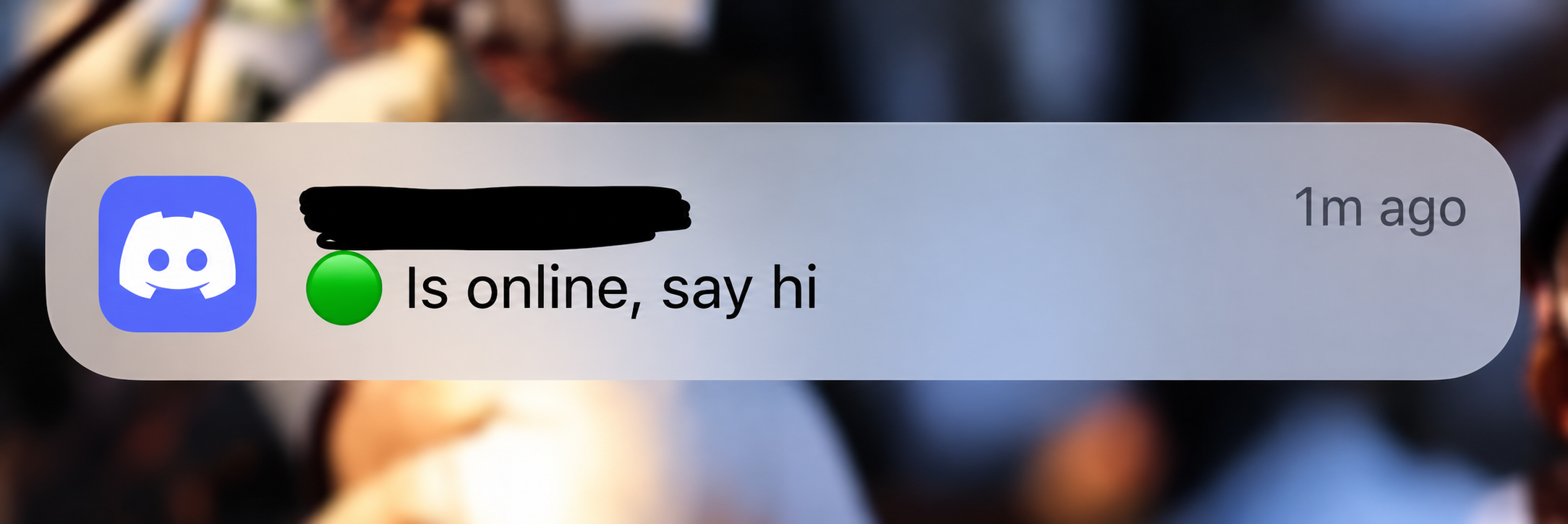

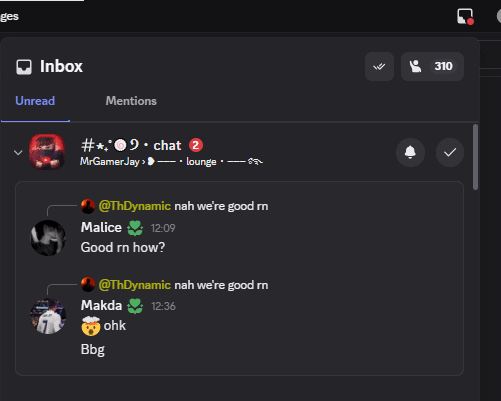
Ever opened Discord just to check a message, only to have someone notice you're online before you've even typed a word?
Friend-online notifications can make it easier to catch friends when they're available. But they can also make a quick login feel like an open invitation to chat. Sometimes, you want to play a game, check a server, or simply browse without feeling obligated to respond to everyone who sees you online.
That is where Discord friend-online notification controls become important. The idea is simple: users should have more say over which online alerts they receive and how their own activity triggers notifications for others.
However, notification preferences, online-status visibility, and the ability to notify other users are not necessarily the same setting. Understanding the difference is essential if you want more privacy without missing the alerts that matter.
Discord's New Notification Controls: What's Changing?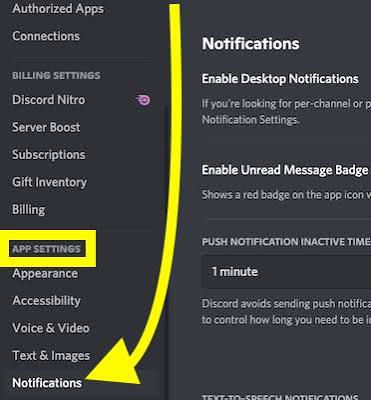
Friend-online alerts are designed to make social interactions easier. When a friend becomes available, a notification can help you jump into a conversation, join a game, or coordinate a session without repeatedly checking their profile.
The downside? Not everyone wants that level of visibility.
More granular notification controls could let users decide whether these alerts are useful, distracting, or something they'd rather avoid altogether. Instead of treating every online event the same way, customizable preferences would put more control in the hands of individual users.
The key question is who controls the notification: the person coming online or the person receiving the alert?
These are two different sides of the same interaction, and confusing them can lead to unexpected results.
Because the precise rollout and available options may vary by Discord client or account, check your current settings rather than assuming every user already has identical controls.
Sender vs. Receiver: Understanding Both Sides
The most important part of friend-online notifications is the distinction between the person generating an event and the person receiving an alert.
1. Sender-side controls: Managing your visibility
Imagine you open Discord after a long day. You want to check a few messages, but you don't want your friends to receive a notification every time you appear online.
Sender-side privacy controls would address this situation by letting you influence whether your activity generates friend-online alerts.
Depending on the controls Discord makes available, this could mean managing whether your online activity triggers notifications for others. It should not automatically be assumed that muting notifications on your own device accomplishes the same thing.
Why it matters: You can separate your decision to use Discord from the expectation that everyone else should be notified about it.
2. Receiver-side controls: Choosing which alerts you see
Now consider the opposite situation. Your friends frequently come online, and your device keeps lighting up with notifications you don't need.
Receiver-side controls focus on your experience. They allow you to manage incoming alerts, potentially including reducing or disabling friend-online notifications where the relevant option is available.
This is useful if you want to keep Discord notifications enabled for direct messages, mentions, or important server updates while avoiding unnecessary activity alerts.
The distinction is straightforward:
• Sender-side controls concern whether your activity triggers notifications for other people.
• Receiver-side controls concern whether you receive notifications about other people's activity.
The exact effect depends on the options Discord currently provides. Turning off incoming alerts should not be assumed to hide your online status from friends, and changing your online status should not automatically be assumed to disable every notification.
How to Review Your Discord Notification and Privacy Settings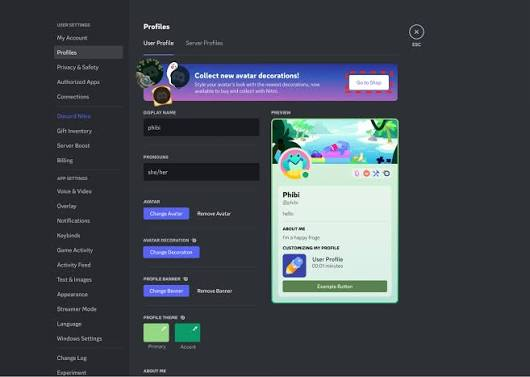
If friend-online alerts are becoming distracting, start by checking the settings available in your version of Discord.
- Open Discord settings. On desktop, select the User Settings gear near your username. On mobile, open your profile and look for the settings menu.
- Check Notifications. Review the available notification preferences and look for any friend-activity or online-notification option. Labels and availability can differ between versions.
- Review your status settings. Discord's online, idle, Do Not Disturb, and invisible statuses serve different purposes. Choose the status that reflects how available you want to appear, keeping in mind that status visibility is not necessarily the same as notification delivery.
- Check the effect of each change. If a specific friend-online control is available, read its description carefully. A setting that mutes alerts for you may not prevent other people from receiving alerts about you.
- Revisit settings after updates. Discord regularly changes its interface and features. If an option is missing, check the latest official support documentation or your updated client instead of relying on instructions for an older version.
The goal is not to disable every notification. It is to create a setup that matches how you actually use Discord.
Why Friend-Online Notification Controls Matter
At first glance, an online notification sounds harmless. It tells someone that a friend is available, and that can be genuinely useful.
But digital availability and social availability are not identical.
You might be online to finish homework with music playing in the background. You might be checking a server while waiting for a match. Or you might simply want some quiet time without appearing completely disconnected from your community.
When people interpret an online indicator as an invitation to talk, small notifications can create unnecessary social pressure.
More control over notifications gives users a better chance to separate being connected from being available.
It also creates a more flexible experience for different kinds of users. Competitive gamers may welcome activity alerts because they help coordinate sessions. Community moderators may need notifications for important messages but not for every friend coming online. Casual users may prefer a quieter interface altogether.
There is a trade-off, though. Turning off alerts can mean missing opportunities to connect spontaneously. The best configuration depends on whether you value immediate awareness or fewer interruptions.
The broader privacy principle is that users should understand what their activity reveals, who can see it, and which controls actually change that visibility.
What Happens Next?
The value of friend-online notification controls will depend on how clearly Discord separates outgoing activity notifications from incoming alerts.
If more granular controls are available, users should be able to understand their effects without guessing whether a change applies to their account, their device, or their friends' notifications.
Clear descriptions would also help prevent a common misunderstanding: disabling a notification does not always make the underlying activity private.
Users should watch for official Discord announcements, updated help articles, and changes in the desktop and mobile settings menus to confirm which controls are available and whether they behave differently across platforms.
For now, avoid assuming that a newly discussed feature is fully rolled out to every account. If you cannot find a specific friend-online toggle, use the settings that are actually available to you and consult Discord's official documentation for confirmation.
🎮 The Bottom Line
Discord should make it easier to decide when online activity deserves attention and when it doesn't.
Friend-online notifications can be useful for coordinating games and catching up with friends, but they shouldn't leave users guessing about who gets alerted or which privacy settings actually work. The important distinction is between controlling the alerts you receive and controlling the notifications others may receive about you.
As Discord's notification options evolve, understanding that difference will help you build a quieter, more private, and more personalized experience.
Would you turn off friend-online notifications completely, or would you rather customize them so you only see the alerts that matter? Let us know in the comments!

Comments
Sign in to join the conversation
Sign inNo comments yet
Be the first to share your thoughts!