
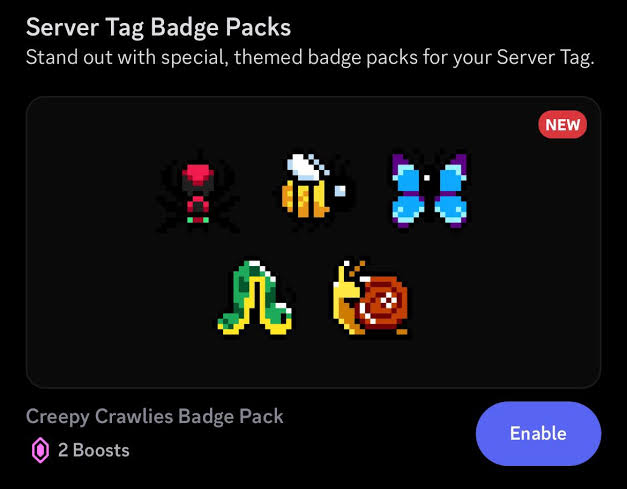
Discord server tags are short labels that help communicate a server's identity, niche, or primary interests. When used correctly, they can make a community easier for potential members to understand at a glance.
For server owners, tag optimization is about choosing specific, relevant labels and making sure they are correctly saved and displayed on the server profile.
This guide covers how server tags work, how to edit them on mobile, what makes a useful tag, and what to check when tags do not appear correctly.
Discord Server Tags: Overview
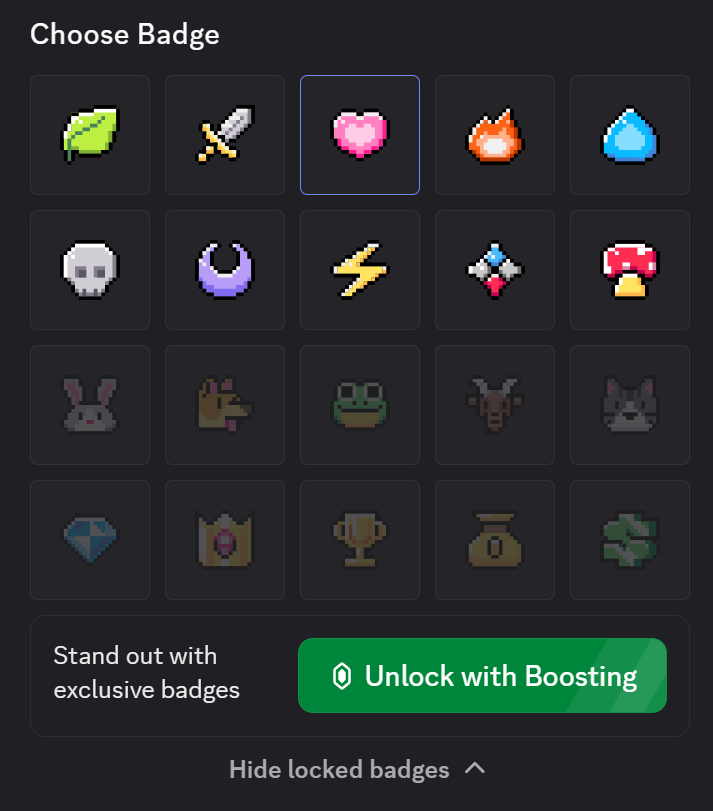
Server tags are designed to give users quick context about a community.
Instead of reading an entire server description, someone browsing a profile can use tags as immediate signals about the server's focus.
For example, a gaming community might use tags related to:
- Minecraft
- Gaming
- LFG
- Competitive
- Community
A creator-focused server might instead use:
- YouTube
- Twitch
- Streaming
- Content Creation
The important principle is relevance. Tags should describe what members will actually find inside the server rather than simply listing popular keywords.
Setting: Where Server Tags Appear
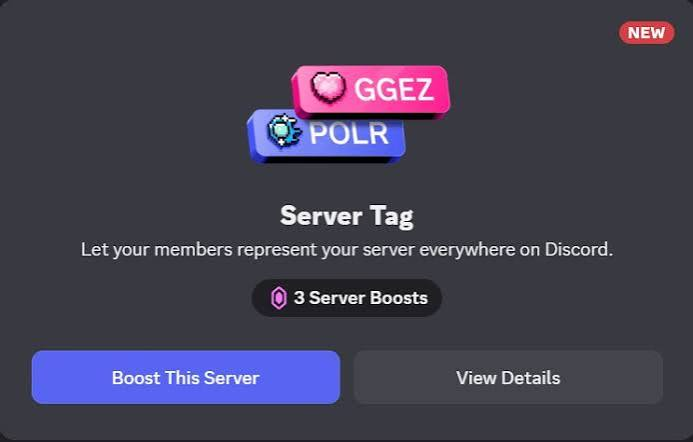
Server tags are associated with the server's identity and can be viewed through its profile or discovery-related surfaces where supported.
Their usefulness comes from providing information without requiring someone to open multiple channels or read a long description.
For server owners, this means tags should work alongside other profile elements such as:
- Server name
- Server icon
- Server description
- Community information
- Discovery information
A well-optimized profile gives potential members a clear understanding of the community before they decide to join.
Managing Server Tags on Mobile
Server owners and administrators can manage server information through the Discord mobile app, although the exact interface and available options can vary depending on Discord's current app version and server features.
Open Your Server
Open the Discord mobile app and select the server whose tags you want to update.
Open Server Settings
Tap the server name or server menu and enter Server Settings.
Look for the section related to the server profile, community, or tags. The exact placement can change as Discord updates its mobile interface.
Edit the Tags
Open the tag management area and review the tags currently associated with the server.
Remove tags that no longer describe the community and add relevant ones where available.
Save the Changes
After selecting or editing the tags, make sure the changes are saved.
Do not immediately assume that a tag has been updated simply because it appeared selected in the editing interface.
Return to the relevant server profile and verify that the changes were actually applied.
Gameplay / Features / Major Details
- Relevant Tags: Choose tags that accurately describe the server's main topic, game, community, or audience.
- Niche Keywords: Specific tags can communicate a server's purpose more effectively than broad terms.
- Mobile Editing: Server owners can manage available server information through Discord's mobile settings when the feature is available to their server.
- Profile Visibility: Always check the public-facing server profile after making changes.
- Tag Accuracy: Remove outdated tags when the server's focus changes.
- Complementary Branding: Tags should support the server name and description rather than contradict them.
How to Optimize Server Tags
The most effective approach is to think about what a potential member needs to know immediately.
A Minecraft survival server should prioritize tags that communicate Minecraft and its specific community focus.
A creator server should focus on the creator ecosystem rather than using unrelated popular terms.
Avoid filling your available tag space with generic descriptions such as:
- Friendly
- Fun
- Awesome
- Everyone
- Chill
These may describe the atmosphere, but they don't tell potential members what the server actually offers.
Instead, prioritize information that identifies the community.
Specificity makes a tag more useful.
Checking Whether Tags Appear Properly
After changing your tags on mobile, verify the public-facing profile rather than relying exclusively on the settings screen.
Check:
- Whether the new tags are saved.
- Whether old tags have disappeared.
- Whether the tags appear on the server profile.
- Whether the tags match the server's actual content.
- Whether Discord's mobile and desktop views show the information consistently.
If a tag appears correctly in settings but not on the profile, give Discord a moment to synchronize the change and then reopen the profile.
If the issue continues, check whether the feature is currently available for your server and whether Discord has changed the relevant interface.
Common Server Tag Mistakes
Using Generic Tags
Generic labels provide little information about why someone should join.
Using Irrelevant Popular Keywords
Adding a popular keyword simply because it receives attention can create a mismatch between expectations and the actual community.
Forgetting to Update Old Tags
A server can evolve. Tags should evolve with it.
Not Checking the Public Profile
An edit isn't complete until you verify how the information appears to other users.
Overloading the Profile
Tags work best when they quickly communicate the server's identity. They should complement the profile rather than replace a clear description.
Technology / Development
Discord server tags are part of Discord's broader server identity and discovery experience.
Because Discord regularly changes its desktop and mobile interfaces, the exact location of tag-management controls can change over time. Mobile users should therefore focus on the relevant Server Settings, profile, and tag-management options rather than relying on a fixed sequence of buttons.
The same principle applies when troubleshooting visibility: always verify the final public-facing profile after making an edit.
Platforms and Availability
Discord server management is available across Discord's supported platforms, although specific administrative features can vary by platform and server configuration.
- Android
- iOS
- Windows
- macOS
- Linux
- Web
Mobile users should use the latest available Discord app version when managing server settings.
Why It Matters
Server tags are small, but they can contribute to a much larger discovery strategy.
A potential member should be able to understand a server's niche quickly. The combination of a clear server name, relevant tags, and a focused description creates a much stronger profile than generic branding alone.
For growing communities, this matters because discovery is not only about getting someone to see your server.
It's about helping the right person recognize that the server is for them.
Good tags make that decision easier.
Quick Facts
| Detail | Information |
|---|---|
| Topic | Discord Server Tag Optimization |
| Main Purpose | Communicate server identity and niche |
| Management | Server Settings / Profile controls |
| Mobile | Android and iOS |
| Desktop | Windows, macOS and Linux |
| Web | Discord Web |
| Best Practice | Use specific, relevant tags |
| Verification | Check the public server profile after editing |
🎮 The Bottom Line
Discord server tag optimization is about making your community easier to understand at a glance.
Choose tags that accurately represent your niche, edit them carefully on mobile, and always check the server profile afterward to confirm that the changes appear correctly.
The best tags aren't the most generic or popular ones. They're the ones that tell the right potential member exactly what your server is about.
Comments
Sign in to join the conversation
Sign inNo comments yet
Be the first to share your thoughts!