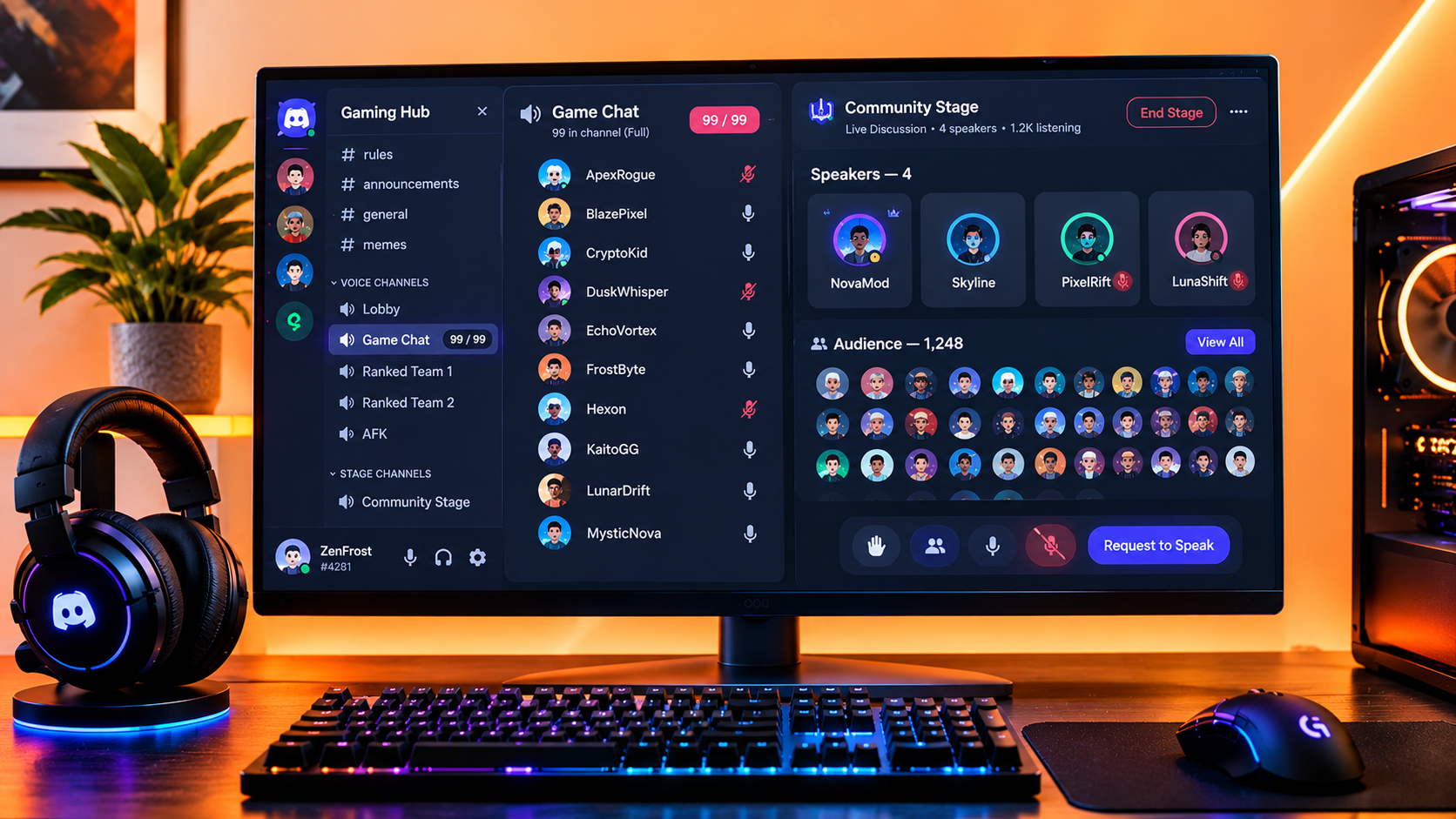

The Complete Wiki to Discord Voice Channel Limits
Discord voice channels are useful for gaming sessions, community hangouts, team meetings, and live conversations. But as a server grows, a crowded voice room can become difficult to manage, especially when more members want to join than the channel allows.
The commonly discussed 99-user limit is associated with the standard voice-channel user-limit setting. It is important to distinguish this setting from a channel's actual available capacity and from Discord's separate Stage channel system.
For communities that regularly host large gatherings, Stage channels provide a different format: a smaller group can speak while the rest of the community listens as an audience. Discord's current documentation states that audio-only Stage channels can accommodate up to 10,000 people, subject to the feature's rules and availability.
This guide explains how to manage standard voice channels, understand capacity issues, and decide when a Stage channel is the better option.
Quick Facts
| Feature | Standard Voice Channel | Stage Channel |
|---|---|---|
| Main purpose | Group conversations and interactive voice chat | Moderated talks, presentations, and large community events |
| Participation | Members can speak according to channel permissions | Members normally join as muted audience members |
| User-limit setting | Commonly discussed limit is 99 users | Separate Stage capacity rules apply |
| Audio-only audience | Not designed as a broadcast-style audience room | Up to 10,000 participants |
| Video and screen sharing | Available according to channel features and permissions | Audience capacity depends on server boost level |
| Moderation style | Standard voice-channel permissions and controls | Stage moderators manage speakers and speaking requests |
| Community server required | No | Yes |
| Best use case | Gaming, casual chat, small-group collaboration | AMAs, town halls, announcements, and large listening events |
Capacity and feature availability can change. Check Discord's official documentation for current limits.
1. Understanding the 99-User Voice Channel Limit
Discord's standard voice channels are designed for interactive conversations. Depending on the channel's configuration, administrators can set a user limit to control how many members can join.
The often-mentioned 99-user cap relates to the user-limit setting, rather than being a reliable description of every possible voice-channel capacity scenario. A configured limit also differs from the number of people who happen to be in the channel.
Why does the user limit matter?
Busy gaming communities: Members may find a room full when a popular game session starts.
Community events: A large announcement can attract more participants than a regular voice room is configured to accept.
Moderation: A controlled room size can make active discussions easier to manage.
Event planning: Organizers need to know whether everyone will participate in conversation or mostly listen.
Is a full voice channel broken?
Not necessarily. If a channel has reached its configured user limit, additional members may be unable to join until someone leaves or an administrator changes the limit. Check the channel's settings before assuming Discord is experiencing an outage.
2. How to Manage a Standard Voice Channel's User Limit
If you manage a Discord server, review the channel's settings before creating additional rooms or moving an event elsewhere.
Step 1: Open your server
Launch Discord and select the server containing the voice channel you want to manage.
Step 2: Open the channel settings
On desktop or browser, open the voice channel's context menu and select Edit Channel.
Step 3: Find the user-limit option
Look for the channel's User Limit setting, if available in your interface. Review the configured value and adjust it according to the options Discord currently provides.
Step 4: Save and test
Save the changes, then verify that members can join as expected. Remember that channel permissions, server access, and other restrictions can affect who is able to enter.
Important: Changing the user limit is not the same as removing every possible capacity restriction. If the channel remains unavailable to new members, check the displayed error, permissions, and current Discord documentation.
3. What to Do When a Voice Channel Fills Up
When a popular voice room reaches capacity, there are several ways to keep the community active without forcing everyone into one conversation.
Option A: Create additional voice channels
Separate rooms work well for gaming parties, team discussions, study groups, and informal conversations. Give each room a clear name so members can choose where to go.
Option B: Divide participants by activity
For example, a gaming server might have separate rooms for ranked matches, casual play, coaching, and general chat. This helps reduce crowding and makes conversations easier to follow.
Option C: Use a Stage channel for a broadcast-style event
If one or two hosts need to address a large audience, a Stage channel is often more suitable than creating many ordinary voice rooms.
Option D: Announce the event structure in advance
Tell members which room to use, whether the event is interactive, and how they can ask questions. A simple plan can prevent confusion when a large number of users join simultaneously.
4. What Are Discord Stage Channels?
Stage channels are special voice channels available in Community servers. They are built for events where a selected group speaks while other members listen.
Typical uses include:
AMAs: Guests answer questions from the community.
Town halls: Server owners share announcements and updates.
Live discussions: Moderators manage a conversation with invited speakers.
Community interviews: Hosts and guests speak while listeners follow along.
Presentations: Organizers address a large audience without opening the floor to everyone at once.
Unlike an ordinary voice room, Stage channels separate participants into roles: Stage moderators, speakers, and audience members. Audience members generally join muted and can request permission to speak.
This structure helps maintain an orderly discussion even when hundreds or thousands of members attend.
5. How Large Can a Discord Stage Channel Get?
Discord's current Stage Channel FAQ lists different limits for audio-only events and events using video or screen sharing.
Audio-only Stage channels
Discord documents support for up to 10,000 participants in audio-only Stage channels. The format is useful for large announcements and discussions where the majority of attendees are listening.
Stage channels with video or screen sharing
Video-enabled Stages have separate audience viewing limits:
| Server status | Documented video audience capacity |
|---|---|
| Free, without additional qualifying boosts | 50 |
| Boost Level 2 | 150 |
| Boost Level 3 | 300 |
| Additional boosts beyond the Tier 3 threshold | +30 seats per boost, up to the documented maximum |
Discord's documentation also describes a maximum of five Stage participants with cameras enabled at a time and one Go Live stream at a time.
These figures apply to the relevant Stage video and streaming features, not to audio-only audience capacity. Boost requirements and capacity rules may change, so consult Discord's current Stage Channel FAQ before planning a large video event.
6. How to Create a Stage Channel
Stage channels require a server with Community enabled.
Step 1: Enable Community
If your server is not already a Community server, open Server Settings and follow Discord's Community setup process.
Step 2: Create a channel
Use the channel creation option in your server or the relevant Server Settings menu.
Step 3: Select Stage Channel
Choose Stage Channel as the channel type and give it a recognizable name, such as Community Town Hall, Live AMA, or Developer Q&A.
Step 4: Configure permissions
Check who can view the channel, manage it, moderate the Stage, and participate as a speaker. Only users with the necessary permissions can create Stage channels or manage their settings.
Step 5: Assign Stage moderators
Choose reliable moderators who can manage the speaking queue, invite participants to speak, mute speakers, and remove disruptive participants when necessary.
Step 6: Start the event
Open the Stage, set a topic, and start the discussion. If you are planning to use video or screen sharing, review the applicable audience limits before the event begins.
7. Managing Speakers and Audience Members
A Stage channel works best when its speaking rules are clear.
Stage moderators
Moderators can manage the conversation, set the Stage topic, invite people to speak, and move speakers back to the audience. They can also manage requests to speak.
Speakers
Speakers can talk to the audience. A speaker can move themselves back to the audience when they finish.
Audience members
Audience members normally join muted. They can listen without interrupting the event and may raise their hands to request speaking access if the feature is enabled.
Best practices for moderation
Assign at least one dependable moderator for every event.
Explain how members can request to speak.
Invite speakers in a planned order during structured events.
Remove or mute disruptive participants when necessary.
Prepare a backup moderator in case the event organizer disconnects.
Discord notes that a Stage event ends when the last Stage moderator leaves the channel, so plan moderator coverage accordingly.
8. Standard Voice Channel vs Stage Channel: Which Should You Choose?
| Situation | Recommended format | Reason |
|---|---|---|
| Friends playing a multiplayer game | Standard voice | Everyone may need to speak naturally |
| Small team meeting | Standard voice | Open discussion is the priority |
| Casual community hangout | Standard voice | Informal, two-way conversation works best |
| Large server announcement | Stage | A few speakers can address a large audience |
| Developer AMA | Stage | Moderators can manage questions and speakers |
| Community town hall | Stage | Audience and speakers have distinct roles |
| Event with many active breakout discussions | Multiple standard voice rooms | Separate conversations need their own space |
| Large audio-only presentation | Stage | Supports a documented audience of up to 10,000 |
The key decision is not just the number of participants. It is whether everyone needs to participate in a shared conversation or whether most people will be listening to a smaller group of speakers.
9. Troubleshooting Voice Channel Capacity Problems
Members cannot join a voice channel
Check whether the configured user limit has been reached. Also verify the member's channel permissions and whether the channel is restricted to certain roles.
The user limit is lower than expected
Open the channel settings and review the current value. Do not assume the limit is a server-wide setting; standard voice-channel limits are configured at the channel level.
A Stage audience cannot start video
Review the Stage's current audience viewing capacity and the server's boost level. If the viewing limit has already been reached, additional members may not be able to join while video or Go Live is active.
Members can listen but cannot speak in a Stage
That is normally expected for audience members. They must be invited to speak or have a speaking request approved by a Stage moderator.
The event ends unexpectedly
Check whether the last Stage moderator left the channel. Assigning backup moderators can help prevent interruptions during scheduled events.
10. Best Practices for Large Discord Communities
Choose the format before advertising the event. If the event is a presentation or announcement, configure a Stage channel in advance. If members need to interact continuously, use standard voice rooms or multiple breakout channels.
Set expectations. Tell members whether microphones are open, how to ask questions, and whether the event will use video or screen sharing.
Check permissions early. Verify that hosts and moderators have the permissions required to manage the channel and speakers.
Test the event setup. For large events, confirm that the channel is visible to the intended audience and that moderators understand the controls.
Avoid relying on one organizer. Backup moderators can help manage speaking requests and keep the event running if the main host loses connection.
Review capacity before using video. Stage audio-only capacity is different from Stage video audience capacity. Check the current rules for your server's boost level before announcing a video-enabled event.
Frequently Asked Questions
1. Is 99 users the maximum for every Discord voice channel?
The 99-user figure is commonly associated with the standard voice-channel user-limit setting. It should not be treated as a universal explanation of every channel's capacity. Check the current channel settings and Discord documentation for the applicable limits.
2. Can I increase a standard voice channel's user limit?
You can review and adjust the channel's User Limit setting where the option is available. The available setting is distinct from other access restrictions and platform capacity rules.
3. How many people can join a Discord Stage channel?
Discord currently documents up to 10,000 participants for audio-only Stage channels. Stage video and screen sharing use separate audience limits that depend on server boost level.
4. Do Stage channels require a Community server?
Yes. Stage channels are available within Community servers.
5. Can everyone speak in a Stage channel?
Not automatically. Most participants join as audience members with their microphones muted. Stage moderators can invite audience members to speak or approve requests to speak.
6. Are Stage channels better than standard voice channels?
Neither format is universally better. Standard voice channels suit interactive group conversations, while Stage channels are better for moderated events with a large listening audience.
7. Can I use video or screen sharing in a Stage channel?
Yes. Discord supports video and screen sharing in Stage channels, but the audience viewing capacity depends on the server's boost level. Discord also documents limits on simultaneous video participants and Go Live streams.
8. Can a Discord server have multiple Stage channels?
Discord's current documentation says there is no special limit on the number of Stage channels in a server, and multiple Stage events can run at the same time.
Final Verdict
The best way to manage Discord voice-channel limits is to match the channel type to the event. Standard voice channels remain ideal for gaming, casual chat, and conversations where everyone needs to participate. When a large audience mainly needs to listen to a smaller group, Stage channels offer a more suitable format, with audio-only events supporting up to 10,000 participants according to Discord's current documentation.
Before hosting a major event, review the configured voice-channel user limit, check permissions, and confirm the relevant Stage audience capacity. A little preparation can prevent full-room confusion and make large community events easier to run.
Comments
Sign in to join the conversation
Sign inNo comments yet
Be the first to share your thoughts!