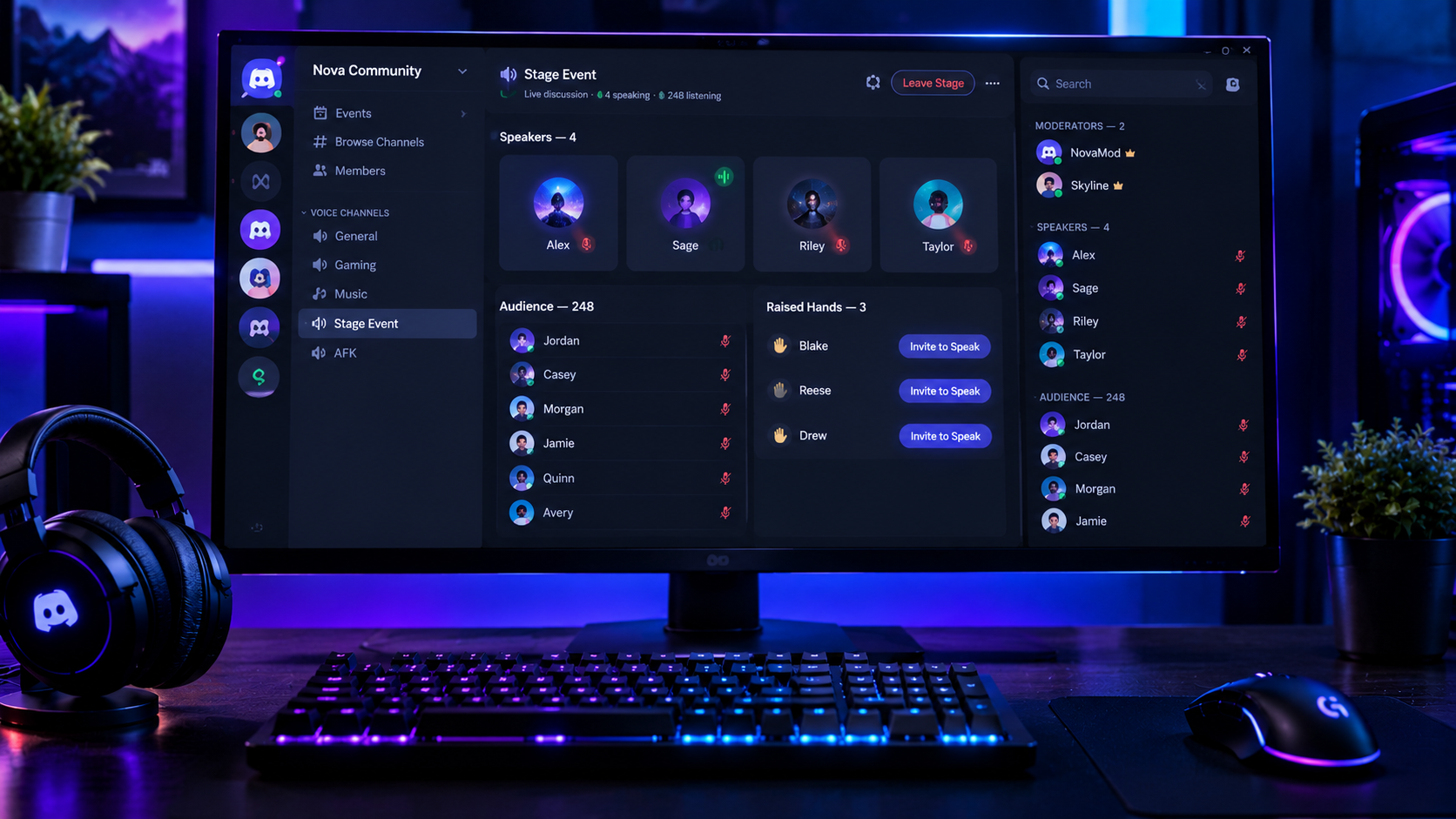

The Complete Wiki to Discord Stage Moderators
Discord Stage Channels let community servers host structured conversations where selected participants speak while everyone else listens. They are useful for AMAs, creator Q&As, podcasts, community town halls, panel discussions, and gaming announcements.
At the center of a successful Stage event are Stage moderators. They manage who gets the microphone, review raised-hand requests, mute speakers when necessary, and move participants back to the audience when their turn ends.
This guide explains how these controls work, where to find them on desktop and mobile, and how to use them without disrupting the event.
Quick Facts
| Feature | Details |
|---|---|
| Feature | Discord Stage Channels |
| Availability | Community servers |
| Main moderator tasks | Manage speakers, mute participants, handle requests, disconnect members |
| Speaker queue | Review requests to speak and accept or dismiss them |
| Move to audience | Removes a speaker's speaking privileges in the Stage |
| Mobile support | Yes, through member profile cards and Stage controls |
| Required channel permissions | Manage Channels, Mute Members, Move Members |
| Typical uses | AMAs, town halls, panels, creator Q&As, community events |
| Official guide | Discord Stage Channels FAQ |
1. What Is a Discord Stage Moderator?
A Stage moderator is a participant with special permissions to manage a Stage Channel while an event is running.
Unlike a regular audience member, a moderator can help control the flow of the discussion. They can approve people who want to speak, manage existing speakers, and remove participants from the Stage when necessary.
Stage moderators can also speak themselves. They do not have to remain in an audience-management role throughout the event.
The three main Stage roles
Stage moderator: Manages speaker access, requests, and participant behavior.
Speaker: Can talk on the Stage and may be able to use video or screen sharing if the required permissions are enabled.
Audience member: Joins to listen by default, with their microphone muted. They can request to speak when requests are enabled.
The distinction matters because audience members cannot simply turn on their microphones and begin speaking like they might in a regular voice channel. They need moderator approval to become speakers.
2. How to Add Stage Moderators
Stage Channels are available in servers with Community features enabled. Creating a Stage Channel requires the appropriate server permissions.
According to Discord's official documentation, Stage moderators need these channel permissions:
Manage Channels
Mute Members
Move Members
Server owners or administrators with the necessary management permissions can configure the moderator roles.
Setup steps
Open your Discord server and navigate to the Stage Channel.
Open the channel's settings.
Go to Channel Permissions.
Select the role or individual members who should moderate the Stage.
Verify that the required permissions are enabled.
Save the changes and test the controls before the event starts.
Discord's interface may vary slightly by platform or app version.
Best practice: Assign moderator permissions only to trusted people. A Stage moderator can affect other participants' ability to speak or remain in the event.
3. Managing the Speaker Queue
The speaker queue is the system moderators use to review audience members who raise their hands and request permission to speak.
It helps keep a busy event organized, especially when many people want to ask questions.
How audience members request to speak
An audience member can select the Raise Hand control in the Stage interface. Their request then becomes visible to the moderators when requests are enabled.
Raising a hand does not automatically make the person a speaker. A moderator must approve the request, and the participant must accept the invitation to speak.
How moderators review requests
On desktop or browser:
Open the active Stage Channel.
Select Show Requests in the Stage action bar.
Review the people waiting to speak.
Choose the option to invite a participant to speak, or dismiss the request if it is not appropriate.
Continue through the queue as time allows.
On mobile, use the available Stage controls to open and manage speaker requests. The exact placement can vary by app version.
Accepting a speaker request
When you want to let someone speak, select the option to invite them. They will receive an invitation and must accept it before becoming a speaker.
A good moderator can make the event smoother by prioritizing questions that fit the topic, allowing different participants a chance to contribute, and keeping an eye on the remaining event time.
Dismissing a request
If a request is off-topic, duplicated, or submitted at an unsuitable time, moderators can dismiss it from the request interface.
Dismissal removes the request from the queue. It should not be treated as a ban or a server-wide punishment.
Turning off requests
If the discussion needs to remain limited to invited speakers, moderators can disable audience requests using the Allow Requests to Speak control in the request interface.
Use this option thoughtfully. It can help manage a formal announcement, but leaving requests disabled may prevent audience members from participating.
4. How to Mute a Speaker
Muting is useful when a speaker has background noise, an open microphone, an audio problem, or behavior that is interrupting the event.
Stage moderators need the Mute Members permission to use the relevant moderation controls.
When to mute someone
Common reasons include:
Loud background noise or feedback.
A microphone that remains open while the person is not speaking.
Interruptions that prevent others from being heard.
A participant who needs to be stopped while a moderator addresses a rule violation.
Recommended moderation process
Identify the speaker whose microphone needs attention.
Use the Stage's participant controls to mute the speaker.
If appropriate, explain briefly why the microphone was muted.
Decide whether the person should remain a speaker or move back to the audience.
Apply the server's normal moderation rules if the behavior continues.
Muting controls what the participant can transmit in the Stage. It does not automatically remove them from the channel or ban them from the server.
Important: Muting should be proportionate to the situation. A short technical interruption may need only a quick mute, while repeated disruption may require moving the speaker to the audience or disconnecting them.
5. Moving a Speaker Back to the Audience
The Move to Audience control lets a moderator return a speaker to listener status without necessarily removing them from the Stage Channel.
Once moved, the participant cannot speak again unless a moderator grants them speaker privileges.
This is useful when a guest has finished their question, a panelist has exceeded their allotted time, or a participant needs to stop speaking so another person can take the floor.
On desktop or browser
Find the speaker in the Stage.
Right-click the speaker.
Select Move to Audience.
Confirm that the person now appears as an audience member.
On mobile
Open the Stage Channel.
Tap the speaker's profile to open their profile card.
Select Move to Audience from the available controls.
The participant remains in the Stage as a listener, but they lose their current speaking access.
When should you use this control?
Use it when someone has completed their turn, is repeatedly interrupting, or needs to give up the microphone for another participant.
It is generally less disruptive than disconnecting someone who is otherwise welcome to continue listening.
6. Disconnecting a Participant From the Stage
Sometimes moving a participant to the audience is not enough. A moderator may need to remove someone from the Stage Channel entirely.
Discord provides a Disconnect from Stage option for moderators.
Desktop or browser
Locate the participant.
Right-click their name or profile.
Select Disconnect from Stage.
Mobile
Tap the participant's profile.
Open the available Stage moderation controls.
Select Disconnect from Stage.
Disconnecting someone from the Stage is not the same as banning them from the server. They may be able to rejoin unless their server permissions are changed or they are banned through the appropriate server moderation process.
For repeated harassment or serious misconduct, use the server's established moderation procedures rather than relying on repeated Stage disconnections.
7. Best Practices for Managing a Live Stage
Good Stage moderation requires more than knowing where the buttons are. Moderators should coordinate with the host and keep the event predictable for speakers and listeners.
Set expectations before the event
Publish the event topic, explain how to request a turn, and tell participants whether questions will be taken in order or selected by the host.
Keep the queue moving
Avoid leaving requests unanswered for too long. If the queue becomes large, tell the audience how questions will be prioritized or when requests will close.
Coordinate with other moderators
Agree on who will manage requests, who will monitor speaker behavior, and who will handle technical issues. This avoids two moderators making conflicting decisions.
Use the least disruptive control
Mute: Best for audio problems or temporarily stopping unwanted microphone input.
Move to Audience: Best when a participant should stop speaking but may continue listening.
Disconnect from Stage: Best when someone needs to leave the live Stage.
Server-level action: Consider this when behavior violates server rules and the issue goes beyond the current Stage event.
Test permissions before going live
Check the moderator role, microphone permissions, speaker invitation flow, and channel visibility before inviting the audience. A quick test can prevent delays during the event.
8. Troubleshooting Stage Moderator Controls
I cannot see the speaker request queue
Make sure you are a Stage moderator or have the necessary permissions. Confirm that audience requests are enabled and check the current Stage interface for the Show Requests control.
I cannot move a speaker to the audience
Check whether you have the Move Members permission on the Stage Channel. If the permission was recently changed, reload Discord and verify the channel's permission configuration.
I cannot mute a participant
Confirm that the moderator role has the Mute Members permission. Server-level and channel-level permission settings can affect what controls are available.
A participant cannot speak after being invited
The participant must accept the invitation to become a speaker. If they have accepted but still cannot speak, check their microphone, device input, and the channel's speaking permissions.
A disconnected participant returns
Disconnecting someone removes them from the Stage, but does not necessarily prevent them from rejoining. If the person is repeatedly disrupting the event, consider restricting their channel access or applying the appropriate server-level moderation action.
The Stage event appears to have ended
Discord's Stage FAQ states that the live event ends when the last moderator leaves the channel. If the event needs to continue, ensure a moderator remains present.
Frequently Asked Questions
Can Stage moderators speak during an event?
Yes. Stage moderators can speak on the Stage and manage other speakers.
Can audience members speak without moderator approval?
No. Audience members normally join muted and must be invited to speak or have their raised-hand request approved. They must accept the invitation before becoming speakers.
Can moderators reject a raised-hand request?
Yes. Moderators can dismiss requests from the speaker request interface.
Does moving someone to the audience kick them from the Stage?
No. Move to Audience returns the participant to listener status. Disconnect from Stage removes them from the Stage Channel.
Does disconnecting someone ban them from the server?
No. A Stage disconnection does not automatically ban someone from the server. They may rejoin unless additional restrictions are applied.
Can Stage moderators mute speakers?
Yes, provided they have the required Mute Members permission and the appropriate moderation controls are available.
Are Stage Channels available on mobile?
Yes. Discord's Stage Channels FAQ documents support across desktop, browser, iOS, and Android. Mobile moderation uses controls such as profile cards and Stage action menus.
How many Stage moderators can a server have?
Discord's FAQ states that there is no fixed limit on the number of Stage moderators. However, every moderator should be trusted because they can control who speaks and who remains in the Stage.
Final Verdict
Discord Stage moderators help turn a large voice gathering into an organized live event. The most important controls are Show Requests, Mute Members, Move to Audience, and Disconnect from Stage.
Use the speaker queue to manage participation fairly, mute speakers when necessary, and move people back to the audience when their turn ends. Reserve disconnections and server-level punishments for situations that justify them.
With clear rules, trusted moderators, and a simple plan for handling speaker requests, Discord Stage Channels can support smoother AMAs, community discussions, creator events, and live announcements.
Comments
Sign in to join the conversation
Sign inNo comments yet
Be the first to share your thoughts!