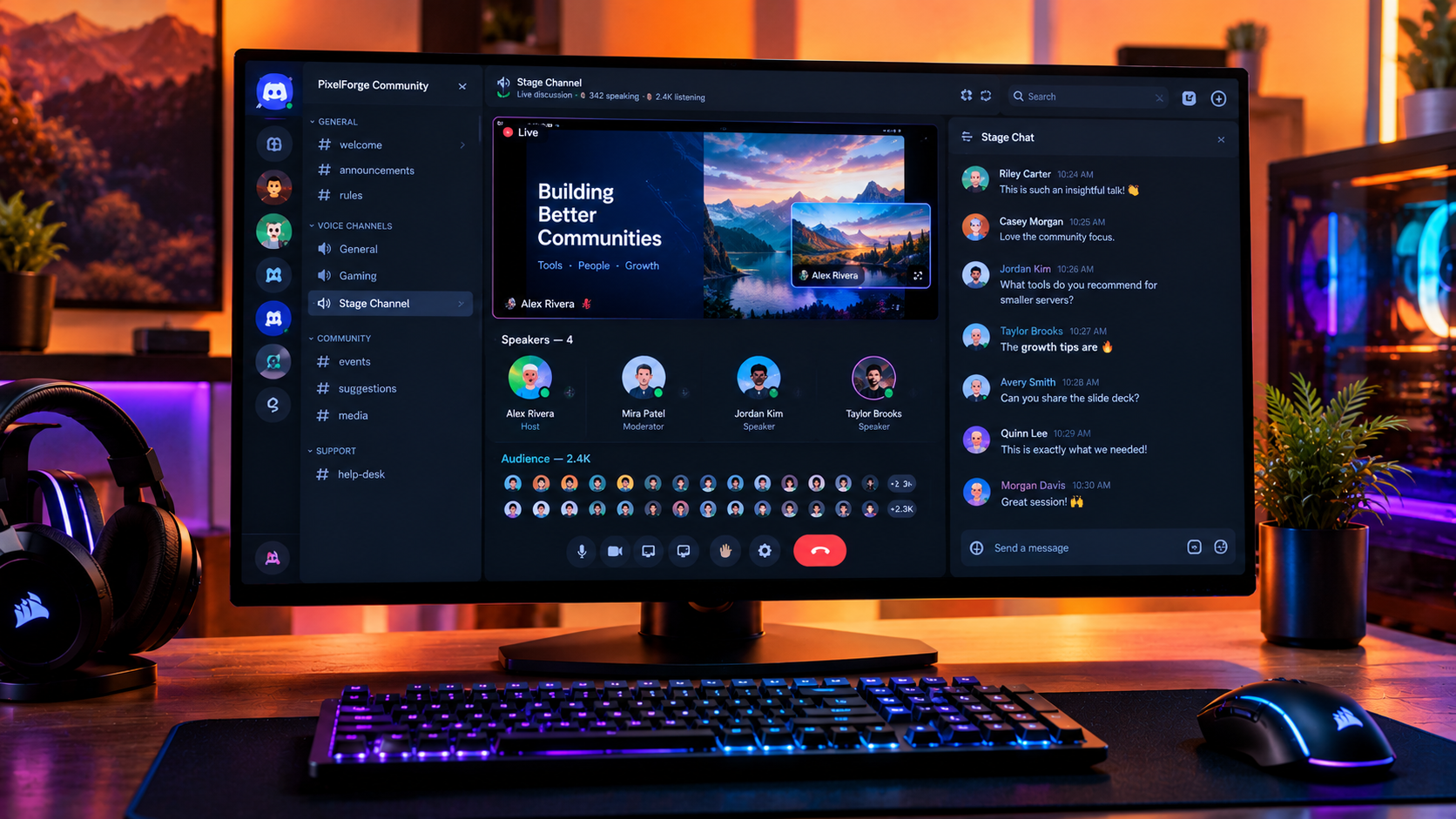

The Complete Wiki to Discord Stage Channel Picture-in-Picture
Discord Stage channels help communities host live discussions, interviews, AMAs, presentations, and creator events. Instead of having everyone speak at once, a few speakers can address a larger audience while moderators manage the conversation.
But watching a Stage presentation while keeping up with text messages can be awkward. You might want to follow the speaker's video, read audience reactions, and participate in the discussion without constantly switching windows.
Discord supports text chat directly inside Stage channels, alongside video and screen sharing. Picture-in-Picture (PiP), meanwhile, refers to a separate floating video window and should not be confused with the Stage channel's built-in chat layout. Availability and behavior can depend on the device, operating system, and app version.
This guide explains how to use Stage text chat, organize your screen, and make multitasking during live events easier.
Quick Facts
| Feature | Details |
|---|---|
| Main purpose | Watch a Stage event while following text discussion |
| Stage text chat | Built into supported Stage channel interfaces |
| Video and screen sharing | Supported for permitted Stage speakers |
| Picture-in-Picture | Depends on the available app, platform, and video feature |
| Stage channel requirement | Server must have Community enabled |
| Audience participation | Audience members can use text chat and request to speak where enabled |
| Best use cases | AMAs, live interviews, gaming discussions, presentations, and community announcements |
1. What Is Discord Stage Channel Picture-in-Picture?
Picture-in-Picture, commonly shortened to PiP, is a viewing mode that displays video in a small floating window while you use another part of an app or your device.
For a Discord Stage event, the goal is simple: keep the speaker or presentation visible while reading messages, checking another channel, or doing another task.
However, there is an important distinction:
Stage text chat: Discord's built-in chat for discussing the live event.
PiP: A separate floating video window, if supported by the relevant platform and viewing feature.
Split-screen or window tiling: A way to keep Discord's Stage interface and another application visible simultaneously.
These approaches can help with multitasking, but they are not interchangeable. Discord's Stage channel text chat does not require PiP, and you should not assume every Stage video can automatically be detached into a floating window.
2. How Stage Channel Text Chat Works
Discord introduced text chat support for Stage channels so audiences can react and communicate while a live discussion is taking place.
This is particularly useful when most attendees want to listen rather than become speakers.
Common uses include:
Live reactions: Respond to a speaker without interrupting the presentation.
Audience questions: Share questions or follow-up comments during an AMA.
Community discussion: Let listeners exchange thoughts while a host continues speaking.
Event coordination: Share useful links or clarify details related to the presentation, subject to the server's permissions and rules.
Text chat is managed separately from the speaking controls. Stage moderators can use channel permissions to determine who can participate in the conversation.
3. How to Open Text Chat During a Stage Event
The following steps apply to Discord's Stage interface where text chat is available.
Step 1: Join the Stage channel
Open the relevant Community server and select the active Stage channel. Members with access generally join as audience participants with their microphones muted.
Step 2: Locate the chat control
Look for Show Chat near the top-right area of the Stage interface. The exact placement may vary with the app layout or version.
Step 3: Open the text conversation
Select the chat control to display the Stage's dedicated text conversation.
Step 4: Keep the event visible
Arrange the chat and Stage interface so that you can read messages without losing track of the speaker or shared presentation.
Step 5: Participate without interrupting
Use the text conversation for relevant questions and comments. If you want to speak aloud, use the Stage's request-to-speak feature where available and wait for a moderator's approval.
Tip: For a presentation, keep the chat visible but avoid allowing a fast-moving discussion to distract you from important information on screen.
4. How to Watch the Stage While Using Another Window
If you want to read messages or work in another application while following the event, try one of these layouts.
Option A: Use the built-in Stage chat
This is the simplest method when you want to watch the Stage and participate in its text conversation. Open the chat panel and use the available layout controls.
Best for: Live AMAs, audience questions, and community discussions.
Option B: Arrange two desktop windows
On a desktop computer, keep Discord visible and place another application beside it using your operating system's window-snapping or tiling features.
For example, you could keep the Stage video on one side and notes or a browser on the other. The available screen space determines how comfortably both windows fit.
Best for: Taking notes, checking references, or following a presentation.
Option C: Use PiP when the viewing feature supports it
If the specific Discord video or stream view offers a PiP control on your platform, use it to move the video into a floating window. You can then open another application while the video remains visible.
Do not assume a PiP option will appear for every Stage event. If no such control is available, use the built-in chat layout or window tiling instead.
Best for: Keeping a supported video visible while browsing another application.
Option D: Use a supported mobile multitasking feature
Depending on your phone, operating system, and app support, you may be able to use split-screen or system-level floating video features. The exact behavior varies, so test it before relying on it for a scheduled event.
Best for: Following a discussion while checking notes or messages on a compatible device.
5. How to Balance Video and Text Chat
A good layout should make both the speaker and the conversation easy to follow.
Prioritize the speaker
Keep the Stage video large enough to read presentation slides or recognize important visual details. If the event is mostly audio, you may prefer a smaller video area and more room for text.
Keep chat readable
Avoid shrinking the text panel so much that messages become difficult to read. If the conversation is moving quickly, focus on the latest relevant messages rather than trying to read every reaction.
Reduce unnecessary distractions
Mute unrelated notifications where appropriate, close unused windows, and avoid placing other content over the speaker's face or presentation.
Match the layout to the event
Presentation: Give the speaker or shared screen the most space.
AMA: Balance the video and text panel so questions are easy to follow.
Casual community event: Give more space to chat if reactions are central to the experience.
Tutorial or demonstration: Keep the shared content prominent and use chat for occasional questions.
6. Desktop vs Mobile: What Should You Expect?
| Task | Desktop or browser | Mobile |
|---|---|---|
| Read Stage text chat | Use the Stage's Show Chat control where available | Use the available Stage chat interface |
| Keep two apps visible | Use window snapping or tiling | Depends on OS split-screen and multitasking support |
| Use floating video | Depends on whether the specific viewing feature offers PiP | Depends on device, OS, and app support |
| Participate in chat | Subject to channel permissions | Subject to channel permissions |
| Request to speak | Use the Stage's hand-raise control | Use the Stage's hand-raise control |
The desktop experience is often easier for multitasking because a larger display can accommodate separate windows. Mobile devices can still be convenient for listening and chatting, but a smaller screen may require switching between views.
7. Troubleshooting Stage Video and Chat
I cannot find the Show Chat button
Make sure you have joined a Stage channel and check the current interface for the chat control. If it is missing, update Discord and review the official Stage Channel FAQ for changes to the layout.
I can read chat but cannot speak
This is normal for audience members. Stage audiences generally join muted. Raise your hand or use the request-to-speak option and wait for a moderator to invite you.
The PiP option does not appear
PiP is not guaranteed for every Stage video view. Check whether the particular stream or app provides a PiP control. Otherwise, use the built-in Stage chat or arrange your desktop windows side by side.
I cannot send messages in the Stage chat
The server may restrict text chat through channel permissions, or your account may not have the required access. Check the channel's available permissions or ask a moderator.
The video stops when I switch windows
Some viewing modes pause video when another application gains focus, or when the app is minimized. Try a different window arrangement and check the behavior of your device and Discord version.
The video is unavailable to some audience members
Stage video and screen sharing have separate audience viewing limits that depend on server boost status. If a Stage reaches its applicable video audience limit, additional members may be unable to join while video or screen sharing is active.
8. Best Practices for Community Hosts and Moderators
If you organize Stage events, you can make the viewing experience easier for the entire audience.
Enable appropriate chat permissions: Let audience members participate when text discussion is part of the event.
Explain the format: Tell attendees whether questions should go in chat or through the request-to-speak feature.
Assign moderators: Have someone monitor questions while the speaker concentrates on the presentation.
Keep discussion relevant: Establish simple rules for spam, repeated messages, and off-topic comments.
Test video before the event: Verify that the host has the required permissions and that the event fits the applicable audience limits.
Share key links in chat: When appropriate, post resources that attendees can revisit after the event.
These steps help the Stage feel interactive without turning the text conversation into a distraction.
Frequently Asked Questions
1. Does Discord Stage support text chat while a speaker is on video?
Yes. Discord's Stage channels support text chat alongside video and screen sharing. The Stage interface includes a Show Chat control where the feature is available.
2. Does Discord Stage have a dedicated PiP mode?
Do not assume that every Stage video has a dedicated PiP mode. PiP availability depends on the specific viewing feature and platform. Stage's built-in text chat and desktop window tiling are alternatives when a floating video option is unavailable.
3. Can I watch a Stage and read messages at the same time?
Yes. You can open the Stage's text chat while following the event. On desktop, you can also arrange windows to keep Discord and another application visible simultaneously.
4. Can audience members send messages during a Stage event?
They can participate in Stage text chat when they have the necessary permissions. Speaking aloud is a separate action controlled by Stage speaker permissions and moderator approval.
5. Do I need a Community server to use Stage channels?
Yes. Discord Stage channels are available to servers with Community enabled.
6. Can I use Stage chat on mobile?
Discord supports Stage channels on mobile, and text chat is available in the Stage feature set. The exact layout and multitasking options depend on your app version and device.
7. Why is Stage video unavailable even though audio works?
Stage video and screen sharing have separate audience capacity rules. Server boost status and the number of current viewers can affect whether video is available to additional participants.
Final Verdict
Discord Stage channels are designed to make live community events more organized, and built-in text chat lets audiences take part without interrupting speakers. For many users, the best setup is simply to open Show Chat and keep the Stage video visible.
When you need to multitask across applications, desktop window tiling is a dependable alternative to relying on an unconfirmed PiP feature. On mobile, use the system's supported multitasking options where available.
The key is to distinguish Stage text chat, Picture-in-Picture, and split-screen viewing. Each serves a different purpose, and choosing the right layout makes it easier to follow the event and join the discussion.
Comments
Sign in to join the conversation
Sign inNo comments yet
Be the first to share your thoughts!