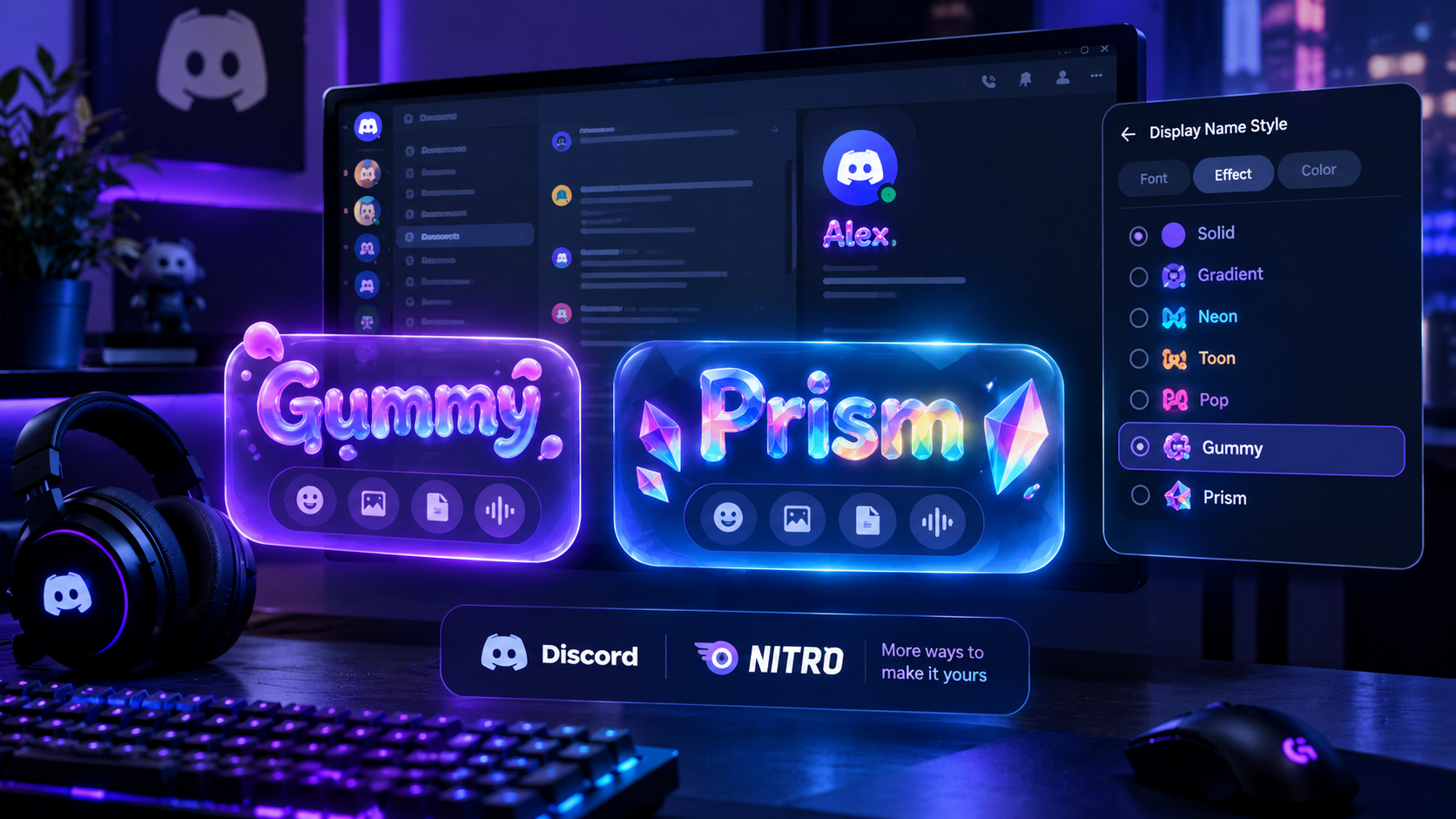

The Complete Wiki to Discord Nitro Name Effects
Overview
Discord is expanding profile customization with Display Name Styles, a Nitro feature that lets users personalize their display names with different fonts, colors, and visual effects.
Two of the standout effects are Gummy and Prism. Gummy gives your display name a playful, rounded appearance, while Prism lets you use a multicolor treatment with up to five selected colors.
Unlike changing your username or server nickname, Display Name Styles change how your name looks without requiring you to choose a new identity. Discord's official documentation lists both Gummy and Prism among the available effects. https://support.discord.com/hc/en-us/articles/33833879643927-Discord-Display-Name-Styles-FAQ
Quick Facts
| Feature | Details |
|---|---|
| Feature name | Display Name Styles |
| Subscription | Discord Nitro required to save a style |
| Featured effects | Gummy and Prism |
| Other effects | Solid, Gradient, Neon, Toon, Pop |
| Font customization | Yes |
| Color customization | Yes |
| Prism color selection | Up to five colors |
| Desktop and browser | Supported |
| Mobile | Styles appear without animation |
| Server display | Font appears, but color and effects are replaced by server role styling |
| Direct messages | Style appears with some display differences |
| Per-server profiles | Separate styling can be configured for each profile |
Availability and appearance may vary by Discord client and feature rollout.
What Are Discord Display Name Styles?
Display Name Styles allow eligible Discord Nitro subscribers to change the visual appearance of their display names using custom fonts, colors, and effects.
The feature is different from changing your username, display name text, or server nickname. Those settings determine what your name says. Display Name Styles determine how it looks.
For example, you can keep the same display name but apply a different font, a colorful gradient, or an animated effect.
Discord currently documents several effects:
Solid: A straightforward color treatment.
Gradient: A blend using two selected colors.
Neon: A bright, glowing appearance.
Toon: A cartoon-inspired look.
Pop: A bold visual treatment.
Gummy: A playful, soft-looking effect.
Prism: A multicolor effect that supports five selected colors.
The available fonts include options such as Tempo, Sakura, Jellybean, Modern, Medieval, 8Bit, Vampyre, Monkey Bars, Mainframe, Headbang, and Journal, in addition to Discord's default gg sans font.
What Is the Gummy Name Effect?
The Gummy effect gives your display name a playful visual style. It is intended for people who want their Discord identity to look more expressive than the default text appearance.
Gummy is useful for:
Gaming profiles.
Casual community identities.
Colorful creator profiles.
Friendly or playful server communities.
Users who want a distinctive display name without changing its wording.
Gummy is a visual effect, not a separate font or a new username. You can combine the effect with the font and color options available in the Display Name Styles editor.
How to Apply Gummy on Desktop
Open Discord on your desktop or in a browser.
Select your username in the bottom-left corner to open your profile card.
Select Edit Profile.
Find Display Name Style.
Select the + button to open the style editor.
Choose a font if you want to change the default.
Open the effects options and select Gummy.
Choose the available color settings.
Preview the result and save or apply your changes.
You can also reach the profile editor through User Settings → Edit Profiles.
Choosing a Font for Gummy
Your font choice can change the overall personality of the effect. A rounded or playful font can complement Gummy, while a simpler font can keep the name easier to read.
Keep in mind that some symbols may not work with every custom font. Discord may display unsupported symbols in its default gg sans font instead.
What Is the Prism Name Effect?
The Prism effect is designed for a more colorful display name. Discord's official documentation notes that Prism supports selecting five colors, compared with two colors for the Gradient effect.
This makes Prism useful for people who want a multicolor name rather than a single solid color.
Possible uses include:
Matching a gaming profile's color scheme.
Creating a rainbow-inspired name.
Coordinating a creator profile with a banner.
Making a colorful identity for community events.
Giving a profile a distinctive look in direct messages.
The final appearance depends on the selected font, colors, effect, and the Discord surface where the name is displayed.
How to Apply Prism on Desktop
Open Discord.
Select your username at the bottom-left of the app.
Choose Edit Profile.
Find Display Name Style and select the + button.
Open the effect selector.
Choose Prism.
Select your preferred colors using the available color controls.
Choose a font that fits the style.
Preview the appearance in light and dark mode.
Apply or save your changes.
If Prism is available for your account, it should appear among the effects in the style editor.
How to Customize Prism Colors
Discord provides preset colors and a custom color picker for Display Name Styles. Prism allows up to five color selections, while Gradient uses two.
For a coordinated look, choose colors that contrast with Discord's dark background. Bright colors can make a name stand out, but too many competing shades can make it harder to read.
How to Apply Name Effects on Mobile
Discord's official instructions for mobile are slightly different from the desktop workflow.
Open the Discord mobile app.
Tap the You bar at the bottom of the screen.
Select Edit Profile.
Find Display Name Style.
Tap the font, effect, or color option.
Choose Gummy or Prism, if available.
Customize the available options.
Press Apply to save your style.
Discord notes that users without Nitro may be able to preview Display Name Styles, but they cannot save a style to their profile without an eligible Nitro subscription.
Do Gummy and Prism Animate on Mobile?
Discord's current documentation says that Display Name Styles do not show their animations on mobile devices. Fonts, colors, and effects can still appear, but they are displayed statically.
If you want to see the animation, check the profile on the desktop app or browser where the relevant effect is supported.
Do Name Effects Work Across All Servers?
There is an important distinction between your general profile and your appearance inside a server.
Discord says Display Name Styles appear in several places, including the profile panel, user profile, direct messages, group chats, and per-server profiles.
However, the effects do not appear identically everywhere.
Profile and Direct Messages
Your chosen style can appear on your profile and in direct messages. Some DM surfaces show only the font until you hover over a message or inspect the relevant profile or member list.
Server Member Lists and Messages
Within servers, Discord displays your chosen font, but the color and effect are replaced by the server's role color or Enhanced Role Style.
This means that selecting Prism does not guarantee that its full multicolor effect will appear beside your name in every server.
Per-Server Profiles
Nitro users can customize separate profiles for individual servers. Discord's Display Name Styles documentation also describes per-server styling, allowing you to personalize your appearance for different communities.
To access this feature, right-click your avatar in a server's text channel and select Edit Per-server Profile, or navigate to User Settings → Profiles → Per-Server Profiles.
Important: Per-server profile customization and global Display Name Styles are related but distinct features. The exact appearance depends on the selected profile and where your name is displayed.
Gummy vs Prism: Which Should You Choose?
| Comparison | Gummy | Prism |
|---|---|---|
| Visual direction | Playful and rounded | Multicolor and vivid |
| Main appeal | Expressive, casual appearance | Colorful, standout appearance |
| Color customization | Uses available style color options | Supports five selected colors |
| Best for | Gaming and casual profiles | Colorful or coordinated profiles |
| Requires changing your name text | No | No |
Choose Gummy if you prefer a playful style. Choose Prism if you want a more colorful look with multiple shades.
Neither effect changes your account permissions, server roles, or username.
Why Can't I See Gummy or Prism?
If an effect does not appear or does not look as expected, check the following.
1. Check Your Nitro Subscription
Discord's official FAQ identifies Display Name Styles as a Nitro feature. Users may preview styles without Nitro, but saving the selection requires Nitro.
2. Update Discord
Make sure your desktop or mobile app is up to date. A feature may appear differently across clients or during a rollout.
3. Check the Correct Menu
On desktop, open Profile → Edit Profile → Display Name Style. On mobile, open You → Edit Profile → Display Name Style.
4. Check Where You're Viewing Your Name
Discord may show fonts, colors, and effects differently across profiles, DMs, and server member lists. In servers, role styling can override the name effect's color and animation.
5. Remember the Mobile Animation Limitation
If Gummy or Prism appears static on your phone, that may be expected. Discord currently documents that Display Name Styles do not animate on mobile.
Can You Disable Display Name Styles?
Yes. Discord provides a setting for users who prefer not to see Display Name Styles.
On desktop:
Open User Settings.
Navigate to App Settings → Accessibility.
Find the Display Name Styles toggle.
Turn it off.
On mobile, open You → Settings → Accessibility and locate the Display Name Styles setting.
This changes how styles are displayed to you. It does not remove another user's subscription or change the style they have selected.
Best Practices for a Stylish Discord Name
Keep It Readable
A decorative font and a colorful effect should make your name more distinctive, not impossible to read.
Match Your Profile
Choose colors that complement your avatar, banner, and profile theme.
Preview Light and Dark Themes
Discord offers a light/dark preview in the style editor. Use it to make sure the name remains legible in both themes.
Remember Server Role Styling
If you want a consistent appearance across communities, remember that server role colors and Enhanced Role Styles may affect how the name looks in server lists.
Avoid Unnecessary Name Changes
Display Name Styles let you customize the look of your existing name. You do not need to change the actual display name just to apply Gummy or Prism.
Frequently Asked Questions
Is Gummy a Discord Nitro feature?
Yes. Gummy is listed as a Display Name Style effect for Discord Nitro users. You can preview styles without Nitro, but saving a style requires Nitro.
Is Prism available on Discord?
Yes. Discord's official Display Name Styles FAQ lists Prism as an available effect.
How many colors does Prism support?
Discord documents Prism as supporting five colors. The Gradient effect supports two.
Can I use Gummy and Prism at the same time?
The Display Name Styles editor lets you select an effect as part of your style. Gummy and Prism are separate effect choices, so you should expect to choose one effect at a time rather than stack both together.
Will my name effect appear in every server?
The selected font can appear in servers, but Discord says the color and effect are replaced by the server's role color or Enhanced Role Style. Profiles and DMs may show the full style more clearly.
Do name effects animate on mobile?
No. Discord currently states that Display Name Styles appear without animation on mobile devices.
Can I use a custom font with Prism?
Yes. Display Name Styles let you choose from supported fonts as well as effects and colors. Some symbols may fall back to the default font if they are unsupported.
Can I change my style later?
Yes. Return to Edit Profile → Display Name Style and select a different font, effect, or color combination.
Does changing my name style change my username?
No. Display Name Styles change the appearance of your display name, not your account username.
Final Verdict
Discord Nitro's Gummy and Prism Display Name Styles give users more ways to personalize their identity without changing their actual name. Gummy suits playful profiles, while Prism offers a colorful look with up to five selected colors.
The most important limitation is that the full style does not appear identically everywhere. Discord currently displays styles differently across profiles, DMs, servers, and mobile devices. In particular, mobile animations are not shown, and server role styling takes precedence over the name effect's color and animation.
For the best result, apply your preferred effect in the Display Name Style editor, preview it in light and dark mode, and check how it looks in the places where you spend the most time on Discord.
Comments
Sign in to join the conversation
Sign inNo comments yet
Be the first to share your thoughts!