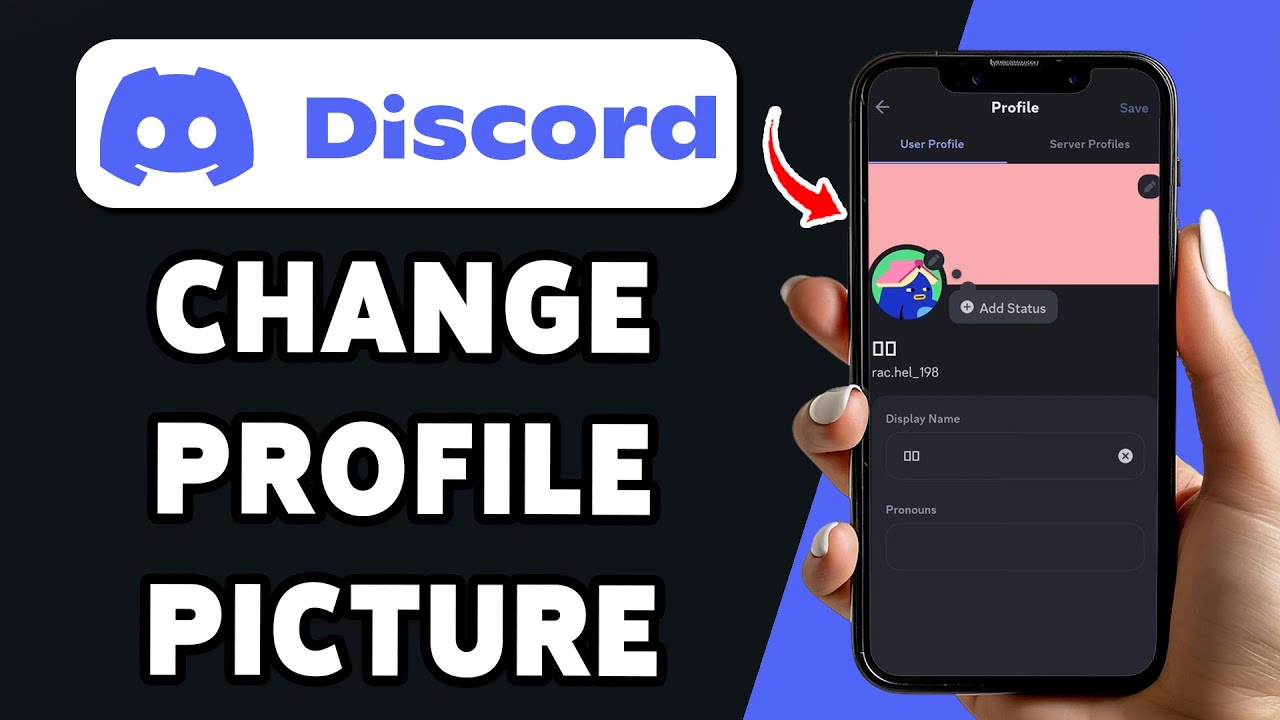

The Complete Wiki to Discord Mobile Profiles
Your Discord profile is your first impression.
On mobile, everything starts at the bottom right avatar menu.
Here is how to find it and style your profile. 🎨
📝 Note: Menu labels can change between app versions. If you do not see an option, update the Discord app.
🧭 On This Page
Finding the Avatar Menu
Tap your avatar icon in the bottom right corner of the Discord mobile app. Then tap Edit Profile to open your customization options.
📱 Quick Navigation Flow
👉 1. Open Discord on your phone
↓
🧑 2. Tap your avatar in the bottom right
↓
✏️ 3. Tap Edit Profile
↓
💾 4. Make changes, then tap Save
Key fact: The bottom right avatar is also the quickest way to preview how your profile looks to others.
What You Can Customize
| Option | Where to Tap | Requirement |
|---|---|---|
| Display name and avatar | Edit Profile | Animated avatar needs Nitro |
| Banner | Change Banner | Nitro |
| Profile theme colors | Profile Theme | Nitro |
| Avatar decoration | Change Decoration | Shop purchase |
| Profile effect | Change Effect | Shop purchase |
| Profile frame | Profile Frame | Shop purchase |
💡 Tip: Profile Frames need an updated app on mobile. Tap the Profile Frame field, choose a frame, tap Apply, then tap Save.
Nitro and Shop Items
Only Nitro members can upload a banner image or animated GIF. Nitro members also choose primary and accent colors for their profile theme.
Decorations, effects and frames come from the in app Shop. Purchases stay in your collection, so you can swap them any time.
⚠️ Heads up: Banner and theme colors are Nitro features. Free accounts can still change the avatar, display name and About Me.
Per Server Profiles
You can also set a different profile for each server. On mobile, open the same avatar menu, tap Edit Profile and look for the Per server Profiles tab.
⚠️ Heads up: Server specific avatar decorations and profile effects can only be changed on desktop or browser.
Tips for a Polished Profile
- Pick one theme. Match your avatar, banner and colors.
- Preview often. Check how your profile looks before saving.
- Keep text short. A clear About Me reads better on small screens.
For official steps, read Discord’s Custom Profiles guide, the Per Server Profiles guide and the Profile Frames FAQ. Want to find communities to show off your profile? Browse servers on discords.ai.
FAQ
Where is the profile menu on mobile?
Tap your avatar in the bottom right corner, then tap Edit Profile.
Can I change my banner without Nitro?
No. Uploading a banner image or GIF requires Nitro.
Are profile frames available on mobile?
Yes. Update the app, then use the Profile Frame field in Edit Profile.
Do purchased decorations expire?
Discord says purchased decorations are yours to keep.
Can I set server specific effects on mobile?
No. Server specific decorations and effects are desktop and browser only.
Can I preview my profile?
Yes. Tap your avatar in the bottom right to see how others view it.
Do I need to tap Save?
Yes. Tap Save to confirm your changes before leaving the screen.
Where is Discord’s official guide?
See the Custom Profiles guide.
Where do I learn about per server profiles?
Read Discord’s Per Server Profiles article.
Comments
Sign in to join the conversation
Sign inNo comments yet
Be the first to share your thoughts!