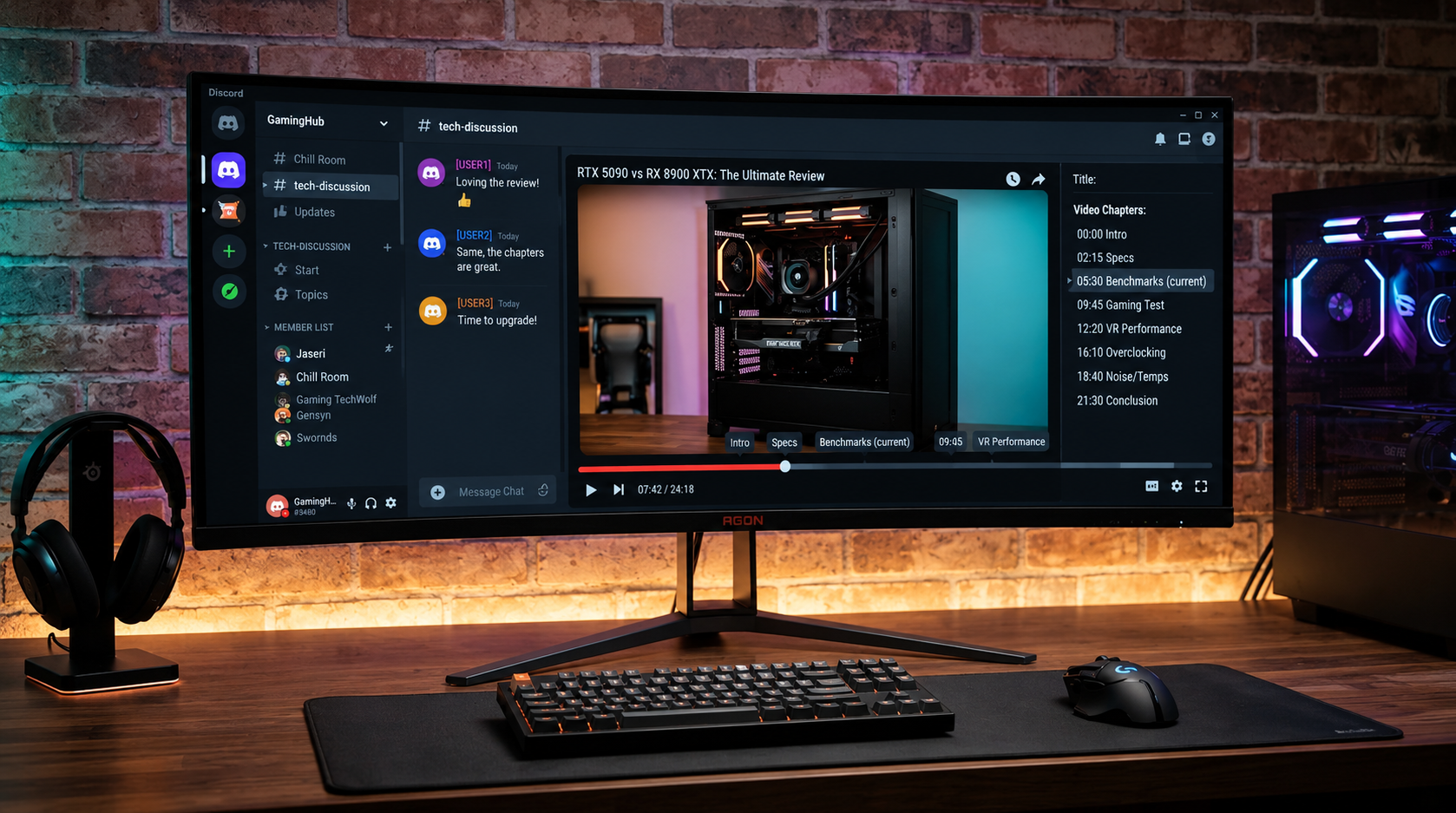

The Complete Wiki to Discord Long-Form Video Chapters
Watching a long video inside a Discord conversation can be inconvenient when you only need one specific section. A clear video timeline, visible running time, and chapter navigation can make it easier to find the moment you want without repeatedly dragging the playback bar or leaving the conversation.
Discord has been improving its media playback experience. Its June 2026 patch notes documented a sprite-sheet timeline for Clips, helping users scrub through video using visual previews, alongside playback-speed controls. However, an important distinction remains: the official documentation reviewed for this guide does not confirm that a chapter list for every long-form video is universally available in Discord. .
This guide explains the relevant video-player controls, how chapter navigation works when available, and how to troubleshoot playback issues.
Quick Facts
| Feature | Details |
|---|---|
| Main topic | Long-form video navigation in Discord |
| Timeline | Shows playback progress and allows seeking |
| Total duration | Indicates the video's overall running time when available |
| Visual previews | Discord documented sprite-sheet previews for Clips |
| Playback speed | Discord documented adjustable playback speed for Clips |
| Chapter list | Availability may depend on the player or video source |
| Main benefit | Find relevant sections with less manual scrubbing |
| Official reference | Discord Patch Notes, June 4, 2026 |
1. What Is Discord Long-Form Video Chapter Navigation?
Video chapters divide a longer recording into named sections. Instead of searching through the entire recording, viewers can choose a chapter and jump to its starting timestamp.
For example, a gaming tutorial might contain these sections:
00:00 Introduction
02:15 Settings and configuration
07:40 Gameplay demonstration
14:20 Troubleshooting
19:05 Final tips
A chapter-based player can make these timestamps available through a list, timeline markers, or both. Selecting a chapter moves playback to the corresponding part of the video.
This is especially useful for Discord communities that share gameplay guides, recorded discussions, tutorials, event recordings, and technical walkthroughs.
Important distinction: These timestamps are an illustrative example, not a claim that Discord automatically generates chapters for every uploaded video.
2. Understanding the Video Timeline UI
A video timeline gives viewers a visual overview of playback. Depending on the player, it can include several useful elements.
Playback progress bar
The progress bar shows how far playback has advanced. Dragging or clicking along the bar lets you move to another point in the video.
Current playback time
The current timestamp indicates the position where the video is playing. For example, 08:35 means the player has reached eight minutes and thirty-five seconds.
Total running time
When displayed, the total duration tells you how long the entire video runs. A timestamp such as 08:35 / 24:10 means the viewer is eight minutes and thirty-five seconds into a video lasting twenty-four minutes and ten seconds.
Visual timeline previews
A timeline with image previews can help you recognize scenes before seeking. Discord documented a sprite sheet for the Clips video player in its June 2026 patch notes, making visual scrubbing easier.
Chapter markers and lists
In a player that supports chapters, markers can indicate where individual sections begin. A chapter list can provide section names and timestamps, allowing viewers to jump directly to a topic.
Chapter markers and a dedicated chapter list should not be assumed to appear in every Discord video player.
3. How to Navigate a Long Video Without Losing Your Place
The precise controls depend on the type of video and the player Discord uses to display it.
Step 1: Open the video
Find the message containing the video and open it in the available media player. Some videos play directly in the conversation, while others may open in an expanded viewer.
Step 2: Check the playback controls
Look for the progress bar, current timestamp, total duration, and any additional navigation controls.
Step 3: Find the section you need
If the player displays a chapter list, scan its titles and timestamps. Choose the relevant section to jump to that point.
If no chapter list is available, use the progress bar and any visual previews to locate the scene manually.
Step 4: Adjust playback speed if supported
A playback-speed control can help you review less important sections faster or slow down a technical explanation. Discord documented a speed control for its Clips player, with options from 0.5× to 2×, in its June 2026 patch notes.
Do not assume the same speed options are available for every video attachment or embedded player.
Step 5: Return to the conversation
Once you find the relevant section, continue watching or return to the message thread to reply, react, or discuss the moment with other members.
4. Why Chapter Navigation Matters for Discord Communities
Long videos can contain valuable information, but making members search through an entire recording creates unnecessary friction.
Chapter navigation can help with several common community activities.
Gaming tutorials: Jump directly to a boss strategy, build explanation, or configuration section.
Community meetings: Find a discussion topic in a recorded meeting without replaying the entire session.
Technical support: Navigate to the part of a troubleshooting video that covers a specific error.
Event recordings: Move between introductions, presentations, demonstrations, and closing remarks.
Creator feedback: Locate a specific segment in a shared video before commenting on it.
These benefits depend on chapters or useful timestamps being available. When a video has no chapter metadata, visual previews and manual seeking remain useful alternatives.
5. Discord Clips vs. Long-Form Video Chapters
It is important to distinguish Discord's documented Clips playback improvements from a universal long-form chapter system.
| Capability | What the documentation supports |
|---|---|
| Video timeline | Discord has video playback timelines |
| Visual scrubbing for Clips | A sprite-sheet timeline was documented in June 2026 |
| Playback-speed adjustment for Clips | Documented options from 0.5× to 2× |
| Total duration | Video players may display duration when it can be read correctly |
| Automatic chapter generation for all videos | Not confirmed by the cited documentation |
| Dedicated chapter list for all long-form videos | Not confirmed by the cited documentation |
Discord's June 2026 patch notes also mention improvements to seeking in embedded YouTube videos on Android in earlier patch notes, showing that playback behavior can differ across media types and platforms. See the June 3, 2025 patch notes.
For this reason, a timeline with visual previews should not automatically be described as a full chapter system. A chapter list is a separate navigation feature.
6. Troubleshooting Video Timeline Problems
The total video duration is missing
Some videos may not display the correct running time if the player cannot read the media's duration metadata. Check whether the issue affects one video or multiple videos, then try reopening it or updating Discord.
Discord's October 6, 2026 patch notes documented a fix for videos showing an incorrect or missing duration when fragmented MP4 headers prevented the duration from being read.
Official reference: Discord Patch Notes, October 6, 2026.
The timeline is difficult to navigate
If the player supports visual previews, move the playhead along the timeline and use the preview images to identify the scene. If previews are unavailable, use the timestamps in the video description or message.
A chapter list does not appear
Not every video player provides a dedicated chapter list. Check whether the original video contains chapter information and whether the player you are using supports displaying it.
If chapters are not available in the embedded player, open the original video source when appropriate, or use timestamps shared by the person who posted it.
Seeking does not work smoothly
Try pausing the video before moving the playhead, waiting for the selected section to buffer, and reopening the media viewer if necessary. On mobile, make sure the app is updated and test whether the issue occurs with other videos.
Playback speed controls are missing
Playback-speed options may be specific to a particular video player. The documented speed control for Discord Clips should not be assumed to appear on every embedded video or attachment.
7. Best Practices for Sharing Long Videos in Discord
If you regularly share lengthy recordings, a few simple practices make them easier for your community to navigate.
Include timestamps in your message. A short list of important moments helps viewers find the relevant sections.
Use descriptive chapter names. Titles such as “Boss Strategy” are more useful than generic labels such as “Part 3.”
Keep timestamps accurate. Check them against the final video after editing.
Explain why a section matters. A short description can tell members whether they need to watch the entire video.
Share the original source when useful. If it supports richer chapter navigation, link to it so viewers can use its native controls.
These practices work even when Discord does not display a built-in chapter list.
Frequently Asked Questions
Does Discord support long-form video chapters?
Discord supports video playback and has documented timeline improvements for Clips. The official sources cited here do not confirm that a dedicated chapter list is available for every long-form video.
How can I skip to a specific section?
Use a chapter list if the player provides one. Otherwise, seek along the timeline, use visual previews where available, or follow timestamps included in the message.
Does the Discord video timeline show the total running time?
A player can display the current timestamp and total duration when the media's duration is available. Discord has also documented fixes for videos whose duration appeared incorrectly or was missing.
What is the difference between a timeline and a chapter list?
A timeline shows playback progress and lets you seek to different points. A chapter list identifies named sections and their starting timestamps.
Can I change playback speed in Discord?
Discord documented playback-speed controls from 0.5× to 2× for its Clips video player in June 2026. Availability can differ for other video types.
Can I use chapters on mobile?
This depends on the player and video source. If a chapter list is not available in Discord's mobile player, use the visible timeline or open the original video source when appropriate.
Where can I check the official feature details?
Start with Discord's June 4, 2026 patch notes for Clips timeline and playback-speed improvements, and Discord's October 6, 2026 patch notes for media playback and duration fixes.
Final Verdict
Long-form video navigation becomes much easier when viewers can see the running time, scrub through visual previews, and jump to clearly labeled sections. Chapter lists can make that experience even better, especially for tutorials, gaming recordings, and community presentations.
Discord has documented useful video-player improvements, including visual scrubbing and playback-speed controls for Clips. However, a universal long-form video chapter list should not be treated as confirmed based on the official sources cited here.
For now, use the timeline and available player controls, share timestamps with your community, and check the official Discord patch notes for verified updates.
Comments
Sign in to join the conversation
Sign inNo comments yet
Be the first to share your thoughts!