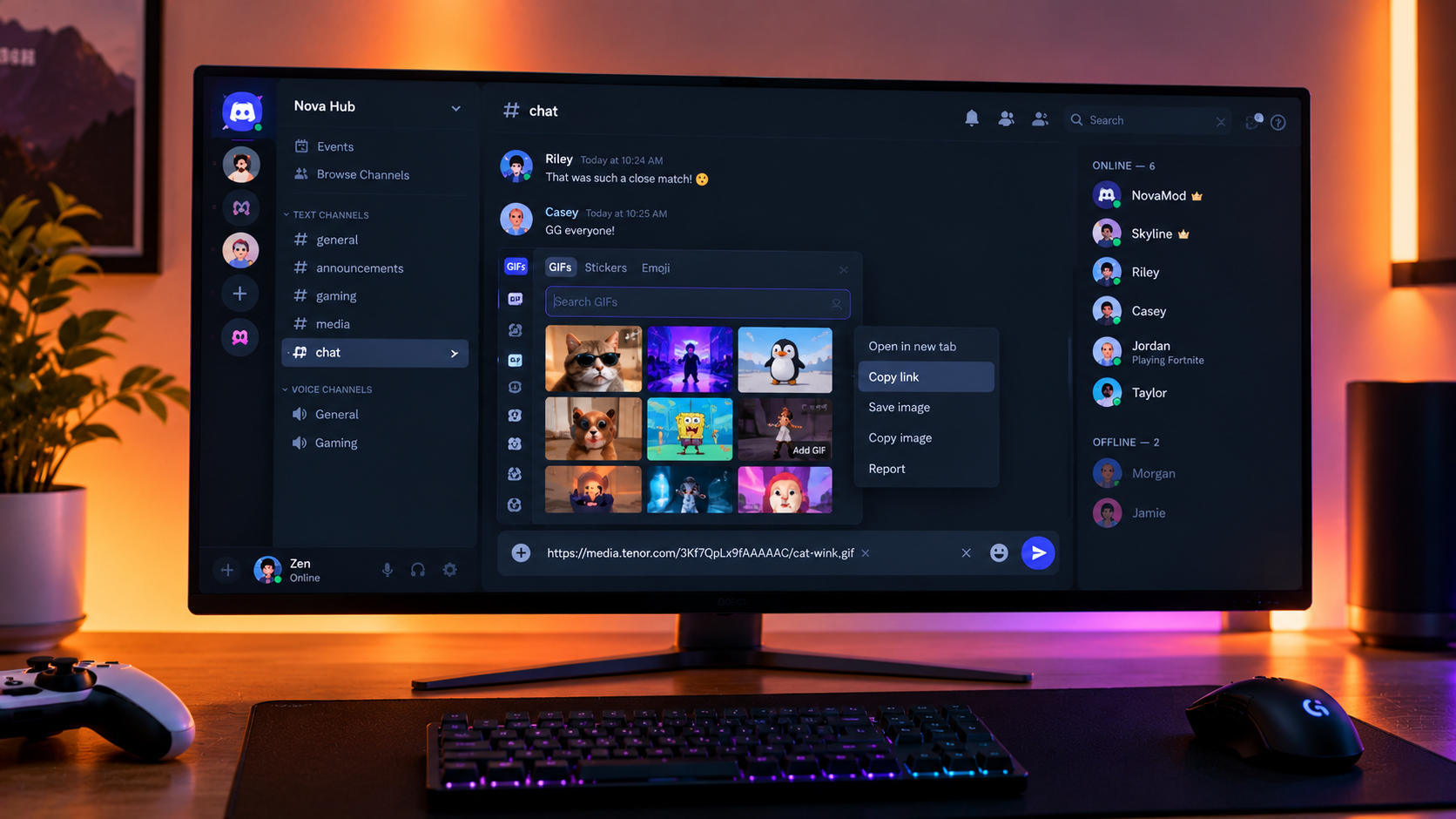

The Complete Wiki to Discord GIF Picker Shortcuts
Discord’s GIF Picker makes it easy to share reactions, memes, and animated responses in text channels and direct messages. However, selecting a GIF normally sends it immediately, which can be inconvenient when you want to include a GIF alongside your own message.
Discord introduced two useful desktop GIF Picker interactions in its October 6, 2026 patch notes: Shift-clicking a GIF inserts its URL into the message composer without sending it, while right-clicking a GIF lets you copy its link directly.
This guide explains how these shortcuts work, when to use them, and what to check if they are unavailable in your Discord client.
Quick Facts
| Feature | Details |
|---|---|
| Main feature | Discord GIF Picker shortcuts |
| Shift-click | Inserts the GIF URL into the message composer |
| Right-click | Opens options to copy the GIF link |
| Automatic sending | Shift-click does not immediately send the message |
| Keyboard shortcut | Ctrl + G on Windows, Cmd + G on Mac |
| Best use | Combining GIFs with text or sharing GIF URLs |
| Availability | Check your current desktop app or browser version |
| Official reference | Discord Patch Notes, October 6, 2026 |
1. What Are Discord GIF Picker Shortcuts?
Discord GIF Picker shortcuts are interactions that help users find, insert, and share GIFs without interrupting their normal messaging workflow.
Previously, clicking a GIF in the picker could send it straight into the conversation. That behavior was convenient for quick reactions, but less useful when you wanted to write a sentence first or copy a GIF URL for another purpose.
The newer interactions provide two alternatives:
Shift-click: Insert a GIF URL into your message before sending it.
Right-click: Copy the GIF link directly from the picker.
These features are particularly useful for community managers, gaming groups, meme channels, and anyone who regularly shares animated reactions.
2. How to Use Shift-Click to Insert a GIF URL
Shift-click is useful when you want to include a GIF in a message without sending it immediately.
Step-by-step guide
Open Discord on your desktop or in a supported browser.
Enter the text channel or direct message where you want to post.
Open the GIF Picker using the GIF button near the message composer.
Search for the reaction or animation you want.
Hold down Shift on your keyboard.
While holding Shift, click the selected GIF.
Check the message composer. The GIF URL should be inserted into your draft instead of being sent immediately.
Add your text before sending the completed message.
Example: Instead of sending a laughing GIF by itself, you can insert its URL, type “This is exactly what happened in our match,” and then send the combined message.
Why this shortcut matters
More control: Review your message before posting.
Better context: Add a caption or explanation alongside the GIF.
Fewer accidental posts: Avoid sending a reaction before you are ready.
Smoother conversations: Combine text and visual reactions in one message.
The key detail is that Shift-click inserts the URL into the composer. It does not immediately publish the message.
3. How to Right-Click and Copy a GIF Link
Right-clicking is the better option when you need the GIF’s URL rather than wanting to post the GIF immediately.
Step-by-step guide
Open the Discord GIF Picker.
Search for the GIF you want to share.
Move your cursor over the selected GIF.
Right-click the GIF.
Choose the option to copy its link from the context menu, if displayed.
Paste the copied URL into a message, document, or another application.
Menu wording and behavior can vary with the client and version, so check the options displayed in your own GIF Picker.
When should you copy a GIF link?
Use this method when you want to:
Save a GIF URL for later.
Share the link with someone in another application.
Include a GIF link in community documentation.
Paste a GIF URL into a draft before deciding whether to post it.
Reuse a reaction without immediately sending it to a Discord channel.
Important: Copying a GIF link is different from copying a Discord message link. A GIF URL points to the GIF or its hosting page, while a message link points to a particular Discord message.
4. How to Open the GIF Picker Faster
You do not always need to click the GIF button manually.
Discord's desktop keyboard shortcut for opening the GIF Picker is:
| Platform | Shortcut |
|---|---|
| Windows | Ctrl + G |
| macOS | Cmd + G |
To use it, focus the appropriate Discord window or message composer and press the shortcut. If it does not work, open Discord's keyboard shortcut reference or check whether another application or browser action is intercepting the key combination.
The GIF Picker shortcut is separate from Shift-click and right-click. The keyboard shortcut opens the picker, while the other interactions control what happens when you select a GIF.
5. Shift-Click vs. Right-Click: Which Should You Use?
| Action | Best for | Result |
|---|---|---|
| Normal click | Quick reactions | Selects and sends the GIF according to the client's standard behavior |
| Shift-click | Drafting a message with a GIF | Inserts the GIF URL without immediately sending |
| Right-click | Reusing a GIF URL | Opens the context menu, where you can copy the link if available |
Ctrl + G or Cmd + G | Faster navigation | Opens the GIF Picker |
Quick recommendation: Use Shift-click when you want to write a message around a GIF. Use right-click when you only need its URL.
6. Troubleshooting Discord GIF Picker Shortcuts
If these interactions do not work as expected, try the following checks.
Shift-click sends the GIF instead of inserting its URL
Confirm that you are using a recent version of Discord.
Try the desktop application if you are using the browser, or vice versa.
Make sure you are holding Shift while clicking the GIF.
Restart Discord and test again after the client updates.
The right-click menu does not show a copy-link option
Make sure you are right-clicking the GIF thumbnail inside the picker.
Check whether the feature has reached your client version.
Test the same action in the desktop app and browser.
If the menu appears but lacks the option, use another available sharing method rather than assuming the shortcut is broken everywhere.
The GIF Picker shortcut does not open
Check that the Discord window is active.
Try
Ctrl + Gon Windows orCmd + Gon macOS.Check Discord's keyboard shortcut reference for changes.
If necessary, open the GIF Picker with its on-screen button instead.
The copied URL does not display as an animated GIF
A copied link may point to a hosting page rather than a direct GIF file. Some websites also restrict how their media can be embedded. Paste the URL into Discord and check its preview before sending it.
7. Are These Shortcuts Available on Mobile?
Discord's official GIF guide covers sending GIFs on both desktop and mobile, but the Shift-click and right-click interactions described here are specifically suited to a mouse-and-keyboard interface.
On Android and iOS, open the GIF Picker from the message composer and select a GIF using the touchscreen. Do not assume the desktop context-menu actions are available in the mobile app.
For current behavior, consult Discord's official guide: Sending GIFs on Discord.
Frequently Asked Questions
Does Shift-click send a GIF immediately?
No. Discord's October 6, 2026 patch notes describe Shift-clicking a GIF as inserting its URL into the message composer without immediately sending the message.
How do I copy a GIF URL directly from Discord?
Open the GIF Picker, right-click the GIF, and select the copy-link option if it appears in your context menu.
What is the keyboard shortcut for the Discord GIF Picker?
Use Ctrl + G on Windows or Cmd + G on macOS.
Can I add text before sending a GIF?
Yes. Shift-click the GIF to insert its URL into the composer, add your text, and send the message when ready.
Is copying a GIF link the same as copying a message link?
No. A GIF link points to the GIF or its hosting page. A Discord message link points to a specific message in a channel or conversation.
Do these shortcuts work on phones?
Shift-click and right-click require a compatible mouse-and-keyboard interface. On mobile, use the GIF Picker's touchscreen controls instead.
Where can I verify these features?
Read the official Discord Patch Notes for October 6, 2026 and Discord's Sending GIFs on Discord support article.
Final Verdict
Discord's GIF Picker shortcuts make sharing animated reactions more flexible. Shift-click is ideal for inserting a GIF URL into a draft so you can add context before sending, while right-click provides a quick way to copy a GIF link when the option is available. The Ctrl + G and Cmd + G shortcuts make opening the picker faster on desktop.
Together, these small improvements help users share reactions with greater control and less interruption, whether they are chatting with friends or managing an active gaming community.
Comments
Sign in to join the conversation
Sign inNo comments yet
Be the first to share your thoughts!