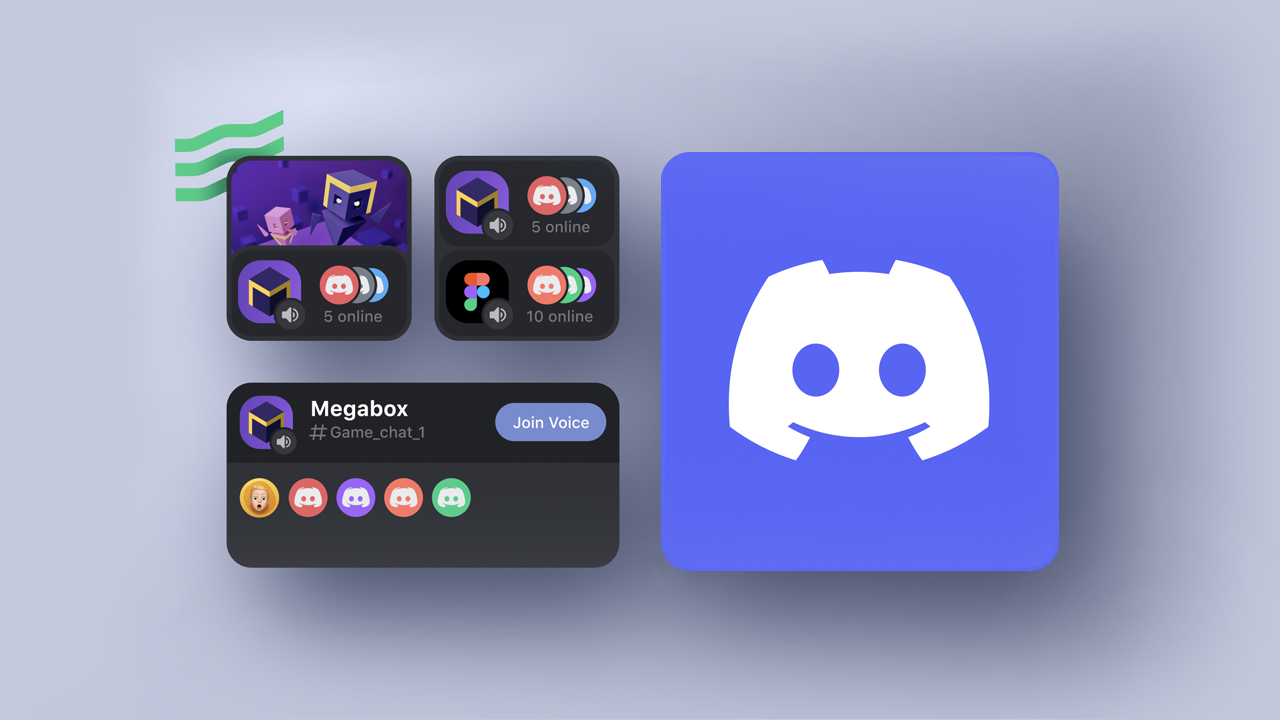

The Complete Wiki to Discord Game Stats Widgets
Discord profiles can now show real game progress.
Games claimed on Discord can display rank, playtime and wins right on a player's profile.
Here is how to set up the primary fields in the Developer Portal. 🎮
📝 Note: Game Stats Widgets only work for games that have been claimed on Discord, so complete game claiming first.
What Are Game Stats Widgets?
A Game Stats Widget lets players show off progress such as rank, playtime and wins on their Discord profile. Friends see live updates, which keeps your game visible outside play sessions.
Discord supports two kinds of data. Primary fields use fixed keys defined by Discord. Dynamic fields are custom stats you name yourself.
Key fact: Primary fields such as rank_name, total_wins and playtime_hours have fixed keys, so your data stays consistently structured.
💡 Tip: Use a primary field whenever your game has a matching concept. Save dynamic fields for stats the primary set cannot cover.
Before You Start
- Create a Discord application in the Developer Portal.
- Enable the Discord Social SDK and agree to its terms.
- Claim your game from the Developer Portal.
⚠️ Heads up: If you do not see Games, then Widget in the sidebar, your game has likely not been claimed yet.
Configuring Fields in the Developer Portal
🛠️ Quick Setup Flow
🌐 1. Open the Developer Portal and select your game
↓
🧩 2. Go to Games, then Widget in the left sidebar
↓
🎨 3. Pick a layout for each surface
↓
🏷️ 4. Add fields like rank_name, playtime_hours and total_wins
↓
👀 5. Preview the result
Surfaces include Widget Top and Widget Bottom on a full profile, plus the stats grid with six stat slots.
Choosing Value and Presentation Types
| Setting | Option | What It Does |
|---|---|---|
| Value type | User Data | Pulls the key you send through the API, like rank_name |
| Value type | Custom String | Shows the same static text for every player |
| Value type | Application Asset | Shows an image you uploaded to the portal |
| Presentation | Number | Compacts values, so 1500 becomes 1.5K |
| Presentation | Duration | Reads a number as milliseconds |
| Presentation | Text | Shows strings as is |
🧪 Test first: The Duration type reads numbers as milliseconds, but playtime_hours is measured in hours. Use the Number type for it, and check the preview before you ship.
Sending Player Data
Players must first link their Discord account to your game and grant the application_identities.write scope.
Your game server then sends stats to the Application Identity Profile API using your bot token.
📤 Quick Data Flow
🔗 1. Player links their Discord account
↓
💾 2. Store their Discord ID next to your game's player ID
↓
📡 3. Send a PATCH request with your bot token
↓
🏆 4. Stats appear on their profile
A basic payload sends rank_name as Silver, playtime_hours as 69.41 and total_wins as 57.
🔐 Reminder: The provider_issued_user_id is your game's own player ID, not a Discord ID.
⚠️ Caution: One developer write up says a PATCH replaces the whole data object, so send every field each time and confirm in the docs.
Design Tips for Great Widgets
Pick stats that are easy to read out of context.
- Rank. Players understand Gold or Platinum without game knowledge.
- Wins and playtime. They signal dedication and experience.
- Skip forced fits. A puzzle game may have no rank, so use a dynamic field instead.
- Test with real data. Send sample payloads for several players before launch.
💡 Tip: Choose between total_wins and current_period_wins based on what your game tracks. One widget can show both as separate fields.
Common Mistakes to Avoid
- Skipping game claiming. Without it, the Widget menu will not appear.
- Mixing up IDs. Use your own player ID in the path, not a Discord ID.
- Wrong units. Send playtime in hours and format it as a Number.
- Forgetting to preview. Check every surface before you publish.
📝 Note: Players choose whether to add your widget to their profile, so clear, readable stats help adoption.
For official steps, read Discord's Game Stats Widgets overview, widget configuration guide and sending game data guide. Want to swap ideas with other developers? Browse communities on discords.ai.
FAQ
What are Game Stats Widgets?
They show player progress such as rank, playtime and wins on a Discord profile, using data your game sends.
Which games can use them?
Only games that have been claimed on Discord, with the Social SDK enabled for the application.
What are primary fields?
Predefined fields with fixed keys set by Discord, such as rank_name, total_wins and playtime_hours.
Where do I configure the widget?
In the Developer Portal, under Games, then Widget in the left sidebar.
What are dynamic fields?
Custom stats you name yourself, for data the primary set does not cover, like a win streak.
How do I format playtime?
Send hours in playtime_hours and display it with the Number type, since Duration expects milliseconds.
Do players need to link their account?
Yes. Players must link their Discord account to your game before you can write to their profile.
Can players see updates live?
Yes. Friends see live updates to the stats on a player's profile.
Where can I read the official docs?
Start with the Game Stats Widgets overview and the Application Identity Profile resource.
Comments
Sign in to join the conversation
Sign inNo comments yet
Be the first to share your thoughts!