
The Complete Wiki to Discord Game Stats Widgets
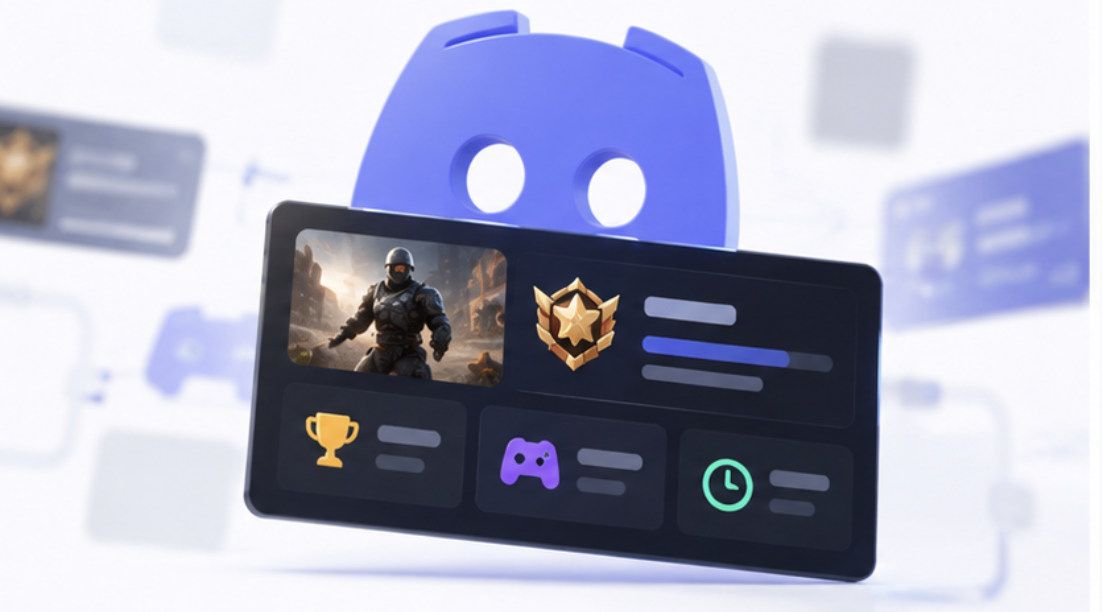
Discord Game Stats Widgets let game developers display player progress, competitive rankings, playtime, and achievements directly on Discord profiles. Instead of keeping stats inside a game, developers can let players showcase selected information to friends and community members.
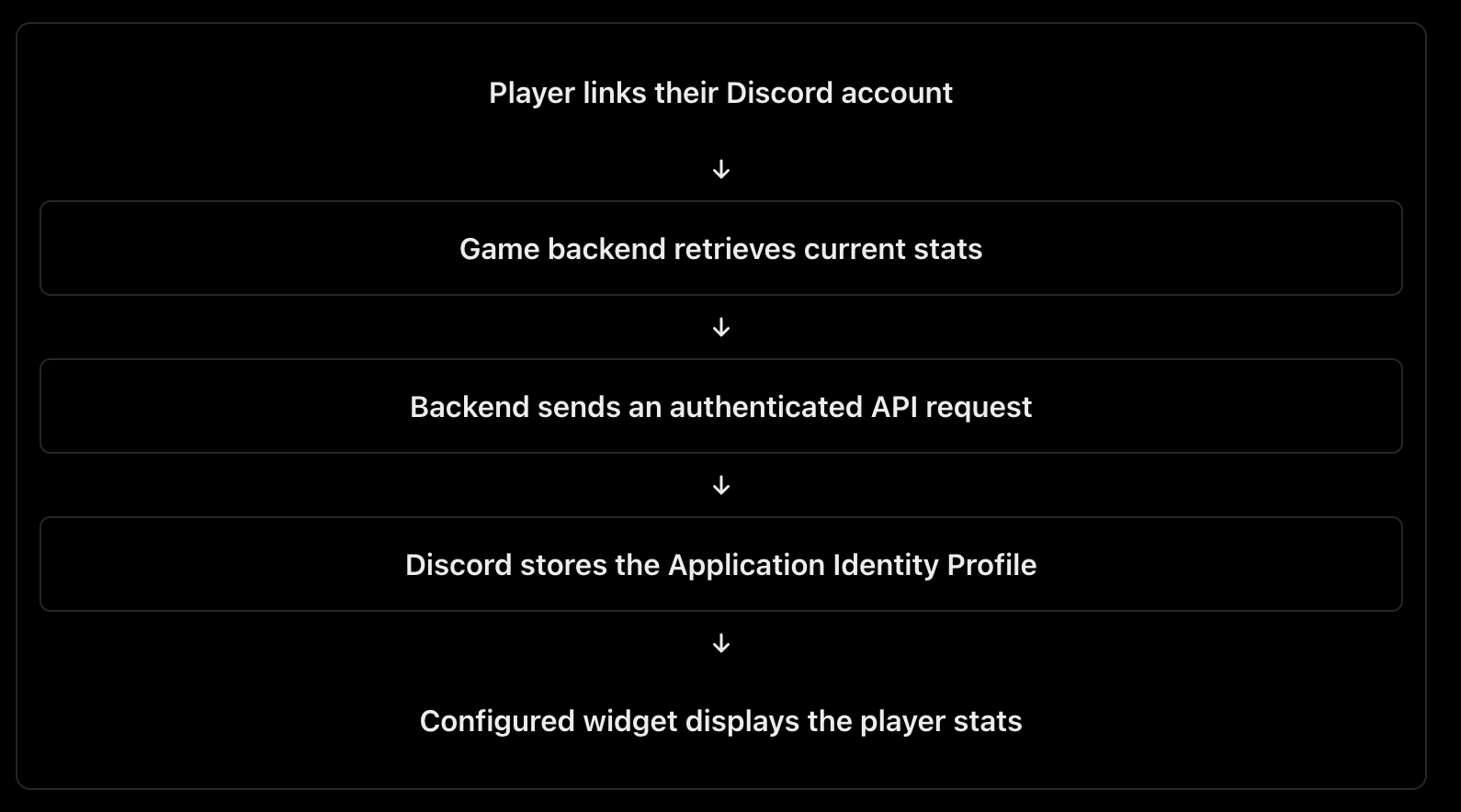
The feature uses Discord's Application Identity Profile API. Developers configure the widget's appearance in the Developer Portal, link players' Discord accounts to their game accounts, and send player statistics from their backend using an application bot token. Explore Discord's developer documentation.
🧭 NAVIGATION

What Are Discord Game Stats Widgets?
Game Stats Widgets are profile components that display selected information from supported games. Depending on the data your game provides, a widget can show a player's rank, total wins, playtime, featured character, or other custom statistics.
The feature is intended for games claimed on Discord. Before configuration, developers need an application in the Developer Portal, the required Social SDK setup, account linking, and permission to write profile data using the application_identities.write scope.
Official resources: Game Stats Widgets overview and Game Claiming.
Configuring Widget Layouts in the Developer Portal
Open your application in the Developer Portal and navigate to Games → Widget. If the Widget section is missing, check whether your game has been claimed and whether the required developer features have been enabled.
The widget editor lets you select layouts for different display surfaces, configure individual fields, and preview how the information will appear.
Surface | Purpose |
|---|---|
Widget Top | Main section of the profile widget |
Widget Bottom | Additional player statistics |
Add Widget Preview | Preview when a player adds the widget |
Mini Profile | Compact profile popout display |
Activity Accessory | Additional display on supported activity cards |
In the Design tab, select a layout for the active surface. Then open Content to configure its components and fields. For each field, choose a value source such as User Data, Custom String, or Application Asset.
Official guide: Configuring Your Game Stats Widget.
Populating Primary Fields
Discord provides predefined primary keys for common game statistics. Your backend sends values under data.primary, and the widget editor reads those values by key.
Primary field | Example value | Purpose |
|---|---|---|
|
| Current competitive rank |
|
| Lifetime wins |
|
| Total playtime in hours |
|
| Lifetime games played |
|
| Wins in the current season or period |
|
| Lifetime kills |
Only populate statistics that make sense for your game and that you can calculate reliably. For games with seasons, total_* fields represent lifetime totals, while current_period_* fields represent the current season or period.
How to connect fields to the widget
Open the field you want to configure in the Developer Portal.
Set its Value Type to User Data.
Enter the exact key, such as
rank_nameorplaytime_hours.Choose an appropriate presentation type, such as Text, Number, or Duration, where available.
Use the Sample Data panel to preview how the value appears before publishing.
The field label shown to players can differ from the underlying API key. For example, total_wins could appear in the widget with the label “Wins.”
Sending Player Data Using a Bot Token
Once account linking and widget configuration are ready, your game backend can write player statistics to the Application Identity Profile API.
The API endpoint follows this pattern:
PATCH https://discord.com/api/v10/applications/{application.id}/users/{user.id}/identities/{provider_issued_user_id}/profile
The request uses your application bot token in the authorization header:
Authorization: Bot YOUR_TOKEN
The JSON body includes the game's username and the primary statistics to store. For example, the data.primary object can contain rank_name set to "Diamond", total_wins set to 125, and playtime_hours set to 248.5.
Official implementation guide: Sending Game Data.
⚠️ IMPORTANT SECURITY NOTE
Keep the bot token on your trusted backend. Never place it in a game client, browser JavaScript, downloadable configuration file, or public repository. The player must also link their Discord account and authorize the required application_identities.write scope before your application can write their profile data.
How the Data Flow Works
Important API Behaviour
Discord's profile API has a key detail developers must understand: including data in a PATCH request replaces the existing data object. If your next update sends only rank_name, previously stored values such as total_wins may be removed if they are omitted from the new payload.
To prevent missing statistics:
Maintain the complete set of data you want to store.
Include all required primary and dynamic fields in each update.
Refresh player statistics after account linking and when a play session finishes.
Read the stored profile back during testing to verify the results.
A successful first write returns 201 Created; subsequent updates return 204 No Content, according to Discord's implementation guide.
Primary Fields vs Dynamic Fields
Not every game fits Discord's predefined stat list. A role playing game might need to display “Dungeons Cleared,” while a strategy game might want to show “Highest Campaign Level.”
Use primary fields when Discord already provides a suitable key. Use dynamic fields for custom statistics, defined through your own field names and values under data.dynamic.
For more guidance, see the official Game Stats Widget Best Practices.
💡 EDITOR'S NOTE
Widget configuration and data delivery are separate tasks. A field configured in the Developer Portal will not display real player information until your backend sends matching data. Likewise, sending a statistic does not automatically make it visible unless a widget field references its key.
Testing and Publishing
Before releasing your widget to players:
Populate Sample Data in the editor and check the layout.
Test account linking and API writes with a developer account.
Verify that numeric values, text, and images render correctly.
Refresh the Discord client if draft changes are not visible.
Configure all required fields for Widget Top, Widget Bottom, and Add Widget Preview.
Publish the completed configuration.
Discord's official widget configuration guide documents the required surfaces and publishing process.
Quick Facts
• Best for: Game studios and developers integrating player stats with Discord.
• Main API: Application Identity Profile API.
• Authentication: Application bot token used server side.
• Example primary keys: rank_name, total_wins, playtime_hours.
• Required permission: application_identities.write.
• Key limitation: The game must be claimed, the player must link their account, and the widget must reference the data being sent.
Final Verdict
Discord Game Stats Widgets connect in game progression with players' Discord identities. The most reliable setup combines a carefully designed Developer Portal layout, accurate primary fields, secure backend API requests, and a working account linking flow. Configure the presentation first, send matching player data, and test the full experience before publishing it to your community.
Comments
Sign in to join the conversation
Sign inNo comments yet
Be the first to share your thoughts!