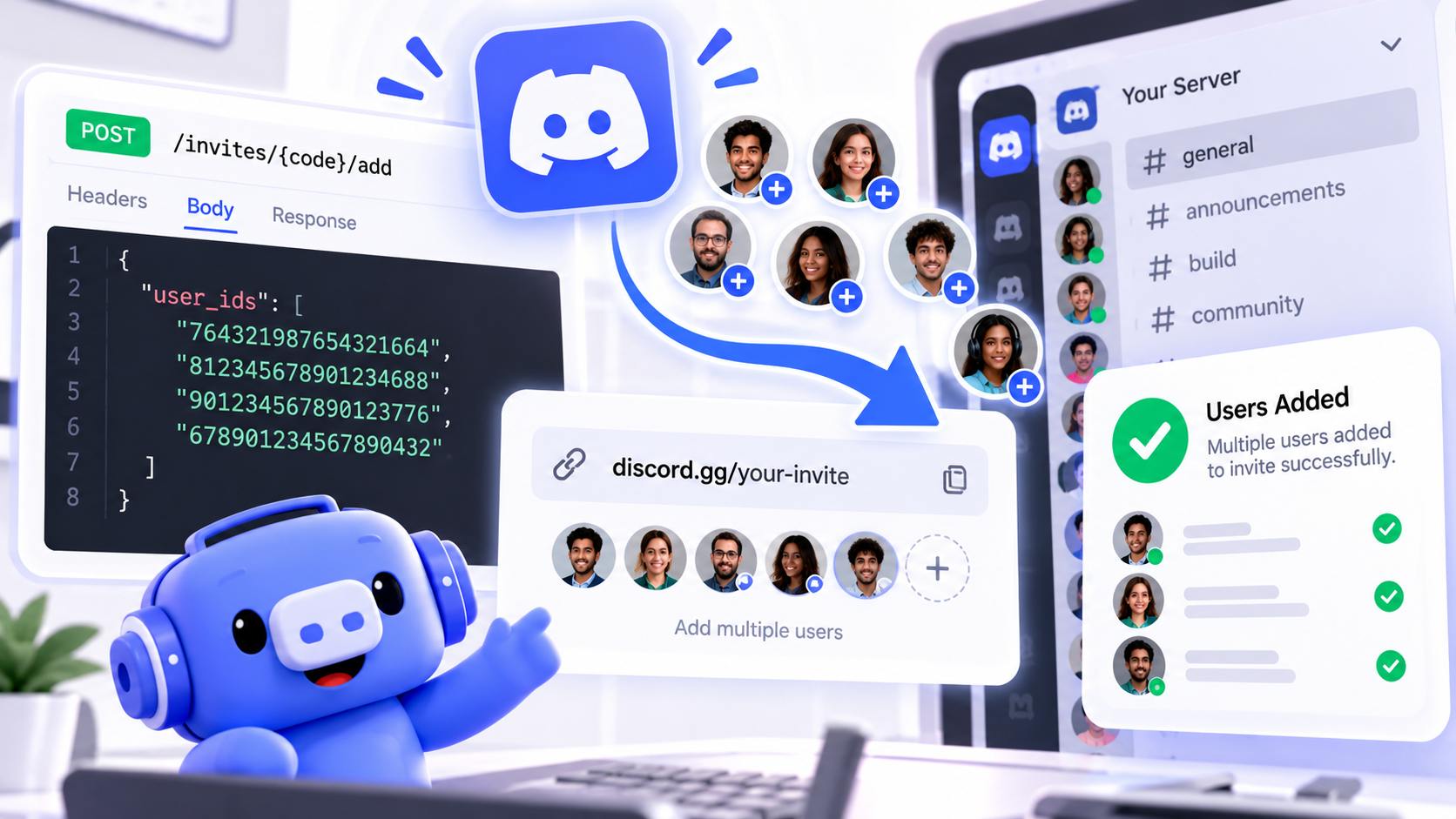

The Complete Wiki to Bulk-Adding Target Users
Discord now lets you bulk add target users to an invite.
Send a user_ids array of snowflakes and control exactly who can accept it.
Here is how the new endpoints work. 🎟️
📝 Note: Target users can only be managed through the API, not the Discord app.
🧭 On This Page
What Changed
Discord’s September 18, 2026 change log added new invite target user endpoints. Invites can now restrict who can see and accept them using a list of user IDs.
Before this, adding or removing people meant uploading a CSV. Now you can adjust the list in place. It pairs well with role granting invites for paid supporters or beta testers.
Key fact: Bulk-Add accepts up to 1,000 user IDs in one request.
Bulk Add Request
Send a POST request to the bulk add route with a JSON body. Each ID must be a snowflake string.
await fetch(`https://discord.com/api/v10/invites/${code}/target-users/bulk-add`, {
  method: "POST",
  headers: { Authorization: `Bot ${token}`, "Content-Type": "application/json" },
  body: JSON.stringify({ user_ids: ["123456789012345678", "234567890123456789"] }),
});
🎟️ Quick Request Flow
🔑 1. Authenticate as the inviter or a user with Manage Server
↓
📦 2. Collect up to 1,000 user IDs as strings
↓
📡 3. POST them in the user_ids array
↓
✅ 4. Confirm with Get Target Users
⚠️ Heads up: Treat IDs as strings. Large snowflakes lose precision if your language converts them to numbers.
Related Endpoints
| Action | Method and Route | Input |
|---|---|---|
| Bulk add | POST /invites/{code}/target-users/bulk-add | user_ids |
| Bulk delete | POST /invites/{code}/target-users/bulk-delete | user_ids |
| Add one | PUT /invites/{code}/target-users/{user.id} | none |
| Remove one | DELETE /invites/{code}/target-users/{user.id} | none |
| Replace all | PUT /invites/{code}/target-users | CSV file |
💡 Tip: Route paths here come from a library implementation of the change log. Confirm them in Discord’s Invite resource docs before shipping.
Rules and Limits
- Permissions. The caller must be the inviter or have Manage Server.
- Size. Each request accepts at most 1,000 user IDs.
- Exclusive options. On invite creation, target_user_ids and target_users_file cannot be sent together.
For comparison, a CSV upload with invalid user IDs returns a 400 error that lists them, and duplicate IDs are ignored.
🔐 Reminder: Only listed users can see and accept a targeted invite, so keep your list accurate.
Best Practices
- Batch large lists. Split lists over 1,000 IDs into multiple requests.
- Respect rate limits. Discord can revoke keys that ignore them.
- Pair with roles. Add role_ids, which needs Manage Roles, so accepted users get access automatically.
- Log changes. Record who you added and why.
For official details, read Discord’s change log, the Invite resource and the Using Community Invites guide. Want to swap tips with other developers? Browse communities on discords.ai.
FAQ
How many users can I add at once?
Up to 1,000 user IDs per request.
Who can call these endpoints?
The invite’s creator, or anyone with the Manage Server permission.
Can I do this from the Discord app?
No. Setting target users is only available through the API.
Do I still need a CSV file?
Not for small changes. Use CSV only to replace the entire list at once.
Can I set target users when creating an invite?
Yes. Create Channel Invite accepts a target_user_ids array of up to 1,000 IDs.
Should IDs be numbers or strings?
Strings. Discord returns and expects snowflakes as strings.
What happens to users not on the list?
They cannot see or accept the invite.
Where is the official change log?
Read Discord’s change log for the announcement.
Where are the endpoint details?
See the Invite resource documentation.
Comments
Sign in to join the conversation
Sign inNo comments yet
Be the first to share your thoughts!