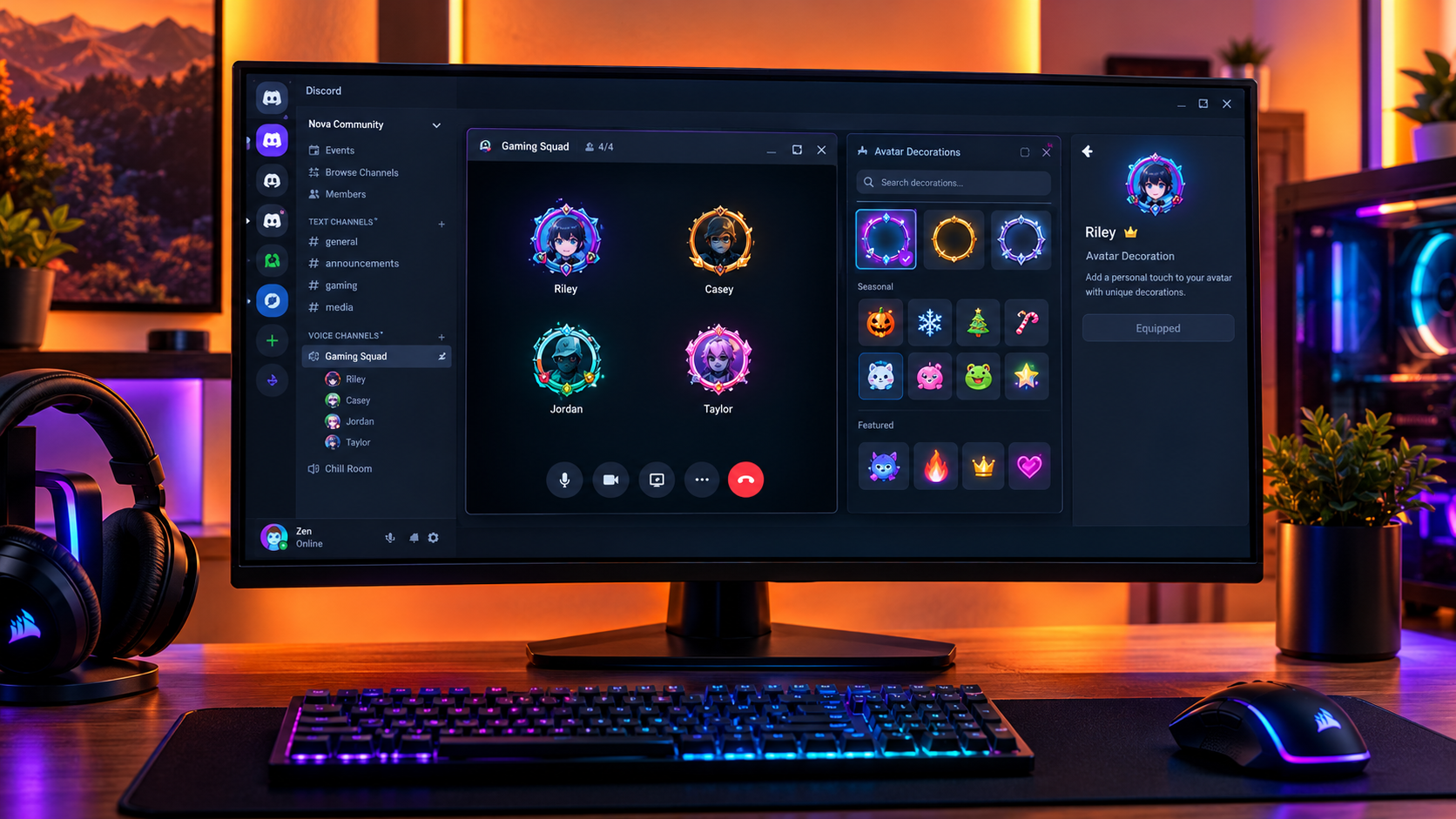

The Complete Wiki to Discord Avatar Decorations in Popped-Out Calls
Discord’s desktop voice calls can be popped out into a separate window, allowing you to keep a conversation visible while browsing channels, playing games, or working in another part of the app. However, a small interface bug could make the avatar decoration picker open in the wrong window, leaving users unable to see the menu where they expected it.
Discord addressed this issue in its October 6, 2026 patch notes, confirming that the living room avatar decoration picker could fail to appear when a voice call was popped out. The menu was opening in the wrong window. The fix was committed, although Discord noted that updates might still be rolling out to individual platforms. .
This guide explains what changed, how to navigate a popped-out call, and what to do if the picker still does not appear.
Quick Facts
| Feature | Details |
|---|---|
| Feature | Avatar decoration picker in popped-out voice calls |
| Platform covered by the reported fix | Discord desktop |
| Official patch date | October 6, 2026 |
| Issue | The picker opened in the wrong window |
| Fix | Corrected the picker’s window behavior |
| Main purpose | Access avatar decoration options while using a separate call window |
| Related customization | Discord Avatar Decorations |
| Official source | Discord Patch Notes, October 6, 2026 |
1. What Are Avatar Decorations in Discord?
Avatar Decorations are cosmetic items that surround or style your Discord avatar. They let you personalize your appearance without replacing your underlying profile picture.
Discord offers decorations through its Shop, where users can browse available designs and purchase items. Purchased decorations are retained in your collection, so you can change your look later. Availability, pricing, and special offers can vary.
Avatar Decorations are different from other Discord profile cosmetics:
Avatar Decorations: Decorative designs applied around an avatar.
Profile Effects: Animated visual effects associated with viewing a profile.
Nameplates: Decorative styles that customize how your profile name is presented.
Profile Frames: Decorative borders around a profile.
The October 2026 patch note concerns a picker that was not appearing correctly in a popped-out call. It does not announce a new decoration collection or change the purchase requirements for cosmetics.
For more details, see Discord’s Avatar Decorations FAQ.
2. What Is a Popped-Out Voice Call?
A popped-out call is a voice or video call displayed in its own separate window rather than remaining entirely within Discord’s main application window.
This layout can be useful when you want to:
Keep friends or teammates visible while gaming.
Monitor a call while browsing a server.
Move the call window to a second monitor.
Keep conversations accessible while using other desktop applications.
Separate windows also introduce a small interface challenge: menus, popovers, and dialogs need to appear in the correct window. If a menu opens behind another window or in the main Discord interface, it can look as though the button has stopped working.
That was the specific problem addressed by the October 2026 avatar decoration picker fix.
3. What Changed in the October 6, 2026 Update?
Discord’s official patch notes describe a desktop bug affecting the living room avatar decoration picker. When a voice call was popped out into its own window, the picker would sometimes fail to appear where expected because the menu was opening in the wrong window.
The fix corrects this window behavior.
Before the fix
You opened a voice call in a separate window.
You tried to open the avatar decoration picker.
The expected menu did not appear in the call window.
It could seem as if the control had failed, even though the menu was opening elsewhere.
After the fix
The picker should appear in the appropriate window when the corrected behavior is available in your desktop client.
Important: Discord describes this as a bug fix, not a new way to buy, equip, or unlock Avatar Decorations. The change improves access to the existing interface.
Discord also warns in its patch notes that fixes may take time to roll out across individual platforms.
4. How to Navigate the Decoration Picker in a Popped-Out Call
The following workflow helps you check the picker without losing track of your conversation.
Step 1: Open a voice call
Start or join a voice call in a Discord direct message or voice channel.
Step 2: Pop the call out
Use the call interface’s pop-out control if it is available. The call should move into its own separate desktop window.
Step 3: Locate the relevant decoration control
Look for the avatar decoration control associated with the interface you are using. The exact control and available options may depend on the Discord client and call layout.
Step 4: Open the picker
Select the decoration control. After the October 2026 fix has reached your client, the affected picker should no longer disappear because it opened in the wrong window.
Step 5: Choose an available decoration
If the picker presents decoration options, browse the available designs and select the one you want. Do not assume every cosmetic is free or available to every account.
Step 6: Confirm the result
Check that the selection has taken effect. If the picker does not appear or the decoration does not change, follow the troubleshooting steps below.
Note: Discord’s patch note confirms the window-placement fix. It does not provide a new step-by-step procedure for every version of the call interface, so button labels and placement may differ.
5. How to Change Your Regular Discord Avatar Decoration
If your goal is to change the decoration displayed on your profile rather than use the affected picker inside a call, Discord documents a separate settings workflow.
Desktop or browser
Open User Settings using the gear icon.
Select Profiles.
Choose Change Decoration.
Browse your available decorations.
Select the decoration and choose Apply.
Select Save Changes to confirm.
If you want a new decoration, you can browse the Shop and purchase an available item. Shop inventory can change over time.
Mobile
Open your user profile or User Settings.
Select Edit Profile.
Open Avatar Decoration or Change Decoration.
Choose an available design.
Tap Apply, then save your changes.
These are the documented profile-customization steps. They should not be confused with the separate-window bug fix for the desktop call interface.
Official guide: Avatar Decorations FAQ.
6. Troubleshooting: The Picker Still Does Not Appear
If the decoration picker remains missing, try these checks before assuming the fix has failed.
Check 1: Restart Discord
Close and reopen the desktop client, then join a call and test the picker again. This can help if the app has not loaded its latest interface changes.
Check 2: Check for updates
Discord said the October 6 fixes might still be rolling out to individual platforms. Make sure your client is up to date and test again later if the fix is not yet available.
Check 3: Look in the main Discord window
Because the original bug involved the picker opening in the wrong window, check whether a menu has appeared behind the call popout or in Discord’s main window.
Check 4: Test without popping out the call
Return to the regular call layout and check whether the relevant control works there. If it works in the main window but not in the popout, the problem may be related to the separate-window interface.
Check 5: Distinguish the picker from profile settings
If you simply want to change your avatar decoration, use User Settings → Profiles → Change Decoration. That is a separate workflow from the picker behavior addressed in the patch notes.
Check 6: Report a persistent bug
If the issue continues after updating and restarting, consult Discord’s official support resources or submit a bug report with your operating system, client version, and the steps that reproduce the issue.
7. Why This Small Fix Matters
A missing decoration menu might seem minor, but interface problems become frustrating when they interrupt an active conversation.
The fix matters because it improves window consistency. Users should be able to interact with the controls belonging to a popped-out call without having to search other windows for menus that opened elsewhere.
It also supports a smoother desktop workflow:
Less window switching: The relevant menu should appear in the expected place.
Clearer interaction: A working picker makes the control feel responsive.
Better multitasking: Users can keep a call separate from the main Discord interface.
More consistent customization: Cosmetic controls are easier to access while using the call layout.
The change is a usability fix rather than a major new customization feature, but it addresses a specific source of confusion for desktop users.
Frequently Asked Questions
What did Discord fix on October 6, 2026?
Discord fixed a desktop bug where the living room avatar decoration picker would not appear correctly when a voice call was popped out into its own window. The menu had been opening in the wrong window.
Is the avatar decoration picker a new feature?
No. The October 2026 patch note describes a fix to existing picker behavior, not the introduction of Avatar Decorations.
Does this update give everyone free decorations?
No. The patch note does not change pricing or unlock requirements. Decorations remain subject to the availability and purchase conditions shown in Discord’s Shop.
Does the fix apply to mobile?
The reported issue specifically concerns the desktop call popout. Do not assume the same fix changes mobile behavior.
What should I do if the picker is still missing?
Restart Discord, check for updates, and look for the menu in the main Discord window. If the issue persists, test the regular call layout and report the problem with your client details.
How do I change my avatar decoration outside a call?
Open User Settings, select Profiles, choose Change Decoration, select an available item, and save your changes.
Where can I read the official announcement?
Read Discord Patch Notes: October 6, 2026 and the official Avatar Decorations FAQ.
Final Verdict
Discord’s October 6, 2026 patch notes confirm a small but useful desktop improvement: the avatar decoration picker should open in the correct window when using a popped-out voice call.
The update does not introduce new cosmetics or change how decorations are purchased. Instead, it fixes an interface problem that made an existing control difficult to use while multitasking.
If the picker is still missing, update and restart Discord, check the main window, and use the regular profile settings as an alternative for changing your avatar decoration.
Comments
Sign in to join the conversation
Sign inNo comments yet
Be the first to share your thoughts!