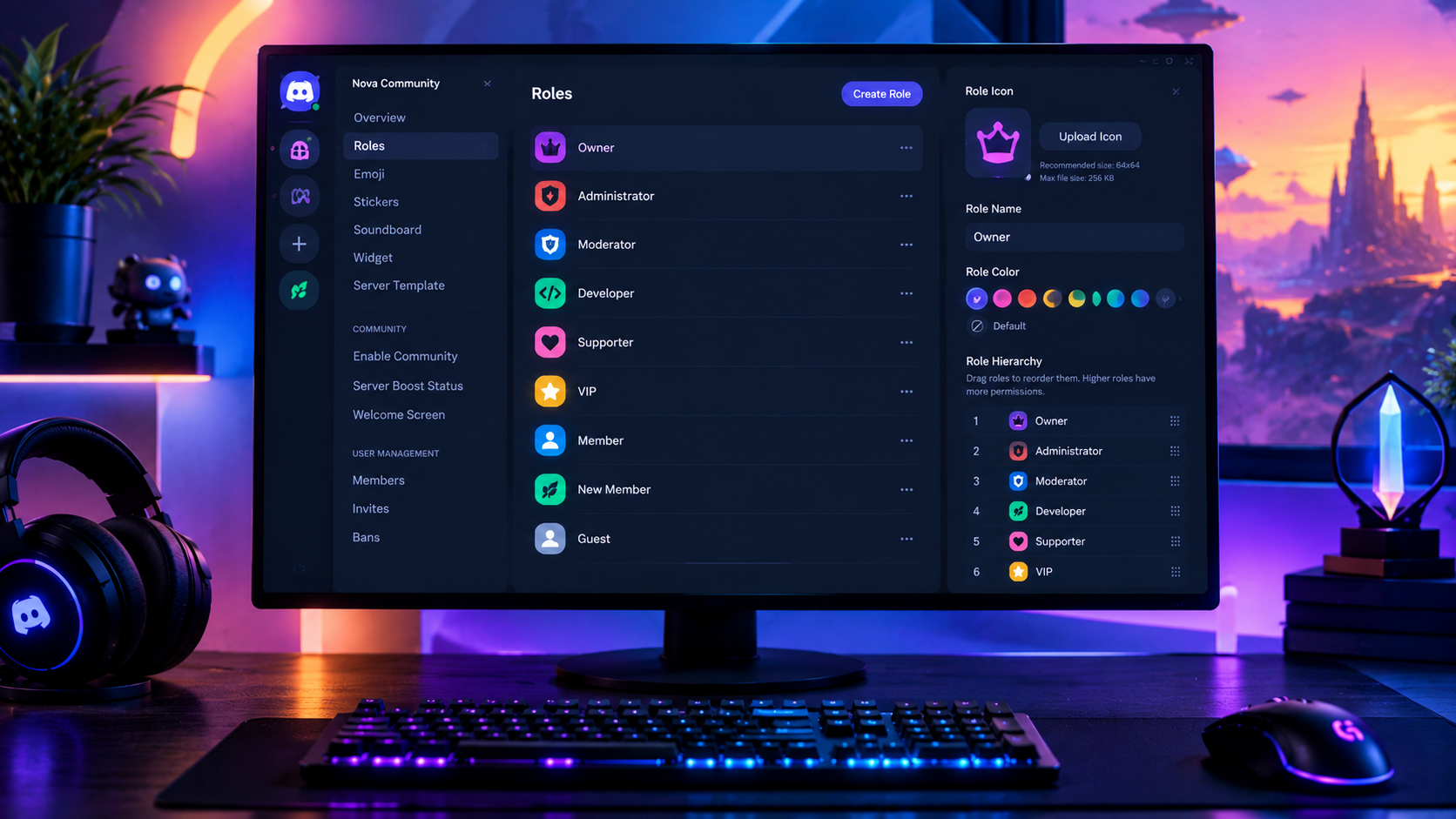

The Complete Wiki to Custom Discord Role Icons
Custom Discord role icons help server owners make roles easier to recognize. Instead of relying entirely on role names and colors, communities can add small images beside roles to distinguish administrators, moderators, VIP members, supporters, and other groups.
For gaming servers and online communities, well-designed icons create a more consistent visual identity and make member lists easier to scan.
However, Discord has specific requirements for custom role icons. The official documentation lists 64×64 pixels as the required image size and 256 KB as the maximum file size. It also states that animated GIFs are not supported as role icons. That means a GIF should be converted into a static image before uploading.
This guide explains the requirements, how to upload icons, how role hierarchy affects which icon appears beside a member's name, and how to troubleshoot common problems.
Quick Facts
| Feature | Details |
|---|---|
| Feature | Custom Discord Role Icons |
| Boost requirement | Server Boost Level 2 |
| Standard Level 2 requirement | 7 Server Boosts |
| Recommended preparation size | 64×64 pixels |
| Maximum image size | 256 KB |
| Supported custom image format | Static image, such as PNG |
| Animated GIF role icons | Not supported |
| Required permission | Manage Roles |
| Setup platform | Desktop app or browser |
| Where icons appear | Member list, chat, and server member profiles |
| Which icon appears beside a name? | The icon belonging to the member's highest role that has an icon |
Source: Discord's Custom Role Icons FAQ.
1. What Are Custom Discord Role Icons?
A custom role icon is a small image associated with a server role. Discord can display it next to a member's name in chat and the member list.
For example, a gaming community might use:
A shield for moderators.
A crown for VIP members.
A star for supporters.
A sword for competitive players.
A lightning bolt for event participants.
These icons are visual labels. They do not automatically grant permissions or change what a role can do.
Why use role icons?
Faster recognition: Members can identify certain groups without reading every role name.
Consistent branding: Matching icons can make a server's roles feel like part of one design system.
Better organization: Different symbols can distinguish staff, contributors, event participants, and community ranks.
Improved presentation: Icons can complement role colors and names in a carefully organized server.
Custom role icons are a visual customization feature, not a replacement for correctly configured permissions.
2. What Are the Requirements for Custom Role Icons?
Before preparing your files, make sure your server and account meet Discord's requirements.
Server Boost Level 2
Discord lists custom role icons as a Level 2 Server Boosting perk. Under the standard boost system, Level 2 requires 7 Server Boosts.
If the server loses the required boost level, Discord says the uploaded icons remain saved, but they will need Level 2 again to display in the server.
Manage Roles permission
Only members with the Manage Roles permission can set, change, or remove custom role icons.
Grant this permission carefully. It provides role-management capabilities beyond icon customization.
Desktop or browser
Discord's official FAQ states that role icons can be managed through the desktop version of Discord. The feature is not available for editing on mobile according to that documentation.
You can still use mobile to view supported role icons, but use desktop or a browser for the setup process.
3. How to Prepare a 64×64 PNG Role Icon
The icon appears at a small size, so simplicity matters more than intricate detail.
Recommended file specifications
| Property | Requirement |
|---|---|
| Dimensions | 64×64 pixels |
| Maximum file size | 256 KB |
| Recommended format | PNG |
| Background | Transparent when suitable |
| Design | One clear symbol |
| Fine details | Keep to a minimum |
Discord's published role icon requirements specify 64×64 pixels and a maximum of 256 KB. PNG is a practical choice for clean edges, transparency, and small graphical symbols.
Design tips for sharper icons
Use a centered symbol. Keep the main design away from the edges so it remains recognizable when displayed at a small size.
Choose strong contrast. A pale icon may disappear against a light background, while a dark icon may be difficult to see against a dark interface.
Avoid tiny text. Letters and words can become unreadable at 64×64 pixels.
Use transparent backgrounds where appropriate. This allows the icon to sit more naturally beside role names.
Export at the target size. Design at a larger resolution if needed, then resize carefully to 64×64 pixels and inspect the final file at actual size.
Check the file size. Make sure the exported PNG is below 256 KB before uploading.
4. Can You Upload Animated GIF Role Icons?
No. Discord's official Custom Role Icons FAQ says animated icons are not supported. Role icons must use a static image or a static custom emoji uploaded to the server.
If you have a GIF that you want to use, select a single frame and export it as a PNG. Choose a frame where the symbol is clear and recognizable.
For example, if your GIF shows a rotating crown, extract the frame with the clearest crown silhouette, resize it to 64×64 pixels, and export it as a static PNG.
Do not assume that changing the file extension from .gif to .png will convert the image. Use an actual image editor or converter to export a valid PNG file.
Why use PNG instead of GIF?
PNG supports transparent backgrounds.
It works well for sharp symbols and simple illustrations.
It avoids the expectation that the icon will animate.
It is easy to resize and optimize for Discord's stated file limits.
If you want to keep an animated design, you can use it in a different Discord feature that supports GIFs. That does not make it eligible as a custom role icon.
5. How to Upload a Custom Role Icon
Once your server has the required boost level and you have a suitable image, follow these steps.
Step 1: Open Server Settings
Open Discord on desktop or in a browser, select your server, and open Server Settings.
Step 2: Select Roles
Choose Roles from the settings menu. This opens the server's role list and hierarchy.
Step 3: Choose a role
Select the role that should receive the icon. You can edit an existing role or create a new one first.
Step 4: Find Role Icon
Under the role's Display section, locate Role Icon.
Discord lets you choose an eligible emoji or upload an image.
Step 5: Upload your PNG
Choose the image upload option and select your prepared file. Check that it meets the image dimensions and size requirements.
Step 6: Save your changes
Apply the change and inspect the role in the server. Check the member list and a chat message from a member who has that role.
For the complete official procedure, see the Custom Role Icons FAQ.
6. Understanding Discord's Role Hierarchy
The role hierarchy determines the order of roles in a server. It also affects which custom role icon appears beside a member's name.
Discord displays only one role icon beside a member's name in chat and the member list, even if that person has multiple roles with icons.
The icon displayed belongs to the member's highest-positioned role that has an icon.
Example role hierarchy
Imagine a member has these roles:
| Role | Position | Has an icon? |
|---|---|---|
| Community Admin | Highest | No |
| VIP | Second | Yes, crown |
| Event Winner | Third | Yes, trophy |
| Member | Lowest | Yes, star |
In this example, the VIP crown is displayed because it belongs to the highest role in the hierarchy that has an icon.
The Admin role has no icon, so Discord checks the next highest role. It does not automatically show every icon associated with that member.
How to change role order
Open Server Settings.
Select Roles.
Find the role you want to reposition.
Drag it higher or lower in the role list, if you have permission.
Save changes if prompted.
Check which role icon appears for members who hold multiple roles.
Important: Moving roles affects more than appearance. Role hierarchy also matters for managing roles and certain moderation actions. Do not rearrange staff roles solely to display a particular icon without checking the permission implications.
7. How to Choose the Right Icon for Each Role
A good role-icon system uses a consistent visual language. Members should be able to understand the difference between roles without learning a completely new symbol for each one.
Suggested icon assignments
| Role type | Icon idea |
|---|---|
| Owner | Crown |
| Administrator | Shield |
| Moderator | Gavel or shield |
| VIP | Star or gem |
| Supporter | Heart |
| Event Winner | Trophy |
| Competitive Player | Sword |
| Community Member | Simple user symbol |
These are design suggestions, not Discord's built-in role assignments.
Keep a consistent style
Use a similar line thickness, color palette, and level of detail across all your icons. Mixing highly detailed illustrations with tiny, thin-line symbols can make the role list look inconsistent.
If you have many roles, reserve the most distinctive icons for important staff or community ranks. Use simpler symbols for less prominent roles.
Consider visibility
Icons should remain clear against Discord's interface. Test the design at its actual display size instead of judging it only on a large canvas.
8. Troubleshooting Custom Role Icons
The Role Icon option is missing
Check that you are editing roles on desktop or in a browser, that your account has Manage Roles, and that your server has the required boost perk.
Discord rejects the image
Verify that the file is a valid image, measures 64×64 pixels, and is no larger than 256 KB. If you started with a GIF, export a static frame as PNG.
My animated GIF does not animate
This is expected. Discord's official FAQ says animated role icons are not supported. Upload a static image instead.
My icon does not appear beside a member's name
Check the member's role assignments and the hierarchy. Discord shows the icon from the highest role that has one, not every icon assigned to the member's roles.
I uploaded an icon, but it disappeared from the server
Check the server's boost status. Discord says role icons remain uploaded if the server loses its boost level, but Level 2 must be regained for them to display again.
The icon is hard to recognize
Simplify the artwork, remove tiny details, improve contrast, and export a clean 64×64 PNG. Preview it at the actual size before uploading.
I cannot edit role icons on my phone
Discord's official FAQ says role-icon management is available on desktop. Use the desktop app or browser to make changes.
Frequently Asked Questions
What size should a Discord role icon be?
Discord's official requirement is 64×64 pixels, with a maximum file size of 256 KB.
Can I upload a GIF as a custom role icon?
No. Discord's official documentation says role icons must be static images or static custom emoji. Convert a GIF frame into a PNG if you want to use the design.
Do I need Server Boosts for custom role icons?
Yes. Custom role icons are listed as a Server Boost Level 2 perk, which normally requires 7 boosts.
What happens if my server loses Level 2?
Discord says the uploaded icons remain saved, but you must regain Level 2 for them to display in the server again.
Which role icon appears if I have multiple roles?
Discord displays the icon belonging to the highest-positioned role that has an icon. If the highest role has no icon, Discord checks the next highest role with one.
Can I set role icons on mobile?
Discord's official FAQ says role icons can currently be managed on desktop. Use desktop or a browser to upload or change them.
Do custom role icons change permissions?
No. A role icon is a visual feature. Permissions depend on the role's configuration and the server's permission system.
Can one role have multiple icons?
Discord's official FAQ says you can set one icon per role. A member may have several roles, but only one role icon is displayed beside their name in chat and the member list.
Final Verdict
Custom Discord role icons are a simple way to improve a server's visual identity and make important roles easier to recognize. The key is to use clear static images at 64×64 pixels, keep each file under 256 KB, and assign icons thoughtfully within the role hierarchy.
Remember that Discord does not support animated GIFs as role icons. If you have an animated design, export a static frame as a PNG. Finally, test the icon with members who have multiple roles so you know which icon will actually appear.
A consistent set of small, well-designed icons can make a server look more organized without adding unnecessary complexity.
Comments
Sign in to join the conversation
Sign inNo comments yet
Be the first to share your thoughts!