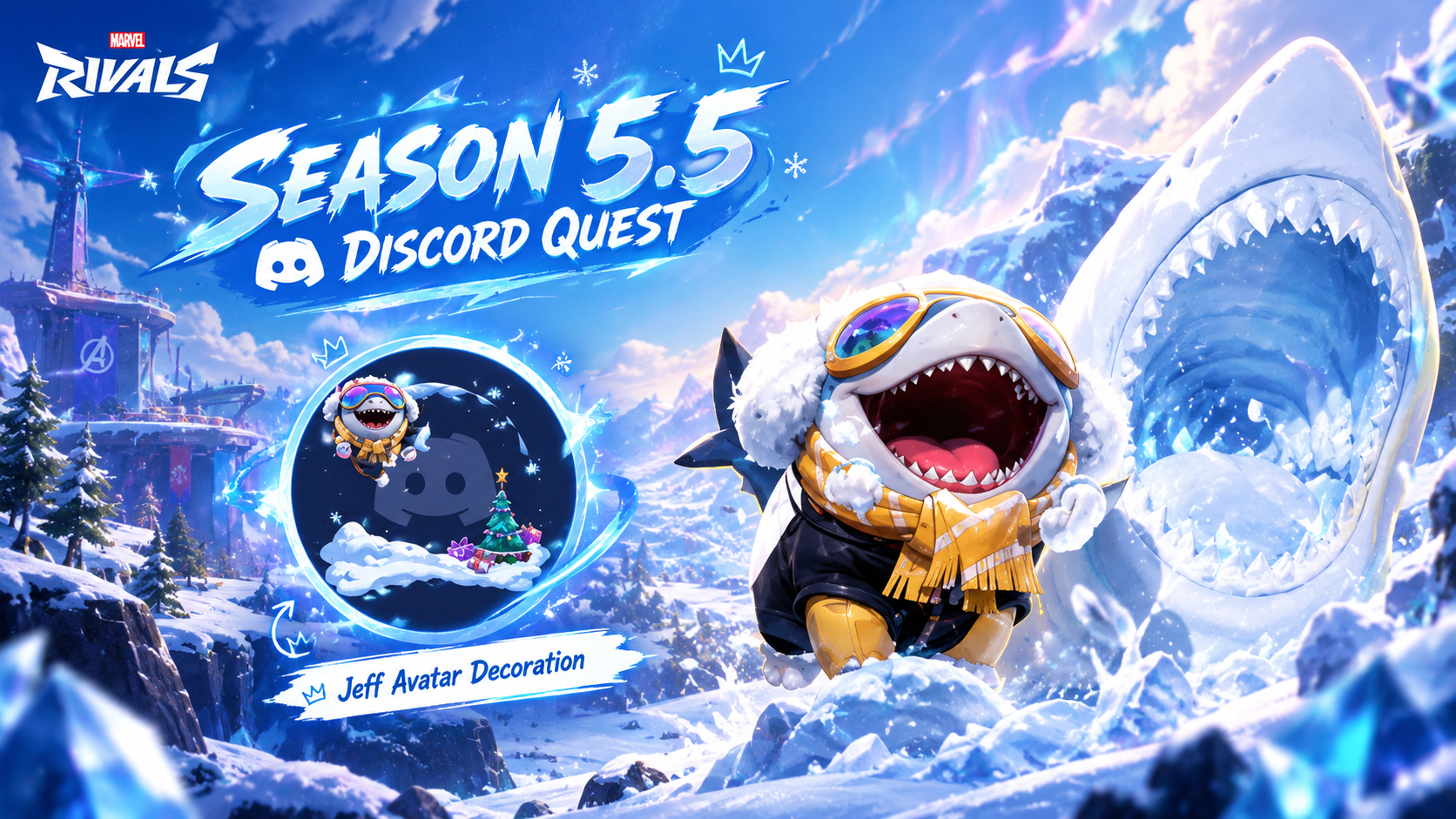

The Marvel Rivals Discord Quest: How to Unlock the Jeff Avatar Decoration
Jeff the Land Shark has become one of the most recognisable faces in Marvel Rivals. The little blue shark brings a playful energy to the battlefield, and his popularity makes a Jeff-themed Discord avatar decoration an appealing addition to any gaming profile.
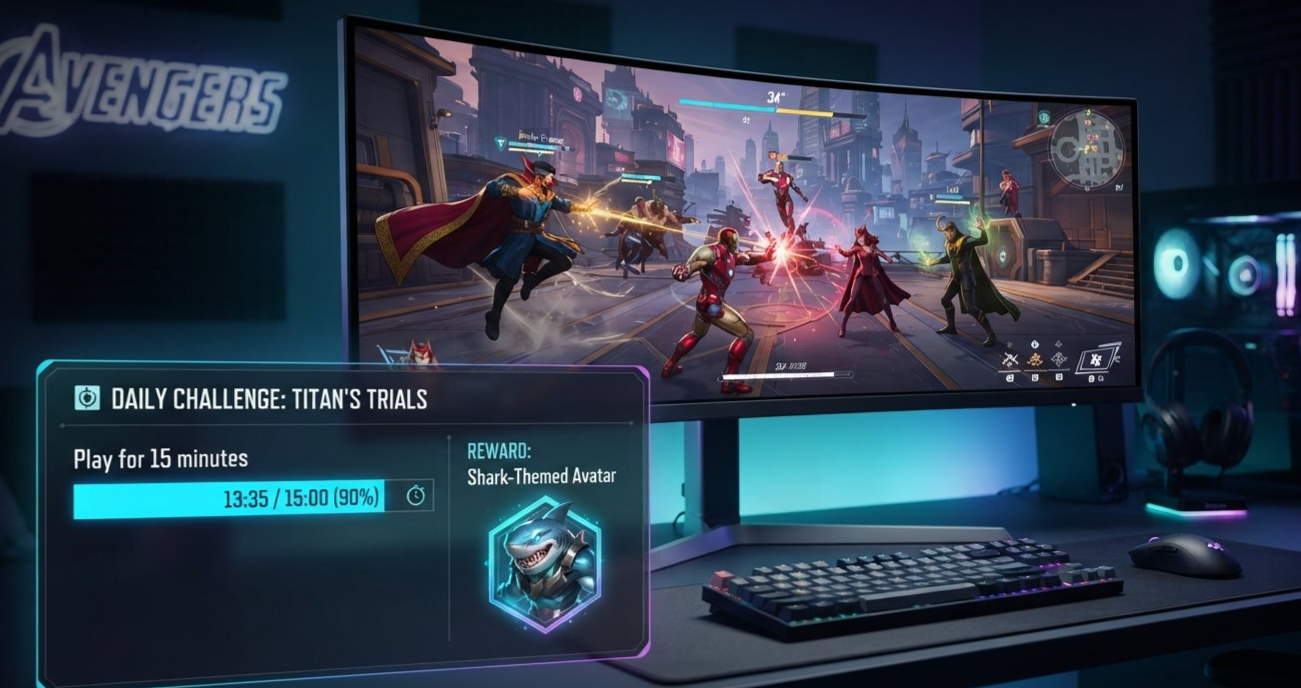
Discord Quests give players a way to earn selected rewards by completing activities such as playing a promoted game for a set amount of time. For an eligible Marvel Rivals Quest, the requirement can be as simple as playing for 15 minutes while the Discord desktop client is open and tracking your progress.
There is one important catch: Discord Quests are time-limited promotions. The Jeff Avatar Decoration may not be available to claim all the time, and an older Quest link or screenshot does not guarantee that the reward is still active. Before starting, check whether the Jeff reward appears in your own Discord Quest list.
This guide explains how to find the Quest, complete the 15-minute gameplay requirement, claim the reward, and equip the decoration on your profile.
1. What Is the Jeff Avatar Decoration?
The Jeff Avatar Decoration is a profile-customisation reward associated with Marvel Rivals and Discord's Quest promotions. Avatar decorations add a visual frame or themed effect around your Discord profile picture, letting you personalise how your avatar appears around the platform.
The idea behind a game Quest is straightforward: Discord promotes a game, the player completes the listed activity, and the player receives the specified reward after claiming it.
For eligible play-based Quests, that activity can involve launching a supported game and playing for a defined period. A 15-minute requirement is short enough that players can usually complete it in one session, provided the Quest is available and tracking correctly.
The decoration is a cosmetic reward. It does not unlock a character, skin, ability, or gameplay advantage in Marvel Rivals itself.
It is also worth checking the reward's duration. Discord says Quest avatar decorations are normally available for a limited period, while eligible Nitro subscribers may receive extended access to certain decorations. The exact rules depend on the specific reward.
Official reference: Discord Avatar Decorations FAQ
2. Is the Marvel Rivals Jeff Quest Still Available?
Before spending time in the game, check Discord for the actual Quest.
Discord promotions have specific acceptance and completion windows. Once a Quest expires or is removed, players generally cannot accept it or claim its reward through that expired promotion. A reward previously offered by a Marvel Rivals campaign may therefore be unavailable even if old guides still describe the steps.
Here is how to check:
Open the official Discord desktop app or browser client.
Sign in to the account where you want the decoration.
Open the Discover area and select Quests. Depending on your interface, you may also see a Quest bar or promotion card.
Look for the Marvel Rivals Quest and open its details.
Confirm that the reward is the Jeff Avatar Decoration, if that is the item you want.
Check the deadline, eligible platform, and gameplay requirement before accepting.
If the Jeff Quest is listed, follow the exact instructions shown there. If it is missing, the campaign may have ended, may not be available to your account or region, or may have been replaced by a different promotion.
Do not assume that a different Marvel Rivals Quest offers the same decoration. Always verify the reward shown on the Quest card.
For current instructions, visit the official Discord Quests FAQ.
3. What You Need Before Starting
A few quick checks can help you avoid completing the wrong activity or missing your progress.
Discord desktop client
For play-time Quests, Discord says you must be logged in to the desktop app to track gameplay time. Keeping the desktop client open while playing is the safest approach when the Quest specifically requires it.
Marvel Rivals installed
Install and update Marvel Rivals through its supported game launcher or platform. Make sure the game can launch properly before accepting a timed Quest.
An eligible Quest on your account
The Jeff reward must appear in an active Quest with a valid completion window. The requirements shown in the Quest itself take priority over older screenshots or guides.
Enough time to complete the activity
If your Quest says to play for 15 minutes, allow at least that much active play time. Starting the game and leaving it idle may not count as completing the intended activity.
The correct Discord account
Make sure the Discord account tracking the Quest is the same account on which you want to claim and equip the decoration.
Quick checklist
Discord desktop client installed and running
Correct Discord account signed in
Marvel Rivals installed and launching successfully
Jeff Avatar Decoration Quest visible and available
Quest accepted, if the interface requires it
Reward and deadline checked
4. How to Complete the 15-Minute Quest
If the Jeff Quest is currently available to your account and its instructions specify 15 minutes of gameplay, follow these steps.
Step 1: Open Discord first
Launch the Discord desktop client and sign in. Keep it running while you complete the Quest.
If Discord shows a Quest bar or a notification for Marvel Rivals, open it and read the requirements. You can also visit Discover and select Quests.
Step 2: Accept the Quest
Select the Marvel Rivals Quest and choose the option to accept it, if prompted.
Before continuing, verify that the reward matches the Jeff Avatar Decoration. Read any instructions about supported platforms or game tracking.
Step 3: Launch Marvel Rivals
Start Marvel Rivals using the supported launcher or platform specified by the Quest.
Keep Discord open in the background. Do not close the desktop client during the timed activity, because Discord needs to be able to track the Quest.
Step 4: Play for 15 minutes
Complete at least 15 minutes of gameplay if that is the requirement shown on your active Quest.
For the best chance of accurate tracking:
Play normally instead of leaving the game idle.
Keep Discord running.
Avoid switching to another Discord account.
Check the Quest's progress indicator if one is available.
Allow a little extra time if the counter updates slowly.
The exact tracking behaviour depends on the Quest. Follow any additional instructions displayed on its card.
Step 5: Check your progress
After the required gameplay, return to Discord and open the Quest card again.
If the progress bar has reached completion, look for the Claim Reward button. If it has not updated, do not immediately assume the Quest has failed. Give it a moment, check that Discord is still running, and restart the app if necessary.
5. How to Claim the Jeff Reward
Finishing the gameplay requirement is only part of the process. You may still need to claim the reward manually.
Once the Quest shows that you have completed the required activity:
Return to Discord.
Open the Quest bar or navigate to Discover and select Quests.
Find the completed Marvel Rivals Quest.
Select Claim Reward.
Wait for Discord to confirm the reward has been claimed.
Open your profile settings to check whether the decoration is available.
Discord's official Quest instructions explain that Discord-specific rewards, including avatar decorations, are added to your account after you claim them.
If the Quest provides a different reward, such as an in-game code, follow the redemption instructions shown on that Quest instead. Do not assume every game promotion uses the same claim process.
If the Jeff decoration does not appear immediately, restart Discord and check your profile's decoration selection menu again.
Official reference: Discord Quests FAQ: Claiming Your Quest Rewards
6. How to Equip the Decoration
After claiming the reward, you can check your profile settings to see whether the decoration is ready to use.
On desktop
Open Discord.
Select the User Settings gear icon.
Open Profiles.
Select Change Decorations.
Look under Your Decorations for the Jeff reward.
Select it to preview how it looks around your avatar.
Choose Apply, then select Save Changes if prompted.
On mobile
Open Discord and tap your avatar to access your profile or settings.
Select Edit Profile.
Open Avatar Decoration or the decoration selection option.
Look for the claimed Jeff decoration.
Select it and save your changes if the interface asks you to.
The mobile interface can differ from desktop, and some Quest features have limited mobile support. If you cannot find the reward or Quest controls on mobile, check from the desktop app.
Does the decoration last forever?
Do not assume that every Quest decoration is permanent. Discord states that Quest avatar decorations are normally available for two months, while eligible Nitro subscribers can receive extended access to certain rewards. Not every decoration qualifies for that benefit, so check the reward's own expiration information.
Official reference: Discord Nitro Quest Perk
7. Troubleshooting Missing Quest Progress
If you played for 15 minutes but the Quest still shows incomplete, check the following.
Discord was closed
The desktop client needs to be running to track play-time Quests. Reopen Discord and make sure you are signed in to the correct account before trying again.
The Quest was never accepted
Some promotions require you to accept the Quest before beginning the activity. Return to Discover > Quests and check whether the Quest is active.
The timer has not updated
Quest progress may not appear instantly. Restart the Discord app, check for updates, and reopen the Quest panel. Discord recommends restarting and updating the app when progress does not refresh.
You are using an unsupported setup
Quest availability and tracking can vary by platform. Discord's current FAQ notes that Quest rewards cannot currently be earned on Linux. Check the supported-platform instructions on your Quest and use a supported operating system if needed.
The promotion expired
A completed activity cannot normally be used to claim a reward from a Quest that is no longer available. Confirm the campaign's deadline before trying again.
The reward was claimed but is missing
Open User Settings > Profiles > Change Decorations and inspect Your Decorations. Restart Discord if necessary. If the reward still does not appear, consult Discord Support rather than using a third-party reward website.
8. Frequently Asked Questions
How long do I need to play Marvel Rivals?
For the Quest described in this guide, the requirement is 15 minutes. Always check the active Quest card because different Marvel Rivals promotions can have different tasks.
Do I need to keep Discord open while playing?
Yes, when the Quest is a play-time Quest that requires Discord desktop tracking. Keep the desktop client running and signed in during the activity.
Can I still claim the Jeff Avatar Decoration if the Quest is gone?
Usually not through an expired Quest. Discord Quests have specific acceptance and completion windows. Check the current Quest list to see whether the Jeff reward is available again.
Is the Jeff decoration a Marvel Rivals in-game item?
No. The decoration described here is a Discord profile cosmetic, not a Marvel Rivals character skin or gameplay unlock.
Why did my 15 minutes not count?
Possible reasons include Discord being closed, the Quest not being accepted, unsupported platform settings, or progress not refreshing yet. Reopen Discord, check the Quest instructions, and restart the client if needed.
Where can I find the claimed decoration?
On desktop, go to User Settings > Profiles > Change Decorations. On mobile, open your profile editor and look for Avatar Decoration.
Is the decoration permanent?
Not necessarily. Quest decorations are generally time-limited, although certain decorations may receive extended access for eligible Nitro subscribers. Check the specific reward's expiration details.
Can I get the decoration from a third-party website?
Use the official Discord Quest interface. Be cautious of sites asking for your password, account token, QR-code login, or an unknown download in exchange for a supposedly free decoration.
Final Thoughts
The Marvel Rivals Discord Quest is a quick way to earn a themed profile cosmetic when the right promotion is available. If the Jeff Avatar Decoration appears in your active Quest list, accept it, keep Discord desktop running, play Marvel Rivals for the required 15 minutes, and return to Discord to claim the reward.
After claiming it, open your profile's decoration settings to equip it. If the Quest is missing, the promotion may have ended or may not be available to your account, so verify availability before spending time trying to complete it.
The key is simple: check the reward first, complete the listed activity with Discord open, and claim the item through Discord itself.

Comments
Sign in to join the conversation
Sign inNo comments yet
Be the first to share your thoughts!