
Stage Channels Just Got Better: Mastering Picture-in-Picture and Text Chat
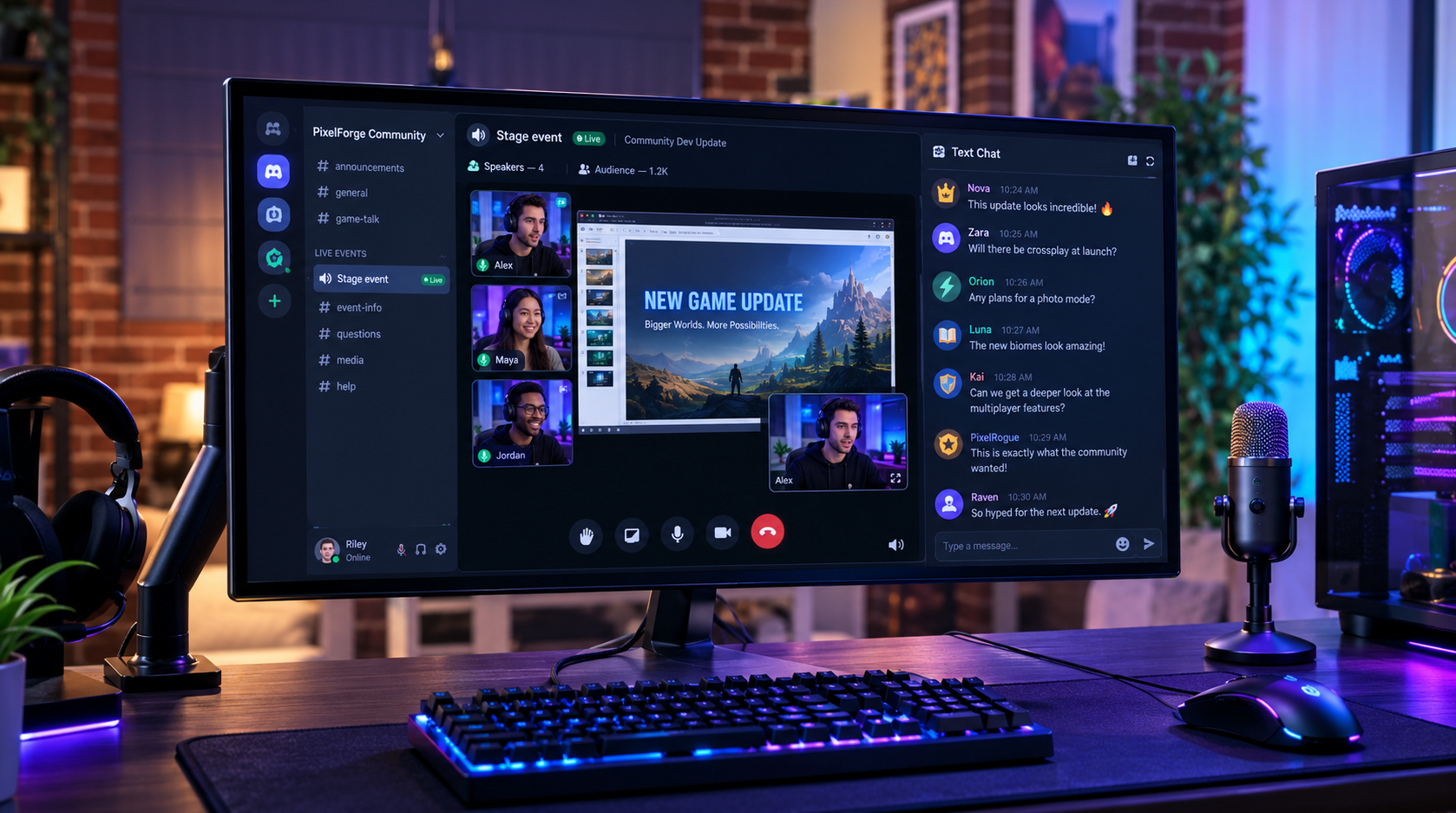
Discord Stage Channels are becoming more practical for anyone who enjoys live community events, creator discussions, gaming announcements, and interactive AMAs. With its October 6, 2026 patch notes, Discord confirmed a small but useful improvement: users can now use Picture-in-Picture and Text-in-Voice simultaneously in Stage Channels.
It addresses a familiar annoyance. You want to keep watching a live presentation, but you also want to react to a surprising announcement, answer a question, or follow the audience conversation. Previously, switching between the stream and chat could interrupt that experience. Now, the two features can work together.
The change might look minor on a patch-notes list, but for active communities, it can make live events feel more connected and less awkward to follow.
Official announcement: Discord Patch Notes: October 6, 2026
What Changed in Discord Stage Channels?
Discord’s October 6 patch notes confirm support for Picture-in-Picture and Text-in-Voice at the same time in Stage Channels.
Picture-in-Picture, commonly called PiP, keeps a video or stream visible in a smaller floating window while you navigate other parts of the app. Text-in-Voice provides a text conversation space associated with a voice channel or event, allowing participants to share messages, links, reactions, and other content without relying entirely on spoken conversation.
The new improvement brings these two capabilities together for Stage Channels.
Instead of treating the video and audience conversation as competing activities, users can now keep the visual presentation available while participating in text chat. That is especially useful when an event is moving quickly and important details appear in both places.
Why This Update Matters
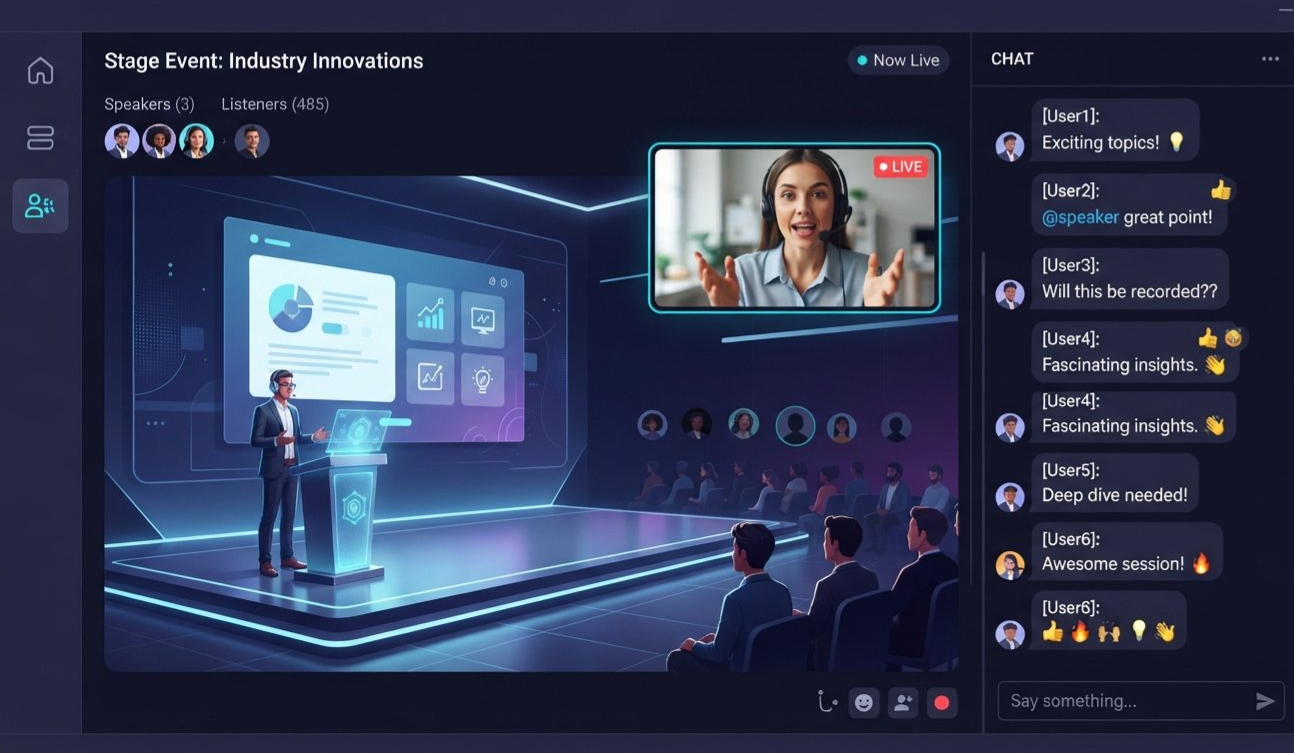
Live community events are rarely just about watching a video. The audience may be discussing a reveal, sharing links, asking questions, or reacting to something a speaker has just said.
When the viewing experience and chat compete for attention, users can miss part of the presentation or lose track of the conversation. Keeping both available reduces that friction.
1. Watch without losing the conversation
Imagine a developer hosting a live game update in a Stage Channel. The presenter reveals a new feature, and the chat immediately fills with questions.
With Picture-in-Picture and Text-in-Voice working together, a participant can keep the video visible while reading or contributing to the discussion. They do not have to abandon the presentation just to check what the community is saying.
2. Follow events while browsing Discord
Picture-in-Picture is useful when you need to move around the app during an event. You might want to check another channel, look up a link, or review information shared by a moderator.
A smaller video window helps keep the presentation in view while you navigate. The simultaneous chat support makes this workflow more useful for people who want to remain active rather than simply listen in the background.
3. Make participation easier for quieter members
Not everyone wants to request the microphone or speak in front of a large audience. Text chat gives those members another way to participate.
A viewer can follow the speaker and add a question or reaction through chat, depending on the event's permissions. That creates more opportunities for participation without requiring every audience member to speak.
4. Keep up with fast-moving announcements
For game launches, community town halls, creator Q&As, and live patch discussions, information can arrive quickly. The presenter may explain a feature while the audience shares timestamps, links, and follow-up questions.
Keeping video and chat accessible together makes it easier to follow both sides of the event.
How Picture-in-Picture and Text-in-Voice Work Together
The two features have different jobs, and understanding that distinction makes the new workflow easier to use.
| Feature | What it does | Best use |
|---|---|---|
| Picture-in-Picture | Keeps video visible in a smaller floating window | Following a presentation while navigating Discord |
| Text-in-Voice | Provides a text conversation associated with a voice experience | Sharing reactions, links, and questions |
| Stage Channels | Organize a live event around selected speakers and an audience | AMAs, interviews, announcements, panels, and community meetings |
| Combined experience | Lets users keep PiP and Text-in-Voice active together in Stage Channels | Watching and participating without repeatedly switching focus |
The key point is that the update combines two existing capabilities. It does not turn every Stage Channel into a full video conference, nor does it remove the distinction between speakers and audience members.
Stage Channels remain designed for organized conversations in which a smaller group can speak to a larger audience.
For more background, see Discord's official guide: Introducing Video, Screen Share, and Text Chat Support for Stage Channels.
How to Get the Most Out of the New Experience
The exact interface can vary by device and Discord client version, so use these steps as a practical workflow rather than assuming every button appears in precisely the same place.
Step 1: Join a Stage Channel
Open a Discord server that hosts a Stage Channel and join the event as an audience member or speaker, depending on your role.
Stage Channels are available to servers with the Community feature enabled. If you manage a server, check your server configuration before planning an event around this feature.
Step 2: Start watching the presentation
If the Stage includes video or screen sharing, open the content you want to follow. For a live presentation, keep the main stream visible while the event is underway.
Step 3: Use Picture-in-Picture when you need more room
When the client offers a Picture-in-Picture option for the active Stage content, use it to keep the video visible in a smaller window while moving around Discord.
The available controls and exact behavior may differ between desktop and mobile, so check the controls provided by your current client.
Step 4: Open the Stage's text chat
Open the text chat associated with the Stage Channel. Use it to follow audience questions, post relevant links, or react to what the speakers are discussing, subject to the channel's permissions.
Step 5: Keep both available
The new update allows Picture-in-Picture and Text-in-Voice to be used simultaneously in Stage Channels. Once both are active, you can continue watching while following the text conversation rather than repeatedly switching between the two.
The Best Use Cases for Stage Channel PiP and Chat
This update is especially useful when the visual presentation and the audience conversation both matter.
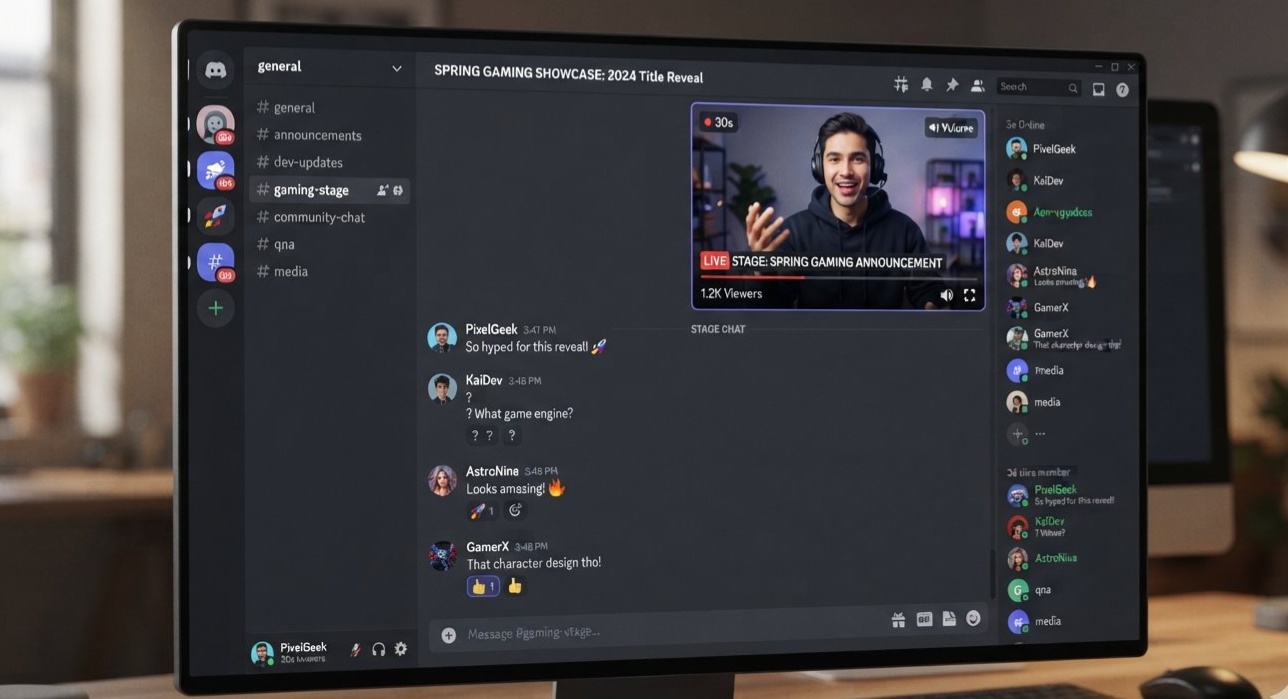
Gaming announcements and developer updates
Developers can reveal gameplay, explain a patch, or discuss upcoming features while the audience reacts in text. Viewers can keep the presentation visible and follow the discussion without constantly switching their attention.
Creator AMAs and interviews
An audience may have dozens of questions during a creator Q&A. Text chat can collect questions and reactions while the creator continues speaking. Moderators can then help organize the discussion and select questions for the speakers.
Community town halls
Server owners often use Stage Channels to explain rule changes, announce new projects, or answer community concerns. Members can follow the presentation and contribute in text, making it easier to include people who prefer not to speak publicly.
Watch parties and live reactions
When a community gathers around a presentation, trailer, or game reveal, the audience's reactions are part of the fun. Keeping the video and chat available together helps preserve that shared experience.
Learning sessions and tutorials
For educational communities, a presenter might demonstrate a tool while participants ask for clarification or share useful resources. The combined experience helps learners stay oriented without losing the discussion.
Image placement: After the use-case list
Image prompt: Design a cinematic 16:9 editorial illustration showing four connected community event scenes in one cohesive composition: a game developer presentation, a creator Q&A, a community town hall, and a learning session. Each scene should suggest a live presenter, an audience, and a compact floating video window paired with text conversation. Use realistic screens, subtle blue-violet lighting, professional visual storytelling, and balanced composition. Avoid logos, watermarks, and legible fake text.
Alt text: Examples of Stage Channels being used for gaming announcements, creator Q&As, town halls, and learning sessions.
Caption: The combined viewing and chat experience can support a range of live community formats.
What Server Owners and Moderators Should Know
The update is useful for viewers, but event organizers can also make the experience better with a little planning.
Keep chat focused on the event
Create clear expectations before the presentation begins. Encourage members to use the Stage's text chat for relevant questions, links, and reactions rather than sending unrelated messages that bury useful information.
Assign moderation responsibilities
For a large event, consider having one moderator focus on the text conversation while another manages speakers and audience requests. This makes it easier to surface relevant questions without interrupting the presenter.
Explain how audience members can participate
At the start of the event, tell viewers where to post questions and whether they can request to speak. Some attendees will prefer to participate through text, while others may want to join the speaker group.
Test the setup beforehand
Before hosting a major announcement, test the Stage on the devices your community commonly uses. Confirm that the stream, chat, and event permissions work as expected, and make sure moderators understand the interface.
Do not assume every viewer has the same layout
Picture-in-Picture behavior and controls may differ between desktop and mobile clients. Keep instructions simple, and avoid making PiP a requirement for following the event.
These steps are good event-management practices, not additional features introduced by the October update.
Does This Replace Traditional Voice Channels?
No. Stage Channels and standard Voice Channels serve different purposes.
A standard Voice Channel is generally suited to open, conversational interaction among participants. Stage Channels are designed for events where selected speakers address an audience, with moderators helping manage who can speak.
The Picture-in-Picture and Text-in-Voice improvement makes the Stage experience more convenient, but it does not change that fundamental distinction.
If your community is hosting a casual gaming session where everyone needs to jump into the conversation, a standard Voice Channel may still be the better choice. If you are hosting an interview, announcement, or organized panel, a Stage Channel offers a more structured format.
Discord's guide explains the original Stage video and text capabilities in more detail: Introducing Video, Screen Share, and Text Chat Support for Stage Channels.
What the Update Does Not Mean
It is worth separating the confirmed improvement from assumptions about how it works.
It does not mean every Stage event must include video. Stage Channels can still be used for audio-focused events.
It does not mean every audience member automatically becomes a speaker. Stage permissions and moderation still matter.
It does not guarantee that the interface looks identical on every platform. Client version and device can affect the controls available.
It does not mean Discord has announced a completely new streaming system. The October 6 patch notes specifically confirm simultaneous Picture-in-Picture and Text-in-Voice support for Stage Channels.
The last point is important: this is a focused quality-of-life improvement, not a complete redesign of Discord's live event experience.
Frequently Asked Questions
What is new in Discord Stage Channels?
Discord's October 6, 2026 patch notes confirm that Picture-in-Picture and Text-in-Voice can now be used simultaneously in Stage Channels.
What is Picture-in-Picture?
Picture-in-Picture, or PiP, displays video in a smaller floating window so users can keep watching while navigating other parts of an app.
What is Text-in-Voice?
Text-in-Voice provides a text conversation associated with a voice experience, letting participants communicate through messages and shared content instead of relying entirely on spoken conversation.
Can I watch a Stage stream and chat at the same time?
Yes. Discord's October 6, 2026 patch notes confirm simultaneous Picture-in-Picture and Text-in-Voice support for Stage Channels.
Is this useful for community AMAs?
Yes. It can help attendees keep the presenter visible while following questions and reactions in the text conversation. Moderators should still organize questions and manage speaking requests.
Do Stage Channels require a Community server?
Yes. Discord's official Stage Channel guidance states that the server needs the Community feature enabled to use Stage Channels.
Is the new experience identical on desktop and mobile?
Discord's patch note confirms the simultaneous feature support but does not detail identical controls for every device. The available interface may vary, so check your current client.
Final Verdict: A Small Change That Makes Live Events Feel Better
Discord Stage Channels already provide a structured way to bring speakers and audiences together. The ability to use Picture-in-Picture and Text-in-Voice simultaneously makes that experience more flexible by allowing viewers to keep watching while remaining part of the conversation.
For gaming communities, creator AMAs, developer presentations, and server town halls, that means fewer interruptions and a more natural way to participate. It is not a dramatic redesign, but it addresses a practical frustration that can affect the flow of a live event.
If your server regularly hosts presentations or community discussions, this is a useful improvement to try at your next Stage event.
Official sources
Comments
Sign in to join the conversation
Sign inNo comments yet
Be the first to share your thoughts!