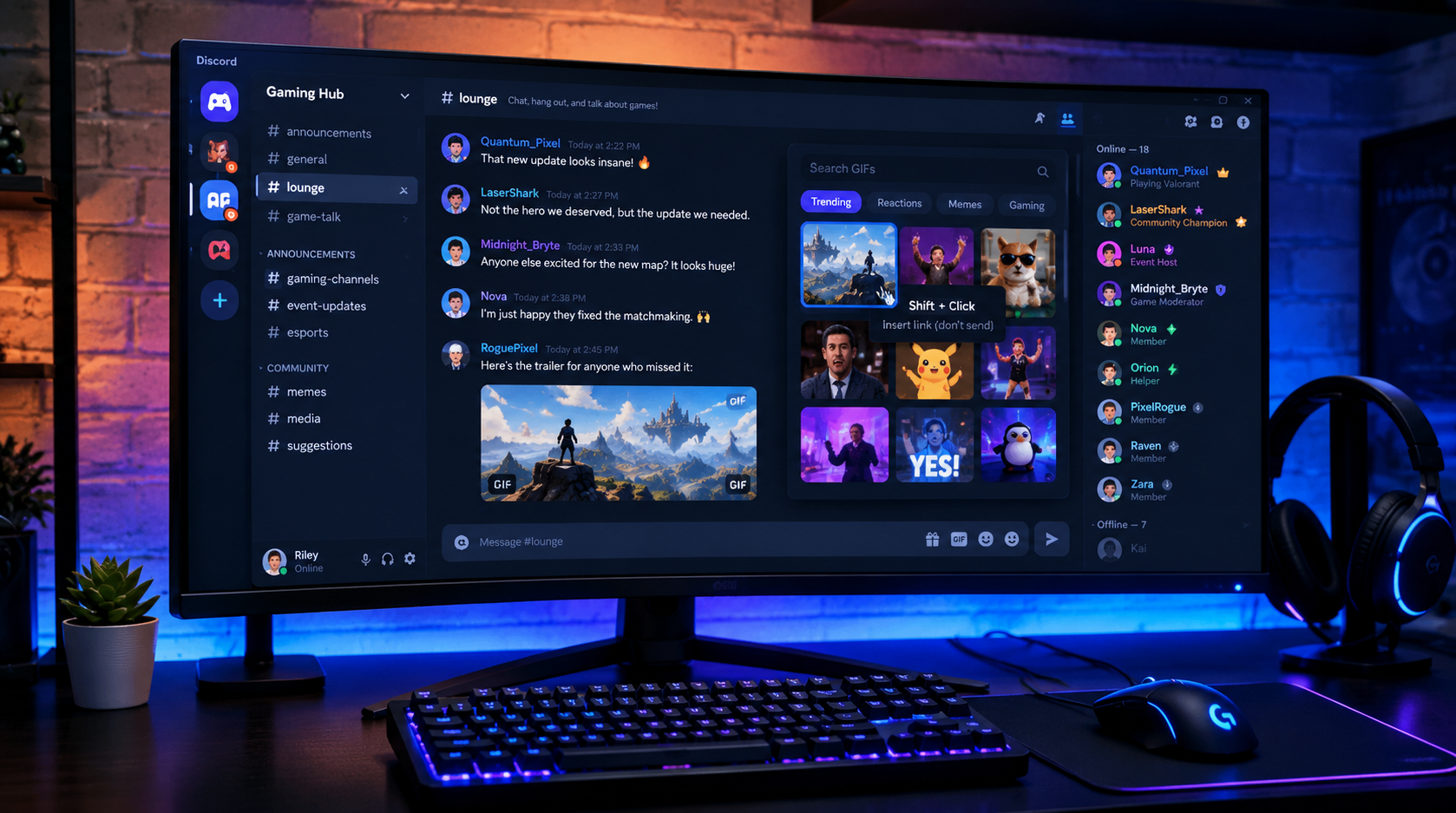

The New GIF Meta: Why Shift-Clicking Is Changing Server Announcements
The Discord GIF Picker has received a small but genuinely useful quality-of-life improvement. In its October 6, 2026 patch notes, Discord confirmed that Shift-clicking a GIF now inserts its URL into the message composer without sending the message immediately. The GIF is embedded when the message is eventually sent.
For everyday users, this means more control over how GIFs appear in conversations. For community managers, server moderators, and announcement writers, it solves a familiar problem: finding the perfect reaction GIF should not mean sending an unfinished message before the rest of the announcement is ready.
The update is not a new GIF library or a redesign of Discord's chat interface. It is a small change to an existing interaction, but one that makes preparing a message more deliberate.
Official source: Discord Patch Notes: October 6, 2026
What Changed in the Discord GIF Picker?
Previously, selecting a GIF from Discord's GIF Picker could send it straight into the conversation. That behavior works well when you simply want to share a reaction, but it is less convenient when you are composing a longer message and want the GIF to appear alongside your text.
The new Shift-click shortcut changes that workflow.
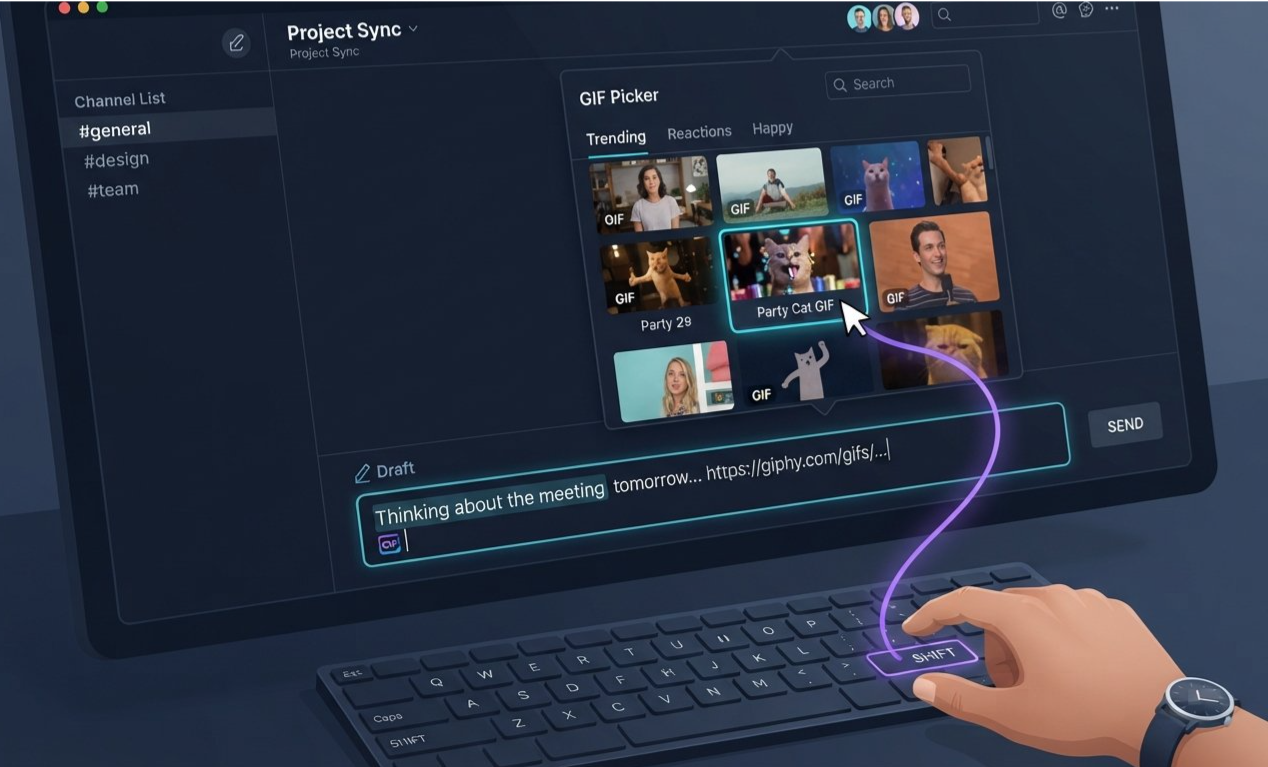
Instead of immediately sending the selected GIF, holding Shift while clicking it inserts the GIF's URL into the message box. Discord embeds the GIF when you send the completed message.
This gives users the opportunity to write their text, add a GIF, review the message, and send everything when it is ready.
The important distinction is that Shift-click inserts the GIF into the draft; it does not automatically publish the message. Discord also notes that users can right-click a GIF in the picker to copy its link if they prefer that method.
The old workflow versus the new workflow
| Action | What happens |
|---|---|
| Normal GIF selection | Select a GIF using the standard picker behavior |
| Shift-click a GIF | Insert its URL into the message composer without immediately sending the message |
| Right-click a GIF | Copy its link for manual sharing |
| Send the finished draft | Discord embeds the GIF as part of the sent message |
This is a focused improvement to message composition, not a change to how server permissions or announcement channels work.
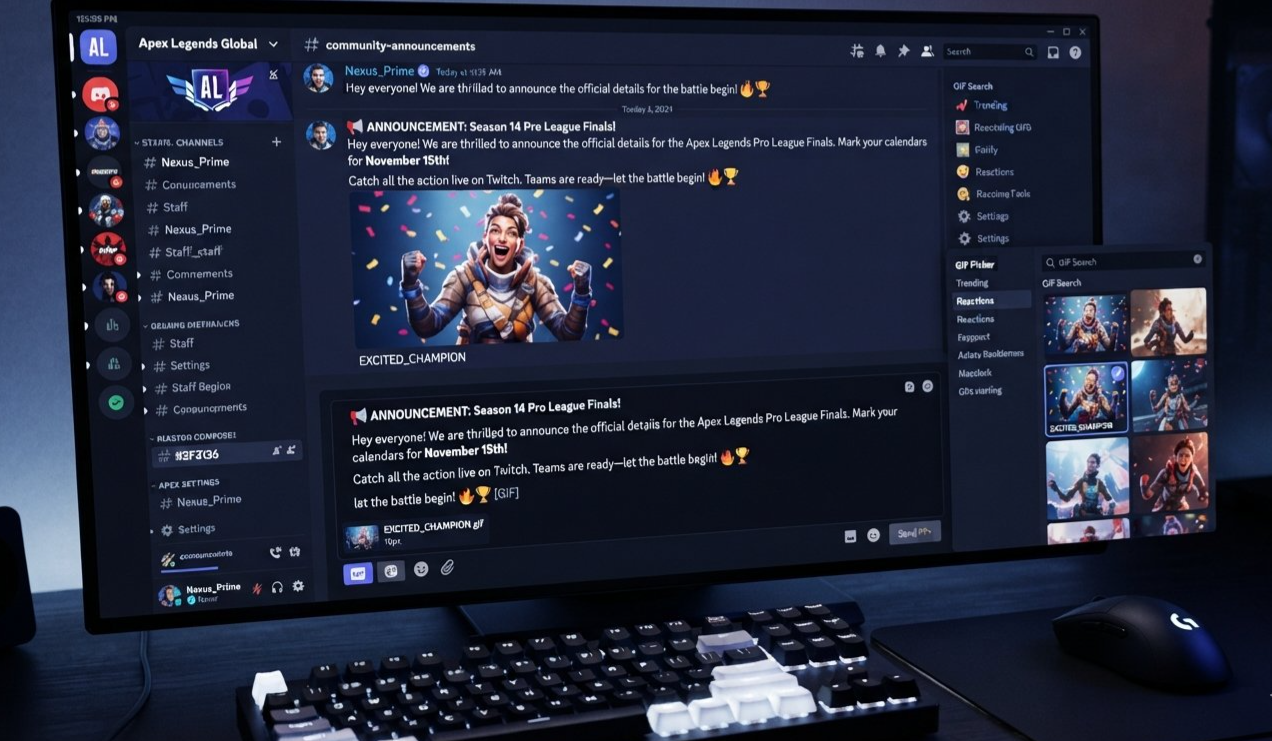
Why This Matters for Server Announcements
A GIF can make an announcement more engaging. It can celebrate a milestone, introduce a new event, build excitement for a launch, or give a community update a more personal tone.
The problem is timing.
When a GIF is sent before its accompanying text, the audience may see a reaction without understanding what it refers to. The writer then has to send a second message to explain the context. In a busy server, that can split the announcement across multiple posts and make it harder to follow.
The new shortcut gives writers more control over that sequence.
1. Keep the message and GIF together
Imagine a gaming community announcing a weekend tournament. The manager wants to include the registration deadline, the event schedule, and a celebratory GIF.
With Shift-click, the manager can insert the GIF into the draft, finish the text, check the details, and send the message once it is ready. The visual and the announcement can arrive together instead of appearing as separate messages.
2. Reduce accidental early sends
A GIF that goes out before the text can create confusion, especially in announcement channels where members expect information to be clear and intentional.
The new workflow gives the writer a chance to review the message before sending it. It does not prevent every mistake, but it removes one common source of premature posting.
3. Make announcements feel more intentional
A well-chosen GIF can reinforce the tone of a message. A celebratory animation fits a milestone announcement, while a subtle reaction can help introduce a lighthearted community update.
Being able to prepare the whole message first makes it easier to choose a GIF that supports the announcement rather than distracting from it.
4. Avoid unnecessary follow-up messages
When a GIF is sent separately from its context, the writer may need to post the explanation afterward. Preparing the GIF and text in one draft can keep the announcement more compact and easier to read.
This is particularly useful in active servers where important posts can quickly disappear beneath new conversations.
How to Use Shift-Clicking in Discord
The shortcut is straightforward. The following workflow is useful for both regular conversations and carefully prepared community posts.
Step 1: Open the channel where you want to post
Navigate to the appropriate text channel. If you are preparing an official announcement, double-check that you are in the correct channel and that you have permission to post there.
Step 2: Start writing your message
Type the announcement or conversation text into the message composer. Include the important information first, such as the event date, registration link, deadline, or community update.
For example:
Weekend Community Tournament
Registration is now open for Saturday's tournament. Sign-ups close Friday at 8 PM, and the full match schedule will be posted tomorrow.
Step 3: Open the GIF Picker
Use the GIF button beside the message composer and search for an animation that matches the tone of your message.
Choose something that reinforces the announcement rather than competing with its information.
Step 4: Hold Shift and click the GIF
Instead of selecting the GIF normally, hold the Shift key while clicking the GIF you want to use.
Discord's October 6 patch notes state that this inserts the GIF URL into the message composer without immediately sending the message.
Step 5: Review the draft
Check that your text is complete, the GIF is appropriate, and any links or dates are correct. Remember that the shortcut gives you more control over the draft, but it does not automatically proofread your announcement.
Step 6: Send when you are ready
Once the message looks right, send it normally. Discord embeds the GIF when the message is sent.
Five Ways Community Managers Can Use the Shortcut
The value of this change becomes clearer when you look at the types of messages that community teams post every week.
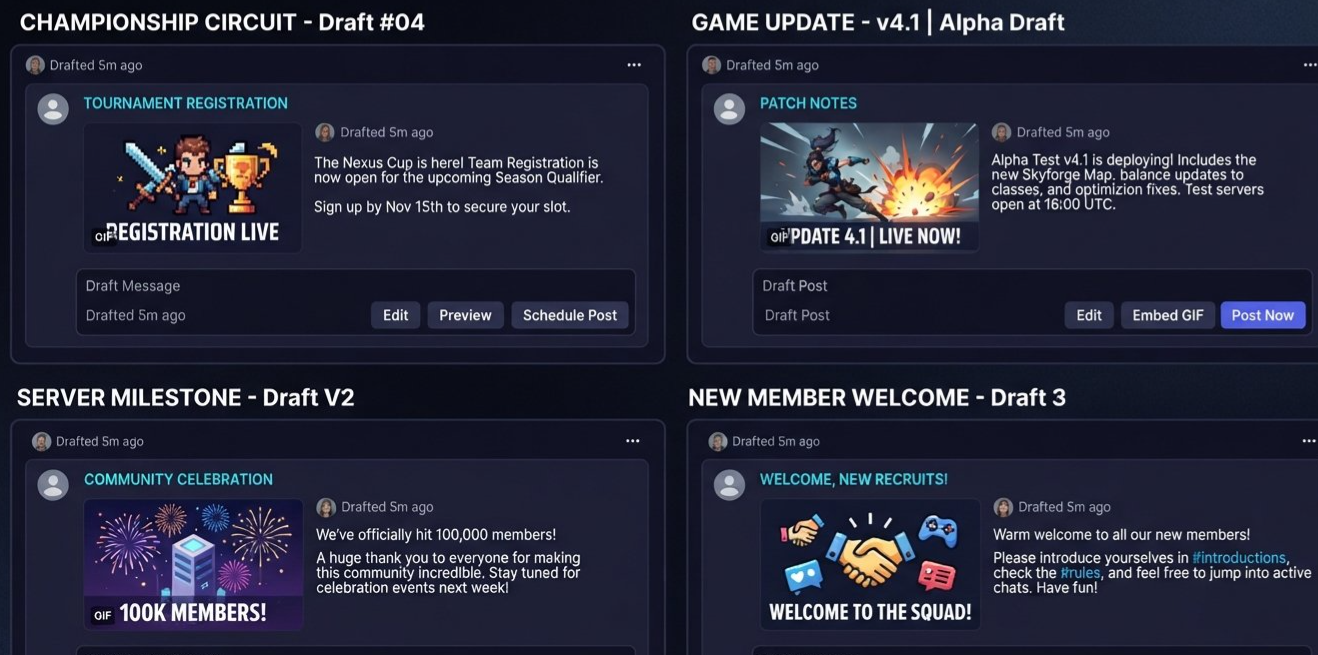
1. Tournament announcements
Use a GIF to build excitement around registration opening, a match schedule, or the announcement of a tournament winner. Compose the key details first so the visual does not arrive without context.
2. Patch notes and game updates
A reaction GIF can make a long update feel more approachable. Keep the important details in the message, then use the GIF as a supporting visual rather than a substitute for the information.
3. Server milestones
Celebrating a member milestone, a new server level, or a community anniversary is a natural place for an animated reaction. Preparing the full message before sending helps keep the celebration in one post.
4. Event reminders
A short reminder paired with an appropriate GIF can catch attention without requiring a separate reaction post. Make sure the date, time zone, and event link are clear before sending.
5. Welcome and onboarding messages
Some communities use GIFs to make welcome messages feel less formal. With the draft-first workflow, moderators can prepare a consistent greeting and add a visual that matches the server's culture.
A Better Workflow for Polished Community Posts
Shift-clicking is only one part of preparing a strong announcement. Community managers can use the extra control to improve the whole publishing process.
Write for clarity first
Start with the information members actually need. If you are announcing an event, include the date, time zone, location or channel, and any registration requirements. A GIF should support the message rather than force readers to search for its meaning.
Match the GIF to the tone
A celebratory GIF is appropriate for a milestone, while a humorous reaction may fit a casual update. For serious moderation notices or rule changes, a GIF may be unnecessary.
Check links and dates before sending
A draft gives you an opportunity to review details, but it does not guarantee that the final message is correct. Check event links, deadlines, mentions, and channel destinations before you publish.
Consider accessibility
GIFs can be distracting for some members, especially when they contain rapid flashing or repetitive motion. Prefer animations that are easy to interpret, and avoid relying on the GIF alone to communicate essential information.
Keep important announcements easy to scan
Use short paragraphs, meaningful headings where supported, and a clear call to action. The GIF should add personality without making the message harder to read.
What the Update Does Not Change
It is useful to separate the confirmed behavior from assumptions about the feature.
It does not automatically send the draft. The point of Shift-clicking is to insert the GIF URL without sending the message immediately.
It does not replace normal GIF selection. It adds an alternative interaction for users who want to compose their message first.
It does not change channel permissions. Whether you can post in a channel still depends on the server's permissions and configuration.
It does not guarantee perfect formatting. You should still review your text, links, and GIF choice before sending.
It is not an announcement-only feature. The shortcut applies to message composition, so its usefulness extends beyond official server announcements.
Discord's patch notes also explain that users can right-click a GIF in the picker to copy its link if they prefer to share it manually.
Frequently Asked Questions
What does Shift-clicking a GIF do in Discord?
It inserts the GIF's URL into the message composer without sending the message immediately. Discord embeds the GIF when you send the completed message.
When was this Discord GIF Picker update announced?
Discord included the shortcut in its official patch notes dated October 6, 2026.
Can I add text before sending the GIF?
Yes. The shortcut is designed to put the GIF URL into the message composer, allowing you to prepare the message before sending it.
Can server managers use this for announcements?
Yes. It is useful when preparing announcements, event reminders, tournament posts, and other messages where the text and GIF should arrive together.
Does Shift-clicking publish the announcement automatically?
No. The GIF URL is inserted into the draft rather than immediately sending the message. You send the completed message using Discord's normal send action.
Is there another way to share a GIF link?
Yes. Discord's October 6 patch notes say you can right-click a GIF in the GIF Picker to copy its link and then share it manually.
Is this a new GIF library?
No. It is a change to how a GIF is inserted from the existing picker, rather than a new library of animations.
Final Verdict: A Small Shortcut With Real Everyday Value
The Discord GIF Picker update is a good example of a small interface change that makes a familiar task more flexible. By allowing users to Shift-click a GIF and insert its URL into an unsent draft, Discord gives them more control over when their messages are ready to go live.
For community managers, the benefit is straightforward: fewer premature GIF posts, more opportunities to review an announcement, and a cleaner way to combine text with visual reactions.
It will not replace good moderation or careful writing, but it makes the final step of composing a message a little less awkward. If you regularly post server announcements, event reminders, or community updates, this is a shortcut worth trying.
Official sources
Comments
Sign in to join the conversation
Sign inNo comments yet
Be the first to share your thoughts!