
Customizing Your Discord Profile on Mobile: Avatar and Display Name Tricks
Two taps get you to the whole profile editor.
Tap your avatar in the bottom right corner of the Discord mobile app, then tap Edit Profile. From there you can change your display name, avatar and a lot more.
This guide walks through the Discord profile editor on mobile, step by step, and spells out which options are free and which need Nitro.
🔥 Main Story: Tap Your Avatar, Then Edit Profile
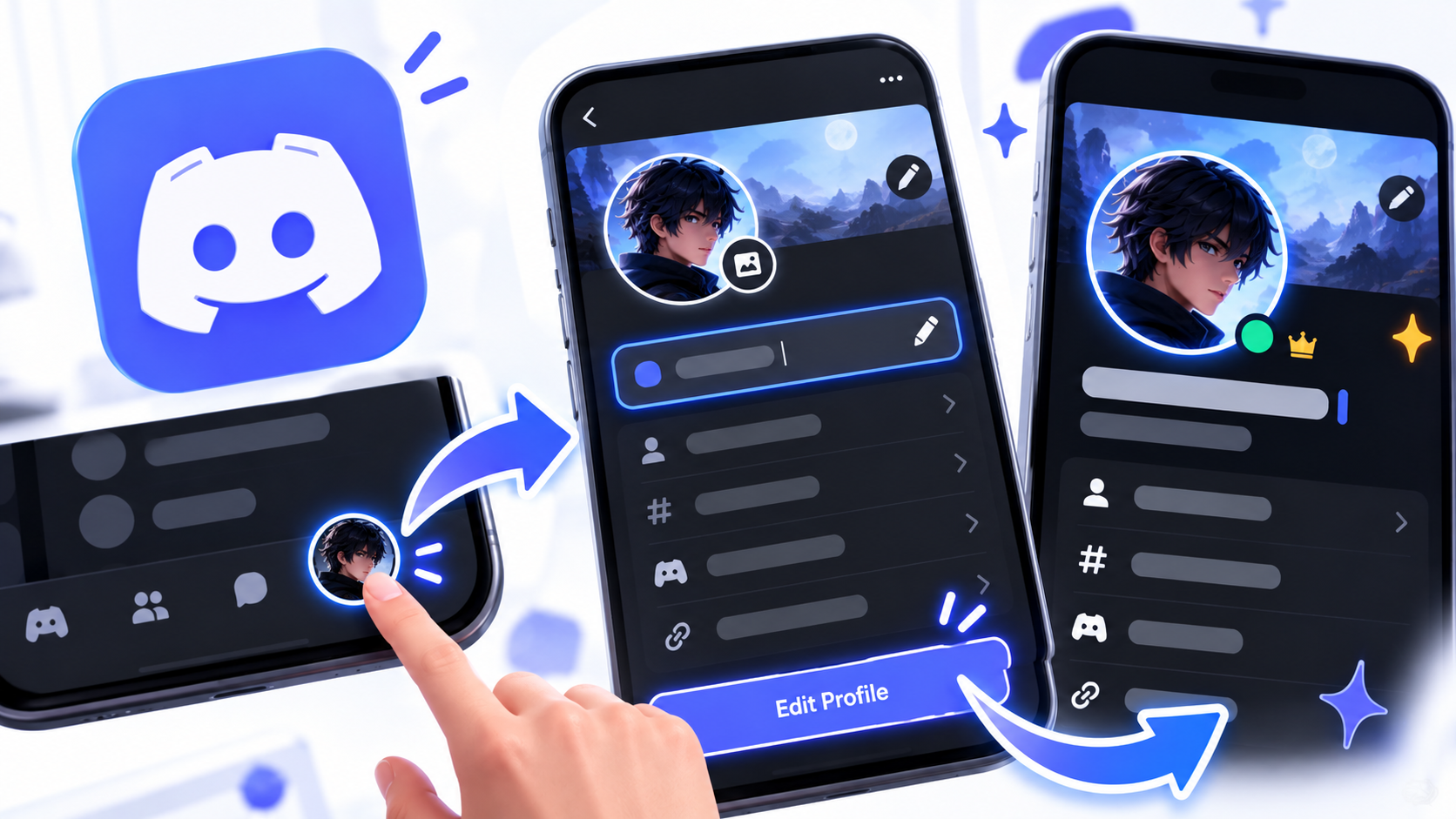
Discord’s Custom Profiles help article gives the mobile route in three steps. Tap your avatar in the bottom right corner, tap Edit Profile, then customize your display name, avatar and more.
Discord’s recent mobile design calls that bottom right spot the You bar or You tab. Either way, it is the same avatar button.
The key fact: the editor is one screen with everything on it, so you never have to hunt through menus.
🎮 How It Works
Open the app, swipe right if you need to reach the server list, and look at the bottom bar. Your avatar sits in the bottom right corner.
Tap it to open your profile page, then tap the big Edit Profile button. Every change you make there needs a Save, so do not leave the screen before confirming.
🧭 Navigation: Main Story → How It Works → Why It Matters → Key Details → Deeper Breakdown → Comparison → Creator Note → What Happens Next
📱 Edit flow: 👤 Tap your avatar → ✏️ Tap Edit Profile → 🖼️ Change avatar or name → 👀 Preview → 💾 Save
🧠 Why It Matters
Your profile is the first thing people see in a server. A clear avatar and a name that fits your style make you easier to recognize.
The editor also keeps growing. In its September 25, 2026 changelog, Discord raised the profile bio limit from 190 to 300 characters.

⚠️ Important: Several options need Nitro, including GIF avatars, banners, profile theme colors and per server profiles. Free users can still change their avatar and fill in their details.
⚡ Key Details
| Detail | Information |
|---|---|
| Where to start | Avatar in the bottom right, then Edit Profile |
| Change avatar | Tap Change Avatar or your current avatar |
| Avatar file types | PNG and GIF, per Discord’s article |
| GIF avatar | Nitro only |
| Banner | Nitro only, PNG, JPG or GIF under 10MB |
| Banner size | At least 680×240 pixels |
| Theme colors | Nitro only |
| Save | Required after every change |
🔍 Deeper Breakdown
Change Your Avatar
Open Edit Profile and tap Change Avatar, or tap your current avatar. Pick an image from your phone, crop it, then tap Apply and Save.
Discord’s article lists PNG and GIF as the supported types. Nitro members can also choose an animated GIF.
Customize Your Display Name
The same screen lets you change your display name. Discord’s article simply says to customize your display name and avatar after tapping Edit Profile.
Nitro members get extra style options. Under Display Name Style, tap Font, Effect or Color, as described in Discord’s Display Name Styles FAQ.
On mobile, those styles appear without animation. They may also look slightly different in chat lists, member lists and profiles.
💡 Note: To turn display name styles off on mobile, tap the You bar, then the cogwheel to open Settings, per the same FAQ.
Add a Bio, Pronouns and a Banner
The About Me section holds your bio. It supports markdown, links and emojis, and Nitro members can use custom emojis.
Discord’s help article still listed a 190 character limit when we checked, but the September changelog says the limit is now 300. Trust the changelog and check the counter in the app.
Pronouns have their own field. Banners need Nitro, and Discord says they must be PNG, JPG or animated GIF files under 10MB, at least 680×240 pixels.
Add Frames, Effects and Decorations
Profile Frames can be applied on mobile. Per Discord’s Profile Frames FAQ, tap your avatar, tap Edit Profile, scroll to Profile Frame, and tap the field to open the Change Profile Frame menu.
Choose a frame, tap Apply, then tap Save in the upper right. The same article says you can reach the Shop by tapping your avatar and then the Shop icon.
Avatar decorations and profile effects follow a similar pattern, with Change Decoration and Change Effect options on the profile page. Purchased items are added to your collection.
Per Server Profiles
Nitro subscribers can set a different look in each server. Discord’s Per Server Profiles article says to tap your avatar, tap Edit Profile, then switch the profile slider to Per Server Profile.
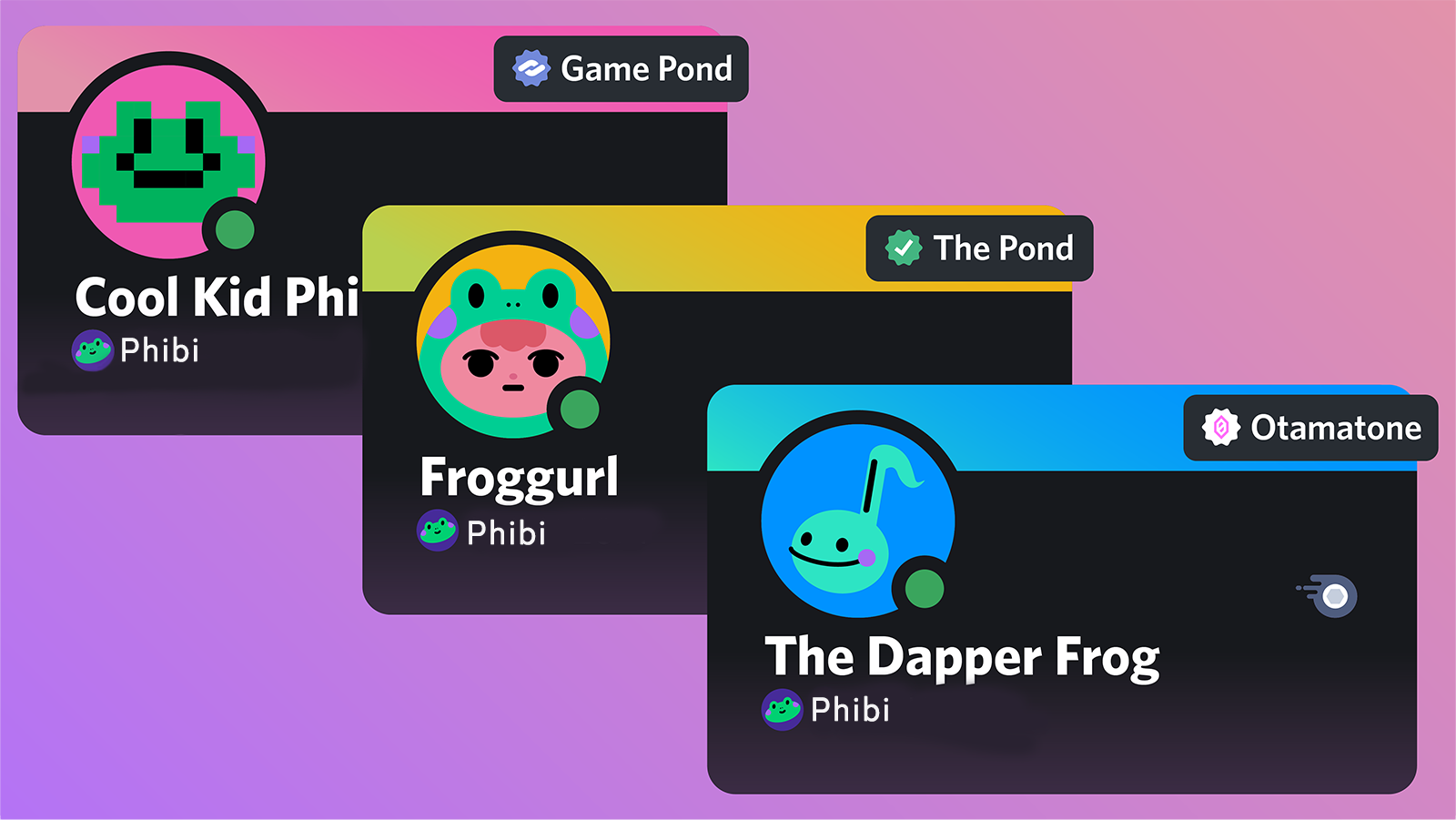
Pick the server from the dropdown, make your changes, and tap Save. You can also tap your avatar inside a server channel and choose Edit Per Server Profile from your mini profile card.
What We Know
- Confirmed: avatar then Edit Profile opens the editor, and Discord’s help pages describe the steps above.
- Reported: display name styles appear static on mobile and may look different across screens.
- Not confirmed: exact menu labels in your app version, since Discord updates its mobile design often.
What Could Happen Next
This section is speculation. Discord could keep adding profile options, since it has added frames, a bigger bio and privacy settings this year.
It could also merge more settings into the You bar. None of that has been announced.
📊 Quick Comparison
| Option | Free | Nitro |
|---|---|---|
| Change avatar | Yes | Yes |
| GIF avatar | No | Yes |
| Display name | Yes | Yes |
| Display name style | No, per Discord’s blog | Yes |
| Banner | No | Yes |
| Theme colors | No | Yes |
| Per server profiles | No | Yes |
💡 Creator Note
For streamers, server owners and anyone building a brand, your profile is part of the first impression. Here are a few ideas.
- Use the same avatar across platforms so fans recognize you.
- Keep your bio short and put the most useful link first.
- Test your avatar at small size, since it appears tiny in chat.
- Save and then preview your profile before you share it.
🚨 What Happens Next
- Watch the next changelog for new profile options.
- Watch for updates to the bio limit in Discord’s help pages.
- Watch your profile in different servers to see how it looks.
- Check Discord’s help center when a menu label changes.
Open the editor → Make your changes → Save → Check how it looks
Final Takeaway
The route is short, and the payoff is big. Two taps open an editor that covers your avatar, name, bio and more.
The only real catch is Nitro, which unlocks the flashiest options. The basics work for everyone, and a good avatar plus a clear name goes a long way.
The best profile is the one your friends recognize in half a second.
🔗 Sources
- Custom Profiles, Discord Help Center: Discord’s guide to the Edit Profile screen on mobile and desktop.
- Discord Display Name Styles FAQ: How to set and disable display name styles on mobile.
- Profile Frames FAQ: Steps for applying Profile Frames on mobile.
- Per Server Profiles, Discord Help Center: How to customize a different profile in each server.

Comments
Sign in to join the conversation
Sign inNo comments yet
Be the first to share your thoughts!