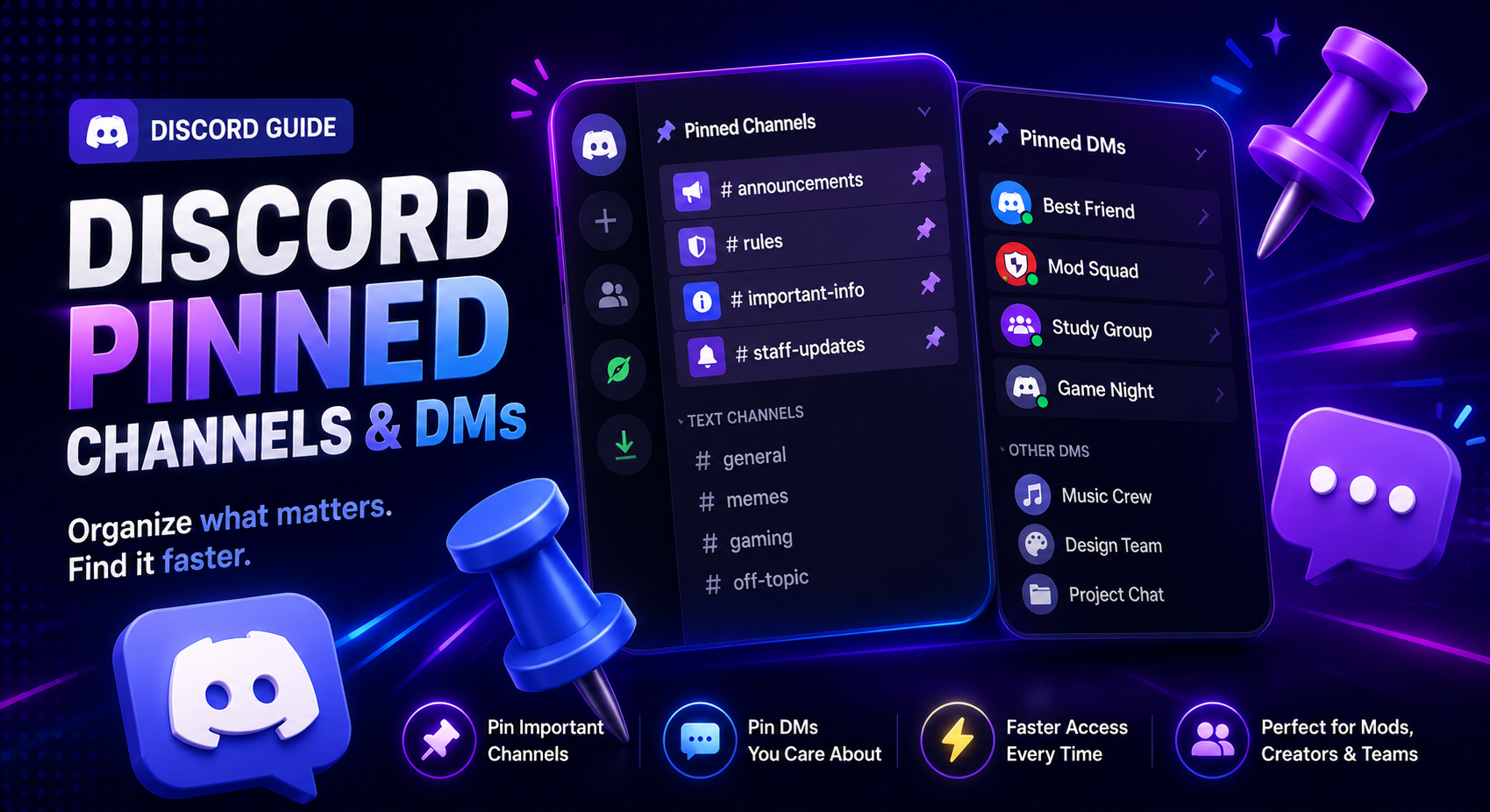

Discord Pinned Channels & DMs: How to Organize Your Servers and Chats
Have you ever spent several minutes searching for an important announcement channel in a large Discord server? Or perhaps your direct messages are constantly changing, causing important conversations to disappear down the list.
Discord has introduced two new organization features that solve this problem: Pinned Channels and Pinned DMs.
These features allow you to keep your most important channels and conversations easily accessible, making Discord much easier to navigate, especially for power users and server moderators.
Here's everything you need to know.
What Are Discord Pinned Channels and DMs?
Pinned Channels and Pinned DMs are personal organization tools that let you keep important conversations and channels at the top of your Discord interface.
These features allow you to:
- Quickly access important server channels.
- Keep favorite DMs and group chats within reach.
- Reduce clutter in large servers.
- Customize your Discord workspace.
The best part is that these changes only affect your own Discord layout and do not change anything for other users.
How to Pin Channels Inside a Server
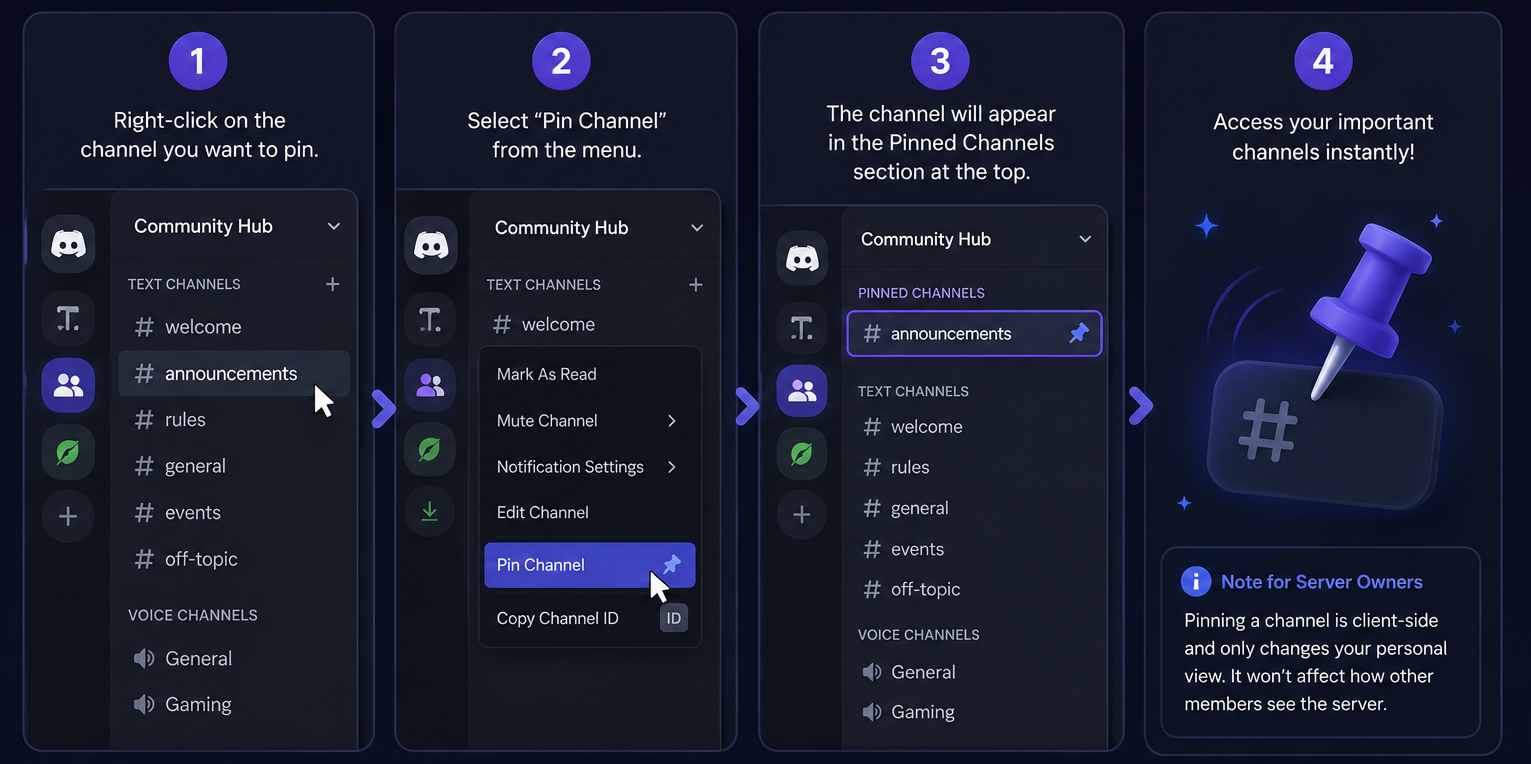
If you're part of large communities with dozens of channels, pinning channels can save a lot of time.
To Pin a Channel:
- Open the Discord server.
- Right-click the channel you want to pin.
- On mobile, long-press the channel instead.
- Select Pin Channel.
The channel will immediately appear inside a new Pinned Channels section at the top of your server.
Important Note
Pinned channels are completely personal. They do not rearrange the server for anyone else.
This means you can create your own custom workspace without affecting the server's organization.
How to Pin Direct Messages and Group DMs
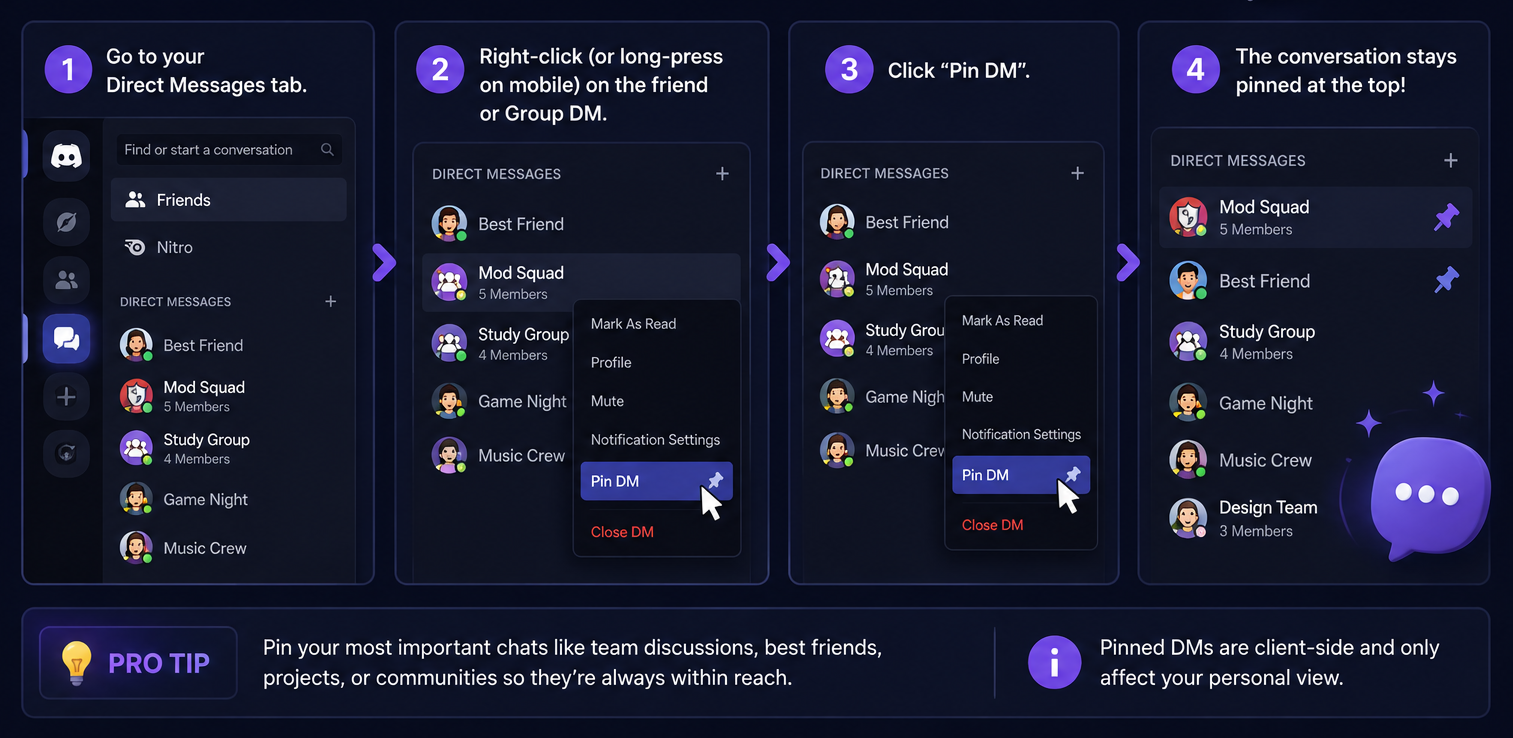
Discord also allows you to pin important conversations in your Direct Messages list.
To Pin a DM:
- Open your Direct Messages tab.
- Right-click the friend or Group DM.
- On mobile, long-press the conversation.
- Select Pin DM.
The conversation will remain at the top of your sidebar, even when other chats become active.
This is especially useful for:
- Best friends
- Team conversations
- Project discussions
- Gaming groups
- Community management chats
What Can You Pin?
| Feature | Supported |
|---|---|
| Text Channels | ✅ Yes |
| Announcement Channels | ✅ Yes |
| Voice Channels | ✅ Yes |
| Direct Messages | ✅ Yes |
| Group DMs | ✅ Yes |
Why These Features Matter
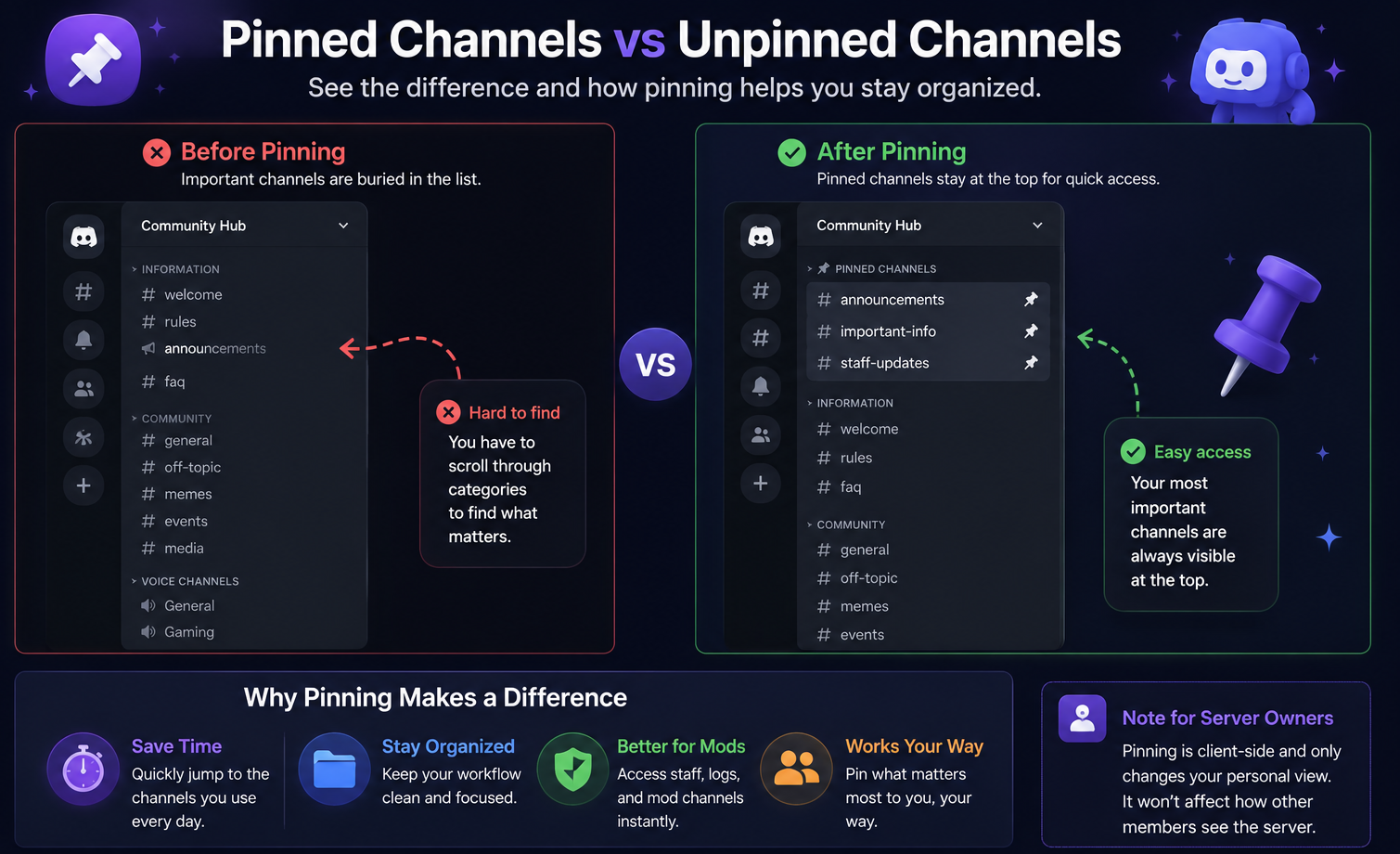
For moderators, creators, and power users, these new features significantly improve productivity.
Instead of constantly searching for:
- Staff channels
- Moderation logs
- Event channels
- Project discussions
- Team chats
You can simply pin them and access them instantly.
The result is a cleaner and more organized Discord experience.
Is Pinning Channels and DMs Worth Using?
Absolutely.
Benefits include:
- Faster navigation
- Better organization
- Easier server management
- Cleaner Direct Messages list
- Personalized Discord layout
- Saves time in large communities
While these features do not add new social capabilities, they are some of the most useful quality of life improvements Discord has released recently.
Frequently Asked Questions
Can other users see my pinned channels?
No. Pinned channels are entirely personal and only affect your view of the server.
Can I pin Group DMs?
Yes. Both individual DMs and Group DMs can be pinned.
Can I remove a pinned channel?
Yes. Simply right-click the channel again and choose Unpin Channel.
Does pinning change the server layout for everyone?
No. It only changes your personal Discord interface.
Are pinned DMs available on mobile?
Yes. The feature works on both desktop and mobile versions of Discord.
Final Thoughts
Discord's new Pinned Channels and Pinned DMs features make navigating servers and conversations much easier. Whether you're managing a large community, moderating multiple servers, or simply keeping up with friends, these tools help you stay organized and save time. If you regularly use Discord every day, pinning your important channels and conversations is one of the easiest ways to improve your experience.
Sources
- Discord Desktop Client
- Discord Mobile App
- Official Discord Release Notes
- Discord Support Documentation


