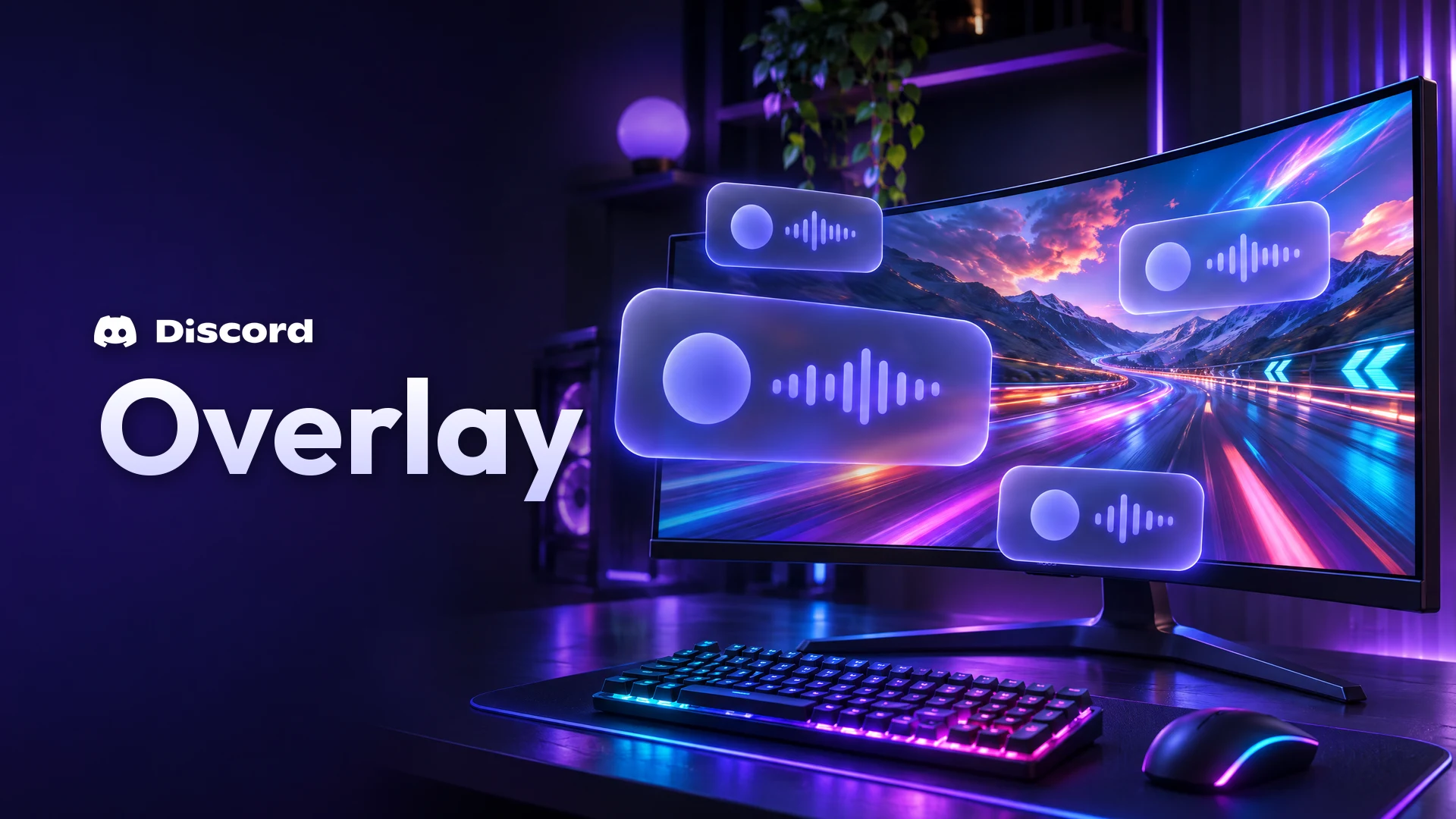

Alt-tabbing out of a match to read one message is how rounds get lost. The Discord overlay fixes that by putting your voice chat, new messages and friends' streams right on top of your game.
Discord rebuilt the overlay in 2025, so a lot of older advice no longer applies. This guide covers what the Discord overlay does now, how to turn it on, the keybind, what you can show or hide, and what to try when it refuses to appear.
At a glance - Platform: Windows 10 and 11 desktop app only (no Mac, Linux or mobile) - Turn on: User Settings > Game Overlay - Default keybind: Shift + ` (backtick) - Shows: voice users, messages, calls, video, streams and notifications - Works in: windowed and borderless fullscreen, not true fullscreen
🎮 What the Discord Overlay Does
The overlay is a layer of Discord that sits over your game. Since the March 2025 update, it's made of separate widgets you can move around, instead of a mini copy of the whole Discord app.
With it you can:
- See who's in your voice channel and who's talking
- Read new DMs, group messages and server messages
- Answer or decline incoming calls
- Watch a friend's stream without leaving your game
- Use voice and video controls, start a stream and use the Soundboard from the action bar

The rebuilt overlay, with widgets and the new action bar. Image: Discord.
Discord says the new version no longer hooks into the game's window the way the old one did, which helps performance and works with far more games.
⚙️ How to Turn On the Discord Overlay
- Open the Discord desktop app on Windows.
- Click the cogwheel next to your username to open User Settings.
- Select Game Overlay.
- Switch on Enable in-game overlay.
A check mark means it's on. An X means it's off. On the revamped overlay, Discord says it's enabled by default for all games, so you may find it's already on.
The Game Overlay page in User Settings. Image: Discord.
⌨️ The Overlay Keybind
Press Shift + ` (the backtick key, usually under Esc) while a game is running to open the overlay and interact with it.
To change it, go to User Settings > Keybinds and add a keybind. Discord offers two overlay actions:
- Toggle Overlay: shows or hides the overlay in game.
- Toggle Overlay Lock: locks or unlocks the overlay so you can click it.
You can also answer calls with your keybind, or hover over the incoming call and choose Join Call or Decline.
🧩 Choose What the Overlay Shows
Voice widget
Under User Settings > Game Overlay, you can tune the voice display:
| Setting | Options |
|---|---|
| Display Users | Always, Only While Speaking |
| Display Names | Always, Only While Speaking, Never |
| Avatar Size | Large, Small |
A preview on the right of the Overlay Voice Widget section shows how it will look before you jump in.
Messages
Turn on Messages in the same settings page to see new DMs, group messages and server messages over your game. You can receive slash commands, stickers and GIFs, but you can't send them through the overlay.
Pin or hide widgets
- With a game running, press your overlay keybind.
- Click the pin icon on a widget to show or hide it in game.
A blurple pin means the widget stays visible. This works for Notifications, Voice, Video, Activity and Streams.
The pin icon keeps a widget on screen. Image: Discord.
🛠️ Discord Overlay Not Showing? Try This
Work through these in order:
- Check your platform. The overlay only works in the Windows 10 and 11 desktop app.
- Switch display mode. Set the game to windowed or borderless fullscreen. The new overlay doesn't work in true fullscreen.
- Click into the game. The overlay hides when the game window isn't in focus.
- Check mutes and Streamer Mode. Messages won't show from a muted server, DM or group, or while Streamer Mode is on.
- Need true fullscreen? Turn on Enable legacy overlay in User Settings > Game Overlay. Discord says this option may be removed in the future.
- Keybind does nothing? Games that run with elevated permissions can block Discord keybinds. Discord is testing an optional Discord System Helper for some Windows users that fixes this.
Screen sharing tip: sharing just the game window won't capture the overlay, but sharing your full screen will.
Lag or crashes? Discord recommends turning the overlay off for that specific game. Its help centre doesn't currently list the exact steps for doing that per game on the new overlay, so if you can't find a per-game option, switch the overlay off globally while you play that title. If a game keeps crashing, Discord asks you to send a support ticket with the overlay hook log.
🚀 Get More From Gaming on Discord
The overlay works well alongside other gaming features. Our Discord Game Mode explainer covers how Discord can ease off your PC while you play, and the Discord streaming guide helps if you go live on Twitch, YouTube or Kick. Setting up a home for your squad? Start with how to set up a gaming Discord server.
Frequently Asked Questions
Does the Discord overlay work on Mac or mobile?
No. Discord says the overlay is compatible with Windows 10 and 11 only.
What is the Discord overlay keybind?
The default is Shift + `. You can change it under User Settings > Keybinds with Toggle Overlay and Toggle Overlay Lock.
Why can't I see the Discord overlay in fullscreen?
The revamped overlay doesn't work in true fullscreen. Use borderless fullscreen, or turn on Enable legacy overlay.
Will people see the overlay when I screen share?
Not if you share only the game window. Sharing your full screen does capture it.
Can I send GIFs from the overlay?
No. You can receive GIFs, stickers and slash commands, but you can't send them through the overlay.
🎮 The Bottom Line
The Discord overlay is now lighter, modular and on by default for most players. Turn it on, learn Shift + `, pin the widgets you need and switch games to borderless fullscreen.
If it still won't show, the legacy overlay toggle is your backup for now. Which widgets do you keep pinned while you play?
Comments
Sign in to join the conversation
Sign inNo comments yet
Be the first to share your thoughts!