
Ever lost a Valorant gunfight because your game suddenly stuttered? In a competitive shooter, even a small FPS drop can make aiming feel inconsistent.
Valorant is already designed to run on a wide range of PCs, but the wrong graphics settings can still waste performance. If you want higher FPS, lower input latency, and a smoother experience, changing a few settings can make a noticeable difference.
This Valorant FPS guide covers the settings worth changing in 2026, whether you're playing on an older gaming laptop or a powerful desktop.
Note
Higher FPS does not automatically make you a better Valorant player. However, stable frame rates and consistent input can make aiming and movement feel significantly smoother.
Why FPS Matters in Valorant
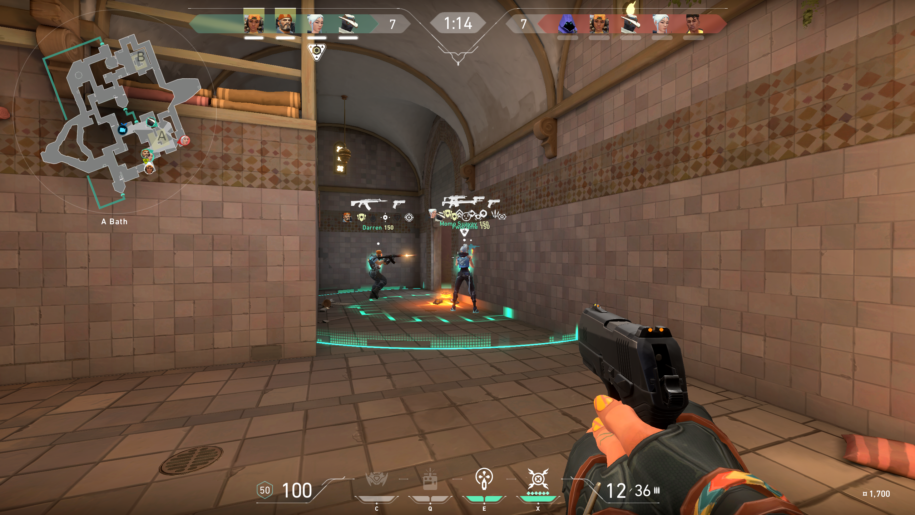
Valorant is a competitive tactical shooter where reaction time and precision matter.
A stable 144 FPS on a 144Hz monitor can feel considerably better than inconsistent performance that constantly jumps between 80 and 160 FPS.
The goal isn't simply to achieve the highest possible number.
Consistency matters.
If your PC can maintain 200 FPS without major fluctuations, that's generally more useful than briefly reaching 300 FPS and dropping to 100 during intense fights.
Best Valorant Graphics Settings for Maximum FPS
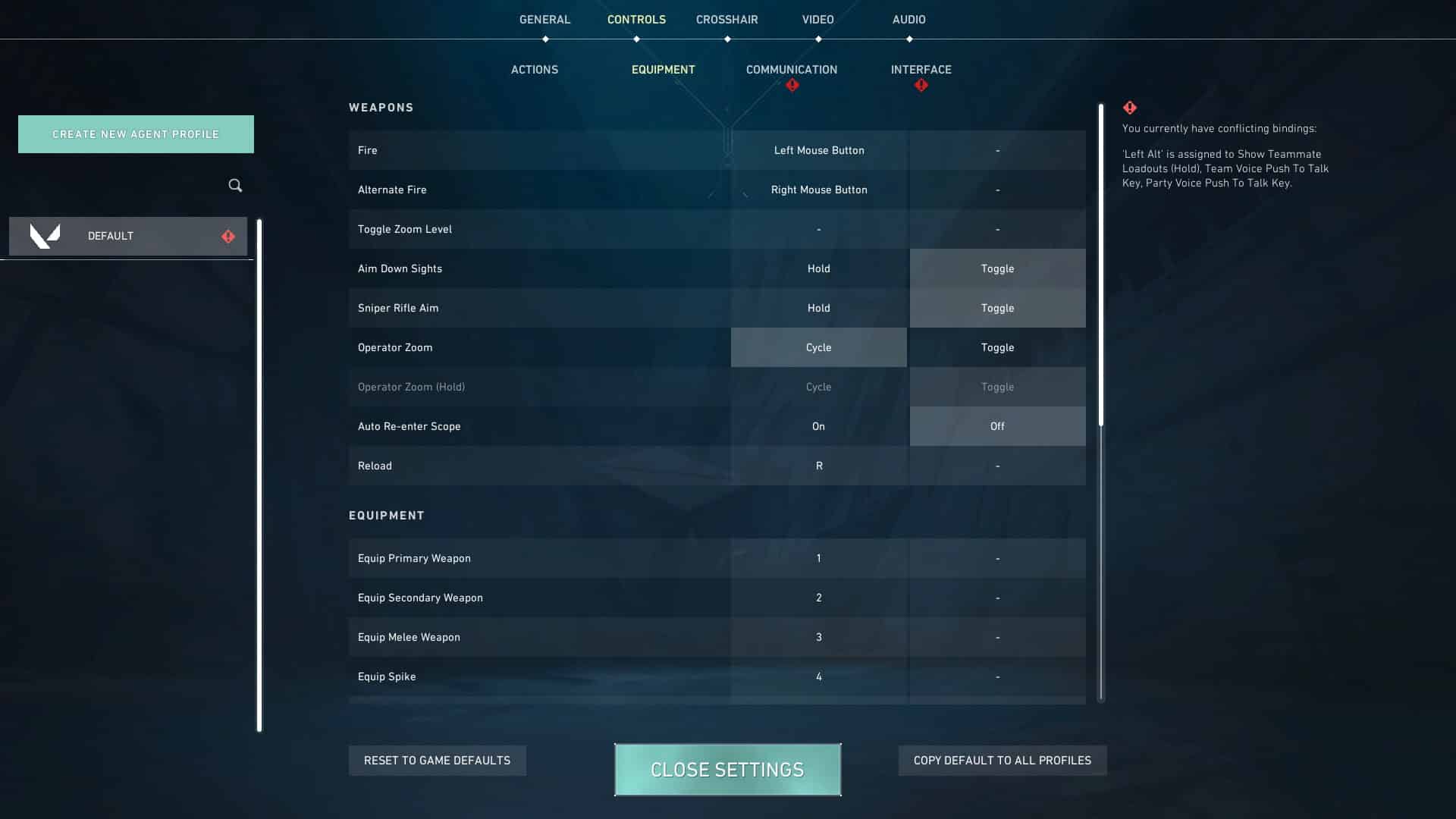
Start by opening Settings → Video → General and then move to your graphics-quality settings.
Here are the settings worth prioritizing:
| Setting | Recommended for FPS |
|---|---|
| Display Mode | Fullscreen |
| Resolution | Native resolution |
| Material Quality | Low |
| Texture Quality | Low |
| Detail Quality | Low |
| UI Quality | Low |
| Vignette | Off |
| VSync | Off |
| Anti-Aliasing | None or MSAA 2x |
| Anisotropic Filtering | 1x–2x |
| Improve Clarity | Off |
| Experimental Sharpening | Off |
| Bloom | Off |
| Distortion | Off |
| Cast Shadows | Off |
These settings reduce unnecessary visual effects while keeping the game responsive.
Fullscreen vs Windowed
For competitive play, Fullscreen is usually the safest choice.
It can help minimize distractions and may provide more consistent performance than running the game in a window, depending on your Windows configuration and hardware.
VSync
Set VSync to Off if your priority is competitive performance and low input latency.
VSync synchronizes your frame rate with your monitor's refresh rate, but it can introduce additional latency.
Tip
If you experience visible screen tearing and care more about image smoothness than minimum latency, experiment with your monitor's adaptive-sync features instead of immediately turning VSync back on
Turn Down the Settings That Actually Cost FPS
Not every graphics setting has the same impact.
If you're struggling with performance, start with Material Quality, Texture Quality, Detail Quality, and UI Quality.
You can then disable effects such as:
- Bloom
- Distortion
- Vignette
- Cast Shadows
- Experimental Sharpening
The goal is to remove effects that add visual complexity without providing a meaningful competitive advantage.
Don't Automatically Lower Your Resolution
Lowering resolution can increase FPS, but it shouldn't necessarily be your first move.
If your PC already runs Valorant comfortably at your monitor's native resolution, keeping that resolution can provide a sharper image.
Lower resolution becomes useful when you're dealing with serious GPU limitations.
For example, dropping from 1440p to 1080p can substantially reduce the number of pixels your GPU has to render.
Warning
Don't sacrifice image clarity for FPS if your system is already delivering a stable frame rate. A blurry image can make spotting enemies harder.
Multithreaded Rendering
If your PC supports it, Multithreaded Rendering should generally be enabled.
This allows Valorant to distribute certain rendering tasks across multiple CPU threads.
On systems with modern multi-core processors, this can improve performance and help maintain higher frame rates.
If you're using an older PC, test both options and compare your actual performance.
Limit Your FPS Properly
Valorant lets you control several FPS limits.
You can configure limits for:
- FPS on battery
- FPS in menus
- FPS in background
- FPS always
If you're using a laptop, limiting FPS while the game is in the background or sitting in menus can reduce unnecessary power consumption.
For gameplay, however, avoid setting the limit unnecessarily low.
A good approach is to choose a frame-rate target your PC can maintain consistently.
For example, if your system frequently fluctuates between 180 and 240 FPS, locking it around a stable level can sometimes produce a smoother experience.
Check Your Monitor's Refresh Rate
Getting 200 FPS doesn't help much if Windows has your 60Hz monitor configured incorrectly.
Go to your Windows display settings and make sure your monitor is running at its highest supported refresh rate.
For example:
- 60Hz → up to 60 refreshes per second
- 120Hz → up to 120 refreshes per second
- 144Hz → up to 144 refreshes per second
- 165Hz → up to 165 refreshes per second
- 240Hz → up to 240 refreshes per second
A high-refresh-rate display can make fast movements and aiming feel more responsive.
Update Your Graphics Drivers
Keeping your GPU drivers updated is another simple step.
Nvidia, AMD and Intel regularly release driver updates that can include game optimizations, bug fixes and stability improvements.
Don't assume that changing Valorant's graphics settings is the only way to improve performance.
Your operating system, graphics driver, background applications and hardware temperatures can all affect FPS.
Close Unnecessary Background Apps
Before starting a competitive session, close applications you don't need.
Browsers with dozens of tabs, recording software, launchers and other background programs can consume CPU, RAM or GPU resources.
Discord itself usually isn't a major problem on a modern PC, but hardware acceleration, overlays and other background features can contribute to resource usage on lower-end systems.
Tip: If you're troubleshooting FPS drops, temporarily disable overlays and unnecessary background applications. If performance improves, re-enable them one at a time to identify the culprit.
Laptop Players Have One More Problem
Gaming laptops can behave very differently depending on whether they're plugged into power.
Battery-saving modes can reduce CPU and GPU performance.
For competitive Valorant, play while connected to the charger and use your laptop manufacturer's performance mode when appropriate.
Also make sure your laptop isn't overheating.
When temperatures become too high, hardware can reduce its clock speeds to control heat, causing performance drops.
How to Find Your Perfect Valorant FPS Settings
Don't copy a professional player's settings blindly.
Your hardware is different.
Instead, change one setting at a time and monitor your FPS.
A simple process is:
- Record your average FPS.
- Play a busy Deathmatch.
- Watch for FPS drops during fights.
- Lower expensive settings.
- Test again.
- Choose the settings that provide stable performance.
Valorant's built-in performance statistics can help you identify whether your problem is related to FPS, frame time, CPU performance or network conditions.
The Best Valorant FPS Setup in 2026
For most competitive players, the ideal setup is surprisingly simple.
Use Fullscreen, keep VSync off, enable Multithreaded Rendering, reduce unnecessary visual effects, and use a resolution your PC can handle consistently.
Most importantly, don't obsess over the biggest FPS number.
Stable FPS is more important than an impressive FPS screenshot.
A consistent 180 FPS can be more useful than a system bouncing between 250 FPS and 90 FPS.
FAQs
What is the best Valorant setting for higher FPS?
Start with Material Quality, Texture Quality, Detail Quality and UI Quality. Set them to Low and disable unnecessary effects such as Bloom, Distortion and Vignette.
Should VSync be on or off in Valorant?
For competitive gaming, VSync is generally better left off because minimizing input latency is a priority.
Should I play Valorant at low graphics?
If maximum FPS and competitive visibility are your priorities, low settings are a good starting point. However, you can increase some settings if your PC has plenty of performance headroom.
Does lowering resolution increase Valorant FPS?
Yes. Lowering resolution reduces the number of pixels your GPU needs to render, which can improve performance when the GPU is the limiting factor.
How much FPS do I need for Valorant?
There is no single requirement. A stable frame rate that matches or comfortably exceeds your monitor's refresh rate is a sensible target. Higher-refresh-rate displays benefit from higher consistent FPS.
Why does my Valorant FPS keep dropping?
Common causes include background applications, overheating, outdated drivers, CPU or GPU limitations, power-saving modes and poorly optimized settings.
Note
If your FPS is already stable and high, don't change every setting just because a guide recommends it. The best Valorant setup is the one that gives you consistent performance, clear visuals and comfortable input.
Bottom line: You don't need an expensive gaming PC to get smooth Valorant performance. Start with the right graphics settings, keep your drivers updated, monitor temperatures, and prioritize stable FPS and low latency over unnecessary visual effects.
](/_next/image?url=https%3A%2F%2Fcdn.mos.cms.futurecdn.net%2FeexQizhxGdny87wQtfrswd-1920-80.jpg&w=3840&q=75)