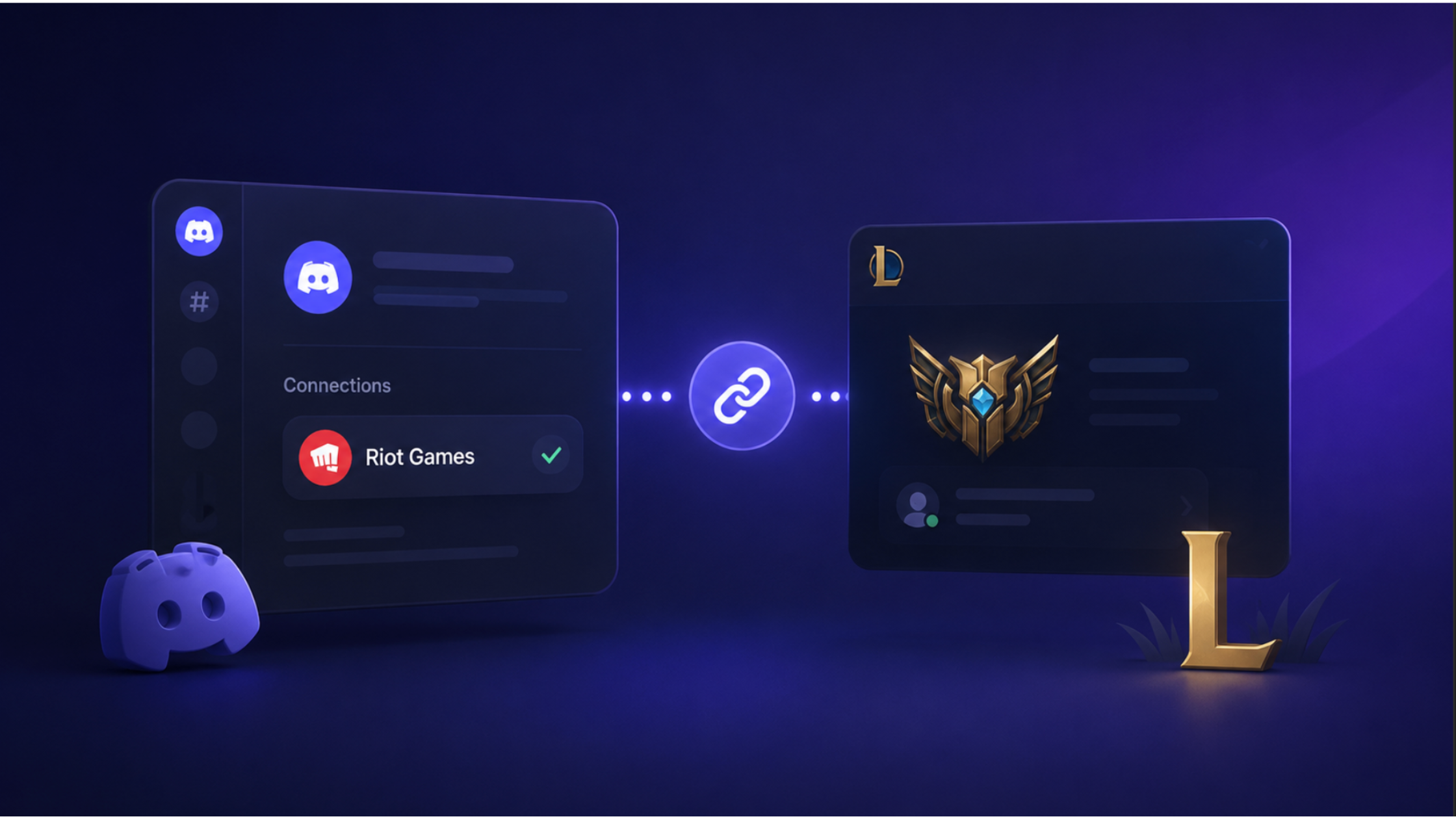

How to Link Your Discord Account to League of Legends (Step-by-Step)
Linking your Riot Games account to Discord takes about two minutes and unlocks your League of Legends rank, VALORANT rank, and live game status right on your Discord profile. Here's exactly how to do it.
What You'll Need
- A Discord account (desktop app or browser)
- A Riot Games account with at least one linked game (LoL, VALORANT, TFT, etc.)
- Both accounts must use the same email, or you just need your Riot credentials ready
Step 1: Open User Settings in Discord
Click your profile picture in the bottom-left corner of Discord (next to your username). From the menu, click Settings (the gear icon).
Step 2: Go to Connections
In the left sidebar, scroll down and click Connections (under the User Settings section). This is where all your third-party account links live — Spotify, Steam, Twitch, and now Riot Games.
Step 3: Find Riot Games
On the Connections page you'll see a grid of platforms. Find the Riot Games icon (the stylised diamond logo). Click it.
Tip: If you don't see Riot Games, make sure your Discord app is up to date — this integration requires a recent version.
Step 4: Authenticate with Riot
A browser window will open taking you to Riot's login page. Sign in with your Riot username and password. If you have two-factor authentication enabled, complete that step as well.
Step 5: Authorise the Connection
After signing in, Riot will ask you to authorise Discord's access. You'll see a list of permissions — reading your account details, in-game status, and rank information. Click Authorise. You'll be redirected back to Discord automatically.
Step 6: Your Profile Is Updated
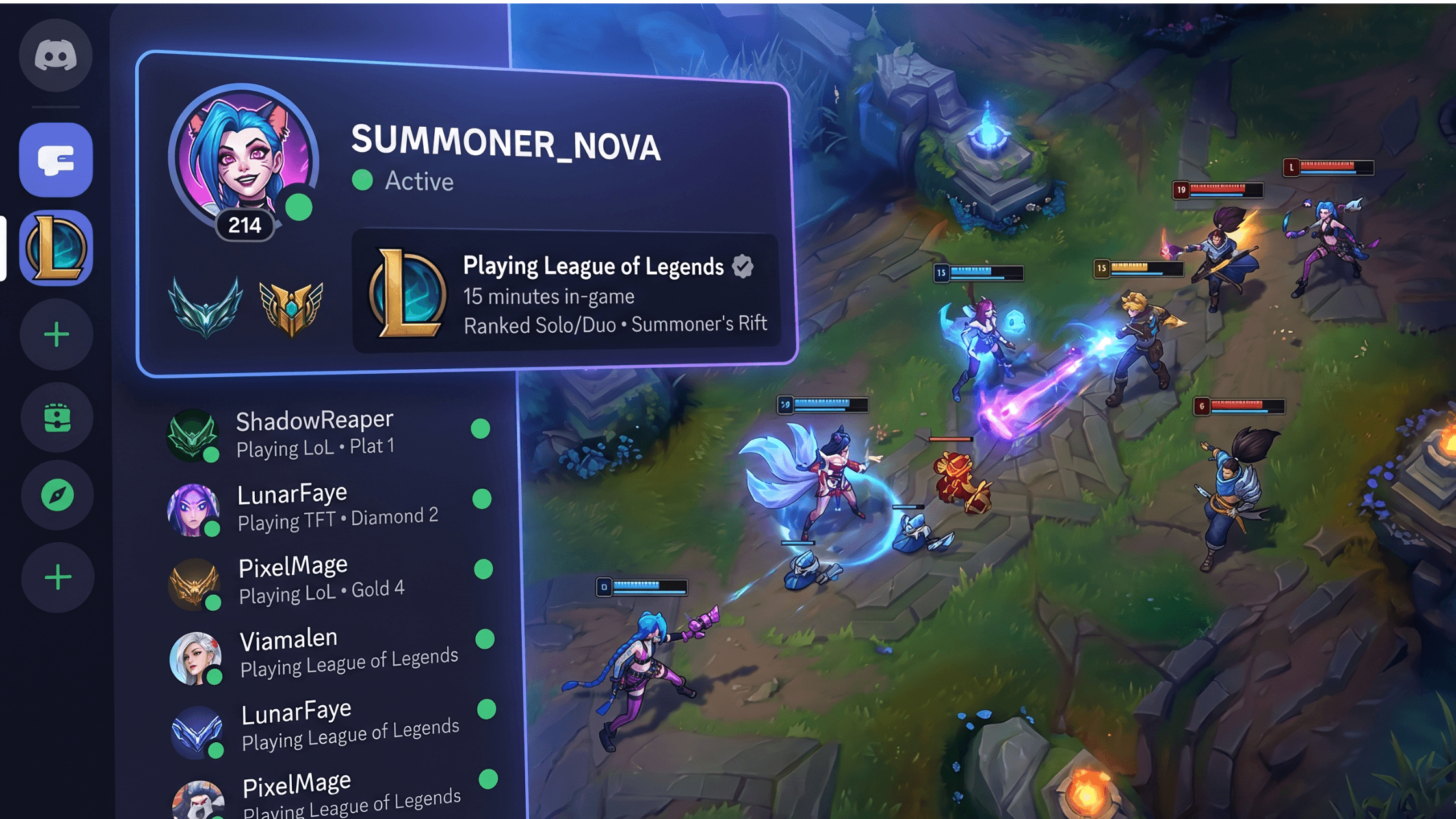
Back in Discord, under Connections, you'll now see your Riot account linked with your summoner name. Within a few minutes, your profile card will show your LoL rank (e.g. Platinum II — 75 LP), your VALORANT rank (e.g. Diamond 2), and live game status when you're in a match.
Controlling What's Visible
By default, your rank and connection are public. To change this, go to the Connections tab, find your Riot account, and toggle "Display on profile" on or off. You can also toggle "Show on Member List" for servers where you want your rank visible.
Troubleshooting Common Issues
My rank isn't showing: Wait up to 10 minutes after linking — the rank syncs on a slight delay. Make sure you've played at least one ranked game this season. Try unlinking and re-linking the account.
I see the wrong region's rank: Riot accounts can have multiple regions. Discord shows your primary region by default. Log into the Riot website and set your default region.
The Riot Games icon isn't in my Connections page: Update Discord to the latest version, or try Discord in a browser at discordapp.com.
"Account already linked to another Discord account": Each Riot account can only be linked to one Discord account at a time. Unlink from the other Discord account first, or contact Discord support.
What Comes After Linking
Once linked, explore these Discord features: server role assignment (many LoL servers auto-assign rank roles once you verify), Rich Presence in voice channels so friends see your champion and game status, and the activity feed showing your gaming activity in shared servers.
Ready to find LoL communities to join? Browse League of Legends Discord servers on discords.ai and show off that rank!

Comments
Sign in to join the conversation
Sign inNo comments yet
Be the first to share your thoughts!